การอัปเดตความปลอดภัย Android ของ Google เพิ่มการป้องกัน scam, Live Threat Detection และ Advanced Protection สิ่งเหล่านี้ปกป้องอุปกรณ์ แต่ไม่แทนที่ workflow ของทีม
ทีมต้องรู้ว่าโทรศัพท์เครื่องใดอยู่กับเคสใด หน้าจอใดบันทึกได้ ข้อมูลใดต้องปิดบัง และส่งต่อหลักฐานอย่างไร
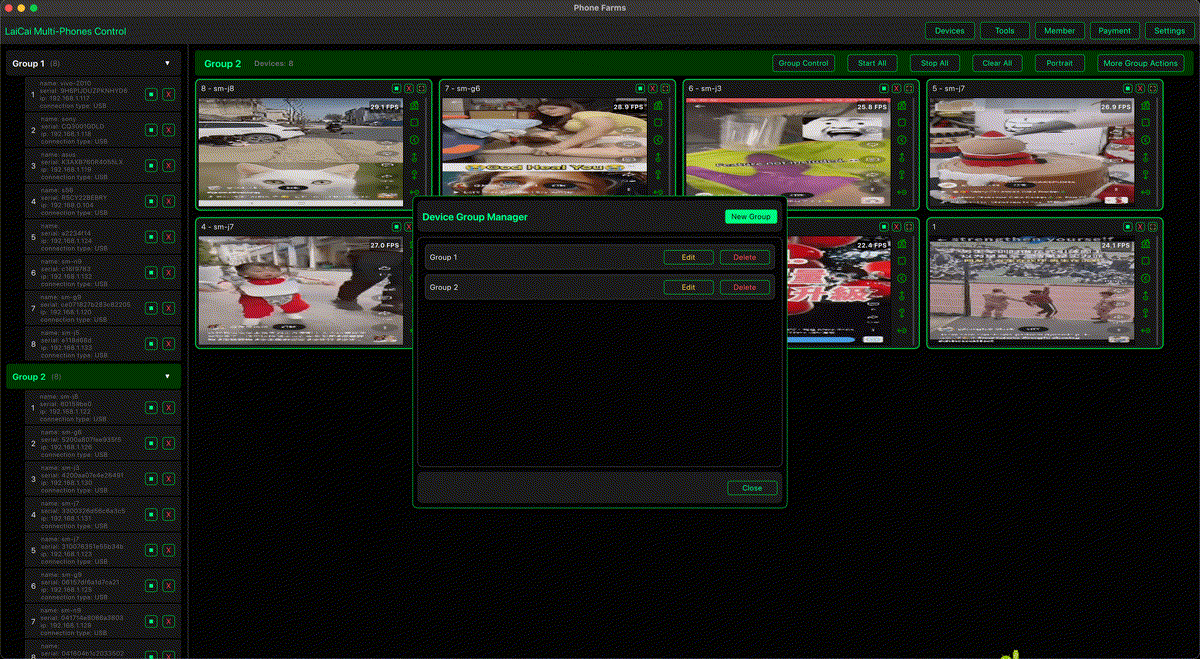
LaiCai Screen Mirroring helps teams view real Android phones on a PC or Mac, capture approved evidence, and keep device handoff clear without bypassing Android security.
Summary
LaiCai Screen Mirroring should be used as a workflow tool around Android security, not as a way to bypass it. A good support desk uses Android support screen mirroring workflow, device labels, permission rules, short recordings, and clear handoff notes.
Android scam protection
Google describes Android protections around scam calls, suspicious app behavior, Chrome app safety, and Advanced Protection. Fake call detection is designed to help users identify impersonation risks. Advanced Protection gives Android users a stronger security posture for higher-risk situations.
These features are valuable, but they are device-level protections. They do not automatically create a support SOP, a QA evidence policy, or a compliant multi-phone operation plan.
Team workflow gap
Teams need a repeatable process: assign a device, confirm the app and account, define what can be recorded, capture only the useful evidence, and pass the case to the next person without exposing private data. This is where control Android phones from a computer becomes useful.
For larger teams, multi-device Android control helps reduce device confusion. Operators can compare screens, name phones, record brief clips, and keep Android security features visible instead of handling every device blindly.
A practical support desk should treat Android security updates as a trigger to refresh its SOP. When fake-call or scam-related protections become more visible, operators need clearer rules for what to do when a phone warns about suspicious behavior. The right response is not to ignore the warning, disable protection, or record everything. The right response is to pause, mark the device state, capture only the allowed evidence, and escalate the case according to the team policy.
The same principle applies to Advanced Protection. It is designed for stronger security and privacy. If a test phone has Advanced Protection enabled, the team should record that state in the case notes. If a QA task requires testing with stronger protections enabled, that should be part of the test matrix. If a normal support task does not require changing security settings, the operator should leave them alone.
This is where many teams make a process mistake. They buy more phones, add more cables, and open more apps, but they do not define a safe evidence model. Without that model, the phone desk becomes noisy: screenshots are stored in the wrong folder, recordings contain private data, case ownership is unclear, and the next teammate cannot tell whether a warning came from Android, the app, the network, or the user account.
A safer model has three layers. First, Android provides device-level protection. Second, the company defines permission and evidence rules. Third, LaiCai Screen Mirroring provides a visible operating desk for allowed real-phone work. Keeping those layers separate makes the workflow easier to audit and easier to explain to new staff.
Support desk workflow
- Label each work phone before the shift starts.
- Keep Android scam protection and security settings enabled unless the QA case requires a documented exception.
- Use remote Android troubleshooting when a teammate needs to reproduce or explain the issue.
- Capture approved screenshots or short recordings only after confirming the support purpose.
- Write a handoff note with device name, app version, Android version, network type, and next action.
Examples
Customer support: A support team can use customer support teams managing multiple Android phones to reproduce an app issue on a real phone, capture a permitted screen, and avoid saving private chat content.
E-commerce: Teams can review product pages, order status, return flows, and chat-adjacent screens through e-commerce Android screen mirroring workflows while keeping payment and personal data out of recordings.
QA: Android security updates can change permission prompts, app-install behavior, sharing, notifications, and suspicious app warnings. QA teams should test those flows on real devices and record only the screen evidence needed for the bug report.
Multi-device operations: If the team runs a legitimate device desk, connect this article with phone farm software for compliant workflows and keep every example focused on support, QA, e-commerce, training, device testing, or repair workflows.
What to Put in the Support Desk SOP
The SOP should name the device categories the team uses: support phones, QA phones, store-operation phones, training phones, and temporary test phones. Each category should have different rules. A training phone can usually use test data. A customer support phone may touch real cases and therefore needs stricter privacy controls. A QA phone may install debug builds, but a store-operation phone should stay close to a normal user environment.
For each category, define what operators can capture. For example, support may capture an error state, order status, app version page, permission prompt, and reproduction steps. It should not capture full chat histories, payment screens, personal identifiers, authentication codes, or unrelated apps. QA may capture more technical details, but it should still avoid real customer data. Training material should use fake accounts or sanitized screens whenever possible.
The SOP should also define retention. A short support clip may only be useful until the ticket is closed. A QA reproduction clip may need to stay with the bug report. A training clip can be reused longer, but only if it contains no private data. These differences matter because screen mirroring makes evidence easy to capture; easy capture should not become careless storage.
How to Handle Scam Warnings During a Workflow
If an Android phone shows a scam warning, suspicious app warning, unsafe action warning, or another security prompt during a support task, the operator should not rush through it. The safe path is to stop, note the app and action, capture a permitted screenshot if policy allows, and escalate to the responsible support, security, or QA owner.
If the warning appears during QA, the tester should record device model, Android version, app version, install source, account type, network type, and exact steps. If the warning appears during customer support, the operator should avoid exposing the customer's private data in the evidence. If the warning appears during e-commerce operations, the team should confirm whether the phone is a work device, whether the app source is trusted, and whether the account has the right permissions.
Security checklist
- Keep Android security features enabled unless there is a documented test reason.
- Use work phones or test phones for support workflows.
- Label devices before each shift or case handoff.
- Record only approved screens and short clips.
- Avoid private chats, codes, payment details, and personal identifiers.
- Separate support evidence, QA evidence, training clips, and marketing material.
- Do not use multi-device tools for spam, fake engagement, account abuse, or platform-rule evasion.
Decision Table
| Situation | Recommended action | What LaiCai helps with |
|---|---|---|
| Customer reports an app error | Reproduce on a work phone and record a short approved clip | Screen visibility, control, screenshot, recording |
| Android shows a scam or suspicious behavior warning | Pause, document allowed evidence, and escalate | Visible evidence without handling the phone repeatedly |
| QA tests a new build after Android security updates | Run a real-device checklist across models and Android versions | Device grouping and repeatable evidence capture |
| E-commerce team checks order or product pages | Capture only allowed screens and avoid private data | Large-screen review and handoff records |
| Training team teaches safe phone handling | Use sanitized test accounts and reusable clips | Repeatable demonstrations from real Android devices |
Recommended links
Read next: RCS encryption support recording boundaries, Android Drop screen mirroring workflow, and control Android phones from a computer.
FAQ
Does LaiCai Screen Mirroring bypass Android scam protection?
No. It mirrors and controls the visible phone workflow when the operator is allowed to do so. It does not disable Google scam protection, fake call detection, Advanced Protection, or app security features.
Should a support desk record every customer screen?
No. Record only the approved workflow evidence. Avoid private messages, verification codes, payment details, personal identifiers, and unrelated apps.
Can this help after Android security updates?
Yes. Teams can retest app flows on real Android phones, document permitted screens, and update SOPs when Android security prompts or behavior change.
Official sources
Google Android security and privacy 2026; Google fake call detection on Android; Android Advanced Protection help; June 2026 Android Drop.