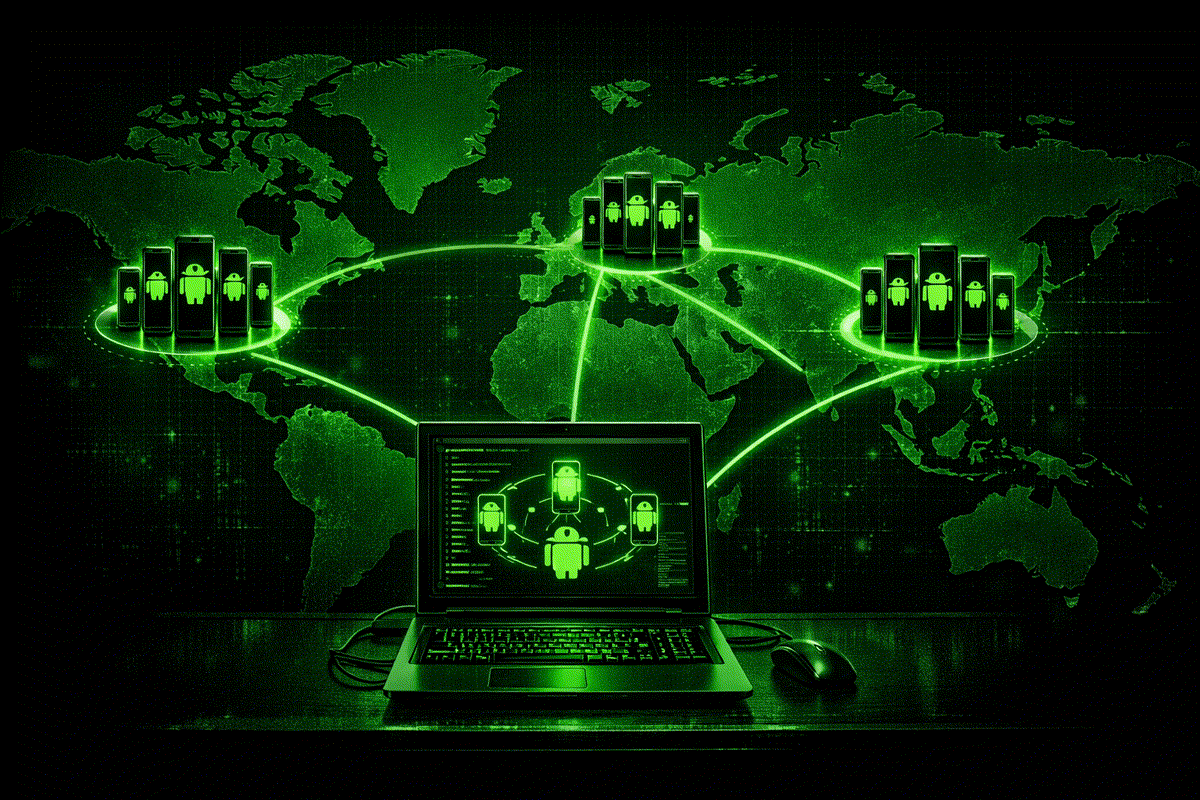
Android screen mirroring can feel very different depending on how the phone connects to the computer. USB is usually the best choice when you need low latency, stable control, and repeatable work. Wi-Fi is useful when the phone cannot stay next to the computer, when cables are inconvenient, or when a lighter monitoring setup is enough.
With LaiCai Screen Mirroring, the right choice depends on the job: gaming, app testing, customer support, e-commerce operations, or multi-device monitoring.
When USB Is the Better Choice
Use USB when stability matters more than convenience. A cable avoids many wireless problems: crowded networks, weak signal, router latency, and sudden bandwidth changes. For mobile games, real-device QA, screen recording, and keyboard or mouse control, USB is usually the safer default.
- Lower and more predictable latency.
- More stable control for mouse, keyboard, and key mapping.
- Better for long recording sessions and repeated test passes.
- Easier to diagnose because cable quality, USB port, and phone state are visible.
When Wi-Fi Makes Sense
Wi-Fi mirroring is useful when the phone needs to move, when the desk has too many cables, or when a team only needs to watch status screens. It can work well for support observation, order monitoring, lightweight app checks, and training demos.
The tradeoff is that Wi-Fi depends on the router, signal strength, interference, and other devices on the network. If the screen stutters, first check the network before changing LaiCai settings.
For Gaming
For PUBG Mobile, Free Fire, COD Mobile, Roblox, Mobile Legends, and similar games, start with USB. It keeps aiming, movement, taps, and custom key mapping more predictable. Wi-Fi can be acceptable for casual play or menu work, but competitive or timing-sensitive control should use a stable cable.
If you use keyboard mapping, keep the connection stable before fine-tuning keys. See the LaiCai key mapping guide after the connection is reliable.
For QA and E-commerce Teams
QA teams should use USB for reproducible test passes, bug recordings, and side-by-side device comparisons. E-commerce or support teams can mix both: USB for phones that need frequent control, Wi-Fi for devices that only need monitoring.
For a deeper testing workflow, read Android screen mirroring for mobile app testing.
Quality Settings Still Matter
Connection type is only one part of mirroring quality. Resolution, FPS, bitrate, phone performance, computer performance, game settings, and network load all matter. A weak computer can still stutter over USB, and a strong Wi-Fi network can still struggle if bitrate is too high.
For resolution, FPS, and bitrate combinations, see how to configure screen mirroring resolution and improve quality.
A Simple Decision Rule
- Use USB for gaming, key mapping, recording, QA, and anything timing-sensitive.
- Use Wi-Fi for flexible monitoring, demonstrations, and lighter workflows.
- Use lower quality settings when many phones are mirrored at once.
- Use powered USB hubs and good cables for multi-device desks.
Conclusion
USB and Wi-Fi are not enemies. They solve different problems. USB gives LaiCai users the most stable control path. Wi-Fi gives teams more flexibility. Start with the workflow, choose the connection, then tune resolution and FPS for the number of phones you actually need to run.