AI agents can explore mobile UIs, but Android QA still needs a visible screen layer, screenshots, logs, and human-reviewable Flow runs.
Why AI agents still need a visible mobile screen
AI agents have changed how teams think about software testing. A tester can describe a goal in natural language, ask an assistant to explore a path, generate a draft workflow, or summarize what happened after a run. Firebase App Distribution now documents an App Testing agent for AI-guided Android test execution, and the broader Android testing ecosystem continues to support behavior UI tests, UI Automator, physical devices, emulators, and device-streaming workflows. The trend is clear: mobile UI testing is becoming more agent-assisted.
That does not remove the need for a visible screen layer. In Android QA, the screen is still where the user experience happens. A button may be present in a hierarchy but visually covered. A permission dialog may interrupt the route. A localized string may wrap into another element. A loading skeleton may remain visible long after a network request technically succeeded. A visual agent, a scripted test, and a human reviewer all need reliable evidence of what was actually on the screen.
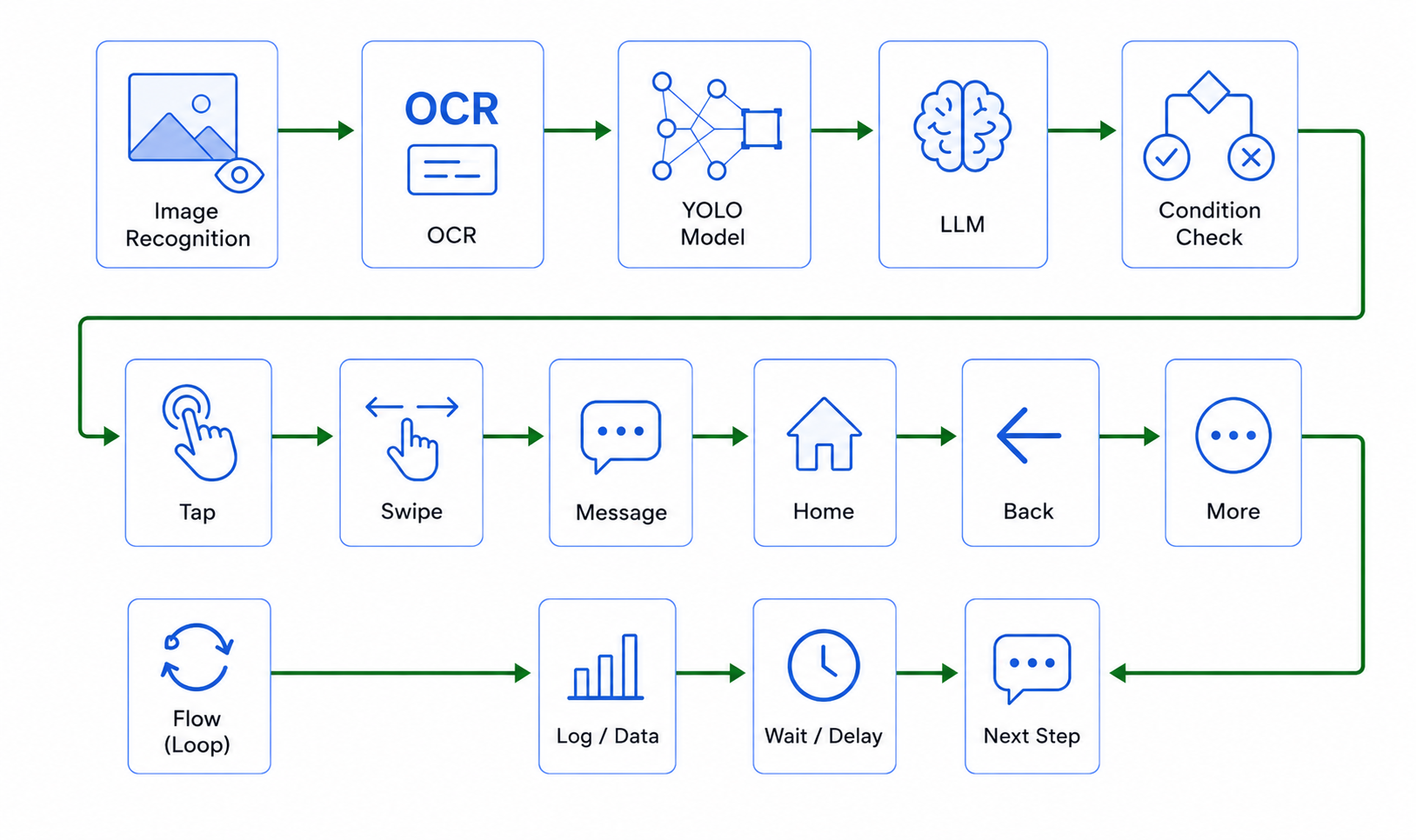
LaiCai Screen Mirroring positions LaiCai Flow in that practical gap. It helps teams use Android screen mirroring to PC and Mac, screenshots, OCR, logs, stop conditions, and graph-style Flow review so an AI-assisted mobile UI test is not just a hidden instruction stream. The run stays visible on a PC or Mac, and the result can be reviewed by a tester, support lead, product manager, or developer.
What AI agents are good at in Android QA
AI agents are useful for turning vague intent into a first draft. Instead of starting from a blank automation canvas, a QA engineer can describe the task: open the staging app, sign in with a test account, search for a sample item, verify that result cards appear, open the first result, save a screenshot, and stop before any destructive action. That prompt can become a checklist, a Flow draft, or a structured test note.
Agents are also helpful for summarization. After a run, an assistant can read step names, OCR output, screenshots, logs, and failure messages, then propose likely causes: the app did not load, the expected label changed, a permission dialog appeared, OCR could not read a low-contrast string, or the device-specific layout moved the target. This is especially useful when QA, support, and development teams share failures across time zones.
The right expectation is "assistant for test design and review," not "fully trusted release judge." Official Android guidance still separates test types, devices, UI behavior, and evidence. Appium, UI Automator, Firebase testing tools, and Android device workflows continue to exist because mobile apps have many layers. AI can speed up exploration, but QA still needs deterministic tests, representative devices, and evidence that a human can audit.
Why Android screen mirroring still matters
Android screen mirroring is not only a convenience feature for watching a phone on a bigger display. For mobile UI testing automation, it is the observation layer. When the Android screen is mirrored to the computer, a tester can see the same visible state that the Flow or agent is using. If a run fails, the reviewer can inspect screenshots and recordings instead of relying only on an "element not found" message.
That matters because many mobile failures are visual and contextual. A native selector may exist while the text is clipped. A button may be disabled but still in the hierarchy. A webview can render late. A device vendor can change permission wording. A tablet or foldable can move the navigation area. A real phone can run slower than an emulator. Mirroring keeps those conditions visible.
For LaiCai Flow, screen mirroring and automation are intentionally connected. The same workflow that a user can watch can also produce artifacts: screenshots, OCR checks, runtime logs, and stop-state evidence. That makes AI Android automation tool more reviewable than a black-box agent that simply reports success or failure.
A practical AI-assisted testing workflow
Start with a human-approved test goal. The goal should be narrow: verify a login path, search path, content publishing preview, localization screen, support reproduction, or checkout path in a safe staging environment. Write the goal as a checklist first. Include the start state, account type, target app, stop boundary, expected screen state, and evidence needed.
Next, let the AI assistant help convert that checklist into a Flow draft or test outline. The draft should specify visible checks, waits, screenshots, OCR targets, and failure boundaries. It should not guess package IDs, coordinates, template assets, OCR regions, or model classes without current device context. A responsible workflow starts from the selected device, current screen, available app state, and available assets.
Then run the Flow while the Android screen is mirrored. Watch the first runs manually. Tune wait times. Replace brittle visual assumptions with clearer checks. Add stop conditions before payment, destructive actions, private data, or unexpected permission prompts. After the run is stable, use it as a repeatable QA smoke check. If it fails, the mirrored screen, screenshot, OCR result, and log should explain where the route diverged.
Where LaiCai Flow fits with Appium, UI Automator, and Firebase
LaiCai Flow should not be described as a replacement for Appium, UI Automator, Espresso, Firebase Test Lab, or CI. Those tools remain important for structured automated testing, cloud/device matrices, instrumentation, selector-driven assertions, and release pipelines. The stronger positioning is complementary: Flow handles visible, repeatable, screen-first checks that teams still perform manually.
A mature team may keep unit tests and instrumentation tests in CI, Appium for established cross-platform UI automation, Firebase or Android Studio Device Streaming for device access, and LaiCai Flow for screen-visible workflows that benefit from PC/Mac mirroring, OCR, screenshots, and human review. This lets each layer do what it is best at instead of forcing one tool to solve every testing problem.
This distinction is important for SEO and user trust. People searching for "AI agents mobile testing" or "GUI agents Android" are often comparing new AI workflows with established testing tools. A credible article should explain the overlap, the limits, and the integration path. LaiCai Screen Mirroring is strongest when it keeps the mobile UI observable and turns repeated manual paths into safe, inspectable runs.
Device reality: emulators are useful, physical devices are still required
Emulators are excellent for early Flow design, quick resets, API-level checks, locale experiments, and repeatable smoke testing. A tester can tune waits and OCR checks faster on a stable virtual device than on a desk full of phones. For AI-assisted workflow generation, emulators are a practical first environment because the state is easier to reset and compare.
Physical Android devices are still required when the release question depends on hardware, vendor UI, performance, camera, media, notifications, screen size, touch response, thermal behavior, USB hubs, or real-user conditions. Android's own hardware-device documentation continues to emphasize testing on real devices before release. Device streaming and cloud device tools help with access, but the core point remains: real device behavior matters.
The practical workflow is not emulator versus device. It is emulator first for speed, selected devices second for confidence. Use Android screen mirroring for mobile app testing to keep both phases visible, and expand the device matrix only when each additional model answers a real QA question.
Safety boundaries for AI-assisted mobile testing
AI-assisted testing should stay inside authorized apps, test accounts, staging builds, and approved devices whenever possible. It should not be used to bypass platform rules, scrape private data, create fake engagement, send bulk messages, or hide prohibited automation. If a workflow touches production-like data, the team needs clear policy, logging, and review boundaries.
Stop conditions are part of the test design. Stop when the expected screen does not appear. Stop when a sensitive page appears. Stop before destructive actions unless the environment is explicitly safe. Stop when OCR cannot confirm the required state. Stop when a permission dialog or account warning changes the path. A good Flow does not improvise endlessly; it saves evidence and asks for review.
This is where the LaiCai Flow guide should become part of the team's working documentation. The Flow graph, node names, screenshot artifacts, and logs should be clear enough that another tester can understand the path without guessing what the AI intended.
Bottom line
AI agents can make mobile UI testing faster, but they do not remove the need for visible Android screen evidence. The screen still shows what the user experienced. The log still shows where the path diverged. Screenshots still make failures easier to review. Stop conditions still prevent unsafe or misleading runs.
LaiCai Screen Mirroring and LaiCai Flow help connect those pieces: mirror Android devices and emulators to a PC or Mac, generate or refine repeatable screen-first workflows, run them with screenshots and OCR, and keep the result human-reviewable. For teams exploring AI agents for mobile testing, that visible layer is not optional. It is the part that turns agent activity into QA evidence.
AI Android automation tool · Android screen mirroring to PC and Mac · LaiCai Flow guide · Android screen mirroring for mobile app testing.