Use LaiCai Flow to turn repeated Android QA smoke checks into visible, reviewable workflows with screenshots, OCR, logs, and stop conditions.
Why QA smoke tests need a visible automation layer
A good smoke test is small, repeatable, and honest about risk. It does not try to prove that an entire app is correct. It answers a narrower question after a build, release candidate, configuration change, or content update: can a user still open the app, reach the important screen, complete the core path, and see the expected result?
For Android teams, that path is often visual. A page loads after a delay. A permission dialog appears only on one device. A localized label wraps on a smaller screen. A confirmation state is visible, but not exposed through a convenient API. This is where LaiCai Screen Mirroring and AI Android automation tool fit a practical QA workflow. LaiCai Flow can repeat the visible steps, save screenshots, run OCR or image checks, keep logs, and stop when the screen no longer matches the expected state.
The result is a focused mobile automation testing layer for Android smoke test automation: narrow enough for daily release checks, visible enough for human review, and explicit enough to show where a failure happened.
This article is not arguing that visual AI workflows replace Espresso, UI Automator, Appium, unit tests, or CI. They are different layers. Code-level tests are essential for deterministic assertions and regression coverage. A Flow is useful when a team needs to repeat a short, screen-first smoke check across Android devices and emulators, then hand a human reviewer clear evidence instead of another vague bug report.
What counts as a smoke test in this workflow
A useful Android smoke test starts with a narrow route. For example: launch the app, dismiss onboarding in a test environment, open the home page, search for a sample item, open the detail screen, take a screenshot, verify that a target word appears, go back, and stop. Another smoke test might open Settings, change one option, return to the main workflow, and confirm that no blank page appears.
The key is restraint. If a Flow tries to cover every feature, it becomes difficult to debug. If it covers three to six screens that represent the most important user path, the result is easier to inspect and easier to run after every build. QA teams can keep one Flow for login, one for search, one for checkout in a staging app, one for localization layout checks, and one for support reproduction.
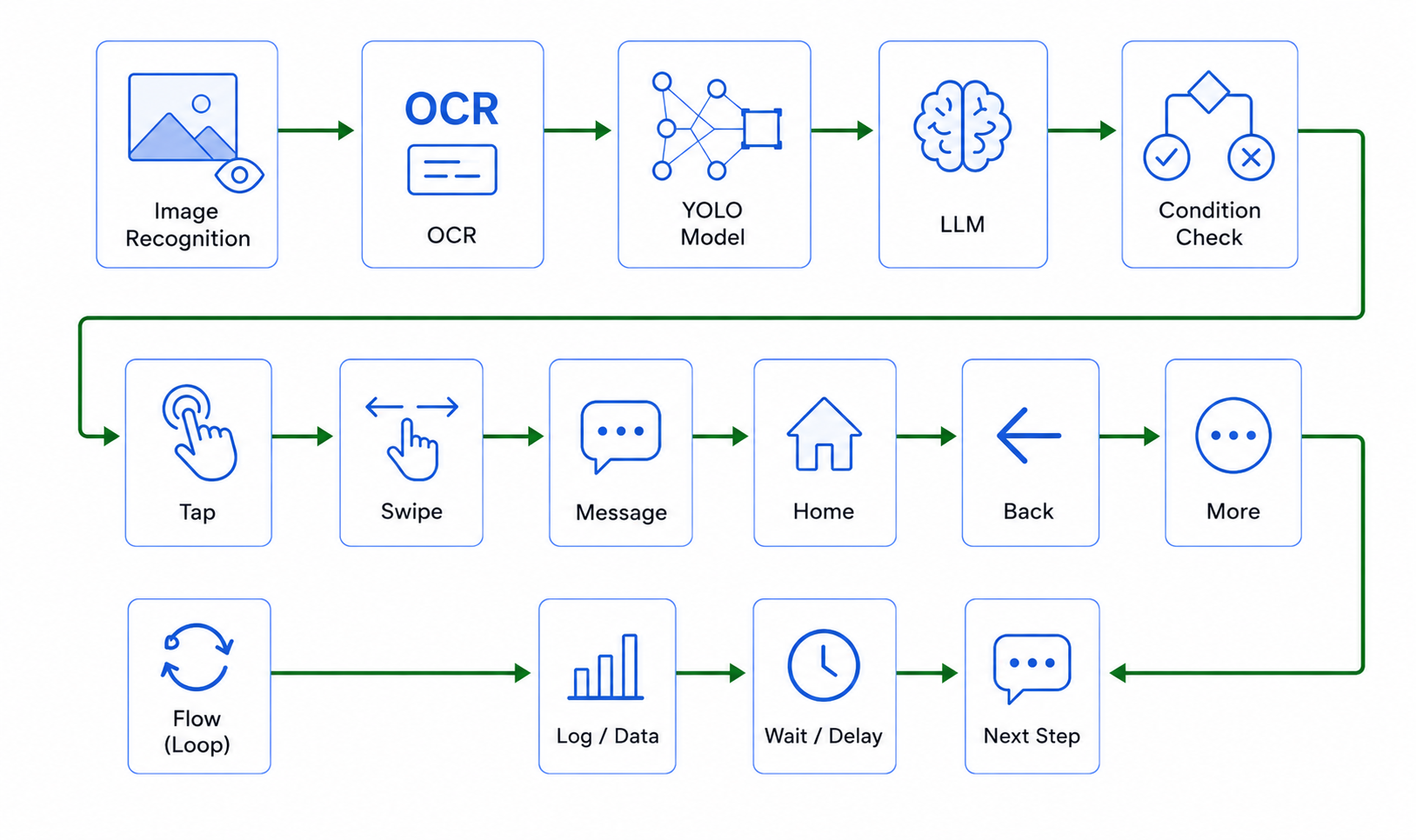
LaiCai Flow is designed around that kind of repeatable path: tap, swipe, type, wait, screenshot, OCR, condition check, log, branch, and stop. The LaiCai Flow guide explains how to create and debug flows; this article focuses on how QA teams should design the smoke-test layer.
How LaiCai Flow complements UI Automator, Appium, and Firebase testing
Android's official UI Automator documentation focuses on interacting with visible UI elements and device state, and Android's screenshot testing guidance treats screenshots as useful evidence for verifying UI. Appium provides a broader open-source automation ecosystem across mobile and other platforms. Firebase's App Testing agent shows the same broader market direction: natural-language test goals, AI-guided navigation, test artifacts, and device execution, while also documenting preview limitations and action limits.
Those references are useful because they keep the positioning grounded. LaiCai Flow should not promise magic or perfect AI. Its role is narrower: a visible workflow layer for teams that already use LaiCai Screen Mirroring to view and control Android screens from a PC or Mac. Instead of replacing a test framework, it helps teams turn manual smoke checks into repeatable, inspectable actions.
A common setup is mixed. Developers keep unit tests, instrumentation tests, and API checks in CI. QA keeps Appium or UI Automator where the team already has stable selectors and test infrastructure. LaiCai Flow handles the short visual routines that still happen manually: open a screen, wait for a state, capture a screenshot, check text with OCR, and stop when the visible UI is wrong.
A practical Flow design for Android QA smoke tests
Start by writing the smoke check as a short human checklist before you build the Flow. The checklist might say: open the app, wait for the home page, tap Search, type "wireless keyboard", wait for results, take a screenshot, check that product cards appear, open the first card, take another screenshot, verify that the title and price area are visible, then stop.
That checklist becomes Flow nodes. Launch or focus the app. Wait for a known screen. Tap the search field. Type the query. Tap submit or press Enter. Wait for a result state. Save a screenshot. Run OCR or visual recognition. If the expected text or area appears, continue. If it does not appear after a timeout, stop and log the failure. The stop condition is not a decoration; it is what prevents a broken test from clicking through the wrong screen and producing misleading evidence.
For better debugging, name each major step in the log: "home loaded", "search submitted", "results visible", "detail page opened", "final screenshot saved". When a QA lead reviews a failure, they should be able to tell whether the issue was loading time, an OCR miss, a missing button, a changed layout, a permission dialog, or a real app defect.
Screenshots, OCR, and stop conditions
Screenshots are the audit trail. A failed smoke test without a screenshot often turns into another reproduction request. A failed smoke test with a screenshot, timestamp, device label, emulator label, and step log gives a developer or product owner something concrete to inspect.
OCR is helpful when the UI state is visible but not easy to access through selectors. It can check whether a confirmation message, order status, language label, error text, or search result appears on the screen. It should still be treated as a signal, not an infallible truth. Fonts, contrast, animation, partial loading, and language differences can affect recognition. That is why a good Flow combines OCR with waits, screenshots, and stop conditions.
Stop conditions are the quality gate. If the expected screen does not appear, the Flow should stop, save evidence, and ask for review. If a sensitive page appears, the Flow should stop or require manual confirmation. If a test account enters a production-like state, the Flow should stop before making destructive changes. The safest automation is not the one that clicks fastest; it is the one that knows when it should stop.
Android devices and emulators: use both deliberately
Emulators are valuable for speed, resetability, and repeatable build checks. They are often the fastest place to debug a Flow draft, tune waits, and confirm that the core route still works. Physical Android devices matter when a test depends on vendor UI, device performance, camera behavior, sensors, notifications, permissions, screen size, or real hardware conditions.
That is why the preferred wording is Android devices and emulators. A QA team can design the first Flow on an emulator, then run the same idea on selected Android devices for release confidence. For teams already using Android screen mirroring to PC and Mac, LaiCai keeps the screen visible while the Flow runs, so failures can be inspected without guessing what happened in the background.
Device coverage should stay practical. Start with one stable emulator profile and two or three representative devices. Add more only when the smoke test is reliable and the additional device tells you something useful. A noisy test matrix can hide problems instead of revealing them.
Where this helps QA, support, and product teams
For QA teams, the first win is release confidence. A short Flow can run after a build and quickly answer whether the core path still opens, loads, and renders. The second win is consistency. Different testers no longer click slightly different paths or forget a screenshot. The Flow creates the same evidence each time.
For customer support, Flow can standardize reproduction steps. A support engineer can open the affected app version, run a checklist-style Flow, capture the same screens, and hand the evidence to QA or engineering. This works well with the existing Android screen mirroring for mobile app testing because the screen remains visible on the computer for review and recording.
For product and localization teams, visual smoke checks can catch blank states, text overflow, wrong language strings, broken search pages, or missing confirmation screens. The goal is not to automate user activity at scale. The goal is to test authorized apps, test accounts, staging builds, support cases, and internal workflows with less repetitive clicking and clearer evidence.
What not to automate
A QA Flow should stay inside authorized environments and approved accounts. Do not use it to bypass platform rules, generate artificial engagement, send bulk messages, or act on accounts you do not control. Do not record private customer data unless your team has a clear policy and a reason. Do not hide automation from systems where automation is prohibited.
Also avoid pretending that visual automation is a full test strategy. A Flow can tell you that a screen looked correct at a specific time on a specific device or emulator. It does not prove backend correctness, data integrity, security, accessibility, or every edge case. Treat it as a fast smoke layer that produces evidence, not as the only release gate.
This boundary makes the workflow more credible. Teams can use LaiCai Flow for repeatable, visible Android checks while keeping deeper assertions in their existing engineering test stack.
A starter checklist for your first QA Flow
Choose one high-value path that a human already repeats. Keep it under ten minutes. Use a test account and a non-destructive environment where possible. Define the expected screen state before building nodes. Add one screenshot after every major state change. Add OCR or visual checks only where they answer a real question. Add stop conditions for missing screens, timeouts, sensitive pages, and unexpected dialogs.
After the first run, review the evidence like a bug report. Can another teammate understand what happened from screenshots and logs? Are the waits too short? Is the OCR target too vague? Does the Flow stop clearly when the state is wrong? If not, improve the Flow before expanding to more devices.
Once the first smoke test is stable, connect it to the right product surfaces: use AI Android automation tool for the automation capability, LaiCai Flow guide for setup, Android screen mirroring to PC and Mac for screen visibility, and Android screen mirroring for mobile app testing for a broader app-testing workflow.
Bottom line
AI Android automation for QA is most useful when it is specific. LaiCai Flow should not be described as a replacement for testing. It is a practical way to repeat visible Android smoke checks, capture screenshots, run OCR or visual checks, keep logs, and stop safely when the screen state is wrong.
That makes it useful for QA teams, app studios, support teams, localization reviewers, and device teams that already spend time clicking through the same Android paths. Start with one clear route, make the evidence readable, keep humans responsible for review, and use Android devices and emulators deliberately.