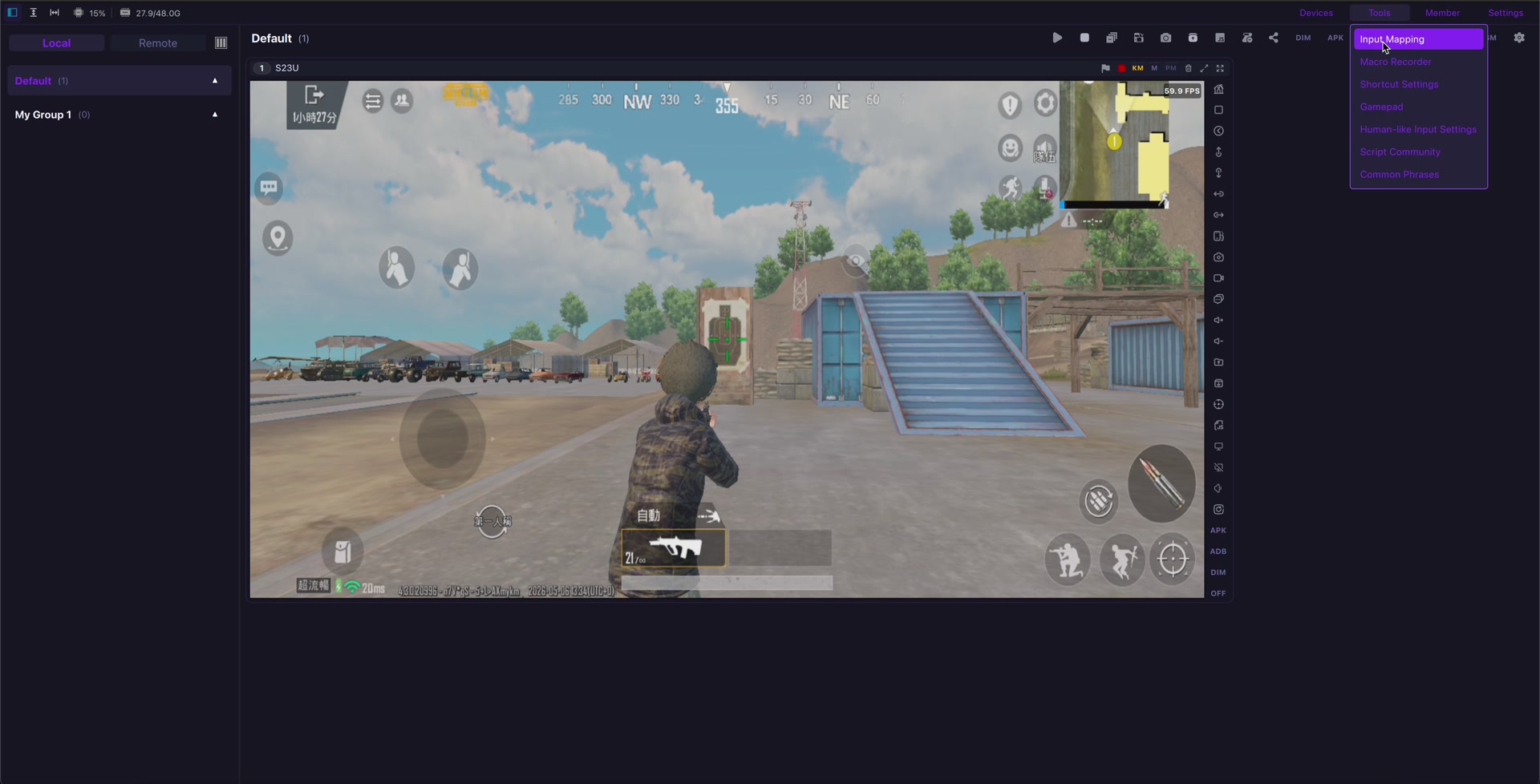
Android 16 is pushing Android closer to desktop-style workflows through connected displays and desktop windowing. Samsung DeX has already given many Galaxy users a mature desktop-like phone experience. LaiCai Screen Mirroring takes a different route: it keeps the phone as a real Android device while letting a Windows PC or Mac mirror, control, record, screenshot, and operate one or more phones.
These tools are not direct enemies. They are different answers to different questions. The useful SEO comparison is not “which one destroys the other,” but “which workflow fits your desk, device, game, app test, support case, or multi-phone setup?”
A Fair Comparison
Android 16 desktop mode is best understood as a native Android platform direction. When a compatible Android device is connected to an external display, apps can run in a more desktop-like, windowed environment. This is useful for productivity, larger screens, app compatibility testing, and developers who need to think about resizable layouts.
Android 16 Desktop Mode
Samsung DeX is Samsung’s desktop experience for selected Galaxy devices. It is strong when a Galaxy phone or tablet needs to become a desktop-like workspace with a monitor, keyboard, and mouse. For Samsung users who mainly want one device on one larger display, DeX can be a very practical option.
Samsung DeX
LaiCai Screen Mirroring is different. It is not trying to turn Android into a desktop operating system. It is built for PC/Mac-based real-phone control: mirrored screen, mouse and keyboard operation, drag-and-drop key mapping, screenshots, recording, and multi-device workflows. This is why it fits mobile gamers, QA teams, support desks, e-commerce operators, creators, and phone desk workflows.
LaiCai Screen Mirroring
If you want a native desktop-like Android workspace on one supported phone, Android 16 desktop mode or Samsung DeX may be enough. If you need to control a real Android phone from a computer, keep the phone visible in your PC/Mac workflow, record evidence, configure mobile game touch controls, or manage multiple real devices, LaiCai Screen Mirroring is the better workflow fit.
Which One Should You Use?
- Choose Android 16 desktop mode for native Android desktop-style app windows on supported devices.
- Choose Samsung DeX when a compatible Galaxy device should become a monitor-based workspace.
- Choose LaiCai Screen Mirroring when the task is PC/Mac control of real Android phones, game key mapping, recording, screenshots, or multi-device operation.
- For gaming, compare whether you need app windows or touch-control key mapping.
- For QA and support, compare whether you need a desktop workspace or repeatable evidence from real phones.
The practical limits matter. Android 16 desktop mode depends on device support, Android version, connected-display behavior, and app adaptation. Samsung DeX depends on compatible Samsung devices and the DeX environment. LaiCai Screen Mirroring depends on PC/Mac setup, USB or Wi-Fi quality, phone performance, and the permissions needed for legitimate screen control.
Important Limits
For more LaiCai context, read the Android 16 desktop mode vs screen mirroring workflow comparison, the LaiCai key mapping guide, and the guide to Android phone control on macOS.
References: Android Developers connected displays; Android Developers desktop windowing; Samsung DeX.