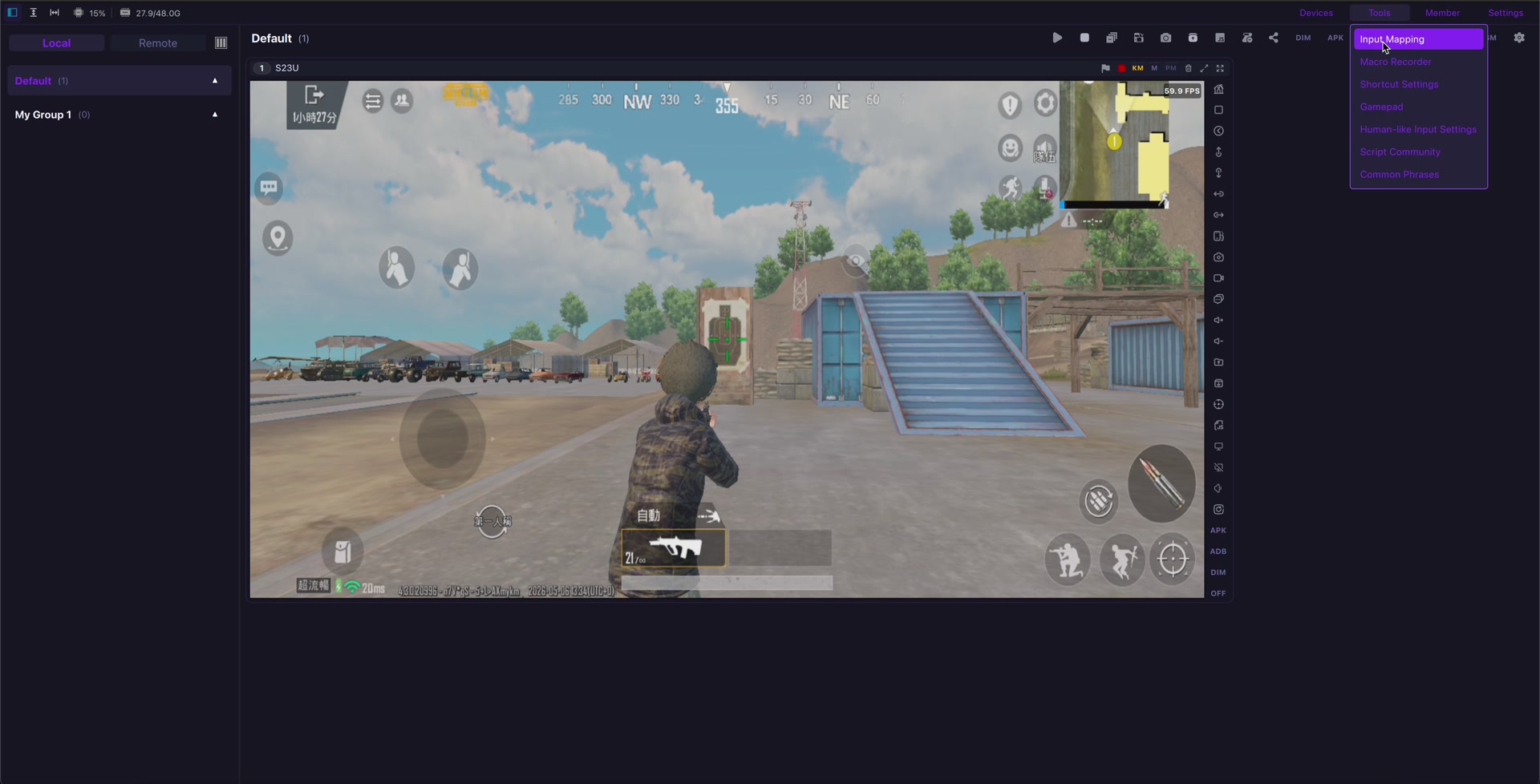
Android 16 has pushed more attention toward external displays, desktop-like windowing, keyboards, mice, and larger-screen Android workflows. The official Android documentation also asks developers to support desktop windowing and connected display behavior. That is useful progress, but it does not remove the need for LaiCai Screen Mirroring when the workflow starts from a PC or Mac.
The simple distinction is this: Android desktop mode helps one supported Android phone act more like a desktop on an external display. Android screen mirroring helps you view and control a real Android phone from your computer, with recording, screenshots, key mapping, and multi-device work when needed.
What Android 16 desktop mode is for
Android desktop mode and connected displays are aimed at larger-screen productivity. A supported phone can use an external monitor, keyboard, and mouse, while apps need to handle resizable windows, density changes, and desktop-style input. This is a good fit for writing, browsing, chat, documents, and single-device productivity.
What Android screen mirroring is for
Android screen mirroring and computer control keep the real phone as the app environment, while your PC or Mac becomes the control desk. That matters when you need to record a mobile game, create support evidence, test a real device, compare multiple phones, or use mouse and keyboard input without switching your whole workspace to an external monitor.
Workflow comparison
| Question | Android 16 desktop mode | LaiCai Screen Mirroring |
|---|---|---|
| Main screen | External monitor attached to one supported Android device | Android phone screen inside a PC or Mac workspace |
| Best fit | Single-device productivity and large-screen apps | Gaming, QA, support, e-commerce, creators, and device operations |
| Input | Keyboard and mouse for desktop-style Android apps | Computer mouse/keyboard plus optional game key mapping |
| Evidence | Usually needs separate capture workflow | Screen viewing, screenshots, and recording fit the computer workflow |
| Multiple phones | Not the main purpose | Built for real Android phone groups and repeated operations |
When Android 16 desktop mode may be enough
- You have one supported Android phone and one external display.
- You mostly work in productivity apps that resize well.
- You want a phone-first desk without managing several real phones.
- You do not need per-game touch key mapping or multi-device monitoring.
When LaiCai Screen Mirroring fits better
- You need to control Android from a Windows PC or Mac.
- You need screenshots, recordings, or repeatable QA/support records.
- You want to play PUBG Mobile, Free Fire, COD Mobile, Roblox, or Mobile Legends with custom keyboard mapping.
- You manage multiple real Android phones for testing, support, e-commerce, or phone farm software workflows.
For gamers: keyboard shortcuts are not key mapping
Desktop keyboard support is useful, but mobile games still depend on touch controls, camera movement, skill buttons, crouch, jump, reload, aim, and fire positions. That is why gamers need custom Android game key mapping, not only regular keyboard shortcuts.
For QA, support, and e-commerce teams
Teams often need a repeatable desk: connect phones, label devices, capture proof, record bugs, compare app behavior, and hand off work. For that, combine a stable connection such as the USB vs Wi-Fi Android screen mirroring workflow with real-device testing practices from Android screen mirroring for mobile app testing. For larger desks, see how to control multiple Android phones from one computer.
Bottom line
Android 16 desktop mode is a strong native direction for external-display productivity. LaiCai Screen Mirroring is the better fit when the center of work is your PC or Mac and you need real-phone control, game key mapping, recording, screenshots, or multiple Android devices.
Reference: Android Developers desktop windowing documentation.