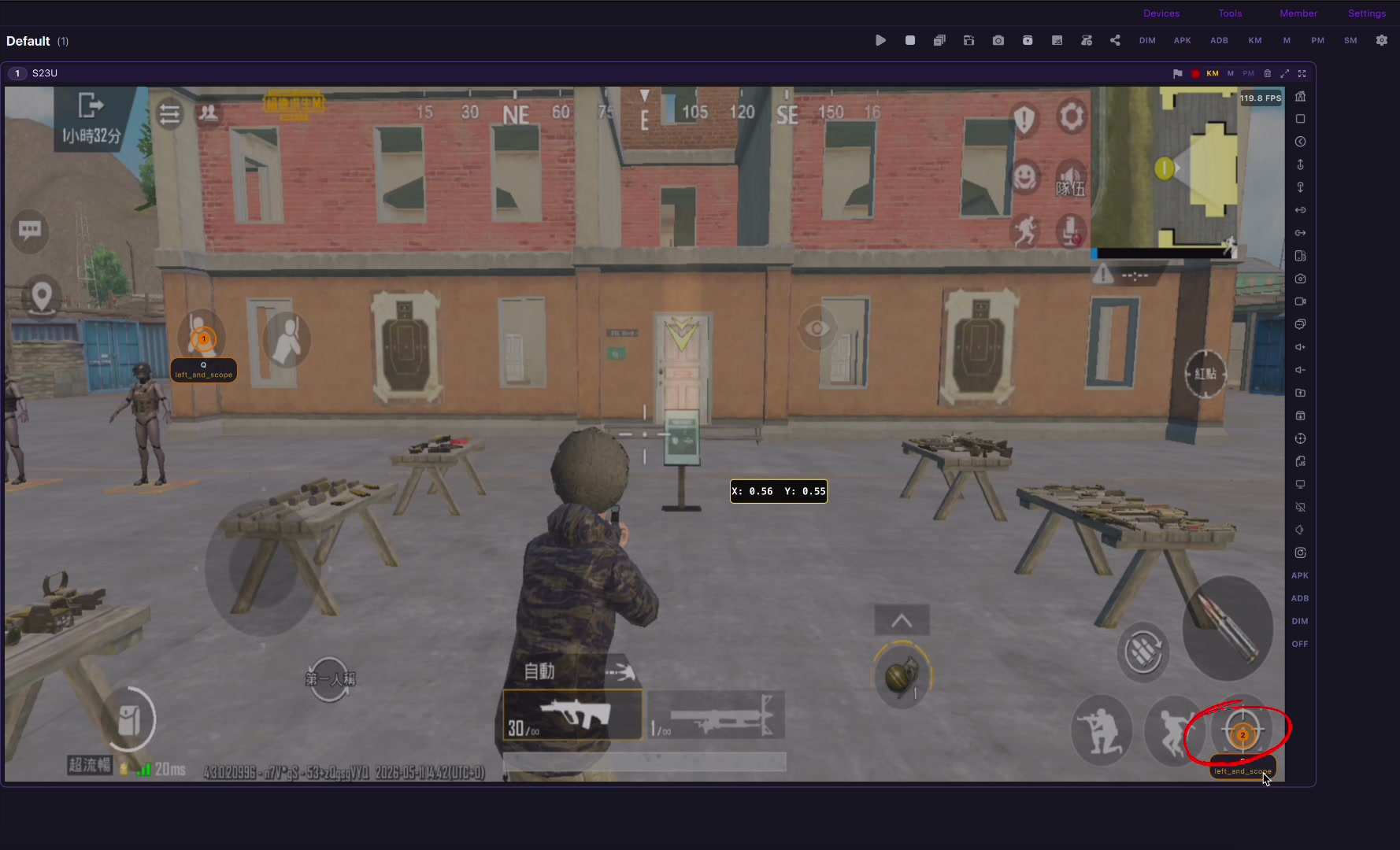
Play Wild Rift on a bigger PC or Mac screen while the match still runs on your real Android phone, with custom MOBA key mapping in LaiCai Screen Mirroring. LaiCai Screen Mirroring
play Wild Rift on PC with a real Android phone / Wild Rift key mapping / reduce Android screen mirroring lag
Why Wild Rift needs a real mobile workflow
League of Legends: Wild Rift is Riot Games’ mobile-first 5v5 MOBA. The official Wild Rift site describes it as high-skill 5v5 combat designed for mobile with revamped controls and faster matches. That matters because the controls are built around touch: movement joystick, attack button, abilities, summoner spells, items, minimap, target selection, pings, recall, and camera checks.
A PC setup for Wild Rift should not try to turn the game into desktop League of Legends. The better workflow is to keep Wild Rift running on the real Android phone, then use the computer as the larger screen, keyboard/mouse surface, recording desk, and tutorial workspace. Your mobile account, phone network, graphics settings, game region, champion controls, and touch HUD stay on the device.
That is the role of LaiCai Screen Mirroring. It mirrors the real Android phone to Windows or macOS, then lets you build custom keyboard and mouse mapping for the actual touch buttons on the screen. It is useful for comfort, tutorials, practice reviews, and players who want a larger screen without moving the game into a separate emulator environment.
Set up Wild Rift before mapping keys
Start with a stable connection. USB is the safest first choice because it gives you a consistent baseline before you test Wi-Fi. Wild Rift is not only about fast reactions; it is also about small repeated corrections: last hitting, spacing, camera checks, skill shots, target selection, jungle objective timing, and retreat decisions.
Open Wild Rift on the phone and enter practice mode, a custom game, or another safe environment before mapping. Keep the movement joystick, basic attack, abilities, ultimate, summoner spells, item button, shop, minimap, recall, ward/trinket controls, ping controls, and camera area in fixed HUD positions. If you move the HUD after creating the profile, the mapping points may no longer match.
Create one general MOBA profile first. Then create champion-specific profiles only when a champion really needs a special layout. A marksman, jungler, assassin, support, mage, and tank do not need the same rhythm. Start simple, test, then add more controls.
A practical keyboard and mouse layout
A common starting layout is WASD or a left-hand movement cluster for the virtual joystick, Q/W/E/R for abilities and ultimate, D/F for summoner spells, Space or left mouse for basic attack, number keys for items or shop, B for recall, Tab or M for map checks, and mouse drag or a dedicated key area for camera movement.
Do not copy the layout blindly from another MOBA. Wild Rift champions have different targeting and timing needs. Skill-shot champions need reliable aim points. Marksmen care about attack movement and spacing. Junglers care about objective timing and fast map checks. Supports need pings and disengage buttons. The best layout is the one you can repeat without looking down.
Test one champion in practice mode and change only one group of controls at a time. If the picture looks clear but skill casts feel late, tune latency before changing every key. If a button lands slightly off, fix the on-screen mapping point before assuming the keyboard layout is wrong.
Resolution, FPS, bitrate, and audio choices
For Wild Rift, consistent control response is usually more important than maximum resolution. A stable 720p or 1080p mirror at 45-60 FPS is often enough to read lane state, minimap, cooldowns, champion icons, and item text. Raise bitrate only until the UI is clear.
If the phone heats up, lower in-game graphics or mirror resolution. If the PC is overloaded, lower bitrate or FPS. If Wi-Fi causes random spikes, switch to USB. If audio matters for tutorial recording, test phone volume, desktop capture, and recording settings before a real match.
LaiCai Screen Mirroring is also useful for creators. You can record the real phone screen, show the key mapping overlay, explain lane decisions, and keep the phone workflow visible for viewers.
Fair play boundary
Use key mapping as human input only. Do not use scripts, automatic combos, unauthorized macros, account farming, match manipulation, map hacks, botting, or any behavior that violates Riot Games rules, Wild Rift rules, tournament rules, or platform rules.
If you play ranked, events, tournaments, or creator matches, check the current official rules first. LaiCai Screen Mirroring is positioned for mirroring, comfort, recording, real-device testing, and human-controlled custom layouts.
Wild Rift PC setup checklist
- Use a real Android phone with Wild Rift installed and updated.
- Start with USB, then test Wi-Fi only if the network is stable.
- Fix the Wild Rift HUD before creating the mapping profile.
- Map movement, abilities, ultimate, summoner spells, attack, shop, map, recall, pings, and camera controls.
- Test one champion in practice mode before playing a real match.
- Tune resolution, FPS, bitrate, and phone heat before changing every key.
- Avoid scripts, botting, unfair macros, account farming, and rule violations.
Official sources
League of Legends: Wild Rift official site; Wild Rift on Google Play; Wild Rift on the App Store; Riot Games support for Wild Rift.