Keep the same Flow Profile running on your phone
What is LaiCai Flow Inside?
LaiCai Flow Inside is the on-device runtime for LaiCai Flow. It is not a separate automation product: it extends the Flow Profile you already created so it can run inside an Android phone.
- Uses the same Profile and flow logic as LaiCai Flow
- Runs visual recognition, decisions, and actions on the phone
- No USB cable or Wi-Fi connection to the computer while running
How LaiCai Flow and Flow Inside work together
One Profile, two ways to run. The flow logic stays the same; what changes is where processing happens and whether the phone must remain connected to the computer.
| LaiCai Flow | LaiCai Flow Inside | |
|---|---|---|
| Runs on | LaiCai FlowRuns on the computer. It analyzes the mirrored screen, executes the flow, and sends actions to the phone. | LaiCai Flow InsideRuns independently on the Android phone. Recognition, decisions, and actions happen on-device. |
| Computer connection | LaiCai FlowThe phone stays connected to the computer through USB or Wi-Fi while the flow runs. | LaiCai Flow InsideAfter deployment, no computer connection or USB cable is required. |
| Node support | LaiCai FlowSupports the complete LaiCai Flow node set. | LaiCai Flow InsideSupports most phone-compatible nodes. AutoJS is currently unsupported and checked automatically before deployment. |
| Best for | LaiCai FlowContinuous computer-based control, flow debugging, and centralized device management. | LaiCai Flow InsideStandalone placement, long-running monitoring, and automation anywhere. |
Deployment does not create a second flow. Deploying the same Profile again updates its corresponding item on the phone.
Install LaiCai Android Agent and deploy a Profile
The phone must be connected to LaiCai Screen Mirroring for the initial Agent installation and Profile deployment. You can disconnect it afterward.
Open the Flow Inside manager
Open “Tools” at the top of LaiCai Screen Mirroring, then select “LaiCai Flow Inside.”

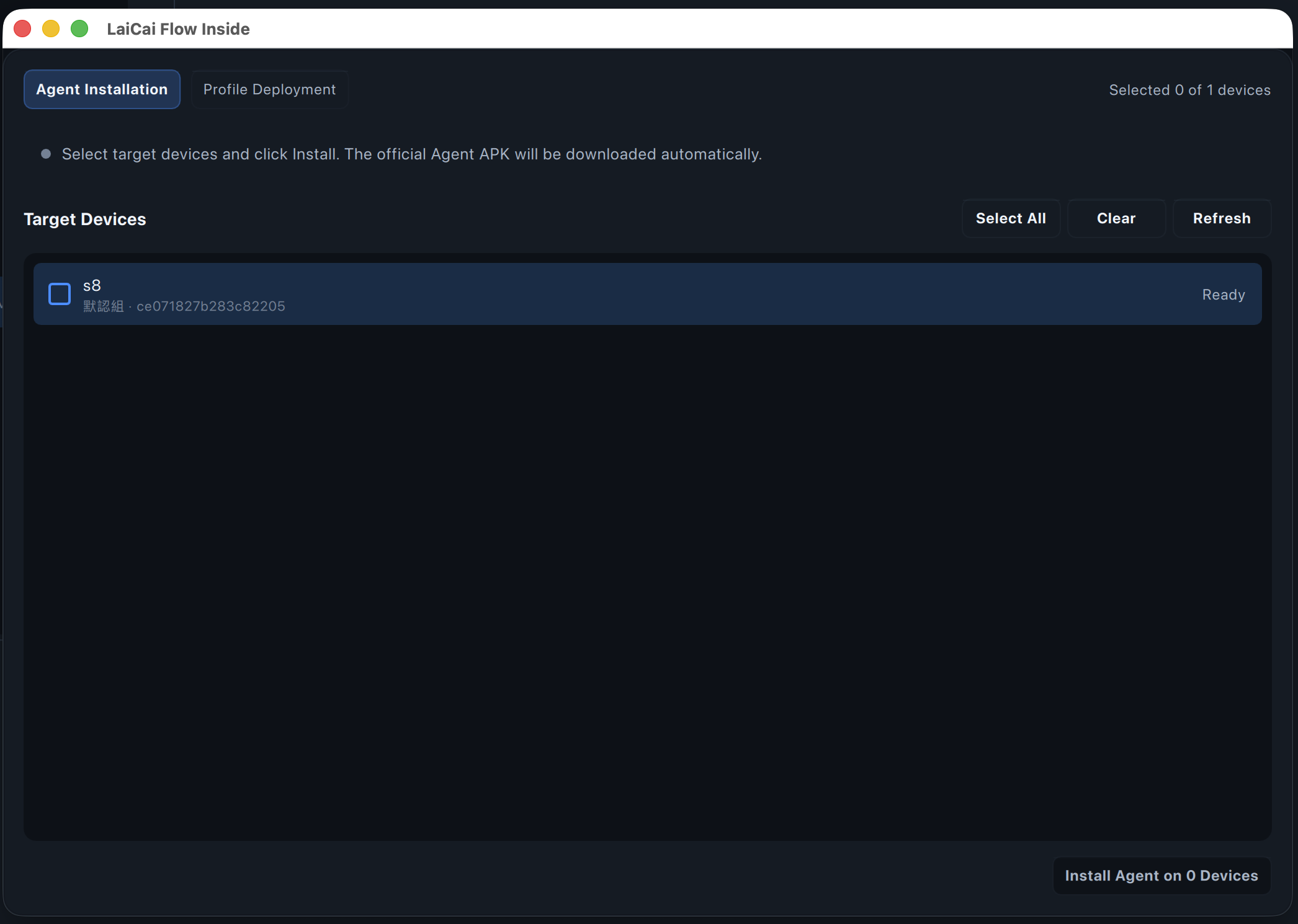
Select the phone and install Agent
Stay on “Agent Installation,” select the target phone, then click the install button at the lower right. The official Agent APK is downloaded, verified, and installed automatically.
Choose a Profile and deploy it
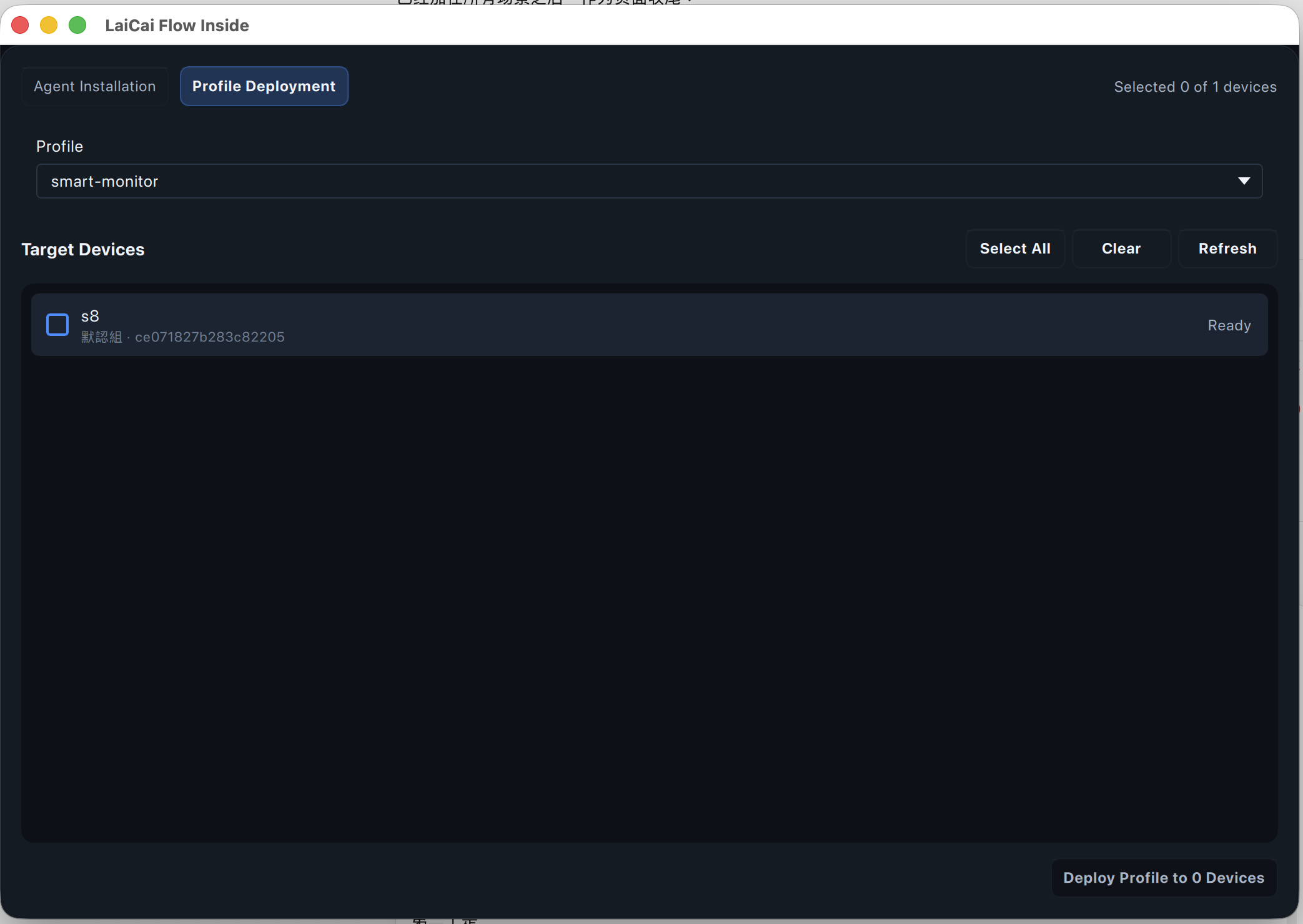
Switch to “Profile Deployment,” choose a Profile, select the target phone, then click the deploy button at the lower right.
Deployment complete: disconnect the computer
Open LaiCai Android Agent on the phone to see the deployed Profile. Choose it and start running; the flow now executes locally on the phone.
Learn how to build with LaiCai Flow
Learn to drag, connect, create, and test nodes in a Flow Profile.