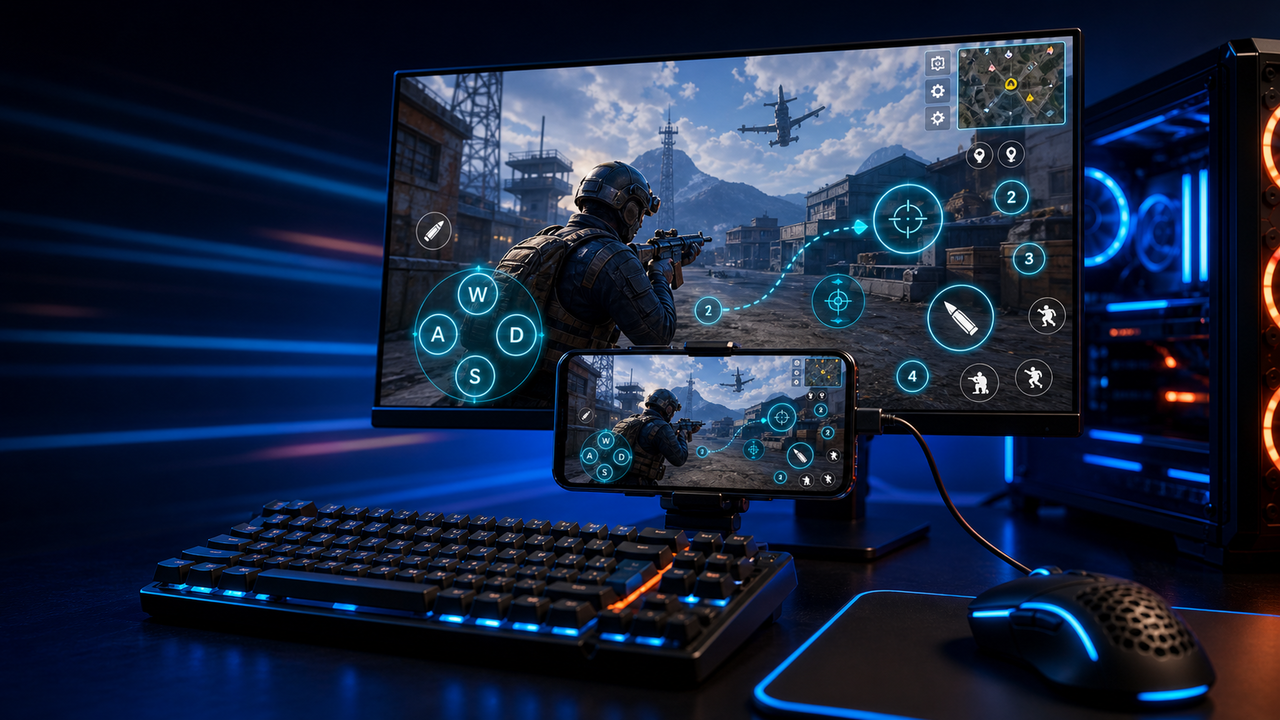
Keyboard and mouse key mapping
Turn touch controls into a PC-style layout for movement, aiming, firing, skills, camera, backpack, and common game actions.
Mobile games on PC, powered by Android devices and emulators
Mirror Android devices and emulators to Windows or macOS, then use keyboard, mouse, gamepad, and custom key mapping for supported mobile game workflows.
LaiCai
A larger screen, physical controls, and custom layouts can make long sessions more comfortable while PUBG Mobile, Free Fire, COD Mobile, Mobile Legends, Roblox, and other games run on Android devices or emulators.
Passos
Connect your phone, open the game, then tune the controls for your own play style.
Install LaiCai Screen Mirroring on your Windows PC or Mac.
Connect the Android phone by USB or a supported Wi-Fi workflow.
Open PUBG Mobile, Free Fire, COD Mobile, Mobile Legends, Roblox, or another supported game on the phone.
Mirror the phone screen to the computer workspace.
Drag key-mapping controls onto movement, camera, fire, backpack, skill, and action areas.
Test the layout, adjust sensitivity, then save the mapping for the next session.
Fluxo de trabalho
Turn touch controls into a PC-style layout for movement, aiming, firing, skills, camera, backpack, and common game actions.
The game keeps running on your Android device or emulator while LaiCai Screen Mirroring gives you a larger PC or Mac display for daily play and tutorials.
Capture screenshots, record short clips, and keep reusable control layouts for PUBG Mobile, Free Fire, COD Mobile, Mobile Legends, and Roblox.
Comparação
Bom para ambientes virtuais Android e muitos jogos.
O LaiCai é útil quando esses ambientes precisam de controle pelo desktop, key mapping, gravação ou operações com vários alvos.Bom para usuários técnicos que desejam um espelho leve.
LaiCai adiciona um fluxo de trabalho visual de produto, mapeamento de teclas, gravação e grupos de dispositivos.Bom quando o dispositivo não precisa ser local.
LaiCai concentra-se em dispositivos Android e emuladores locais controlados por PC ou Mac.Perguntas frequentes
LaiCai Screen Mirroring is useful for players who want computer controls for Android devices and supported emulators.
Sim. O LaiCai oferece suporte a Windows e macOS.
Você pode usar key mapping em fluxos de jogo compatíveis enquanto o jogo roda em um dispositivo Android ou emulador compatível.
Sim. LaiCai aceita layouts de teclado, mouse e controle.
Sim. LaiCai inclui grupos de dispositivos e fluxos multi-telefone.
LaiCai Screen Mirroring is useful for players who want computer controls for Android devices and supported emulators.