Android 16 puts more pressure on Android apps to behave well in larger, resizable, desktop-style spaces. Google documentation says apps targeting API level 36 are resizable and can enter multi-window mode when the display is large enough, which means more apps will be tested in desktop windowing, tablets, foldables, and connected-display workflows.
For QA teams, this is not just a UI design topic. It affects restart behavior, layout density, touch targets, keyboard and mouse input, screenshots, bug reports, and whether an issue can be reproduced on a real Android phone.
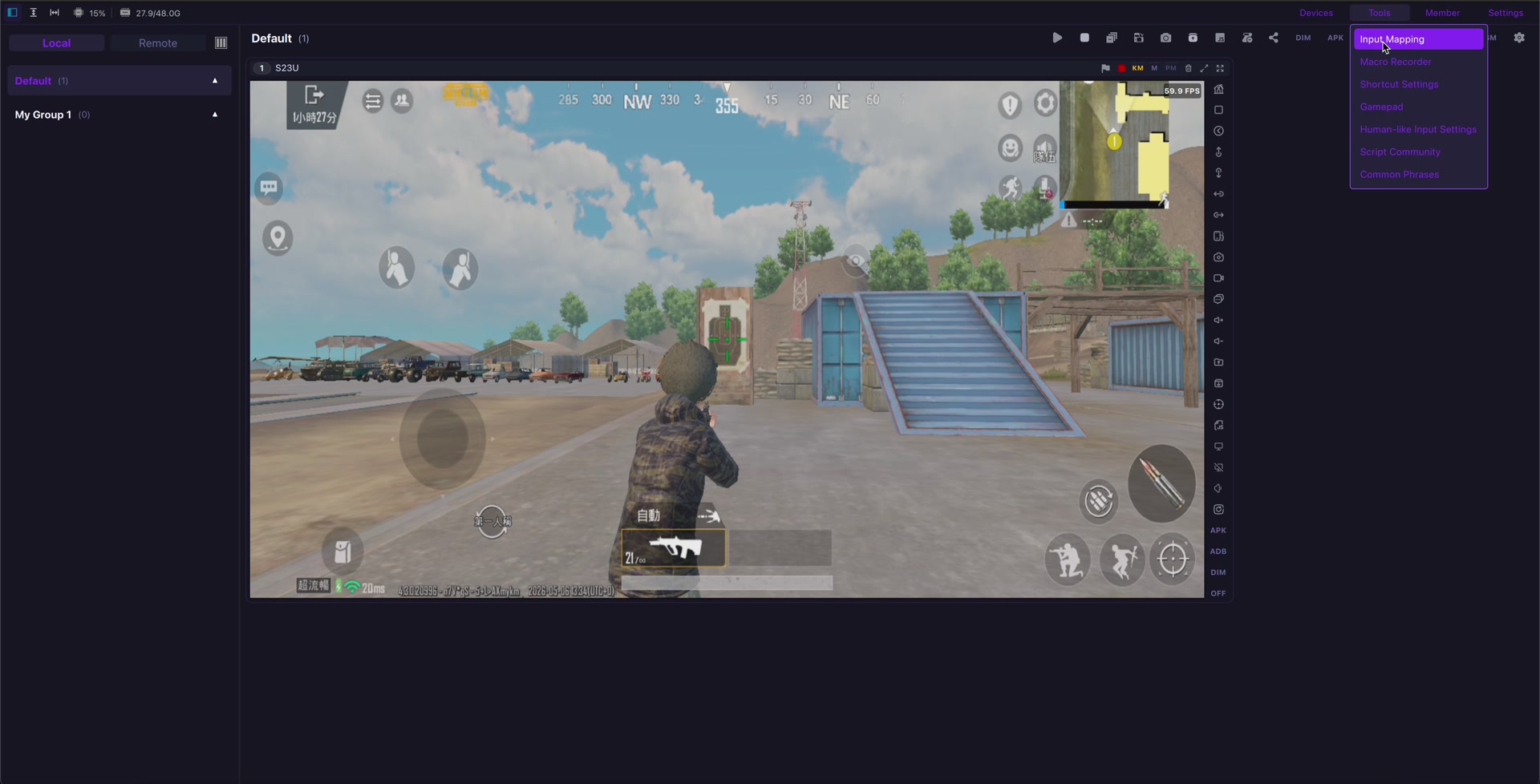
A practical testing desk should combine Android 16 desktop-window checks with real-device capture. LaiCai Screen Mirroring helps teams control Android phones from Windows or macOS, record evidence, and compare multiple real devices without relying only on emulators.
Why Android 16 Changes the QA Checklist
Android 16 desktop windowing is useful progress, but it also expands the QA surface. Treat it as a real-device testing problem: validate layouts, input, state, density, and evidence. For teams that need repeatable Android app testing, Android screen mirroring for mobile app testing, a low-cost Android device lab, and multi-phone control from one computer give more reliable context than a single emulator or one connected display.
What to Test First
- Resize the app window from narrow phone width to tablet-like width and back.
- Rotate, fold, unfold, or reconnect the device where the hardware supports it.
- Check whether lists, dialogs, forms, overlays, maps, ads, and game HUD elements overlap.
- Verify keyboard focus, shortcuts, text input, mouse hover, right click, drag, and scrolling.
- Record screenshots and short clips on real devices for every confirmed bug.
- Repeat the same test on at least one lower-end device and one newer flagship device.
Where LaiCai Helps QA Teams
- Mirror a real Android device to a PC or Mac while testing window-size changes.
- Capture bug evidence with screenshots and recordings from the real phone.
- Compare multiple Android phones from one computer when the issue depends on model, GPU, OS build, or screen density.
- Use USB for low-latency recording and Wi-Fi for lighter review sessions.
A Practical Test Matrix
| Test area | Coverage | Common risk |
|---|---|---|
| Resizable windows | Narrow, medium, wide, split-screen, and desktop-like windows | Layout overlap, clipped text, lost state |
| External display | Dock, monitor, cable, display density, app restart behavior | Different result from phone-only testing |
| Input | Touch, keyboard, mouse, gamepad if relevant | Missing focus state or broken shortcuts |
| Real-device evidence | Screenshots, video, logs, device model and connection type | Bug reports that cannot be reproduced |
Conclusion
Android 16 desktop windowing is useful progress, but it also expands the QA surface. Treat it as a real-device testing problem: validate layouts, input, state, density, and evidence. For teams that need repeatable Android app testing, Android screen mirroring for mobile app testing, a low-cost Android device lab, and multi-phone control from one computer give more reliable context than a single emulator or one connected display.
References: Android Developers app orientation, aspect ratio, and resizability; Android Developers Blog connected display desktop windowing.