Compare Android emulator automation and Android device automation, and learn when LaiCai Flow should run checks on emulators, real devices, or both.
Why this comparison matters
Android automation decisions are often framed as a binary choice: use an emulator because it is fast, or use a physical device because it is real. That is too simple. Most QA, support, and app operations teams need both. Emulators are excellent for repeatable setup, fast resets, and early build checks. Android devices are essential when hardware behavior, manufacturer UI, permissions, cameras, notifications, performance, and screen conditions affect the result.
LaiCai Screen Mirroring positions LaiCai Flow across Android devices and emulators for that reason. A Flow can repeat visible Android steps, capture screenshots, read text with OCR, use UI tree or image recognition when appropriate, keep runtime logs, and stop when a screen state does not match the expected condition. The important question is not "emulator or device forever." The useful question is: which layer should run first, which layer should confirm release confidence, and what evidence should each layer produce?
This article uses Android's official emulator, AVD, hardware-device, Device Streaming, UI Automator, Firebase Test Lab, and Firebase App Testing Agent documentation as grounding. The conclusion is practical: use emulators for speed and control, use Android devices for real-world confidence, and use AI Android automation tool to keep the visible workflow inspectable instead of hidden inside another black box.
Where Android emulator automation is strongest
The Android Emulator is designed to run and explore apps in a virtual test environment. Android Virtual Devices let teams choose device profiles, system images, API levels, orientations, and other repeatable configurations. That repeatability is valuable when a team is building a Flow draft or running a smoke check after every build.
Emulators are especially useful for early automation design. A QA engineer can stabilize the route, tune waits, check whether OCR reads the expected label, and make sure stop conditions are not too aggressive. When a Flow fails on an emulator, it is usually easier to reset, rerun, and compare the same state again. This makes the emulator a good place to debug the automation itself.
Emulators also reduce logistical friction. A small team may not have every physical phone on the desk. An emulator matrix can cover API versions, screen sizes, locales, and orientation paths before the team spends time on physical coverage. The 2026 Android Developers multi-device emulator update also reinforces an important direction: virtual device environments are getting better for multi-device and connected-device test workflows.
Where Android device automation is still necessary
Google's hardware-device documentation still says teams should test on a real Android device before release. That advice matters because physical devices expose variables that emulators cannot fully represent. Manufacturer skins change permission surfaces. Battery and performance modes affect timing. Real camera and microphone behavior may matter. Notifications, Bluetooth, sensors, USB hubs, displays, touch response, thermal behavior, and network conditions can change the outcome of a workflow.
For LaiCai Flow, Android device automation is the release-confidence layer. After a Flow works on one or more emulators, run it on the actual phone models that matter to your users or operations team. A support team may care about the devices customers use most. A game studio may care about screen ratio, refresh rate, and input response. An e-commerce or content team may care about vendor browser behavior, camera upload flows, or app-store builds that behave differently on physical phones.
Physical devices are also where screen mirroring earns its place. With Android screen mirroring to PC and Mac, the tester can watch the actual device state on a computer while the Flow runs. If something fails, the visible screen, screenshot, and log make the failure reviewable. That is very different from a silent automation failure that only says "element not found."
A practical testing stack: emulator first, device second
A strong workflow usually starts on emulators and graduates to devices. The emulator phase answers: does the basic route work, are the waits reasonable, can the Flow identify the target screen, and do logs make sense? The device phase answers: does the route still behave on the phones, OS versions, display sizes, and vendor surfaces that matter?
For example, a mobile app QA team might build a Flow that opens a staging app, logs in with a test account, searches for a sample product, captures a results screenshot, opens a detail page, verifies the title with OCR, and stops. First, the team runs it on a stable emulator. Then the same team runs it on two physical Android devices: a small screen and a large screen, or a Google phone and a Samsung phone. If the Flow fails only on one device, the team gets a clue about layout, permission, performance, or vendor behavior.
This layered approach avoids two common mistakes. The first mistake is trusting an emulator-only result as if it represented every user. The second mistake is wasting physical-device time before the basic automation path is stable. LaiCai Flow should make both phases visible and reviewable.
How LaiCai Flow fits both environments
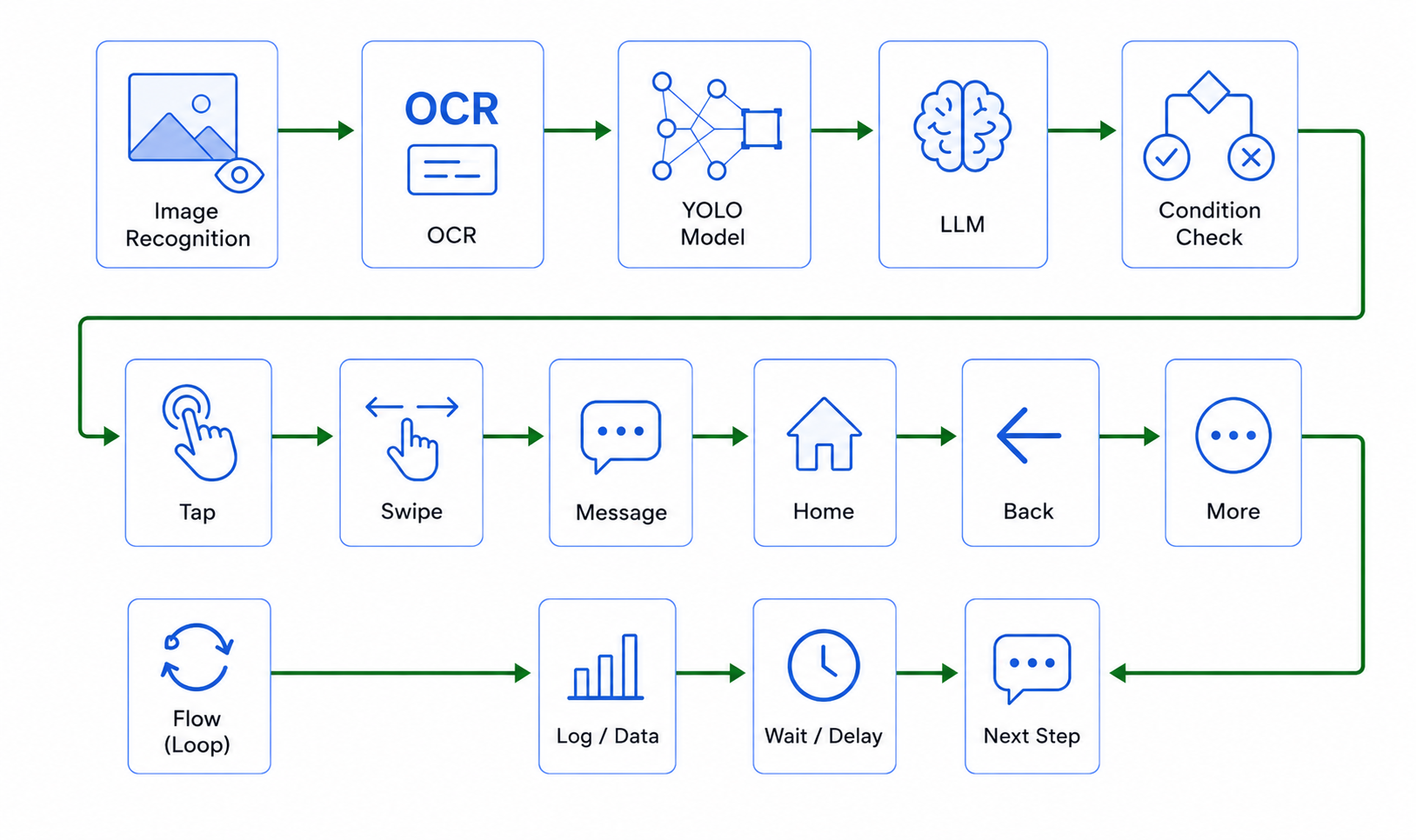
Flow is not a replacement for UI Automator, Espresso, Appium, Firebase Test Lab, or CI. It is a visible workflow layer for repeatable screen-first checks. It can use UI information when the target is available through the Android UI tree, OCR when visible text is the best signal, image/template matching when a stable visual target matters, and screenshots or recordings when the team needs evidence. It can also use waits, branches, loops, logs, and stop conditions to keep the run inspectable.
The current LaiCai node context supports actions and checks such as UI parsing, UI element finding, OCR, image/template matching, object detection when a configured model exists, pointer taps and swipes, keyboard/text input, screenshots, screen recordings, runtime artifacts, HTTP requests, storage, variables, flow branching, child flows, and LLM text or image analysis when configured. That does not mean every article should promise every workflow. It means a Flow should be designed from the available device context, assets, package list, and current screen evidence.
A good Flow profile does not guess package IDs, template assets, OCR regions, coordinates, or model classes. It starts from the user's app, selected device, current screen, available assets, and schema-supported nodes. In SEO terms, that is the honest difference between an AI Android automation tool and a vague automation claim.
What to run on emulators
Run deterministic smoke checks on emulators first: launch, login to a test environment, navigate to a stable route, check a label, capture a screenshot, verify a common empty state, or repeat a short support reproduction. Emulators are also good for localization layout checks because a team can create known screen sizes and locales quickly.
Use emulator runs to tune automation behavior. If OCR misses a label, decide whether the text target is too small or whether UI tree parsing is a better signal. If a wait is too short, increase it before adding retry loops. If a Flow keeps clicking through the wrong state, add a stop condition and screenshot artifact. This is engineering work, not just content production: a stable emulator Flow is the foundation for later device coverage.
Do not treat emulator coverage as final release proof. Emulators are useful because they are controlled. Real users are not controlled. The more a workflow depends on device sensors, media, notifications, hardware performance, or manufacturer UI, the sooner it should move to physical devices.
What to run on Android devices
Run device checks when the question involves real hardware or real user conditions. Test sign-in and permission flows on representative phones. Check camera or media upload paths on devices where those features matter. Review text layout on small and large screens. Confirm latency and response for workflows that depend on screen mirroring, keyboard/mouse control, game-like input, or quick device switching.
Device automation also matters for teams using multi-device Android control. A device lab may use emulators for early build smoke checks, but physical phones are needed for handoff notes, device labels, support screenshots, app-store builds, vendor-specific settings, and long-running operational checks. A Flow can standardize the steps while the mirrored screen keeps each run observable.
Keep the matrix small at first. One emulator profile, one current Android device, and one lower-end or vendor-specific device can reveal more than a large but noisy setup. After the Flow is reliable, expand deliberately: add a foldable, a tablet, a regional OS build, or a device model that represents real customer reports.
Safety boundaries and stop conditions
Automation that runs on real apps must have boundaries. Use test accounts, staging environments, and authorized devices when possible. Do not use Flow to bypass platform rules, create artificial engagement, send bulk messages, scrape private data, or hide automation where it is not allowed. Do not record customer data unless the team has a clear policy and a legitimate reason.
Stop conditions are part of responsible automation. If a permission dialog appears unexpectedly, stop. If OCR reads sensitive customer content, stop or redact according to policy. If the app reaches a payment or destructive action, stop before completion unless the test environment is explicitly safe. If a Flow cannot identify the expected state, it should save evidence and fail clearly instead of improvising.
This is why Android emulator automation and Android device automation should both be designed as visible workflows. A human should be able to open the screenshots, logs, and run steps and understand what happened.
Bottom line
Use Android emulator automation when you need speed, repeatability, resetability, and early Flow debugging. Use Android device automation when the workflow depends on physical hardware, vendor UI, real screen behavior, permissions, media, notifications, performance, or release confidence. Use both when the path is important enough to deserve reliable evidence.
LaiCai Screen Mirroring connects those layers by keeping Android devices and emulators visible on the computer and by turning repeated manual checks into Flow runs with screenshots, OCR, logs, and stop conditions. Start in the emulator, validate on selected Android devices, keep the matrix small, and expand only when each additional device answers a real QA question.
AI Android automation tool · LaiCai Flow guide · Android screen mirroring to PC and Mac · mobile app testing with Android screen mirroring.