Inspect and control individual phones
Open a phone's mirrored screen to read a result, type text, or handle a prompt. Individual input remains available on non-host phones while you work with a group.
Mobile phone group control for Windows and macOS
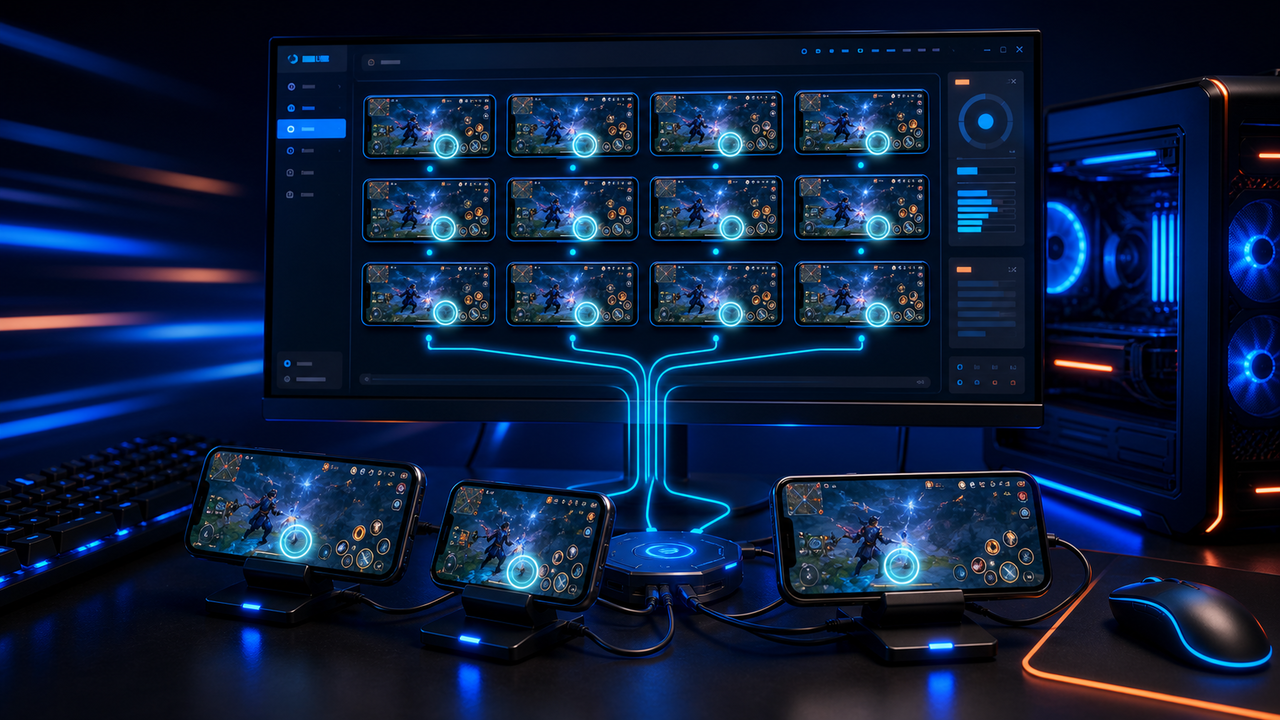
Bring your phones into one desktop workspace with LaiCai Screen Mirroring. Organize them by task, control one phone or a whole group, and capture the results without moving between devices.
LaiCai
App checks, training, customer support, and game testing often involve repeating the same task on several phones. Mobile phone group control lets you watch those screens together and send shared input when the devices are ready for the same action.
Setup
Start with two phones so you can check both screens before adding more devices.
Install LaiCai Screen Mirroring on Windows or macOS. Connect each Android phone and accept its USB debugging prompt; check that each screen can be opened.
Open Device Groups, create a group for the task, and place the phones you want to operate together in that group.
Start group screen mirroring. Open the same app and screen on both phones, using the same orientation before sending shared input.
Place the phone you want to operate first in the group. It becomes the host; click its flag button to start Group Control.
Try one harmless tap or swipe on the host. Watch the other phone respond and confirm that the action reaches the intended control on both screens.
Click the flag again to stop Group Control. Handle any different screens individually, then use Group Screenshot to capture the results when needed.
Workflow
Open a phone's mirrored screen to read a result, type text, or handle a prompt. Individual input remains available on non-host phones while you work with a group.
Assign a key mapping profile to a device group for keyboard, mouse, or controller input. Check the game layout and orientation on each phone before using synchronized controls.
Use the host phone for shared gestures. The group toolbar also provides batch screenshots, file uploads, APK installation, macros, AutoJS scripts, and ADB commands.
Comparison
Use it when phones show different apps, prompts, or results.
Operate each screen separately. A visible group is useful for monitoring even when you do not synchronize input.Use it when the phones are ready for the same tap, swipe, or mapped input.
Check app state, orientation, and layout first. Sending the same input does not make different screens behave identically.Use it when repeated work needs waits, screen checks, or different actions based on a result.
LaiCai Flow adds saved automation inside the same app. Test the task on one phone before reusing it on more devices.FAQ
Yes. Create a device group, start mirroring, and enable Group Control on the first phone in the group. Your touch gestures and key mapping input on that host are forwarded to the other phones. You can stop synchronization with the same flag button.
Follow the device group guideYes. Non-host phones still accept direct input, so you can handle an individual prompt or inspect a result. Stop Group Control before changing the host's screen if you do not want that input sent to the rest of the group.
Check it with your actual phones. Use the same app screen and orientation, then try one simple action. Different aspect ratios, font sizes, or app layouts can place controls differently; matching coordinates alone does not guarantee the same result.
Practical capacity depends on the computer, USB connections or network, video resolution, frame rate, and the work running on each device. Start with a small group and add devices while checking responsiveness.
LaiCai Screen Mirroring supports Windows and macOS, real Android phones, and supported emulator connections. Connect and verify each target before adding it to a group.
Connect an Android targetYes. The group toolbar includes APK installation, file upload, and Group Screenshot. Check the group membership before running a batch action. It also supports group macros, AutoJS, and ADB operations.
Yes. Assign a key mapping profile to the group and check it against each game's touch layout. Group Control forwards the host's mapped input; the game continues running on each Android phone or emulator.
Read the key mapping guideConnect your phones, create a device group, and check a shared action on both screens. Add more devices as your setup allows.