Learn when Android automation should use UI selectors, OCR, template matching, or object detection—and how to stop safely when visual evidence is uncertain. LaiCai Screen Mirroring.
Visual automation begins with a decision, not a tap
Android automation becomes fragile when a workflow assumes that the next button is always at the same coordinate. Mobile screens change with device size, language, font scale, keyboard state, permissions, network timing, and app updates. A safer workflow first observes the current screen, selects evidence, checks whether the result is good enough, and only then performs an action. This observe-select-act pattern is the foundation of visual UI automation.
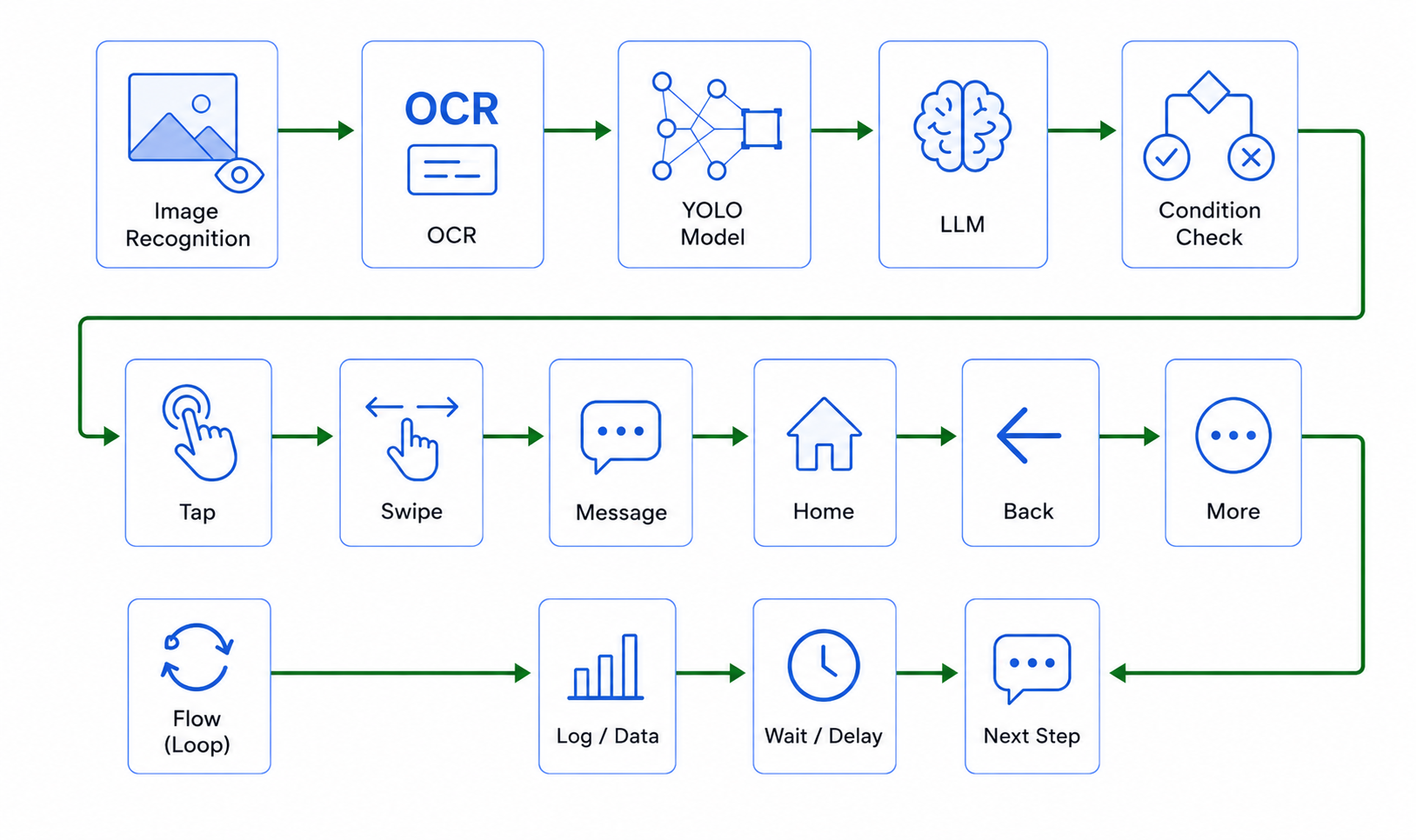
In LaiCai Flow, observation nodes such as UI parsing, UI find, OCR, template matching, and object detection do not click by themselves. They return structured results. A separate data step can choose the best item, and a pointer step can tap its center. This separation makes the graph reviewable and prevents a recognition result from silently becoming an action.
For LaiCai Screen Mirroring, the useful promise is not perfect recognition. It is a visible Android automation workflow in which teams can inspect screenshots, recognition output, thresholds, logs, branches, and stop conditions before repeating a task on authorized devices or emulators.
Choose UI selectors before OCR when structure is reliable
Android's accessibility and UI hierarchy can expose text, content descriptions, bounds, class names, and other structured properties. When the target appears reliably in that hierarchy, a UI selector is usually easier to maintain than OCR or image matching. It can remain useful across themes, minor color changes, and different pixel densities.
Start by checking the current UI tree. Search for stable text or a content description, then filter or select the result before tapping. Do not assume that a phrase such as “find visible text” must always mean OCR; screen evidence should decide. A structured selector is preferable when the app exposes a meaningful structure.
Selectors still have limits. Canvas views, games, streamed surfaces, custom rendering, and some WebViews may expose little useful hierarchy. Translated labels also change. When the target is visible to a person but absent from the UI tree, OCR or image recognition becomes a reasonable fallback rather than the default first tool.
Use OCR when text is visible but selectors are unavailable
OCR is useful when business meaning is carried by visible words: an order status, localized label, confirmation message, error banner, price, test account name, or search result. A Flow can capture the screen, read a bounded region or the full frame, normalize the result, and compare it with expected text before continuing.
OCR is probabilistic. Small fonts, compression, gradients, animation, unusual scripts, low contrast, and overlapping controls can lower accuracy. A fixed region can also miss the target when layout, orientation, keyboard, or locale changes. LaiCai therefore treats reusable OCR regions as explicit assets; creating a fixed region requires the user to understand that positional assumption.
A reliable check records both the recognized text and the screenshot used to produce it. Use a minimum-confidence rule where available, accept a small set of legitimate variants, and stop with a readable reason when required text is missing. Never convert a low-confidence OCR result directly into a destructive tap.
Use template matching for stable visual targets
Template matching is appropriate when a stable visual target has no dependable text or UI selector: a distinctive icon, badge, game control, custom confirmation graphic, or image-only button. The template should come from a real captured screen, and the Flow should reference an existing asset instead of inventing a file or target.
Matching quality depends on crop quality, scale, theme, color mode, animation, and the search region. A tight template can be distinctive but brittle; a broad crop can include changing content. Teams should test more than one realistic device state and keep the threshold high enough to avoid unrelated matches without making normal variation impossible.
The current LaiCai asset context confirms that templates are reusable named assets and matching supports a score, mode, and screen-ratio search region. The article does not claim that one template works everywhere. Dark mode, localization, responsive layout, or a redesign may require a selector, another template, or an intentional stop.
Object detection solves a different problem
Object detection is not a stronger version of OCR. It answers a different question: where is an instance of a trained class such as a person, vehicle, or a product-specific object? OCR extracts text; template matching looks for visual similarity; detection finds classes defined by a model.
Use detection only when an available model contains the class the workflow needs. The Flow must read the model metadata and class list instead of guessing labels. Detection output still needs selection logic—for example highest confidence, nearest center, or all items above a threshold—before any pointer action.
For ordinary app buttons, UI selectors, OCR, or templates are often simpler. Detection becomes useful for variable objects whose appearance or position changes. It should still leave evidence and stop when confidence, class, or count does not meet the workflow's expectation.
Build a safe observe-select-act Flow
A safe Flow can be expressed as six visible stages: capture the state, inspect UI structure, choose the appropriate recognition method, select a result, verify confidence or business meaning, and act. After the action, wait explicitly for the screen to settle and observe again.
Consider a localization QA check. Open a staging build, wait for the home screen, navigate using stable selectors, capture the translated screen, run OCR on the heading, save a screenshot, and stop if the expected localized phrase is absent. The Flow produces evidence without changing production data.
Keep failure handling conservative. If UI find returns no item, OCR misses required text, a template score is too low, or detection finds an unexpected count, let the Flow fail or branch to a clear evidence-and-stop path. Do not send failure back to the same action in an invisible retry loop.
Troubleshoot recognition without hiding uncertainty
When recognition fails, first inspect the screenshot and raw result rather than lowering every threshold. Confirm that the app is on the expected page, the keyboard or permission dialog is not covering the target, the wait is long enough, and the search region contains the element.
For OCR, compare scripts, spacing, punctuation, capitalization, and likely character substitutions. For templates, inspect scale, theme, crop, and competing matches. For UI find, inspect whether the target is offscreen or hidden from the hierarchy. For detection, verify the selected model and its actual class list.
Change one variable at a time and rerun the read-only probe when possible. A lower threshold may increase recall but also false positives. A larger region may find the target but introduce distractions. The right result is not “the node passed”; it is evidence strong enough for the next approved action.
Practical workflows for QA, localization, and support
QA teams can use visual checks for smoke paths, error banners, consent dialogs, screenshots, and release evidence. Localization teams can compare headings, truncated labels, missing translations, and unexpected fallback text across devices and languages. Support teams can reproduce a reported path and hand screenshots plus logs to developers.
These workflows complement code-level unit, instrumentation, and integration tests; they do not replace them. Visual checks are especially useful for the rendered state that a person sees, while code-level tests remain better for internal logic and deterministic assertions.
Use the AI Android automation tool overview, the LaiCai Flow guide, the Android screen mirroring guide, and the mobile app testing workflow as the next reading path.
A review checklist before the first real run
Before the first real run, confirm the device and app are authorized, the start state is explicit, and the workflow does not guess packages, assets, coordinates, or model classes. Check that every recognition result is selected deliberately and that sensitive actions require a strong condition or human review.
Verify that screenshots and logs do not expose private customer data. Add an explicit stop boundary before payment, deletion, account settings, outbound messages, or irreversible production changes. Avoid fake engagement, spam, account abuse, rule evasion, private-data scraping, and game cheating.
Finally, watch the first run through the mirrored Android screen. Review the graph, UI state, OCR text, match scores, selected bounds, screenshots, and stopping reason together. Reliable Android OCR and image recognition automation comes from inspectable evidence, not confidence theater.