Build an Android support automation workflow that reproduces app issues, captures screenshots and logs, and hands useful evidence to QA or developers. LaiCai Screen Mirroring.
Support automation should preserve the customer story
A useful support ticket contains a story: what the customer tried, what they expected, what appeared instead, and what device or app state may have influenced the result. Android support automation should preserve that story rather than reduce it to a sequence of taps. The goal is to reproduce an approved path consistently and leave evidence that another team can inspect.
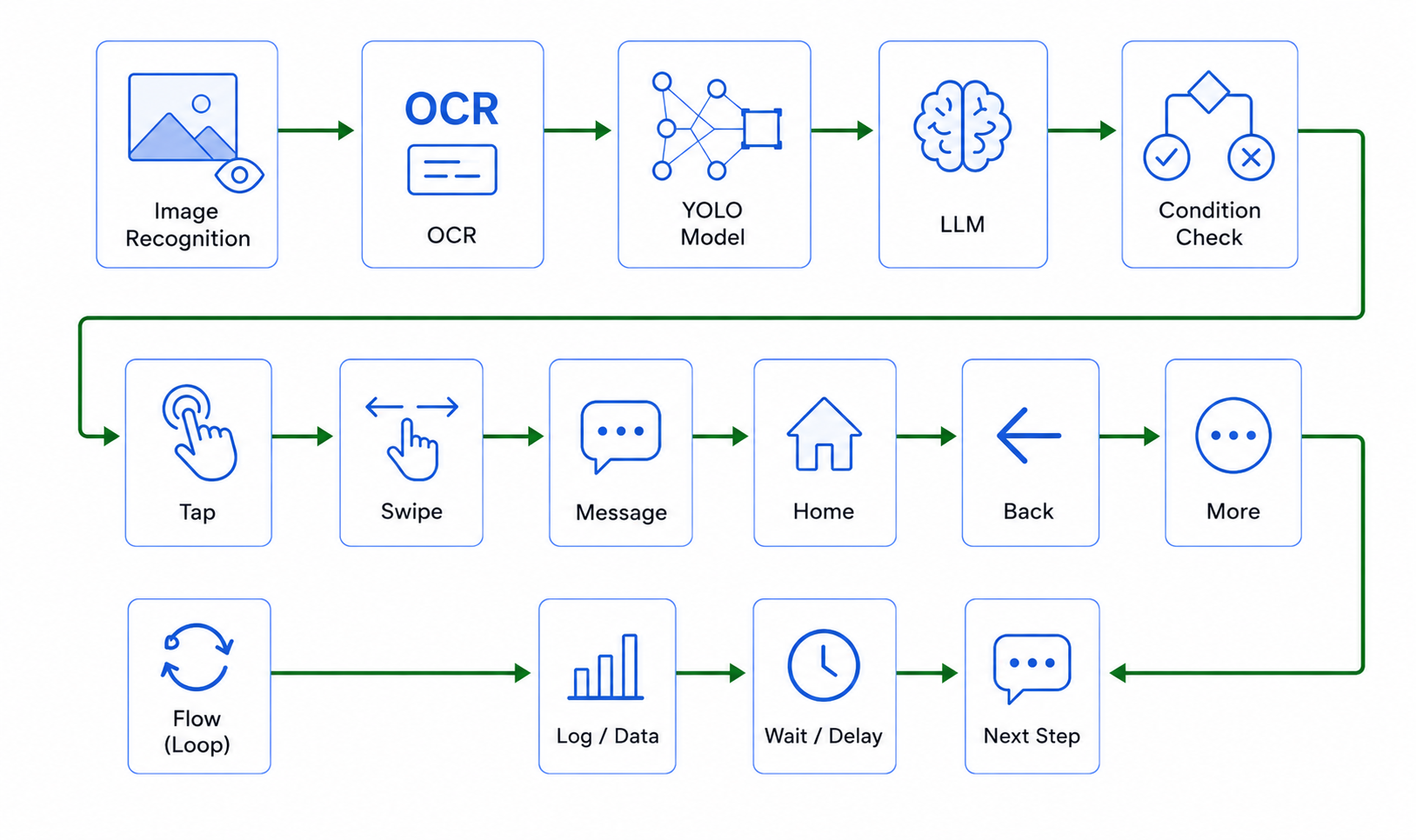
LaiCai Screen Mirroring uses LaiCai Flow as a visible workflow layer. A support teammate can review the nodes, watch the Android screen, capture screenshots, keep runtime logs, and stop when the observed state no longer matches the ticket. This makes the AI Android automation tool useful for evidence gathering, not for hiding customer-support decisions inside a black box.
The first run should always be watched. Mobile issues often depend on a permission prompt, keyboard, notification, loading animation, account state, or screen that the ticket did not mention. Watching the mirrored Android screen while reading the Flow log helps the operator separate a real product symptom from an incorrect starting assumption. After the observed path is stable and safe, the same checklist can be repeated without losing the evidence points that made the first run understandable.
Turn a support ticket into a bounded reproduction checklist
Rewrite the ticket as a bounded checklist before building a Flow. State the starting screen, app version, account type, network condition, locale, exact steps, expected result, observed result, and the point where the workflow must stop. A request such as “the checkout page is broken” is too vague; “open the staging build, use an approved test account, add the sample product, capture the payment screen, and stop before submitting” is actionable.
Keep the first Flow short. Reproduce only the smallest path that can confirm or reject the report. Do not add broad retries, unrelated cleanup, account changes, outbound messages, purchases, or destructive actions. A narrow checklist is easier to compare across devices and safer for support staff to run.
Record the environment before reproducing the issue
Record the environment before the first action. Useful fields include Android version, device model or emulator profile, screen size, app version, locale, permission state, connection type, and whether the issue occurs on a test or production-like environment. Do not guess package names or device details; read them from the authorized device context when available.
Environment evidence prevents false handoffs. A bug that appears only on one Android version, language, account state, or slow network should not be described as universal. Add a starting screenshot and a short run identifier so later screenshots and logs can be associated with the same reproduction attempt.
Capture screenshots and logs at decision points
Capture evidence at decision points, not after every meaningless action. Good points include the start state, the screen immediately before the reported failure, the unexpected screen, an error banner, a missing control, and the final stop state. Name screenshots so a QA engineer can understand their order without opening every file.
Logs should explain which step ran, which condition was checked, what result was selected, and why the Flow stopped. Avoid logging passwords, tokens, private messages, payment details, or unnecessary customer identifiers. A screenshot plus a readable stop reason is usually more useful than hundreds of low-level events without context.
Use visible conditions instead of blind clicking
Support automation should observe before it acts. Use UI structure when stable selectors exist, OCR when required text is visible but not exposed, and image matching only when a verified visual asset is appropriate. Observation nodes should return evidence; a separate action node can tap only after the result meets the workflow's condition.
If the expected state is missing, capture evidence and stop. Do not blindly tap a remembered coordinate or lower every confidence threshold. Explicit waits are easier to review than hidden pauses, and a clear failure is more useful than a Flow that continues into the wrong screen.
Protect customer data throughout the workflow
Support evidence can contain sensitive information. Use approved test accounts whenever possible. Before sharing a screenshot, check names, email addresses, phone numbers, order numbers, notifications, chat text, location, payment data, and background apps. Crop or redact information that QA does not need.
Define retention and access rules for screenshots and logs. Do not paste customer evidence into public tickets or broad chat rooms. If real customer data is necessary for an authorized investigation, minimize it, record why it is needed, and follow the organization's privacy and deletion policy. Automation improves repeatability; it does not create permission to collect more data.
Hand evidence to QA and developers in a useful format
A strong handoff contains the original ticket summary, reproduction prerequisites, device and app environment, exact Flow or checklist version, screenshots in order, relevant log excerpts, expected versus actual result, reproduction frequency, and the stopping reason. Include what was not tested so QA does not mistake a narrow check for broad coverage.
Use the LaiCai Flow guide to keep graph steps readable, the Android screen mirroring guide to watch the same screen the Flow uses, and the remote Android troubleshooting workflow for collaborative handoff practices. The receiving engineer should be able to rerun the path or understand why it cannot yet be rerun.
Handle cannot-reproduce results honestly
“Cannot reproduce” is a result, not proof that the customer is wrong. Compare environment, locale, permissions, account state, network, feature flags, app build, and timing. Run only the agreed variations, save evidence for each, and label the outcome accurately: reproduced, not reproduced under tested conditions, intermittent, blocked by missing information, or stopped for privacy or safety.
When information is missing, ask for the smallest additional evidence that can change the next test. Do not request full-screen recordings, complete logs, or account access by default. A structured support Flow helps the team distinguish an app defect from environment mismatch, incomplete steps, timing, or a state that requires engineering instrumentation.
A practical checklist for support teams
Before running, confirm authorization, start state, app build, test account, device context, network, locale, evidence points, privacy limits, and stop boundary. During the run, watch the screen, use explicit waits and conditions, and record only the evidence needed for the ticket. After the run, review screenshots and logs before sharing them.
Review the evidence package as if you were the receiving engineer. Can you tell which screenshot belongs to which step? Does the log show the condition that failed? Are expected and actual results stated separately? Is private data removed? Does the package identify the tested environment and the Flow version? If these questions cannot be answered, rerunning the automation may only produce more ambiguous files. A short, ordered evidence package is more valuable than a large archive without a reproduction narrative.
The practical outcome is a better conversation between support, QA, and development. Support contributes a repeatable customer story, QA receives comparable evidence, and developers get a smaller path with visible state. Android support automation works best when it makes uncertainty and evidence easier to review—not when it tries to replace human judgment.