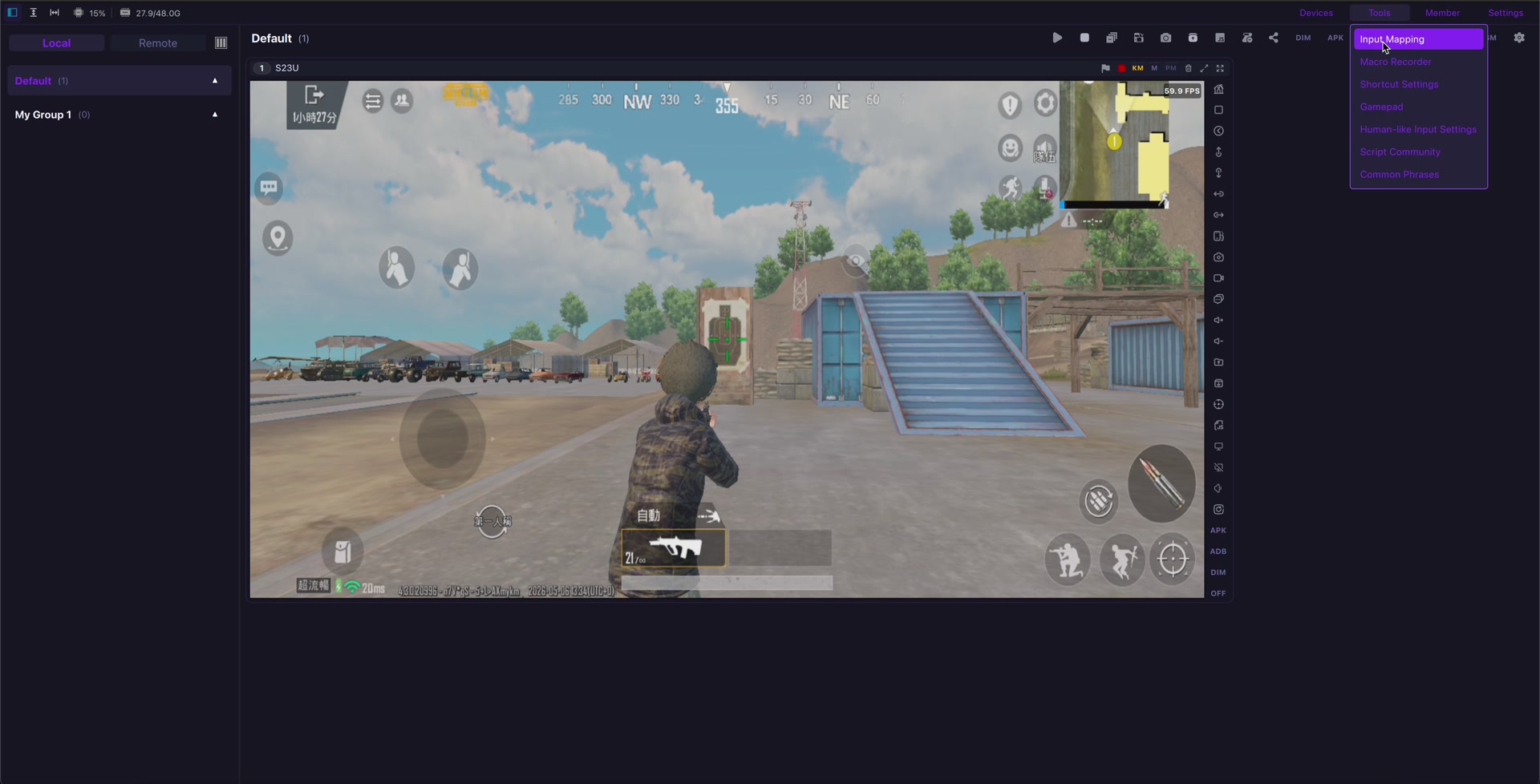
The goal is not to replace people blindly, but to reduce repetitive switching, screenshots, device checks, and handoff friction. This article summarizes a practical workflow for teams using LaiCai Screen Mirroring with real Android phones.
For the product workflow, start with LaiCai Screen Mirroring.
What to evaluate first
Start with the real task: viewing the phone, controlling a touch workflow, capturing screenshots, recording short clips, moving files, or handling several devices from one desk.
For single-device work, read the guide to control Android phones from a computer.
Where this workflow helps
This is useful for support teams, e-commerce operators, QA teams, game creators, trainers, and device operations teams that need repeatable evidence from real Android phones.
If the workflow involves several phones, continue with controlling multiple Android phones from one computer. Mac users can also read Android phone group control on macOS.
Safe operating rules
Do not use phone control, automation, or device groups for spam, fake engagement, unauthorized access, scraping, cheating, or platform-rule evasion. Keep permissions clear and temporary.
For mobile games, key mapping should be used for comfort and personal layouts. See the LaiCai key mapping guide.
How to start
Use USB for low latency and stable recording. Use Wi-Fi for lighter viewing. Keep devices labeled, save repeatable steps, and link every workflow to a clear business or support purpose.
Connection quality matters. For latency and stability, read the USB vs Wi-Fi Android screen mirroring guide and the checklist to reduce Android screen mirroring lag.