Learn how to turn a prompt into a reviewable LaiCai Flow draft for Android automation, then inspect, adjust, and run it safely in Graph View.
Why prompt-to-workflow matters
LLMs are useful at turning rough intent into structured steps. A QA engineer, support lead, or product operator can describe an Android task in normal language: open a staging app, sign in with a test account, search for a sample item, capture a screenshot, read a piece of text with OCR, and stop if the expected screen does not appear. That is much faster than starting every automation from a blank canvas.
The risk is that a generated workflow can look confident while hiding fragile assumptions. It may guess a package name. It may click a fixed coordinate. It may assume a button is visible. It may forget a permission dialog. It may keep going after the screen state is wrong. For Android automation, the difference between a useful assistant and a risky black box is reviewability.
LaiCai Screen Mirroring positions LaiCai Flow around that reviewable middle layer. The LLM can help draft the intent, but the Flow graph, node names, screenshots, OCR checks, waits, logs, and stop conditions stay visible. The goal is not "let an agent do everything." The goal is "turn a prompt into a workflow a human can inspect, adjust, and run on authorized Android devices and emulators."
Start with a prompt that defines boundaries
A good prompt is not just a command. It defines the start state, target app, account type, environment, evidence, and stop boundary. Instead of "test login," write: "On the staging app, open the login screen, sign in with a test account, wait for the home screen, capture a screenshot, use OCR to confirm the home title, and stop before changing account settings."
That level of detail gives the LLM a safer shape. It knows the workflow is for staging. It knows screenshots and OCR are required. It knows there is a stop point. It also makes missing information visible. If the package id, screen text, template asset, OCR region, or device context is unknown, a responsible workflow should not invent it.
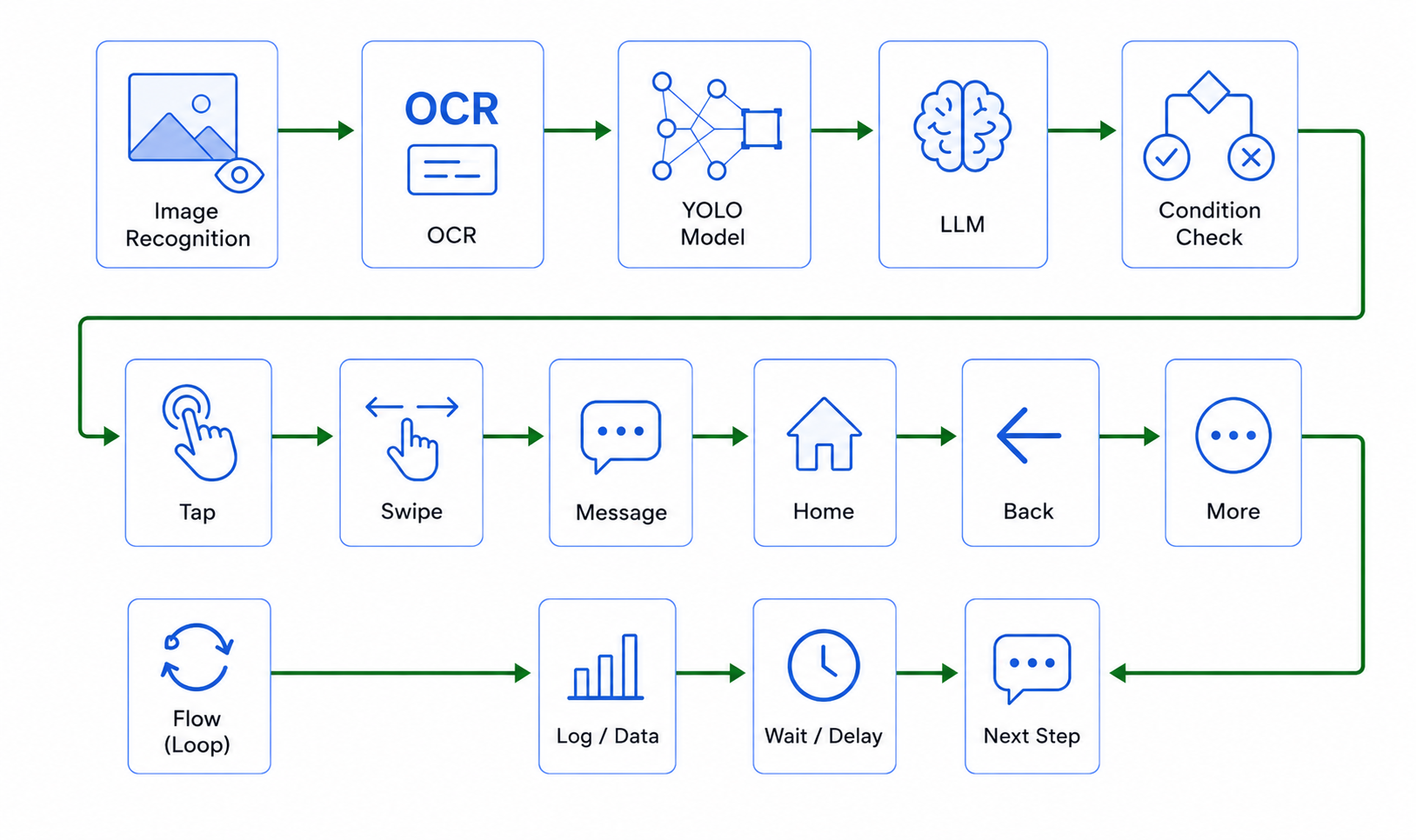
For LaiCai Flow, this is especially important because the Profile schema is explicit. Nodes have supported types, inputs, outputs, transitions, and runtime behavior. Current Flow context includes nodes for UI parsing and UI finding, OCR, visual matching, object detection when a configured model is available, screen capture, pointer taps and swipes, text input, device screenshots or recordings, flow branching, variables, storage, and LLM text or image analysis when configured. A draft should use those real capabilities, not imaginary node names.
Use Graph View as the review surface
Graph View is where a generated Flow becomes understandable. A human reviewer should be able to read the main path like a small workflow: receive input, open or prepare the screen, observe state, act, wait, validate, capture evidence, and stop or continue. If the graph is just a long chain of unnamed technical nodes, it is hard to review and hard to maintain.
Use clear node names. A node can be called "Find search field" or "Capture result screen" instead of "step 14." Child flows should be small named phases when a task contains repeated or separable logic. The main Flow should read like orchestration, while a child Flow can hide the technical detail of finding, selecting, tapping, waiting, and validating one screen element.
This review step is where teams catch bad assumptions. Does the Flow wait after opening an app? Does OCR read the right screen area? Does a tap depend on a visual match or a UI element, rather than a guessed coordinate? Does a failure stop clearly? Does the run save evidence before ending? The graph is not decoration; it is the QA surface for AI-assisted automation.
From prompt to LaiCai Flow draft
A practical workflow starts with a human-approved prompt. Next, the LLM converts that prompt into a draft Flow structure. The draft should choose schema-supported nodes and leave unresolved inputs visible instead of pretending they are known. If the target app is not confirmed, the package id should be collected from the installed package list. If a visual template is needed, it should come from available assets or be created from a real current screen with a clear reason.
Then the reviewer opens the draft in Graph View. They check the main Flow, child Flows, node names, transitions, waits, stop conditions, and evidence nodes. They remove risky assumptions, add screenshots where evidence matters, and prefer observable state checks over silent progress. If text is visible on screen, OCR may be appropriate. If a UI tree exposes a stable text or content description, UI finding may be better. If a button is a stable visual target, template matching may fit.
Finally, the Flow runs on a mirrored Android device or emulator. Use Android screen mirroring to PC and Mac so the first run is visible. The reviewer watches the screen, adjusts waits and checks, and confirms that logs and screenshots explain what happened. Only after that should the Flow become a repeatable smoke check or support reproduction routine.
What the LLM should not decide alone
The LLM should not guess Android package ids from general knowledge. It should not invent template assets, OCR regions, object detection classes, macro names, AutoJS scripts, or coordinates. It should not claim that a Profile can run on every app or every device. It should not hide destructive steps behind vague language such as "complete the flow."
It should also avoid overcomplicated graphs. A simple login smoke check does not need a dozen child flows. A complex product-page check may need separate phases for opening the app, navigating, searching, capturing evidence, validating OCR, and stopping. The right level of structure depends on the user goal and the risk of the action.
This boundary is good for SEO trust. People searching for "LLM generated Android workflows" or "natural-language test creation" are not only looking for magic. Many are worried about reliability. A credible AI Android automation tool explains where the AI helps and where device evidence, schema rules, and human review still matter.
Evidence: screenshots, OCR, logs, and stop states
A generated workflow becomes useful when it leaves evidence. Screenshots show the visible state. OCR can confirm important text or expose why text was not recognized. Logs show node order, runtime outcomes, and failure points. Stop states prevent the Flow from continuing after the expected screen is gone.
For mobile QA and support teams, this evidence is often more valuable than a binary pass/fail. A support specialist can attach the screenshot to a customer issue. A QA lead can compare OCR output across locales. A developer can see whether the failure happened before or after a webview rendered. A product manager can review the mirrored screen without reading test code.
This is why mobile app testing with Android screen mirroring remains relevant even when LLMs draft the workflow. The LLM can propose steps, but the screen and artifacts explain whether those steps matched the real Android UI.
How LaiCai Flow complements existing automation
LaiCai Flow should not be described as a replacement for CI, Appium, UI Automator, Espresso, Firebase Test Lab, or manual exploratory testing. It is a visible workflow layer for tasks that teams still repeat by hand: staging smoke checks, support issue reproduction, localization visual checks, e-commerce app page checks, device-lab routines, and screenshot-backed acceptance checks.
A mature testing stack can use code-level tests for deterministic assertions, cloud or emulator tools for broader device access, and LaiCai Flow for screen-first workflows where humans still need to see what happened. That is the practical position: use the LLM to draft, use Graph View to review, use mirroring to observe, and use logs and artifacts to make results shareable.
For non-developers, this also lowers the starting cost. A support or operations teammate can describe the workflow in plain language, then review a graph instead of editing test code. Developers still matter because they can refine the Flow, define safe boundaries, and decide when a path should move into a code-based test suite.
Safety rules for prompt-generated Android workflows
Prompt-generated automation must stay inside authorized apps, test accounts, staging or approved environments, and allowed devices. It should not bypass platform rules, scrape private data, create fake engagement, send bulk messages, or hide prohibited automation. A prompt should make those limits explicit before a Flow is generated.
Add stop conditions before payment, deletion, account changes, private data, customer messaging, or any screen the team has not approved. Stop when the expected text is missing. Stop when OCR is uncertain. Stop when a permission dialog or account warning appears. Stop when the app leaves the expected route. Save evidence and ask for human review instead of improvising.
These safety rules make the LLM more useful, not less useful. The AI can still help draft, summarize, and improve the Flow, but the final workflow stays bounded by product policy, device evidence, and human responsibility.
Bottom line
LLM generated Android workflows are most useful when they create a reviewable draft, not when they hide automation decisions. Start with a precise prompt, generate a schema-supported LaiCai Flow draft, review it in Graph View, verify it on a mirrored Android device or emulator, and keep screenshots, OCR, logs, and stop states as evidence.
LaiCai Screen Mirroring and LaiCai Flow give teams a practical path from natural-language intent to visible Android automation. The prompt starts the workflow. Graph View makes it inspectable. Screen mirroring makes the run observable. Stop conditions keep it safe. That is the difference between AI-generated activity and Android automation a team can trust.
Related LaiCai resources
AI Android automation tool · LaiCai Flow guide · Android screen mirroring to PC and Mac · mobile app testing with Android screen mirroring · Android on PC workflow.