Build no-code Android automation flows for taps, swipes, typing, waits, screenshots, OCR checks, branches, and safe stop conditions. LaiCai Screen Mirroring.
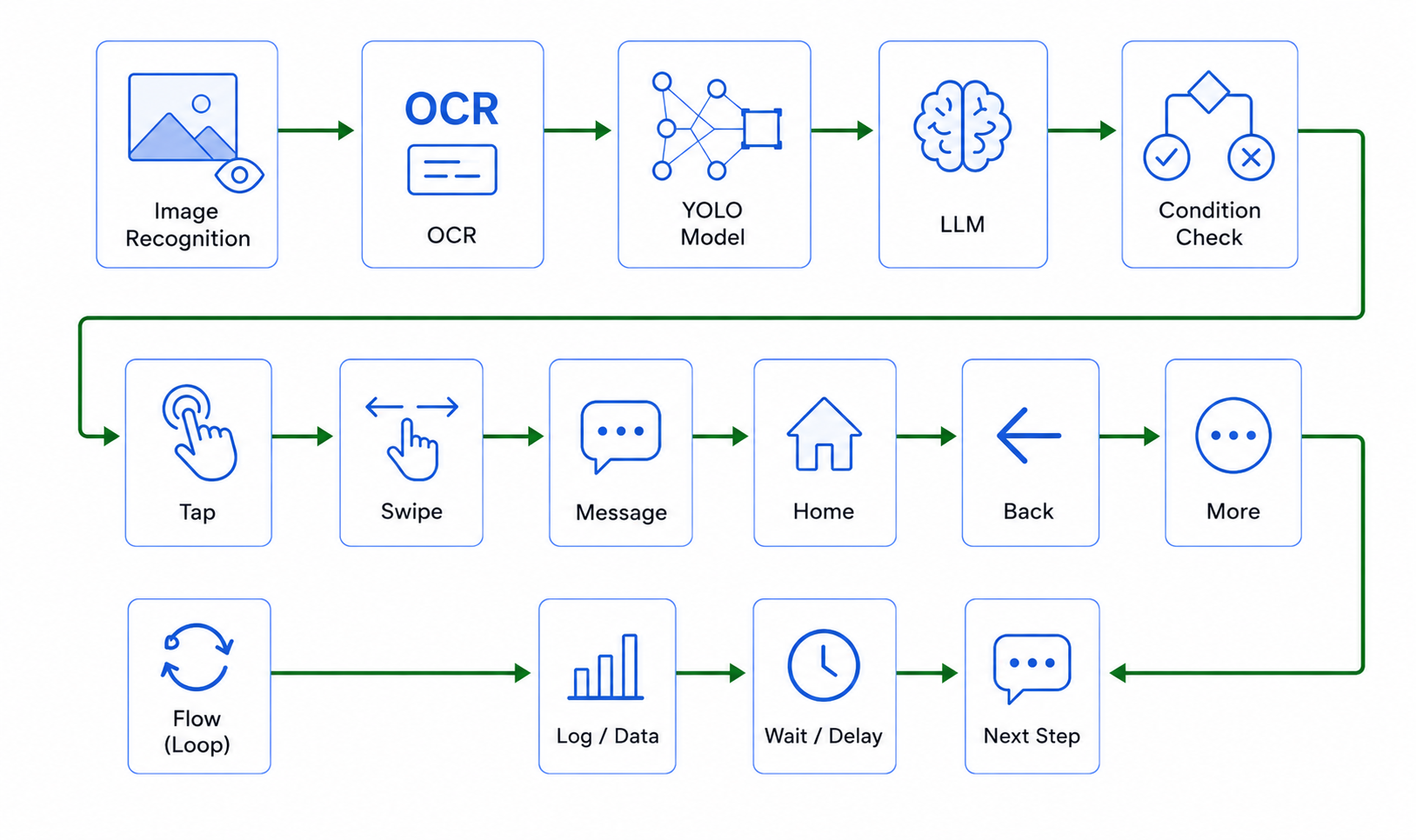
LaiCai Flow lets teams build, review, debug, and run no-code Android automation on authorized devices and emulators.
No-code does not mean no review
No-code Android automation is useful when a repeated task is visible on the screen but too small, too frequent, or too operational to justify a custom engineering project. A support teammate may need to open the same page and capture evidence. A QA tester may need to repeat a smoke path after every build. An e-commerce operator may need to check whether a product page, coupon, or translated label appears correctly. These workflows are not mysterious; they are repeated taps, swipes, typing, waits, screenshots, OCR checks, and stop decisions.
LaiCai Screen Mirroring uses LaiCai Flow to make that work inspectable. The goal is not to hide an agent behind a prompt. The goal is to help a person build a visible flow, run it on an authorized Android device or emulator, watch the first run, and keep logs or screenshots when the screen state matters. That is why no-code Android automation should be described as a reviewable workflow layer, not a black box.
A good no-code flow still needs human judgment. The user decides which app is allowed, which account is safe, which screenshots can be stored, and which step should stop the run. LaiCai Flow helps with repeatability; it does not remove responsibility for permission, privacy, or the final decision.
The basic building blocks: tap, swipe, type, wait, screenshot
Most useful Android workflows start with simple blocks. Open an app. Wait for the home page. Tap a visible button. Swipe to reveal more content. Type a search term or test value. Press Back or Home. Capture a screenshot. Wait again because a mobile page, network call, or animation needs time to settle. These are ordinary manual actions, but repeated together they become a workflow.
LaiCai Flow expresses those actions as nodes that can be named, reordered, connected, and debugged. A tap can target a fixed screen ratio or a position coming from a previous recognition step. A swipe can move through a list. A text input step can enter a known test value. A wait step can make timing explicit instead of relying on a hidden pause. A screenshot step can create evidence at the exact point a teammate needs to review later.
The practical improvement is not only speed. It is consistency. When every run uses the same steps and the same evidence points, a failed check becomes easier to discuss. Did the button disappear? Did the wait need to be longer? Did OCR read the wrong region? Did the app show a permission dialog? A named flow gives the team a shared artifact instead of a vague memory of manual clicks.
Add OCR, UI find, and visual matching only where they help
No-code automation becomes stronger when it can check the screen before acting. LaiCai Flow can use visual and sense-style steps such as screenshots, OCR, template matching, UI parsing, UI find, and other recognition steps. The important rule is to use them intentionally. A flow should not blindly tap coordinates when the target may move. If a button has reliable text or content description, a UI find step can locate it. If the target is visual, a template or image match may be more appropriate. If the business result is text, OCR can confirm whether the expected words are present.
Local MobileFarm design notes define UI parse and UI find as sense nodes: they read Android UI hierarchy and return items or a best matching element; they do not click by themselves. A separate pointer tap node performs the click. That separation is useful for review because it makes the decision visible: first find, then tap. OCR region assets follow the same spirit. A user selects a region from a captured frame, gives it a name, and the OCR node reads that region during the run.
This is also where stop conditions matter. If OCR cannot find the expected order status, if UI find returns no reliable match, or if the page only exposes a WebView where the UI hierarchy is not useful, the flow should stop with a readable reason instead of continuing to the next action.
A beginner flow: search, confirm, capture evidence
A practical first flow can be small. Suppose a team needs to check a product search screen. The flow could open the staging app, wait for the home screen, find the search box, tap it, type a sample keyword, submit, wait for the result page, capture a screenshot, run OCR on the result area, and stop if the expected product name is missing.
That example has a clear intent and a clear boundary. It does not place an order. It does not change account settings. It does not send messages. It checks whether a known page still works and leaves evidence. If the search box moves, the find step reveals the issue. If the result text changes, the OCR step reveals the issue. If the page is slow, the wait step can be adjusted after the first debug run.
For users who want a more general product overview, the earlier AI Android automation for repetitive tasks article explains how LaiCai Flow fits repeated Android actions. This article focuses on how a non-developer can think in blocks: action, observation, condition, evidence, and stop.
When to use loops, branches, and child flows
After a simple flow works, teams often want to repeat it. A QA tester may run the same check for five test keywords. A localization reviewer may check the same screen in several languages. A support operator may repeat a reproduction path with two device states. This is where loop and branch nodes become useful, but they should be introduced after the base path is stable.
Use a branch when the screen may go in different directions: if a permission dialog appears, handle it; otherwise continue. Use repeat or until logic when the same check needs to run several times or until a condition becomes true. Use a child flow when a repeated phase deserves its own name, such as "open search page", "capture evidence", or "confirm result text".
Do not make the first version too clever. A short flow with explicit waits and clear stop states is usually better than a large graph that tries to handle every edge case. Once the team knows which failures happen often, the flow can add branches where they are justified. The LaiCai Flow guide is the right place to continue from basic nodes into graph editing, debug runs, and profile structure.
Use AI as a draft assistant, not an invisible operator
LaiCai Flow can work with AI-assisted drafting. A user may describe the task in natural language, or a developer may use an LLM or MCP-assisted workflow to create an initial Flow draft. That is helpful because most people think in goals, not node schemas. They say "open the app, search this product, screenshot the result, and stop if text is missing." AI can translate that into a first graph.
The draft still needs review. Node names should be readable. Package names, visual targets, OCR regions, waits, and stop conditions should be checked against the actual device and app. If the current Codex thread exposes LaiCai MCP tools, the assistant should read generation context, node schema, asset list, and device context before saving anything. In this publishing run, those live LaiCai MCP tools were not exposed, so this article relies on local MobileFarm node contracts and existing verified Flow documentation instead of claiming live device context.
The accurate product message is simple: AI can help create or revise the draft; LaiCai Flow is where the team reviews, debugs, runs, and records the Android workflow. For a deeper drafting angle, read LLM generated Android workflows.
Run the first version while watching the real screen
The first run should be visible. If you are automating Android, you need to see whether the phone, emulator, app, permission dialog, keyboard, network state, and timing match the assumption in the flow. Running the debug version while using Android screen mirroring to PC and Mac makes the workflow easier to understand because the graph, logs, and Android screen can be reviewed together.
A visible first run also catches common beginner mistakes. The app may already be on a different screen. The keyboard may cover a field. A scroll may stop earlier than expected. OCR may read the wrong area. A button may be translated differently on another locale. A wait may be too short on a slow device. These are normal mobile automation problems; a no-code tool should make them easier to find, not pretend they never happen.
After the first run, improve one thing at a time. Rename unclear nodes. Add one wait where timing is unstable. Replace one fixed coordinate with UI find or visual matching where the target moves. Add one screenshot where a teammate needs evidence. This style produces workflows that stay understandable as they grow.
Safe use cases and boundaries
No-code Android automation is strongest for authorized, reviewable work: QA smoke tests, support reproduction, training demos, content checks, product page verification, localization review, screenshot capture, and multi-device device-lab routines. These tasks benefit from repeatability, but they still have human owners.
Avoid using automation for fake engagement, spam, account abuse, hidden messaging, scraping private data, bypassing platform policies, game cheating, or destructive production actions. If a flow touches payment, deletion, account settings, private customer information, or outbound communication, add a human review point or stop before the sensitive step unless the environment and policy clearly allow it.
The best workflows are boring in a good way: they do the same approved check, leave useful evidence, stop when assumptions fail, and make the next human decision easier.
Checklist before building your first no-code Flow
Write the task in one sentence. Identify the Android surface: physical device, emulator, or both. Decide which app state must exist before the run starts. Choose the evidence points: screenshot, OCR result, log, or stop reason. Keep the first version short, usually five to twelve meaningful nodes. Add names that another teammate can understand next week.
Then check the mechanics. Which steps are actions? Which steps are observations? Which steps are decisions? Which step stops the flow? Which data should not be captured? Which screen should a person watch during the first run? These questions are more important than adding every possible node at once.
For most teams, the path is straightforward: start with no-code Android automation, learn the editor through the LaiCai Flow guide, watch the Android screen through Android screen mirroring to PC and Mac, and then improve the workflow after real debug evidence. That is how no-code Android automation becomes reliable enough for daily use.