See how LaiCai Flow turns repeated Android taps, swipes, typing, waits, screenshots, OCR checks, and status checks into AI-assisted workflows.
Start with the repeated action, not the buzzword
LaiCai Screen Mirroring is adding LaiCai Flow for a simple reason: many Android workflows are not difficult, but they are repetitive. A person opens the same app, taps the same buttons, waits for the same screen, types the same search term, takes the same screenshot, and checks whether the same text or icon appears. Do that once and it is normal work. Do it every day across Android devices and emulators, and it becomes the kind of routine that should be turned into a workflow.
That is the practical meaning of AI Android automation tool. LaiCai Flow does not replace human judgment. It helps you turn a sequence of visible Android actions into a reusable flow: open an app, tap a target, wait, type, take a screenshot, run an OCR check, branch when a condition is met, and stop when something looks wrong.
This matters because Android work often happens outside a clean browser or backend API. The useful state is on the screen. A button appears after loading. A message is hidden below a scroll. A result needs to be checked visually. A page may behave differently on an Android emulator and on an Android device. LaiCai Flow is built for that screen-first layer.
What LaiCai Flow can automate
A good Flow starts from actions you can describe in plain language. For example: open the app, wait for the home page, tap Search, input a keyword, press Enter, wait for results, take a screenshot, check whether a target word appears, and save the result. That is much clearer than saying “automate business operations.”
The core building blocks are familiar Android actions: taps, swipes, text input, key events, waiting, screenshots, OCR, visual matching, and condition checks. AI can help generate the first draft of the flow, but the user still reviews the nodes, checks the screen state, and decides whether the workflow is allowed and useful.
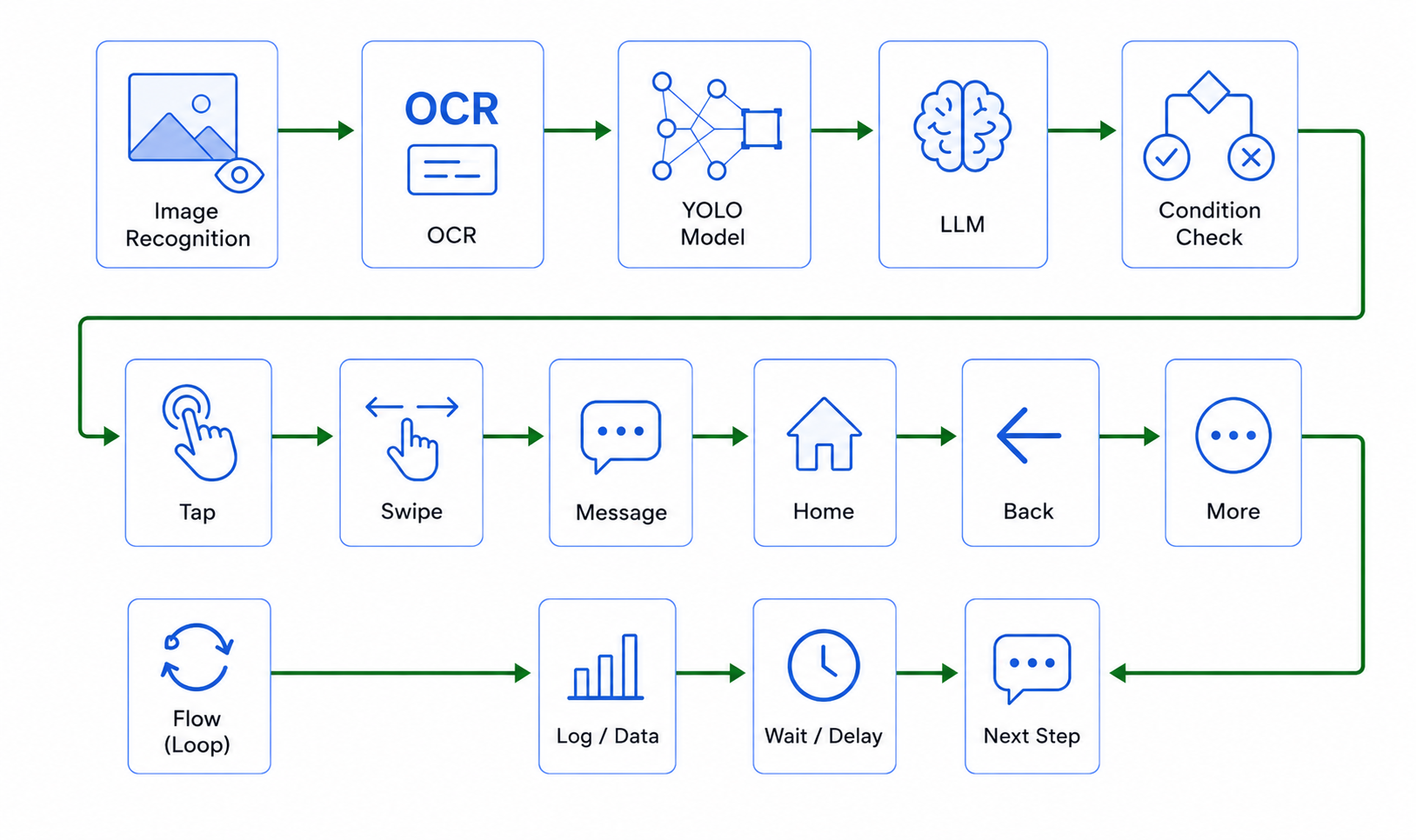
The image above shows the important idea. LaiCai Flow can combine recognition steps such as image recognition, OCR, object detection, and LLM reasoning with action steps such as tap, swipe, message, Home, Back, More, wait, log, and loop. The value is not one magic button. The value is chaining small reliable steps so a repeated Android task can run the same way tomorrow.
A high-quality Flow should have a clear start, a clear success condition, and a clear stop condition. If the flow only says “check the app,” it is too vague. If it says “open the app, tap Orders, wait for the list, screenshot the first page, and stop if OCR cannot find the order status text,” it becomes something a team can debug and reuse.
For step-by-step setup, the LaiCai Flow guide explains how to create, debug, and run flows. This article focuses on use cases: what kinds of repeated Android actions are worth automating.
Three ways to create a Flow: LLM, MCP, and Graph View
LaiCai Flow should also be understood as a creation workflow, not only an execution workflow. A user can describe the task in natural language, let an LLM generate a Flow draft, then review the steps before running anything on an Android device or emulator.
For developer-oriented workflows, Codex, Claude, or another MCP client can generate Flow plans through the LaiCai automation tools. This gives teams a practical path from “describe the repeated Android task” to “inspect the generated nodes” without hand-building every tap, wait, OCR check, and condition from scratch.
Graph View is the manual editing layer. After an LLM, Codex, Claude, or MCP workflow produces a draft, the user can open Graph View, adjust nodes, connect branches, add waits, check OCR or image-recognition steps, and make the Flow easier to debug. That combination is the real product story: LLM generated Flow, MCP generated Flow, and visual Graph View editing in one Android automation workflow.
Why this fits the 2026 AI agent trend
The broader market is moving from chat-only tools toward AI agents that can operate software interfaces, delegate multi-step work, and keep tasks inspectable. Terms such as agentic AI, computer use agents, GUI agents, AI workflow automation, and mobile automation testing are becoming important because teams want agents that can act on real application screens, not only answer questions.
LaiCai Flow sits in that direction for Android. It is not a browser agent and it is not a replacement for traditional test frameworks. Its role is narrower and practical: help users turn visible Android screen actions into reviewable flows across Android devices and emulators.
That is why natural-language test creation, autonomous mobile QA, MCP generated Flow, Codex generated Flow, Claude MCP workflow, and Graph View editing belong in the same topic cluster. They describe the path from intent, to generated nodes, to human review, to repeatable Android execution.
Example 1: repeat a search and result check
A common task is search verification. You open an app, tap the search box, enter a keyword, submit it, wait for the result page, scroll once or twice, take a screenshot, and check whether expected text appears. A human can do it, but repeating the same path for many keywords, app builds, or devices wastes attention.
With LaiCai Flow, that path becomes a workflow. The operator can define the search steps once, then run it on an Android device or emulator. If the result page loads correctly, the Flow can continue. If the search button is missing, the keyword field does not accept input, or OCR cannot find the expected text, the Flow can stop and leave evidence for review.
This is useful for QA teams checking app versions, content teams checking published pages, e-commerce teams checking product detail pages, and studios checking whether a repeated mobile workflow still behaves the same after an app update.
Example 2: repeat a smoke test after each build
Many teams have a short smoke test that is too small to justify a heavy test framework but too important to skip. Install or open the app, log in with a test account, enter the home page, open a core feature, take a screenshot, go back, open a second feature, and confirm that no blank page or broken state appears.
LaiCai Flow can turn that checklist into a repeatable Android workflow. The Flow does not need to understand the whole product. It only needs to repeat the visible path and check the screen at important points. If a page takes too long to load, if a button is gone, or if expected text is missing, the workflow can stop before a person spends time clicking through the rest.
This is especially useful when a team is still between manual QA and a full test automation framework. The first Flow does not need to cover every edge case. It can cover the five screens that break most often, the two buttons that must always work, or the one result page that must not be blank after a build.
This complements, rather than replaces, conventional Android test automation. Android's UI Automator documentation also focuses on interacting with visible UI elements and app states. LaiCai Flow brings that idea into a visual workflow layer for teams that work from a PC or Mac.
Example 3: repeat customer support reproduction steps
Support teams often receive a report like “I tapped this page and nothing happened.” The useful work is not only answering the customer. Someone may need to reproduce the path: open the same screen, tap the same option, wait for the same result, capture the screen, and pass clear evidence to the product or engineering team.
A Flow can help standardize that reproduction path. The support operator still decides which case is valid and what information can be recorded. LaiCai Flow handles the repeatable Android actions, while control Android from PC or Mac keeps the screen visible and controllable from the computer.
This is where industry scenarios should be discussed carefully. The goal is not to automate anything hidden or unauthorized. The goal is to repeat allowed support, QA, e-commerce, training, or studio workflows so the team gets cleaner evidence with less manual clicking.
Example 4: repeat checks across devices and emulators
One Android screen is rarely the whole story. A flow may pass on an emulator but behave differently on a device. A layout may look fine on a large screen but break on a smaller one. A language version may fit in English but overflow in German, Thai, or Russian.
That is why LaiCai positioning should say Android devices and emulators. You can use an emulator to debug the flow quickly, then run the same idea on selected Android devices. When the same routine needs to be checked across more than one screen, multi-device Android control gives the broader workspace.
Useful repeated checks include opening the same page on several devices, taking screenshots with consistent names, checking whether a button is visible, confirming that translated text fits, and identifying which device or emulator failed the routine.
Where AI helps, and where humans stay in control
AI is most useful at the draft and adjustment stage. You describe the workflow in normal language, and AI helps convert it into nodes: open app, wait, tap, input text, take screenshot, check OCR, branch, retry, or stop. That saves time compared with building every step from scratch.
Human review still matters. A person should confirm that the workflow is allowed, the target app is appropriate, the screenshots do not expose private data, and the flow does not create misleading activity. For sensitive screens, it may be better to record a note instead of a screenshot. For production accounts, a manual confirmation step may be required.
A strong workflow also keeps logs. If a repeated check fails, the useful question is not only “did it fail?” but where it failed: image recognition, OCR, tap target, loading delay, condition check, or the next step after a branch. Logs and screenshots make the Flow easier to improve, and they give QA, support, and app teams evidence they can hand to another teammate.
The safest mental model is simple: LaiCai Flow automates repeated Android actions; people remain responsible for purpose, permission, review, and final decisions.
A practical checklist before building your first Flow
Write the repeated action as a sentence before building anything: “Open this app, search this term, wait for results, screenshot the page, and check whether this text appears.” If the sentence is vague, the flow will be vague.
Choose the Android surface: emulator for fast debugging, Android device for hardware-specific checks, or both when you need confidence. Decide which screenshots are necessary and which data should be masked. Keep the first workflow short. A five-step flow that works reliably is better than a thirty-step flow that is impossible to debug.
Then link the workflow to the right LaiCai page: use AI Android automation tool for the product capability, LaiCai Flow guide for the tutorial, control Android from PC or Mac for manual control, and multi-device Android control for multi-device workspaces.
Bottom line
The best way to explain LaiCai Flow is not “workflow orchestration.” A normal user asks a simpler question: what can it automate? The answer is repeated Android actions: tap, swipe, type, wait, screenshot, OCR, check, repeat, and stop when something is wrong.
That message also fits real industry demand. QA teams want repeatable checks. Customer support teams want cleaner reproduction evidence. E-commerce teams want repeated page checks. App studios and content teams want less manual clicking when validating builds, screens, and localized pages. LaiCai Flow gives those teams a way to turn repeated Android actions into AI-assisted workflows across Android devices and emulators.