Use LaiCai Screen Mirroring to play Diablo Immortal from a real Android phone on a bigger PC or Mac screen with custom keyboard and mouse mapping.
Why use a real Android phone for Diablo Immortal on PC?
Diablo Immortal is an action MMORPG built around fast combat, character progression, loot, dungeons, events, clans, and long play sessions. The official Blizzard site highlights class choice, PvE, PvP, and story content, while the mobile store listings show the game is designed for mobile devices with frequent updates and social play.
That creates a different PC workflow from a normal desktop game. Many players still keep their mobile account, mobile install, Android settings, phone storage, touch HUD, and region on the phone. They may simply want a larger screen, more comfortable input, better recording, or a cleaner desk setup without moving the game into a separate emulator environment.
LaiCai Screen Mirroring fits that workflow. The game continues running on the real Android phone, and the computer becomes the larger display, keyboard/mouse surface, screenshot desk, recording workspace, and tutorial station. This is useful for players who want real-device continuity, creators who record builds or dungeon guides, and teams that test mobile game flows on actual hardware.
Before mapping keys, stabilize the phone and connection
Start with a USB connection. Diablo Immortal can involve long sessions, fast movement, repeated skill rotations, inventory checks, chat, parties, and dungeon queues. A stable baseline matters more than chasing the highest possible mirror resolution on the first run.
Open the game on the phone first. Let large updates finish, enter a safe area, and keep the on-screen controls in a fixed layout. If you change the HUD after creating the key mapping profile, the keyboard points may no longer match the correct touch buttons.
Also check heat and charging. ARPG and MMO sessions can be longer than a short shooter match. If the phone gets hot, lower in-game graphics or mirror resolution. If the computer is overloaded, reduce bitrate or FPS. If Wi-Fi creates spikes, switch back to USB.
A practical key mapping layout for Diablo Immortal
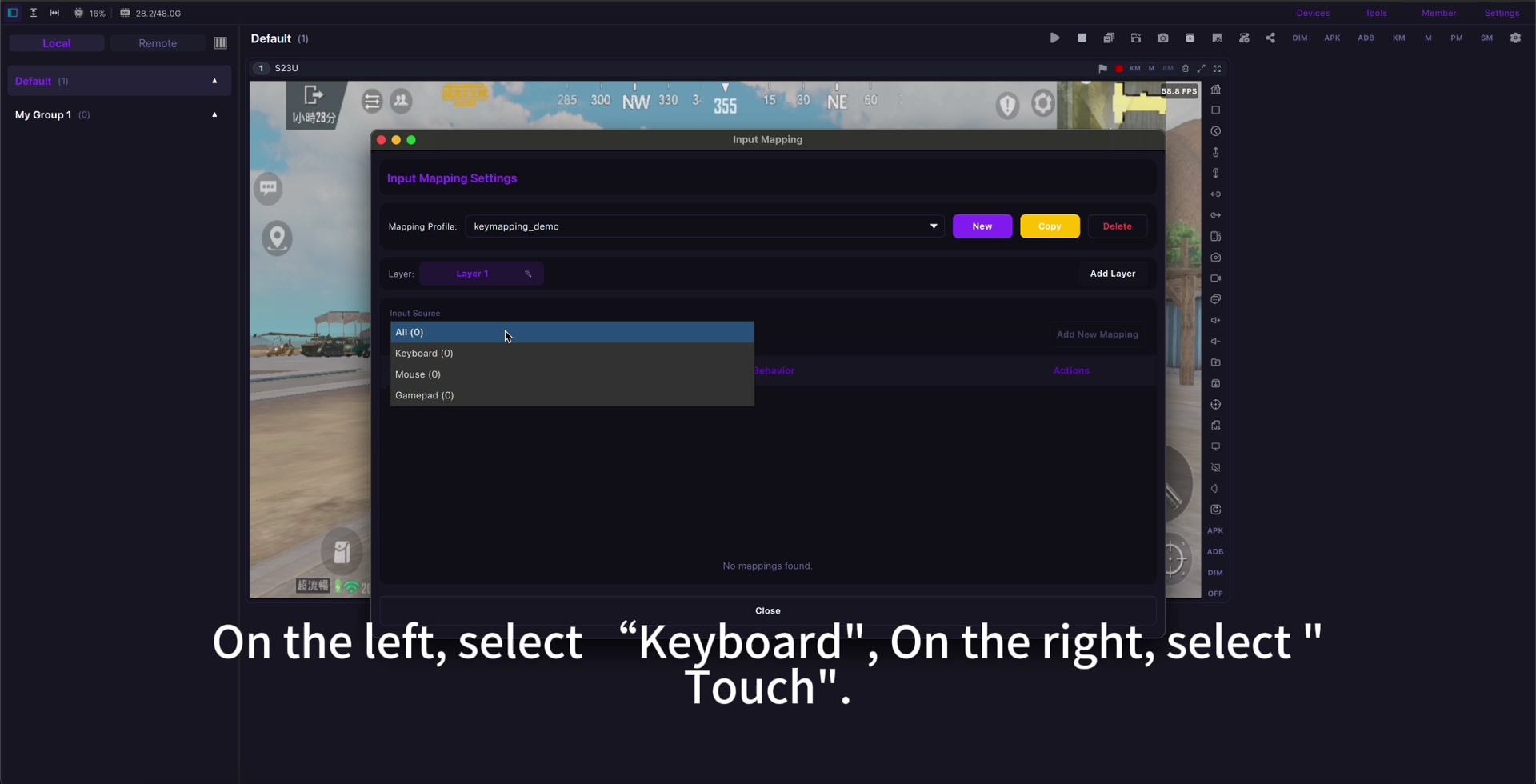
A good starting layout is simple: WASD or a left-hand cluster for movement, left mouse or Space for primary attack, Q/W/E/R for skills, number keys for potions or utility actions, Tab or M for map, B or I for inventory, and a comfortable key for dodge, interact, or mount if your layout uses it.
Do not over-map every button on day one. Start with movement, primary attack, core skills, potion, map, inventory, and interact. Then add secondary actions only when they save real effort. The best setup is the one you can repeat through rifts, dungeons, farming routes, and boss fights without looking down.
For a broader setup framework, use the Android game key mapping guide and keep the Diablo Immortal profile separate from FPS or MOBA profiles. ARPG movement, targeting, and skill timing need a different feel from PUBG Mobile, Free Fire, or Wild Rift.
Resolution, FPS, bitrate, and audio choices
For Diablo Immortal, clear UI and stable input are usually more important than maximum resolution. 720p or 1080p with stable 45-60 FPS is often enough to read cooldowns, health, inventory, minimap, chat, quest text, and loot icons. Raise bitrate only until the UI looks clean.
If you record builds, dungeon routes, or class guides, test audio before the real run. Make sure phone volume, computer capture, microphone, and recording software are all routed correctly. If audio drifts or the mirror stutters, lower the mirror load before recording a full guide.
If the screen feels delayed, use the Android screen mirroring latency guide before changing every key. Connection quality, phone performance, PC load, FPS, bitrate, and game graphics all affect the final feel.
When this workflow is better than an emulator
An emulator can be useful for some players, but a real-phone workflow has a different purpose. It keeps the mobile install and phone environment intact. That can matter for users who already manage their game on the phone, creators who want to show the real mobile setup, or QA teams that need evidence from actual Android hardware.
For general mobile game workflows, the larger cluster is playing Android games on PC with a real Android phone. Diablo Immortal is one example of the broader pattern: keep the game on the phone, use the computer for comfort, control, recording, and repeatable setup.
Fair-play and account safety boundaries
Use keyboard and mouse mapping as human input only. Do not use bots, automatic farming scripts, unauthorized macros, account trading, match manipulation, exploit automation, or any behavior that violates Blizzard, NetEase, Battle.net, app store, event, clan, or platform rules.
If you play competitive modes, social events, or account-sensitive content, check the current official rules first. LaiCai is positioned for screen mirroring, human-controlled input, recording, screenshots, real-device testing, and comfort. It should not be used to bypass game rules.
Diablo Immortal PC setup checklist
- Install and update Diablo Immortal on a real Android phone.
- Start with USB before testing Wi-Fi.
- Keep the in-game HUD fixed before mapping controls.
- Map movement, primary attack, skills, potion, map, inventory, interact, and chat only as needed.
- Use 720p or 1080p with stable FPS before raising bitrate.
- Test phone heat, charging, audio, and recording before long sessions.
- Avoid bots, farming scripts, unfair macros, account abuse, and rule violations.
Official sources: Diablo Immortal official site, Google Play, App Store.