Android 16 is making desktop-style Android workflows more visible. Google’s connected display and desktop windowing work is useful because it lets a supported Android device behave more comfortably on a larger display. For one phone, one monitor, and one user, that can be a major usability improvement.
But a phone farm, a QA device desk, a customer support phone bench, or an e-commerce multi-device workflow is a different problem. Those teams do not only ask whether one phone can show a desktop-like window. They ask whether many real Android phones can be seen, controlled, labeled, documented, recorded, and handed off from a PC or Mac.
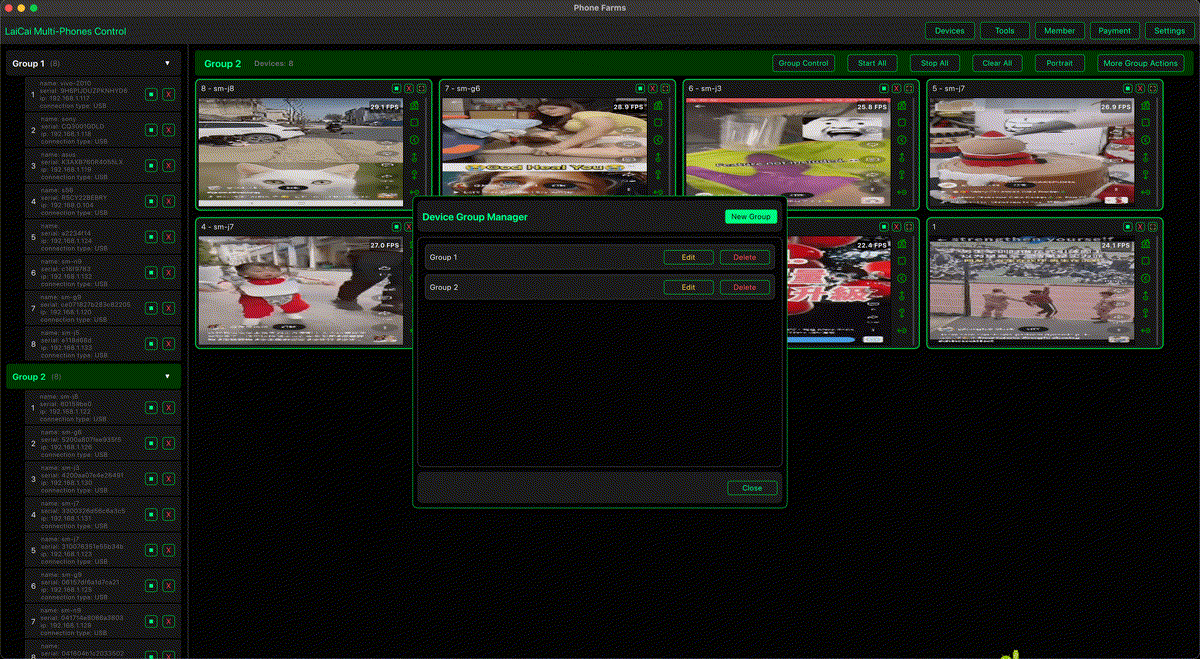
That is the practical line between Android 16 desktop mode and LaiCai Screen Mirroring. Desktop mode improves the native experience of a supported phone. LaiCai Screen Mirroring focuses on real Android phone control from a computer, including multi-device workflows, screenshots, recording, and game key mapping when appropriate.
Short Answer
No, Android 16 desktop mode does not replace phone farm software or a serious mobile phone group control setup. It can reduce friction for one compatible phone connected to a display, but it does not solve the operational needs of a desk with several Android devices.
A useful comparison is not “Android 16 versus every third-party tool.” The better question is: are you trying to make one phone more desktop-friendly, or are you trying to operate several real phones from one computer with repeatable evidence and organized device groups?
What Android 16 Desktop Mode Is Good At
Android 16 desktop mode is strongest when one supported Android device needs a larger workspace. It can help app developers think about resizable windows, external displays, keyboard and mouse input, and density changes. It can also make daily phone productivity more comfortable when the hardware and OS support it.
This is a native Android platform direction, so it matters for the whole ecosystem. QA teams should test how their apps behave in windows. Power users should understand which phones, displays, cables, and app layouts are supported. Content teams should understand that this is not the same as mirroring and controlling a phone from a computer.
What a Phone Farm or Multi-Device Desk Needs
A real phone farm or multi-device desk has a different checklist. Teams need device names, physical labels, groups, connection status, screenshots, short recordings, logs, and handoff rules. They often need to compare several models at the same time: budget phones, gaming phones, foldables, older Android versions, and new Android 16 devices.
For support, the goal may be to reproduce a customer issue and record proof. For QA, the goal may be to test the same flow across real hardware. For e-commerce, the goal may be to monitor legitimate shop, order, chat, and product-management apps without moving between many handheld phones. For game creators, the goal may be to record real-device gameplay and key-mapping tutorials. Those are not just “one phone on a monitor” tasks.
Where LaiCai Screen Mirroring Fits
LaiCai Screen Mirroring is positioned for the computer-control layer. A Windows PC or Mac becomes the desk where real Android phones are mirrored and controlled. Teams can keep the phones as real devices while using the computer for a larger view, mouse and keyboard operation, screenshots, recording, and multi-device organization.
This matters because many workflows require the phone to remain a real phone. A mobile game may behave differently on a real device than on an emulator. A support issue may depend on the phone model, Android version, manufacturer skin, battery mode, or network condition. A QA checklist may need real evidence from the exact device family. LaiCai Screen Mirroring is built around those real-device realities.
Use-Case Comparison
| Scenario | Better fit |
|---|---|
| One supported phone on a large display | Android 16 desktop mode or DeX-style workflow |
| Several real Android phones on one PC or Mac | LaiCai Screen Mirroring multi-device workflow |
| QA evidence across device models | Real-device desk with screenshots and recordings |
| Customer support handoff | Mirrored phone, short recording, clear device notes |
| Mobile game keyboard/mouse mapping | LaiCai key mapping workflow |
| Compliant e-commerce phone operations | Grouped real devices with team rules and records |
Recommended Workflow
- Use Android 16 desktop mode when one compatible device needs a bigger desktop-style workspace.
- Use LaiCai Screen Mirroring when the task is computer control of real Android phones.
- Use multi-device control when teams must compare, monitor, document, or hand off several phones.
- Keep phone farm workflows legitimate: QA, support, training, e-commerce operations, device checks, and creator production.
- Avoid fake engagement, account abuse, mass messaging, or platform-rule evasion. Tools should support real operational work, not risky behavior.
If you are comparing one-device desktop use, start with Android 16 desktop mode. If you are building a real-phone operation desk, start with controlling multiple Android phones from one computer, then read the low-cost Android device lab guide, the Mac multi-device control guide, and the LaiCai key mapping guide for gaming workflows.
FAQ
Is Android 16 desktop mode the same as screen mirroring?
No. Desktop mode is a native device/display workflow. Screen mirroring and computer control focus on showing and operating the phone from a PC or Mac.
Can Android 16 replace phone farm software?
Not for multi-device operations. A phone farm workflow needs grouping, real-device visibility, screenshots, recordings, and desk-level organization.
Is LaiCai Screen Mirroring only for gamers?
No. Game key mapping is one important use case, but the same real-device control workflow also helps QA, support, e-commerce, training, and device operations.
Should I still test Android 16 desktop mode?
Yes. If your users may connect phones to larger displays, Android 16 desktop windowing should be part of your app testing checklist.
References: Android Developers connected displays; Android Developers desktop windowing.