Customer support teams often work across several mobile apps at the same time. One phone may be used for pre-sales chat, another for after-sales support, another for marketplace messages, another for logistics checks, and another for reproducing a customer issue on a real Android device. When every phone sits separately on the desk, support work becomes slower and harder to document.
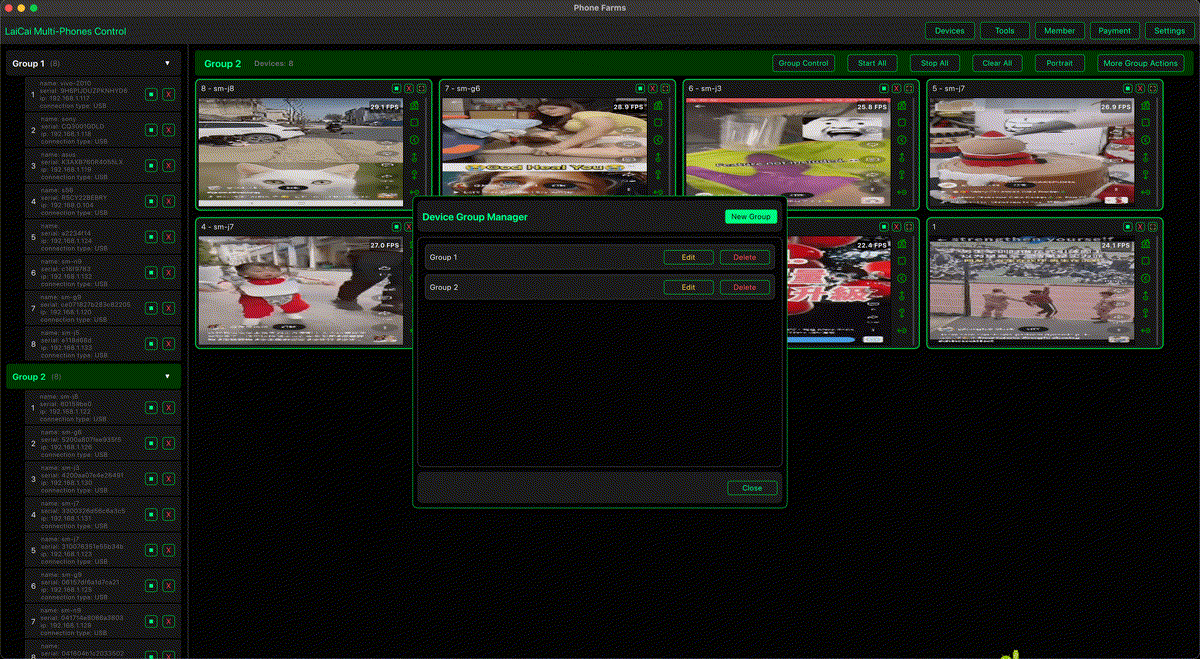
LaiCai Screen Mirroring helps support teams bring multiple Android phones into one PC or Mac workspace. Agents can view phone screens, control apps with mouse and keyboard, group devices by support role, capture screenshots, record issue flows, transfer files, and hand off work with clearer context.
Why Support Teams Still Need Real Phones
Many customer conversations happen inside mobile-first apps. Real Android phones show the actual app interface, notification state, login state, permissions, language settings, camera behavior, and device-specific layout. This is useful when a customer reports a bug, asks about an order, or needs a screenshot-based explanation.
The Problem with Manual Phone Handling
Without a central workspace, agents constantly pick up phones, unlock screens, switch apps, copy information, take screenshots, and repeat the same checks. During busy shifts, it is easy to miss a message, forget which phone belongs to which channel, or lose evidence from a previous support case.
How LaiCai Improves Support Work
- Mirror multiple Android phones to one support desk.
- Control phones with one keyboard and mouse.
- Create groups by sales, after-sales, logistics, region, language, or platform.
- Take screenshots for customer records and internal tickets.
- Record screen flows when an issue needs reproduction.
- Transfer images, documents, APKs, and support files between the computer and phone.
- Keep real devices visible during shift handoff.
For the broader device workflow, read how to control multiple Android phones from one computer. For one-device workflows, see how to control an Android phone from a computer.
Recommended Support Desk Setup
Start by labeling each phone clearly: channel, shop, region, language, or support role. Then create matching groups in LaiCai. Keep active customer-chat phones large on the monitor, and keep monitoring-only phones smaller. For multi-shift teams, write down which device group belongs to which queue before the handoff.
Daily Workflow Example
- Connect the support phones by USB for stable operation.
- Open LaiCai and group devices by support queue.
- Open chat, order, logistics, and marketplace apps on the phones.
- Use screenshots when a customer report needs proof or a ticket attachment.
- Record short screen flows when a bug or app behavior must be reproduced.
- Transfer response images, guides, or documents from the computer to the right phone.
- At shift handoff, leave notes with device group, pending cases, and captured evidence.
Compliance Reminder
Use multi-device control for real customer support, documentation, training, and issue reproduction. Do not use it for spam, fake engagement, fake reviews, account abuse, unauthorized messaging, or any activity that violates platform or marketplace rules.
Conclusion
A support team does not need to scatter phones across the desk. By keeping real Android devices and moving control to a PC or Mac, LaiCai gives customer support teams a clearer way to monitor, respond, record, and hand off mobile support work.