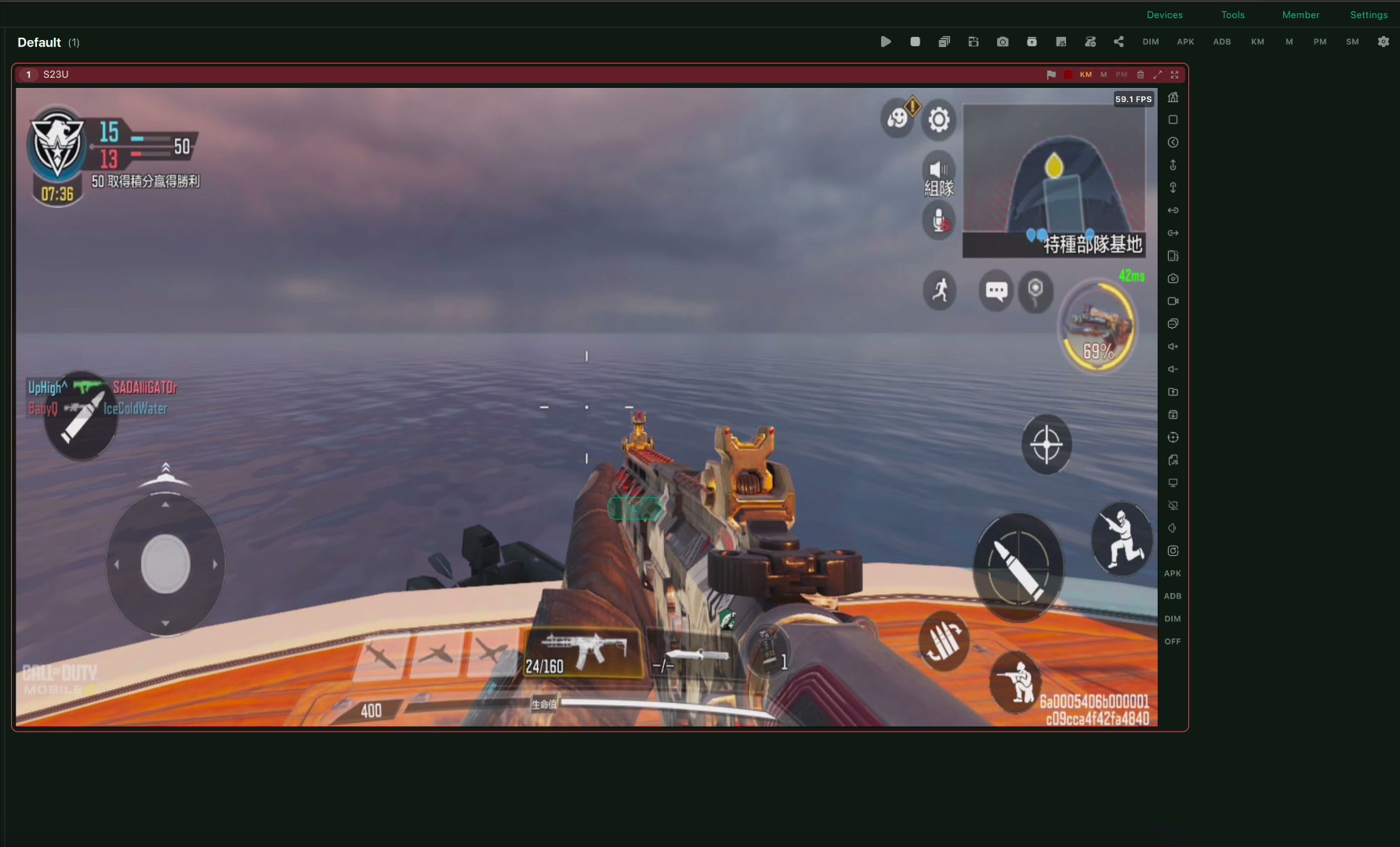
Play Call of Duty: Mobile on a bigger PC or Mac screen while keeping the game on your real Android phone, with custom keyboard and mouse mapping in LaiCai Screen Mirroring. LaiCai Screen Mirroring
play Android games on PC / COD Mobile key mapping / reduce Android screen mirroring lag
Why a Real-Phone COD Mobile Setup Is Different
Call of Duty: Mobile is built for phones, but its control density is close to a PC shooter: movement, camera, fire, ADS, reload, crouch, slide, jump, sprint, scorestreaks, tactical equipment, lethal equipment, weapon switching, minimap checks, and loadout changes all compete for a small touchscreen.
With LaiCai Screen Mirroring, COD Mobile still runs on your real Android phone. The computer becomes the larger display and control surface. That means your mobile account, installed game version, phone performance profile, network behavior, graphics settings, and device permissions stay on the phone instead of moving into a virtual Android environment.
This is useful for players who want a larger screen, creators recording tutorials, teams checking real-device behavior, and users who prefer keyboard and mouse comfort while still testing the actual Android device.
Recommended Setup Before Mapping Keys
Start with USB if possible. COD Mobile is sensitive to small delays because aim correction, recoil control, ADS timing, and movement changes happen quickly. A stable cable gives you a clean baseline before you try Wi-Fi.
Open LaiCai Screen Mirroring on Windows or macOS, connect the Android phone, authorize the connection, launch COD Mobile on the phone, and enter a safe place such as the loadout screen, training mode, or a private practice environment.
Before adding PC controls, organize the in-game HUD. Put fire, aim, reload, crouch, jump, prone, sprint, weapon switch, grenade, tactical, scorestreak, backpack/loadout, minimap, and interact buttons where they will not move between matches. Key mapping follows screen positions, so a clean HUD is the foundation.
Keyboard and Mouse Layout for COD Mobile
A practical FPS layout is WASD for movement, mouse movement for camera, left mouse button for fire, right mouse button for ADS, Space for jump, C for crouch or slide, Ctrl or Z for prone, Shift for sprint, R for reload, F for interact, Q and E for tactical or lethal equipment, 1 and 2 for weapon switching, and number keys for scorestreaks.
Do not treat this as a universal preset. COD Mobile has different Multiplayer, Battle Royale, Zombies, and training situations, and many players already use custom HUDs. The right approach is to drag mapping points onto your own screen buttons, test them, adjust the dead zones and mouse-look area, and save a profile that matches your phone and play style.
For aim, test hip-fire, ADS tracking, quick scope, recoil recovery, close-range turns, and slide-cancel style movement only within allowed game behavior. If mouse movement feels delayed, lower bitrate or FPS before changing every sensitivity setting at once.
Resolution, FPS, Bitrate, and Audio
For COD Mobile, control feel matters more than maximum sharpness. A stable 720p or 1080p mirrored image at 45-60 FPS is often better than an overloaded high-resolution stream. Raise bitrate only until enemies, UI text, and minimap details are clear enough.
If the phone heats up, lower game graphics or mirrored resolution. If the PC fan spikes, reduce FPS or bitrate. If Wi-Fi is inconsistent, switch to USB. If the picture is clear but input feels late, prioritize latency over image quality. LaiCai can also carry the phone viewing workflow onto the computer desk so recording and audio monitoring are easier to manage in one place.
Fair-Play and Policy Boundaries
Use keyboard mapping as human input. Do not use recoil scripts, rapid-fire automation, aim assistance, unauthorized macros, account farming, match manipulation, or anything that violates Call of Duty: Mobile rules, Activision policies, tournament rules, or regional platform rules.
Because policies can change by mode, event, and region, check current official rules before ranked play or organized competition. LaiCai Screen Mirroring is positioned for screen mirroring, comfort, recording, real-device testing, and custom human-controlled layouts.
Checklist
- Use a real Android phone with COD Mobile installed and updated.
- Start on USB before testing Wi-Fi.
- Clean the COD Mobile HUD before placing mapping points.
- Map movement, mouse-look, fire, ADS, reload, jump, crouch, prone, sprint, equipment, scorestreaks, weapon switch, and interact.
- Tune mouse-look in training mode, one setting at a time.
- Lower bitrate, FPS, or resolution if input feels late.
- Avoid scripts, unfair macros, automation, or any prohibited play style.
Official Call of Duty Mobile sources
Call of Duty Mobile official site; Activision COD Mobile overview; Activision COD Mobile support; COD Mobile on Google Play; COD Mobile security and enforcement policy.