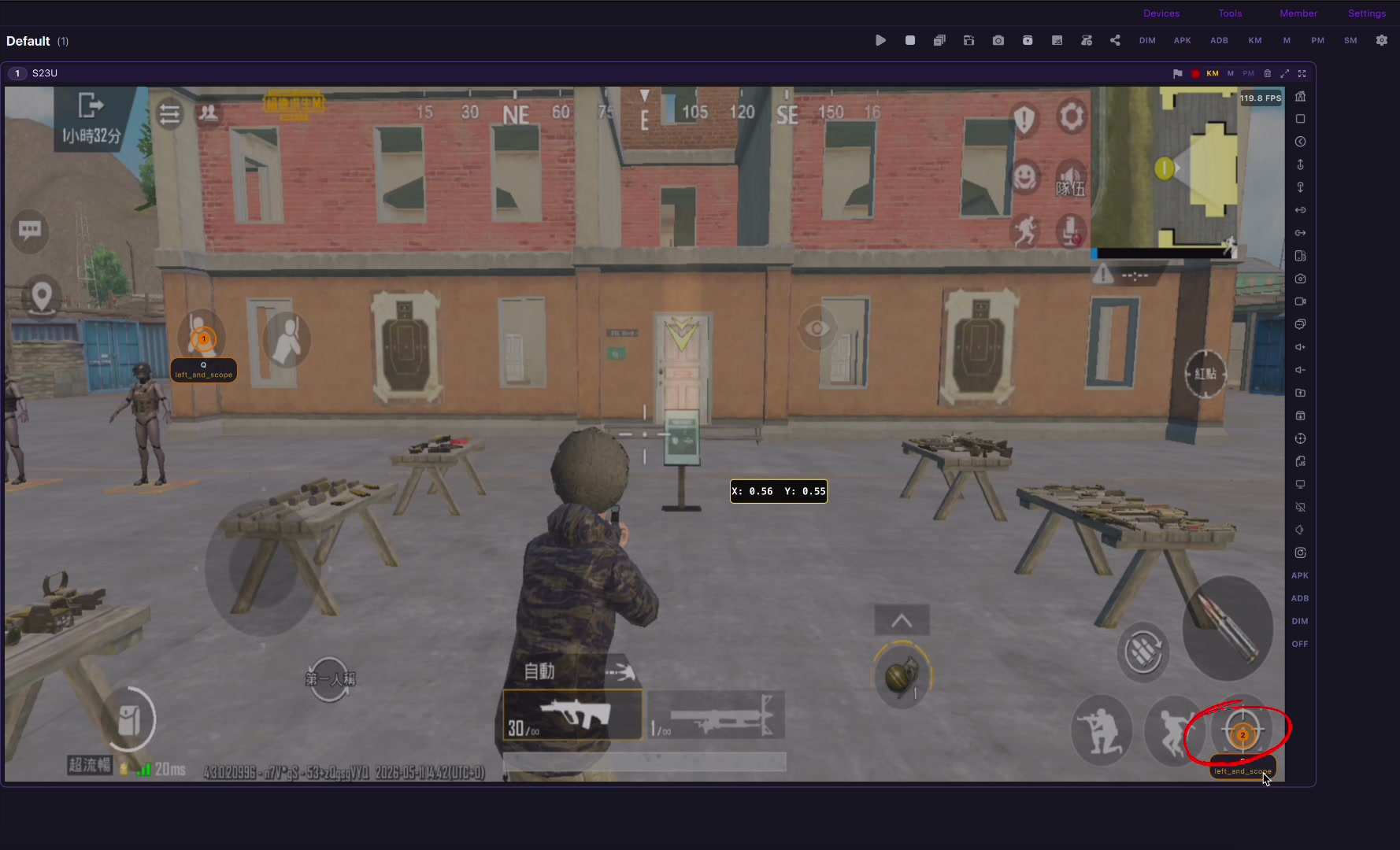
Play Mobile Legends: Bang Bang on a bigger PC or Mac screen while the match still runs on your real Android phone, with custom keyboard and mouse mapping in LaiCai Screen Mirroring. LaiCai Screen Mirroring
play Mobile Legends on PC / Mobile Legends key mapping / reduce Android screen mirroring lag
Why Mobile Legends needs a different PC setup
Mobile Legends: Bang Bang is a 5v5 mobile MOBA, so the important controls are not the same as an FPS. You need reliable movement, skill buttons, battle spell, item shop, attack targeting, camera checks, map awareness, quick pings, recall, and sometimes hero-specific combos that depend on timing.
With LaiCai Screen Mirroring, the match still runs on your real Android phone. The computer becomes the larger screen and input surface. That keeps your mobile account, phone performance, network path, graphics settings, and in-game touch layout on the device while giving you keyboard and mouse comfort at the desk.
This is especially useful for players in Southeast Asia markets where Mobile Legends is already a daily game, for creators recording guides, and for teams checking real-device behavior without moving the game into a separate Android environment.
Set up the phone before mapping keys
Start with USB if you care about control consistency. MOBA inputs are less about single-frame flick shots and more about repeated small corrections: last hitting, aiming skill shots, cancelling, retreating, and watching the minimap while moving. A stable cable gives you a baseline before you test Wi-Fi.
Open Mobile Legends on the phone, enter practice mode or a safe custom room, and clean the HUD before mapping. Put the movement joystick, basic attack, three skills, battle spell, item button, shop, minimap, camera drag area, recall, regen, and ping controls in fixed positions.
If you change the HUD after creating the mapping profile, the mapping points may no longer land correctly. Save one profile for the normal HUD first, then create hero-specific profiles only when a hero really needs a special layout.
A practical keyboard and mouse layout for MOBA play
A useful starting point is WASD or a left-side movement cluster for the virtual joystick, Q/W/E/R for skills and ultimate, D/F for battle spell or active item, Space for basic attack, B for recall, numbers for items or quick shop, Tab or M for map checks, and mouse movement or drag mapping for camera control when needed.
Do not copy a layout blindly. Tanks, assassins, marksmen, mages, junglers, and roamers need different rhythm. Assassins care about skill chains and target locks. Marksmen care about attack movement and spacing. Junglers care about retri timing, objective checks, and quick camera movement.
The safest method is to map the essential controls first, test one hero in practice, and adjust only one group at a time. After movement and skills feel predictable, add shop, ping, camera, and situational buttons.
Resolution, FPS, bitrate, and audio choices
For Mobile Legends, readability and response are more important than extreme resolution. A stable 720p or 1080p stream at 45-60 FPS usually gives enough clarity for lane, map, hero icons, and skill cooldowns. Raise bitrate only until UI text and minimap details are clear.
If the phone heats up during long sessions, lower game graphics or mirrored resolution. If the PC load is high, lower FPS or bitrate. If Wi-Fi introduces random delay, use USB. If the picture looks sharp but skill casts feel late, optimize latency before chasing image quality.
LaiCai Screen Mirroring also helps when recording tutorials because the phone screen, audio workflow, keyboard mapping, and capture tools can stay in one computer workspace.
Fair play and team etiquette
Use key mapping as human input only. Do not use scripts, automated combos, unauthorized macros, account farming, match manipulation, map hacks, or any behavior that breaks Mobile Legends rules, tournament rules, platform rules, or regional community expectations.
If you play ranked or organized matches, check current official rules first. LaiCai Screen Mirroring is positioned for screen mirroring, comfort, recording, real-device testing, and custom human-controlled layouts.
Checklist
- Use a real Android phone with Mobile Legends installed and updated.
- Start with USB before testing Wi-Fi.
- Clean the HUD and keep joystick, skills, attack, spell, shop, map, and pings in fixed positions.
- Map movement, skills, ultimate, battle spell, basic attack, shop, recall, regen, map, and camera controls.
- Test one hero in practice mode before saving the profile.
- Tune latency with FPS, bitrate, and resolution before changing every key.
- Avoid scripts, unfair macros, automation, and rule violations.
Official sources
Mobile Legends official site; MOONTON Games listing; Mobile Legends on Google Play; Mobile Legends US on Google Play.