Many internal workflows now happen inside mobile apps: seller tools, chat apps, delivery apps, CRM apps, QA apps, field-service apps, and customer support tools. Training new staff with screenshots alone is slow because a screenshot cannot show timing, gestures, mistakes, pop-ups, or the exact path through an app.
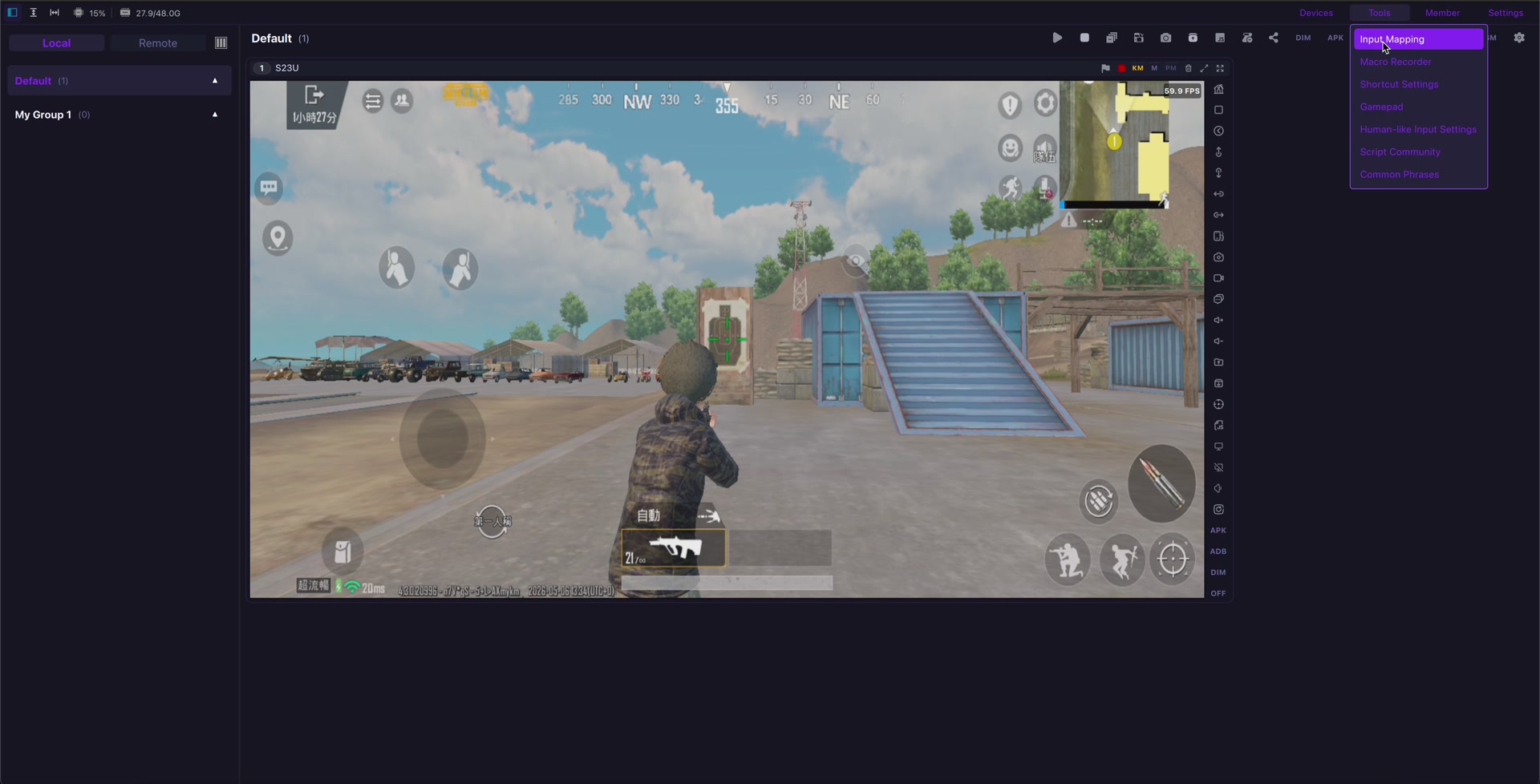
LaiCai Screen Mirroring helps training teams teach mobile workflows with real Android phones. A trainer can mirror the phone to a PC or Mac, control it with a mouse and keyboard, show the screen in a meeting room or video call, take screenshots, record short lessons, and keep the training process repeatable.
Why Use a Real Android Phone for Training?
Emulators and slides are useful, but real phones show the actual mobile environment: notifications, permissions, camera access, touch gestures, network changes, app-only screens, and device-specific UI behavior. This matters when trainees need to perform the workflow later on a real device.
- Onboarding: teach new staff how to log in, navigate, and complete common tasks.
- SOP training: turn repeated mobile workflows into clear step-by-step lessons.
- Product demos: show mobile app behavior to sales, support, QA, and operations teams.
- Customer support coaching: demonstrate how to reproduce an issue and collect proof.
- Recorded lessons: capture short clips for new employees and remote teammates.
A Training Desk Setup
Connect the Android phone to LaiCai, open the target app, and mirror the screen to a larger display. If the training involves several workflows, use one phone for the trainer, one for the trainee view, and another for testing edge cases. For larger setups, see how to control multiple Android phones from one computer.
For QA and product teams, this training workflow also connects well with Android screen mirroring for mobile app testing, because the same screenshots and recordings can support both training and bug reporting.
How to Run a Clear Mobile Workflow Lesson
- Choose one workflow per lesson, such as login, order lookup, refund request, product upload, chat reply, or issue report.
- Prepare a clean demo account with no private customer data.
- Mirror the real Android phone to the computer with LaiCai.
- Zoom or arrange the screen so buttons and text are readable to trainees.
- Perform the workflow slowly once, then repeat it while explaining decision points.
- Use screenshots for key states and short recordings for timing-sensitive steps.
- Save the lesson with a clear name, version, app name, device model, and date.
Good Training Habits
Keep mobile lessons short. A five-minute clip that teaches one repeatable task is usually easier to reuse than a one-hour screen recording. Use real mistakes as teaching moments: wrong menu, missing permission, expired login, poor network, or unexpected pop-up. These are exactly the details that static SOP documents often miss.
Privacy and Compliance
Training screens may contain customer names, messages, addresses, order numbers, or internal notes. Use test accounts when possible. Crop or blur private information before sharing screenshots or recordings. Do not use mirrored phones for spam, fake engagement, account abuse, or platform-rule evasion.
Conclusion
Mobile app training works best when trainees can see the real workflow, not just read a document. LaiCai gives trainers a practical way to mirror and control real Android phones from a PC or Mac, making onboarding, SOP lessons, product demos, support coaching, and recorded training easier to repeat.