Use Codex or Claude with MCP context to draft a LaiCai Flow for Android automation, then review, validate, and run it safely. LaiCai Screen Mirroring.
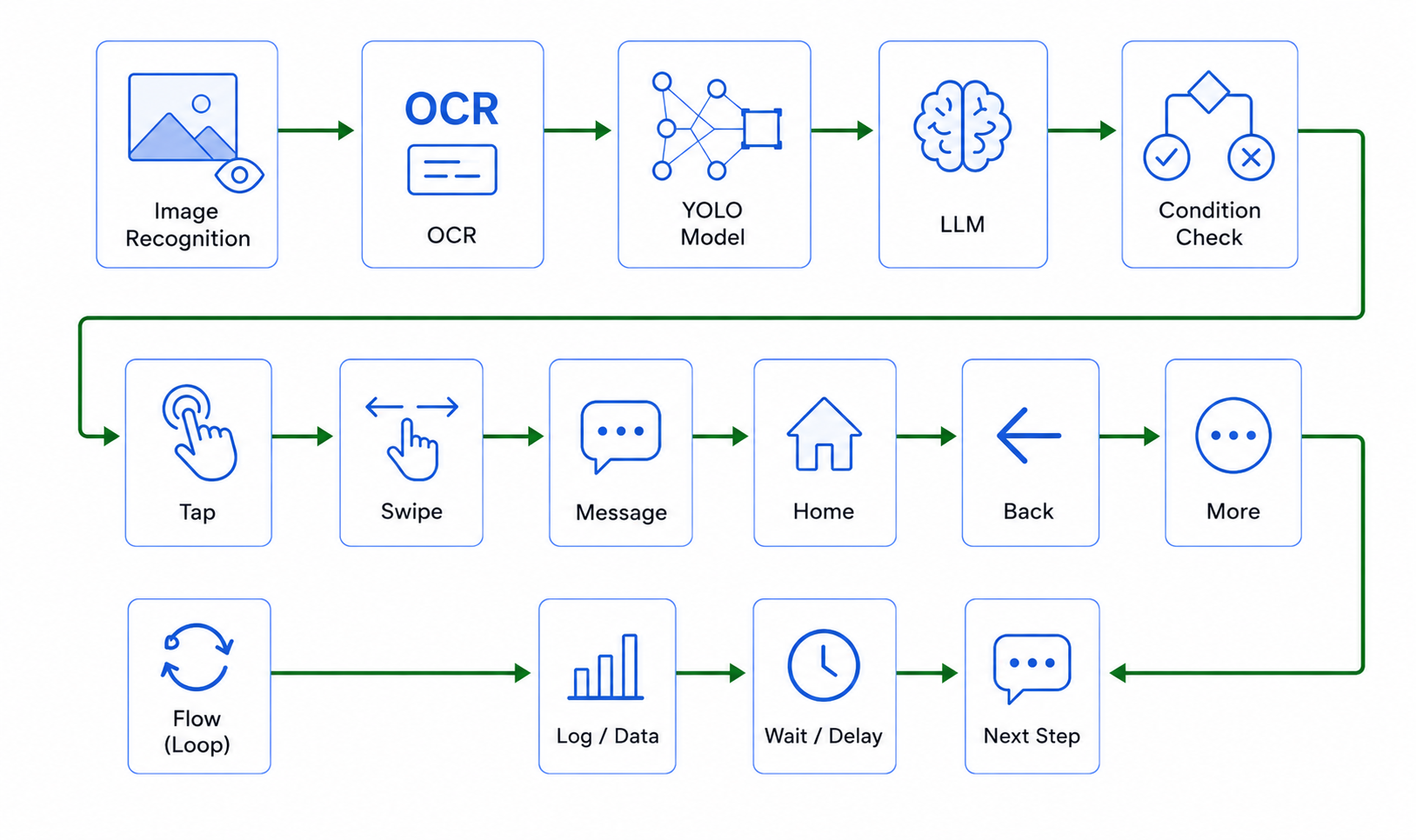
LaiCai Flow turns MCP-assisted Android automation drafts into visible graph steps teams can review.
Why MCP changes Android automation drafting
Model Context Protocol is useful because it gives AI applications a standard way to connect with external systems, tools, data sources, and workflows. For Android automation, that matters because a model should not invent the app package, node schema, available assets, current device context, or allowed save path. The assistant needs structured context before it drafts anything that may run on a device.
OpenAI Codex MCP documentation describes MCP as a way to give Codex access to tools and context, including Streamable HTTP servers and server instructions. Anthropic's Claude MCP connector documentation describes connecting Claude to remote MCP servers and using tool calls. Those official docs point to the same practical pattern: the model becomes more useful when it can read the right context and call explicit tools instead of relying on memory.
For LaiCai Screen Mirroring, the right way to describe this is precise: Codex or Claude can help generate a LaiCai Flow draft when connected to a LaiCai MCP server, but LaiCai Flow remains the execution, debugging, logging, and review surface for authorized Android devices and emulators. The model writes or revises a draft. The Flow graph makes the draft inspectable. The mirrored Android screen makes the first run observable.
What LaiCai MCP exposes to a generator
The local LaiCai MCP design is intentionally context-first. Product documentation describes a localhost Streamable HTTP endpoint for clients such as Codex, Claude, OpenClaw, or other MCP-capable tools. The client should first read generation context, node schema, asset list, and device context before generating a complete Profile JSON. It should validate before save, and it should save only when the user explicitly asks to save a Profile into LaiCai.
That matters for quality. The generation context defines naming rules, display language, profile defaults, stop-on-failure defaults, node delay, runtime logging defaults, and policies for screen evidence, assets, installed packages, and safe interaction. The node schema defines real node types and their inputs and outputs. The asset list tells the model which templates, OCR regions, models, and scripts exist. The device list tells the model which devices LaiCai currently manages.
In this publishing session, the live LaiCai MCP tools were not exposed inside the current Codex thread, so the article uses the local MobileFarm product docs and existing verified Flow publishing context as the source of truth. That is still better than writing from generic Android automation assumptions, and it keeps the article honest about what should be verified before a real Profile is saved.
A safe draft flow for Codex or Claude
A good MCP-assisted Android automation request starts with a bounded user goal. For example: "Create a Flow draft that opens my staging app, signs in with a test account, searches for a sample product, captures a screenshot of the result, uses OCR to confirm the product name, and stops before checkout." The prompt names the environment, evidence, stop boundary, and approved account type.
The assistant should then read the LaiCai generation context and node schema. If the app package is unknown, it should use the current device package list rather than guessing. If a visual target is required, it should use existing assets or ask the user before creating fixed OCR regions. If a workflow has repeated phases, it should use child Flows so the main Flow reads like orchestration rather than a long technical chain.
After the draft is generated, the user reviews it in Graph View. Clear node names matter: "Open staging app", "Wait for login screen", "Capture result screenshot", and "Stop on missing text" are easier to inspect than "node 12" or "tap coordinate." The first debug run should be watched through Android screen mirroring to PC and Mac, with screenshots, OCR output, logs, and stop states checked before the Flow becomes a repeatable routine.
What MCP tools should and should not do
The MCP tools specification describes tools as named capabilities with schemas that allow models to interact with external systems. In an Android automation context, that power needs boundaries. Read-only context tools are safe defaults: generation rules, schema, profiles, assets, device lists, installed packages, foreground app, UI tree, current screenshot, and recent run state can help a draft become accurate.
Write tools require a higher bar. Saving a Profile changes the user's LaiCai automation library. Creating a template from the current screen can be acceptable when it clearly improves stability and the user is told why. Creating a fixed OCR region is riskier because the target may move, so the user needs to understand the assumption. A mature MCP workflow distinguishes these cases instead of treating every tool call as routine.
The model should not guess package IDs, templates, OCR regions, YOLO model class names, coordinates, or destructive steps. It should not use automation for fake engagement, spam, account abuse, scraping private data, bypassing platform rules, game cheating, or hidden production actions. It should ask for missing information only when the answer materially changes target, action, data, repetition, stop condition, or save result.
Where LaiCai Flow fits in a team workflow
MCP does not replace the Android automation surface. It makes the drafting surface smarter. LaiCai Flow still handles the profile, graph, debug run, runtime logs, screenshots, OCR, visual matching, UI-tree-based checks, waits, branches, child flows, and evidence handoff. That is why the phrase "Codex controls an Android phone" can be misleading if it is not explained carefully. Codex can help generate the Flow draft; LaiCai Flow executes and records the authorized workflow.
This division is good for teams. A support lead can describe a reproduction path. A QA engineer can review the generated graph. A developer can decide whether a path belongs in code-level tests later. An operations teammate can run a reviewed Flow on approved devices. Everyone sees the same graph, artifacts, and logs instead of relying on a hidden agent transcript.
For broader context, use the AI Android automation tool, the LaiCai Flow guide, and the previous LLM generated Android workflows article. If the workflow must run across emulators and devices, also review Android emulator automation.
A practical checklist before saving a Flow
Before saving an MCP-generated Flow draft, check six things. First, every node type must come from the current LaiCai node schema. Second, package names and app state should come from device context, not memory. Third, visual checks should use UI tree, OCR, templates, or screenshots intentionally, with stop conditions when confidence is low. Fourth, evidence nodes should save screenshots, OCR outputs, or logs at the moments a teammate will care about later.
Fifth, the graph should be readable. Use child Flows for repeated or separable phases, but do not over-split a simple smoke check. Sixth, the safety boundary must be explicit: no payment, deletion, account settings, private customer data, or outbound messaging unless the environment and policy approve it. A generated draft is useful only when another person can understand it and stop it.
For Android automation, the future is not "one prompt secretly controls everything." The better future is context-aware drafting plus visible execution. Codex or Claude can help build a better first draft through MCP. LaiCai Flow makes the draft reviewable, debuggable, and safe enough for a real team to run.
Official MCP references
Codex MCP documentation · Claude MCP connector documentation · Model Context Protocol overview · MCP tools specification.