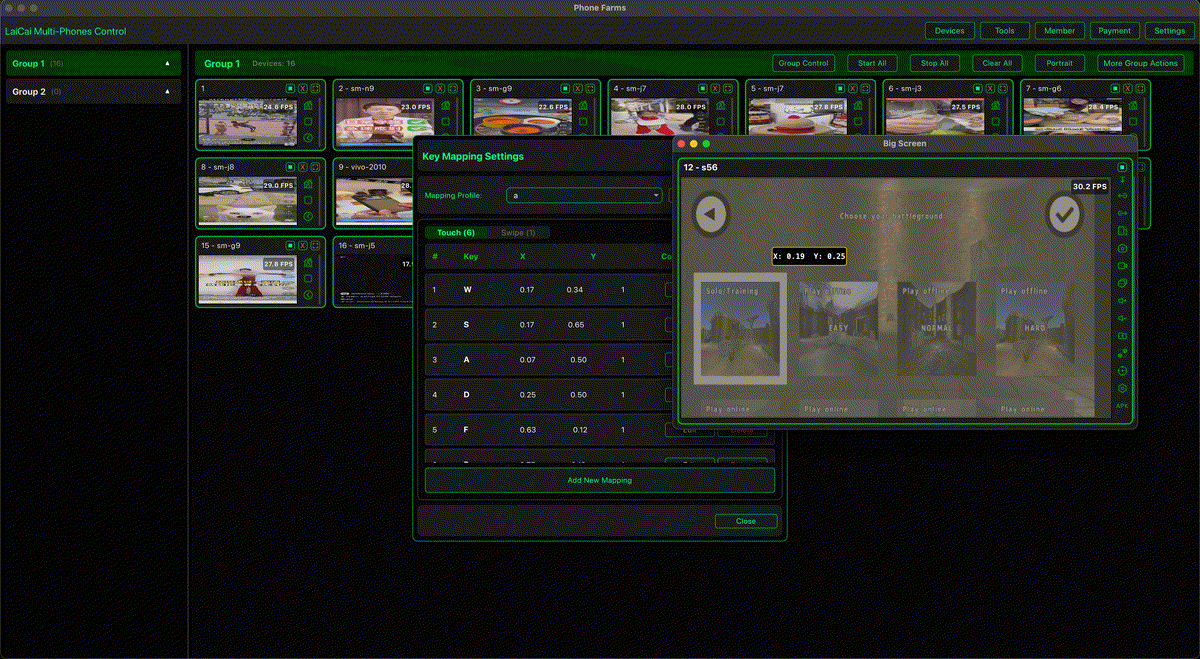
Playing Android games on a computer does not always mean using an emulator. Another option is to keep the game running on your real Android phone and use the PC or Mac as the large screen, keyboard, mouse, and recording workspace. This gives you the comfort of desktop control while keeping the actual phone as the gaming device.
LaiCai Screen Mirroring is built for this workflow. You connect your Android phone, mirror the game screen to the computer, and control the phone with keyboard and mouse. The game still runs on real hardware, with the real Android environment, real account state, and real device behavior.
Why Use a Real Phone Instead of an Emulator?
Emulators can be useful, but they are not always the right fit. Some games behave differently in emulators, some players prefer their real phone account environment, and some creators want footage from the actual device. A real Android phone keeps the real performance, graphics settings, notifications, login state, touch layout, and compatibility.
If you are comparing approaches, read Android screen mirroring vs Android emulator for mobile games.
What the PC Adds
- A larger screen for aiming, map awareness, chat, and visual details.
- Keyboard and mouse controls for more comfortable long sessions.
- Custom key mapping for movement, aiming, skills, items, camera, and menus.
- Screen recording, screenshots, and file management for creators.
- A stable desktop workspace for guides, voice chat, OBS, Discord, or editing tools.
Basic Setup
- Install LaiCai on your PC or Mac.
- Connect the Android phone by USB for the most stable gaming experience.
- Open the game on the phone and mirror the screen to the computer.
- Create a key mapping profile for the game.
- Adjust game graphics, FPS, and phone performance settings for stability.
- Play a short test match and tune mouse sensitivity, key positions, and recording settings.
Key Mapping Tips
For shooters, start with WASD movement, mouse look, left click for fire, right click for aim, and nearby keys for reload, jump, crouch, backpack, healing, map, and weapon switching. For MOBAs, keep skills, items, attack, camera, and quick signals easy to reach. For RPGs and sandbox games, focus on movement, camera, interaction, inventory, and shortcut consistency.
For practical layouts, read the best keyboard mapping setup for Android games on PC and LaiCai drag-and-drop key mapping for mobile games.
Games That Fit This Workflow
This setup works well for PUBG Mobile, Free Fire, Call of Duty Mobile, Arena Breakout, Blood Strike, Standoff 2, Mobile Legends: Bang Bang, Honor of Kings, Brawl Stars, Genshin Impact, Honkai: Star Rail, Roblox, Minecraft, and many other Android games that benefit from a larger screen and custom controls.
Performance Tips
Use a real data cable, keep the phone cool, close heavy PC apps, and choose stable settings before pushing maximum quality. If the game or recording feels unstable, reduce FPS or bitrate before lowering resolution. For long sessions, stable control matters more than a short burst of maximum graphics.
Responsible Play
Use real-phone mirroring to improve comfort, visibility, and recording quality. Follow each game's rules. Do not use cheats, unfair automation, recoil scripts, account abuse, or anything that violates game terms.
Conclusion
A real Android phone can be the gaming device, while the PC becomes the control and content workspace. LaiCai makes that setup practical: real-phone gameplay, large-screen mirroring, keyboard and mouse control, customizable key mapping, screenshots, recording, and a more comfortable way to play mobile games on a computer.