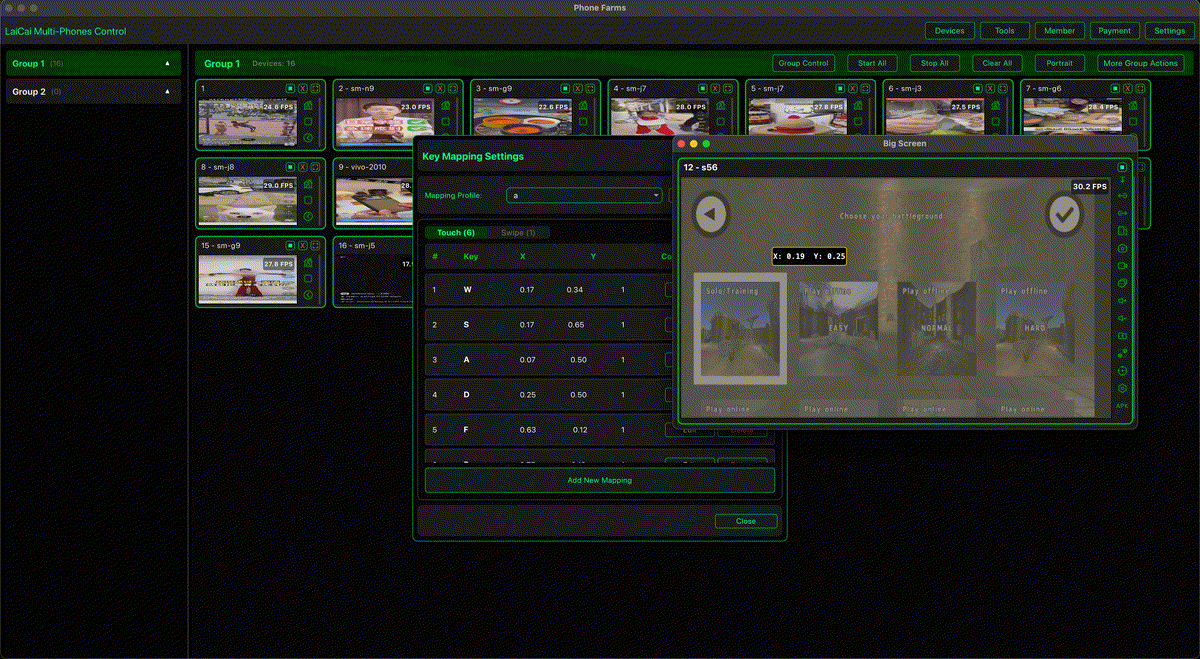
A good keyboard mapping setup can make Android games feel much more natural on a PC or Mac. Instead of tapping small touch buttons on a phone screen, you can move with W/A/S/D, aim with the mouse, use number keys for weapons or skills, and keep important actions close to your left hand.
With LaiCai Screen Mirroring, the game still runs on your real Android phone. LaiCai mirrors the screen to your computer and lets you place keyboard, mouse, and gamepad controls directly on top of the game's touch buttons. This gives you a flexible setup for PUBG Mobile, Free Fire, Call of Duty Mobile, Arena Breakout, Blood Strike, Mobile Legends: Bang Bang, Honor of Kings, Genshin Impact, Roblox, Minecraft, Brawl Stars, and many other Android games.
Start with the Game's Touch Layout
Before creating a keymap, open the game on your phone and check the current HUD. Move important buttons to stable positions first. If the fire button, skill button, backpack, map, or jump button moves later, your keyboard mapping will no longer match the screen.
For most games, the best workflow is: adjust the in-game touch layout first, then open LaiCai's key mapping editor, then drag mapping controls onto the matching touch buttons. If you are new to the editor, start with the basic key mapping guide.
Universal Keyboard Mapping Principles
- Put movement on W/A/S/D.
- Use mouse movement for camera or aim when the game supports it through mapping.
- Use left mouse button for the most frequent action, usually fire or attack.
- Use right mouse button for aim, scope, block, or secondary action.
- Keep Space, Shift, Ctrl, Q, E, R, F, Tab, M, and number keys for high-frequency actions.
- Avoid placing too many important actions on distant keys.
- Create different profiles for different games instead of forcing one layout everywhere.
Recommended Setup for Shooter Games
For PUBG Mobile, Free Fire, Call of Duty Mobile, Arena Breakout, Blood Strike, Standoff 2, and similar shooters, prioritize movement, aim, fire, weapon switching, and fast utility actions.
| Action | Suggested key |
|---|---|
| Move | W/A/S/D |
| Camera / aim | Mouse movement |
| Fire | Left mouse button |
| Aim / scope | Right mouse button |
| Jump | Space |
| Crouch | C |
| Prone | Z or X |
| Reload | R |
| Interact / pick up | F |
| Backpack | Tab |
| Map | M |
| Weapons | 1 / 2 / 3 / 4 |
For shooters, test the setup in a training ground before ranked matches. Make sure aim, fire, scope, movement, and inventory actions do not conflict.
Recommended Setup for MOBA Games
For Mobile Legends: Bang Bang, Honor of Kings, Arena of Valor, Pokemon Unite, and similar games, the keyboard layout should make skills easy to trigger while the mouse or directional controls handle movement and targeting.
| Action | Suggested key |
|---|---|
| Move / joystick | W/A/S/D or mouse-based mapping |
| Basic attack | Left mouse button or A |
| Skill 1 / 2 / 3 | Q / W / E or Q / E / R |
| Ultimate | R or F |
| Battle spell | D or F |
| Shop | B |
| Map signal | G or V |
For MOBAs, do not overload the same finger. If movement already uses W/A/S/D, put skills around Q/E/R/F instead of stacking too many actions on W.
Recommended Setup for RPG and Open-World Games
For Genshin Impact, Honkai: Star Rail, Wuthering Waves, Roblox adventure games, and similar titles, the best setup depends on whether the game is action-heavy or menu-heavy.
- Use W/A/S/D for movement.
- Use mouse movement or right mouse button for camera control.
- Use Space for jump or confirm.
- Use Shift for sprint or dodge.
- Use E, Q, R, F for skills, interact, or ultimate.
- Use number keys for characters, items, or quick slots.
- Use I, B, M, and Esc for inventory, bag, map, and menu actions.
Recommended Setup for Sandbox and Casual Games
For Minecraft, Roblox, Brawl Stars, racing games, farming games, and casual titles, keep the setup simple. These games usually do not need every keyboard key. A clean layout is easier to remember and less likely to break after game updates.
Use W/A/S/D for movement, mouse or arrow keys for camera, Space for jump, E or F for interact, number keys for quick items, and Esc or Tab for menus.
Use Drag-and-Drop Mapping for Precision
LaiCai's drag-and-drop mapping lets you place controls visually on the mirrored Android screen. You do not need to guess coordinates manually. Put each mapping marker directly over the phone's button and adjust it until the action triggers reliably.
For a visual walkthrough, read the drag-and-drop key mapping article. Advanced users can also check the advanced key mapping guide.
Save Separate Profiles
A shooter profile should not be reused for a MOBA. A MOBA profile should not be reused for an RPG. Each game has different button positions, combat rhythm, camera behavior, and menu needs. Save separate profiles and name them clearly, such as "PUBG Mobile 1080p", "Free Fire basic", "Honor of Kings skills", or "Genshin exploration".
Troubleshooting Key Mapping Problems
- If a key triggers the wrong action, check whether the in-game HUD moved.
- If mouse aim feels wrong, test sensitivity in both the game and LaiCai mapping.
- If a key does nothing, make sure the mapping marker is placed exactly over the touch button.
- If several actions conflict, move one of them to a less crowded key.
- If the game updates its interface, review the whole profile before competitive play.
Fair Play Reminder
Use key mapping for comfort, visibility, and personal control. Do not use keyboard mapping, macros, scripts, or automation to cheat, create unfair recoil control, abuse accounts, spam platforms, or bypass game rules. Always follow each game's terms, mode rules, and tournament requirements.
Conclusion
The best keyboard mapping setup is not a universal preset. It is a layout that matches your game, your HUD, your hand habits, and your device. With LaiCai, you can keep the game running on your real Android phone while using a PC or Mac keyboard and mouse to create a more comfortable control experience.