У пользователей Mac часто меньше вариантов для Android-игр, чем у Windows. С LaiCai игра остается на реальном Android-телефоне, экран зеркалируется на macOS, а управление идет с клавиатуры и мыши Mac.
LaiCai Screen Mirroring keeps the game on the real Android phone while your Mac becomes the display, input, and recording workspace. This is useful for PUBG Mobile, Free Fire, Call of Duty Mobile, Arena Breakout, Blood Strike, Mobile Legends, Honor of Kings, Genshin Impact, Roblox, Minecraft, and other Android games.
What you need
- A Mac with LaiCai installed
- An Android phone with USB debugging enabled
- A USB data cable for first setup
- A keyboard and mouse connected to the Mac
- Stable Wi-Fi if you want wireless operation later
For first setup, use the Android connection guide.
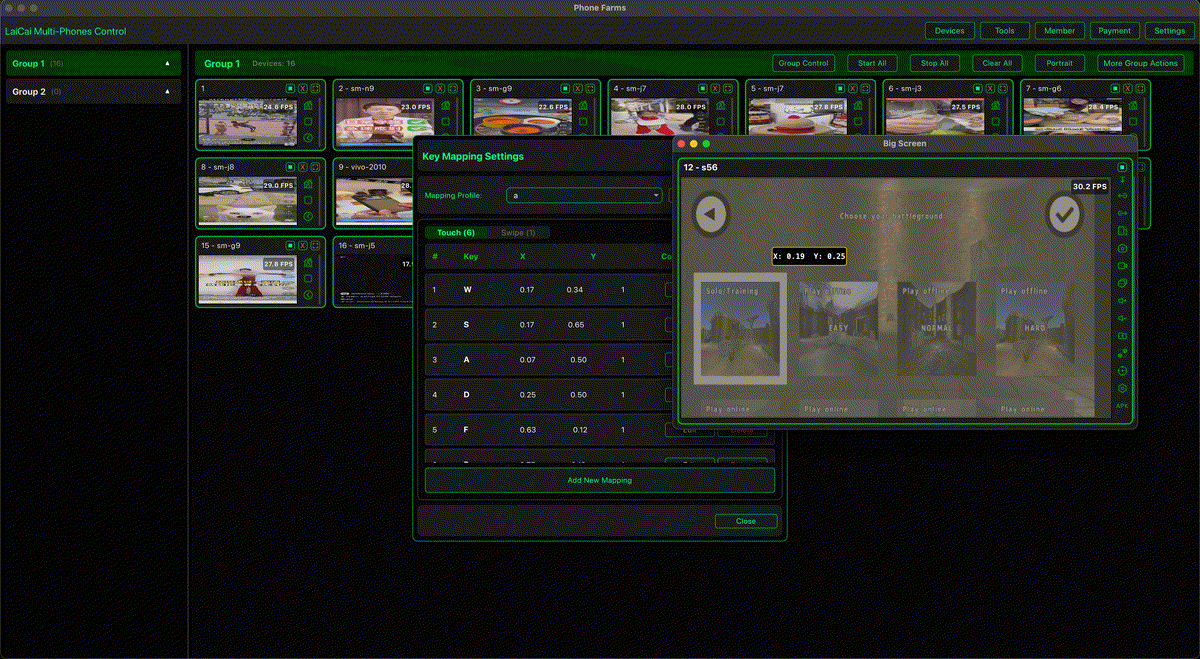
Set up keyboard and mouse controls
Connect the phone by USB, accept USB debugging, open the mirrored screen, and launch the game. Before mapping keys, adjust the game's HUD on the phone. Then open LaiCai's key mapping editor and place controls over the touch buttons.
A practical starter layout is W/A/S/D for movement, mouse movement for camera or aim, left mouse button for attack or fire, right mouse button for aim or scope, Space for jump, R for reload, F for interact, Tab for backpack, M for map, and number keys for weapons or skills.
For more layouts, read the best keyboard mapping setup and the drag-and-drop key mapping guide.
Latency and profiles
For action games, start with USB, 1080p, and 30-60 FPS depending on your Mac and phone. If control feels delayed, lower bitrate or FPS. Save separate profiles for shooters, MOBAs, RPGs, and sandbox games because each game has different buttons and rhythm.
Fair play
Use key mapping for comfort and visibility. Do not use macros, recoil scripts, cheating tools, unfair automation, account abuse, or rule evasion. Always follow each game's rules.