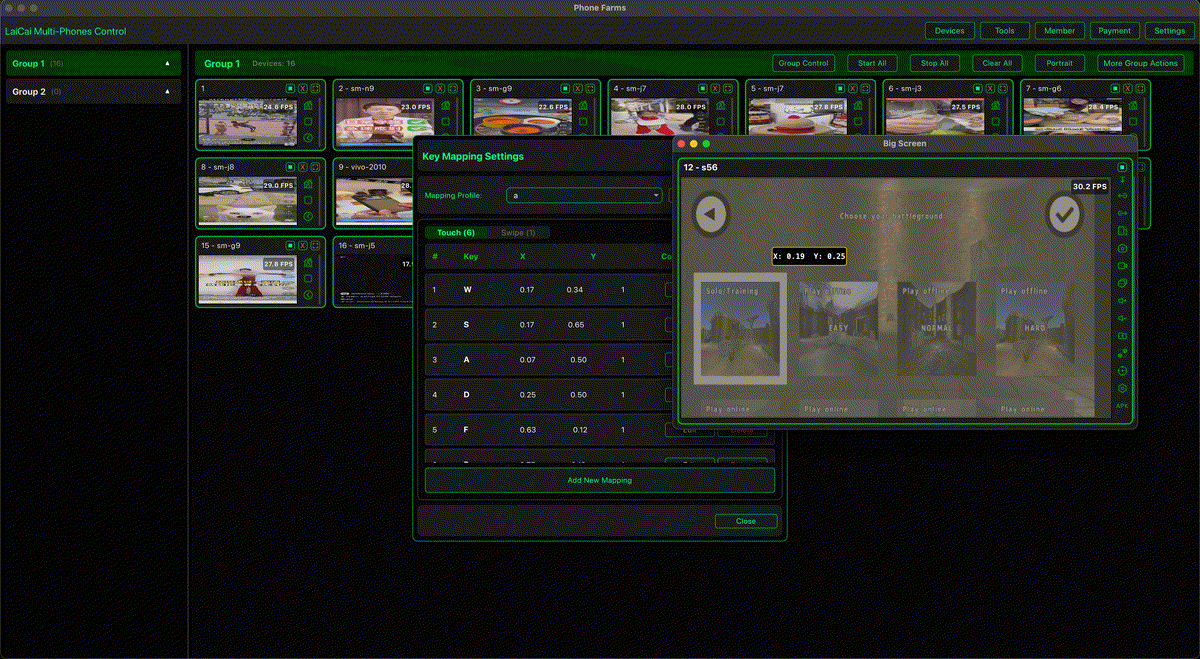
Mac users often have fewer Android gaming options than Windows users. Many Android emulators and game tools are Windows-first, and official PC game support can vary by title, region, account, and hardware. If you want to play Android games on a Mac while keeping the game running on your real phone, screen mirroring with keyboard and mouse control is a practical option.
LaiCai Screen Mirroring lets you mirror a real Android phone to macOS and control the game with your Mac keyboard and mouse. The game stays on your Android device, while your Mac becomes the big screen, input station, and recording workspace.
Why Use a Real Android Phone on Mac?
With LaiCai, you do not need to move the game into a virtual Android environment. Your installed game, account, settings, touch layout, phone performance profile, and device behavior remain on the real Android phone. This is useful for PUBG Mobile, Free Fire, Call of Duty Mobile, Arena Breakout, Blood Strike, Mobile Legends, Honor of Kings, Genshin Impact, Roblox, Minecraft, and many other mobile games.
What You Need
- A Mac with LaiCai installed
- An Android phone with USB debugging enabled
- A real USB data cable for the first connection
- A keyboard and mouse connected to your Mac
- A stable Wi-Fi network if you want wireless use after setup
If this is your first time connecting Android to LaiCai, follow the Android connection guide.
Step 1: Connect the Android Phone to Your Mac
Open LaiCai on macOS, connect your Android phone by USB, and accept the USB debugging prompt on the phone. Once the phone appears in LaiCai, open the mirrored screen. Start with USB because it is usually more stable for fast games.
Step 2: Open the Game and Adjust the HUD
Before mapping keys, open the game on the phone and adjust the touch layout. Put fire, aim, jump, reload, skills, backpack, map, and other important buttons in stable positions. Key mapping should match the phone's current HUD.
Step 3: Create Keyboard and Mouse Mapping
Open LaiCai's key mapping editor and place controls directly over the game buttons. A good starter layout is W/A/S/D for movement, mouse movement for camera or aim, left mouse button for attack or fire, right mouse button for aim or scope, Space for jump, R for reload, F for interact, Tab for backpack, M for map, and number keys for weapons or skills.
For more layout ideas, read the best keyboard mapping setup for Android games and the drag-and-drop key mapping guide.
Step 4: Tune Latency and Visual Quality
For action games, prioritize stable control over maximum image quality. Start with USB, 1080p, and 30-60 FPS depending on your Mac and phone. If the game feels delayed, lower bitrate or FPS first. If the Mac is overloaded, close recording, livestreaming, browsers, and other heavy apps.
Step 5: Save Profiles for Different Games
A shooter layout is different from a MOBA layout. A MOBA layout is different from an RPG or sandbox game. Save separate profiles for each title so you can switch quickly without rebuilding controls every time.
Mac Gaming Use Cases
LaiCai is useful for Mac users who want Android shooters with mouse aim, MOBAs with keyboard skill shortcuts, RPGs on a larger display, Minecraft or Roblox on desktop controls, or Android gameplay recording from macOS.
Fair Play Reminder
Use keyboard and mouse mapping for comfort and visibility. Do not use macros, recoil scripts, cheating tools, unfair automation, account abuse, or rule evasion. Always follow each game's terms and tournament rules.