Android 16 Advanced Protection gives Android users a stronger device-level security mode. Google describes it as a single place to turn on high-security protections against online attacks, harmful apps, scam calls, and data risks. For high-risk users it is a major step forward, and for normal users it is a useful reminder that mobile security is becoming more visible inside Android itself.
For support, QA, e-commerce, training, and phone-operation teams, the question is different. A team is not only protecting one personal phone. It is operating real Android phones as part of a workflow. Those phones may be used to reproduce a bug, answer a customer case, check a product listing, record a short tutorial, or compare several device models. Advanced Protection helps secure the device, but it does not define the team’s evidence policy, USB rules, privacy boundaries, or handoff process.
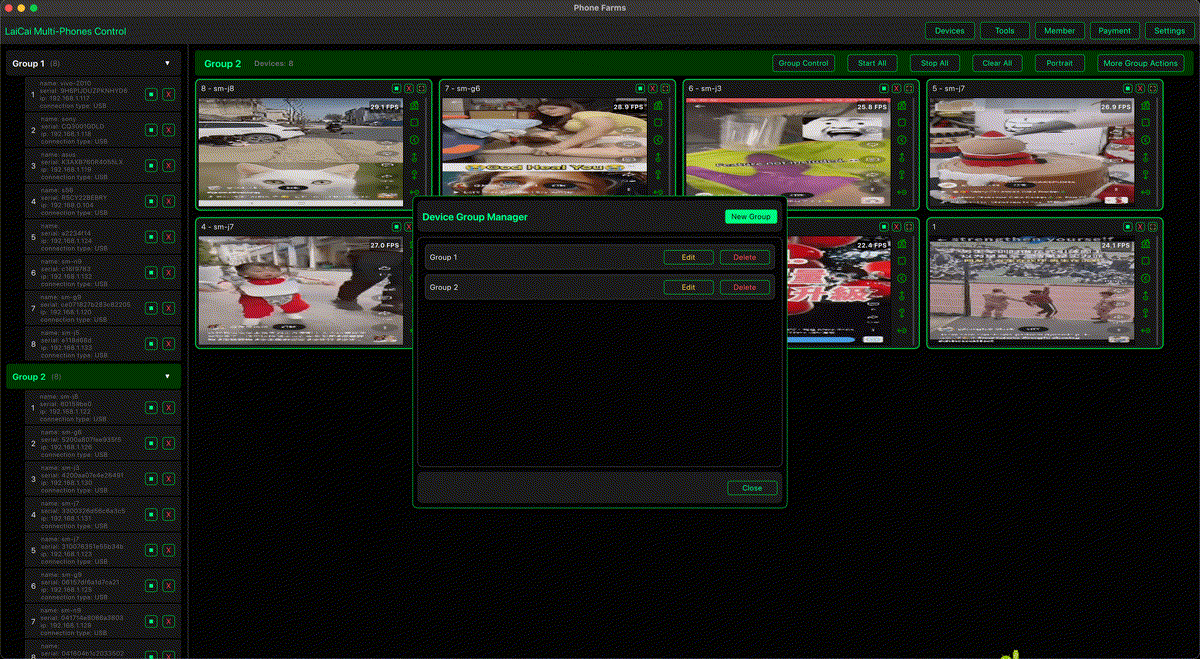
That is where LaiCai Screen Mirroring belongs: not as a replacement for Android security, and not as a bypass around Advanced Protection. It is the operational layer that lets a permitted operator view and control real Android phones from a PC or Mac, capture approved screenshots, record short workflow clips, and keep multi-device work organized.
Short Answer
The practical answer is simple: keep Android security protections on, document when a phone is in Advanced Protection mode, and build your screen mirroring workflow around those rules. If a USB prompt, lock state, app warning, or scam warning appears, the operator should treat it as part of the workflow record instead of clicking through blindly.
For the practical setup, connect this workflow with control Android phones from a computer, USB vs Wi-Fi Android screen mirroring, and screen mirroring resolution and quality settings so operators know whether a connection issue is caused by cable quality, phone lock state, network stability, or Android security behavior.
What Android 16 Advanced Protection Changes
Advanced Protection brings several security areas together. Google’s help documentation lists protections around apps, device safety, messages, network behavior, and Phone by Google. Examples include Play Protect enforcement, restrictions on unknown apps, supported-device USB Protection, theft-related locks, scam and spam protection in Messages, unsafe-link warnings, 2G network protection on supported devices, and Caller ID or spam signals in Phone by Google.
Chrome on Android also has Advanced Protection integrations. Google describes stronger secure-connection behavior, full Site Isolation on eligible Android devices, and a smaller browser attack surface through JavaScript optimization controls. These are not marketing details for a screen mirroring product; they are important context for teams that use real Android phones to visit sites, open customer links, test app flows, or record browser-based support evidence.
Google’s Android Help documentation also explains that some protections may require a reboot and that the “Apps that checked for Device protection” page is available on Android 16 devices. This matters for teams because a device may not behave the same way before and after a protection state changes.
What It Does Not Replace for Teams
Advanced Protection does not label your phones, decide which screens may be recorded, create a bug-report template, separate support data from training data, or tell a teammate what happened before a case handoff. Those are process decisions. If a team ignores process, adding more security features can actually make the desk more confusing because operators do not know whether a blocked action is a bug, a policy choice, a device state, or an expected Android protection.
Use Android screen mirroring for app testing when the goal is bug reproduction, permission-flow testing, or app compatibility validation. Use customer support teams managing multiple Android phones when the goal is support evidence and customer-case handoff. Use compliant phone farm software workflow only for legitimate real-device operations such as QA, support, training, repair checks, and e-commerce workflows.
USB Protection and Screen Mirroring
USB Protection deserves special attention for screen mirroring teams. Google explains that on supported devices, when the screen is locked, USB Protection helps block unauthorized USB data connections while charging continues. Existing data connections that started while the device was unlocked can remain active after the screen locks, but reconnect behavior and manufacturer implementation may vary.
For a legitimate phone desk, this means USB should be handled deliberately. Operators should unlock the work phone before starting a trusted USB session, confirm the prompt, label the device, and avoid reconnecting random cables or hubs during the case. If a device is locked and the USB session stops, that may be expected security behavior, not a LaiCai Screen Mirroring bug.
Teams should write this into the SOP: if a trusted USB session stops after the phone locks or reconnects, check Android security state before changing screen mirroring settings. In many cases, the fix is not lowering bitrate or changing FPS; the fix is confirming the phone is unlocked, trusted, and allowed to transfer data.
Team Workflows That Need Clear Rules
Customer support teams need privacy rules. QA teams need repeatable test evidence. E-commerce teams need clean product and order checks without exposing customer data. Training teams need sanitized accounts. Device labs need model, OS, connection, and test-case labels. These are exactly the situations where a PC or Mac phone desk is useful, but only when the team agrees on what may be captured.
- Support: reproduce issues, capture permitted evidence, and avoid private customer content.
- QA: record device model, OS version, app version, protection state, connection type, and exact steps.
- E-commerce: review product pages, order states, and app flows without recording payment or identity data.
- Training: use sanitized demo accounts and reusable recordings that contain no private information.
- Multi-device desks: combine control multiple Android phones from one computer with device labels and role-based rules.
A Safe SOP for Real Android Phone Desks
A safe SOP should divide phones by role: support phones, QA phones, e-commerce operation phones, training phones, and temporary test phones. Each role should have different evidence rules. A training phone should use demo data. A support phone may touch real cases and needs stricter privacy handling. A QA phone may run debug builds, but a store-operation phone should stay close to a normal user environment.
The SOP should also define retention. A support clip may only be needed until the ticket closes. A QA clip should stay with the bug report. A training recording can be reused only when it contains no private data. Screen mirroring makes evidence easy to capture; easy capture should not become careless storage.
The safest teams also keep a short incident note template: device name, Android version, app version, account type, connection type, Advanced Protection state, warning text, screenshot or recording reference, and owner of the next step. This small habit prevents the common problem where one teammate records a clip but the next teammate cannot understand the device state.
Security Checklist
- Keep Android 16 Advanced Protection and related security settings enabled unless there is a documented test reason.
- Use work phones or test phones for team workflows instead of personal phones.
- Unlock the trusted phone before starting a USB mirroring session, then document the connection state.
- Do not record private chats, verification codes, payment details, personal identifiers, or unrelated apps.
- Capture short, purposeful evidence clips instead of long unfocused recordings.
- Separate support evidence, QA evidence, training clips, and marketing material.
- Do not use phone control or multi-device workflows for spam, fake engagement, account abuse, game cheating, or platform-rule evasion.
Decision Table
| Situation | Team action | How LaiCai Screen Mirroring helps |
|---|---|---|
| Advanced Protection is enabled | Leave it enabled and record the device state in the case notes | Helps the operator see the real phone and document approved evidence |
| USB connection fails while locked | Unlock the work phone and confirm whether USB Protection is expected to block data | Reduces guesswork during trusted USB mirroring |
| Support needs a screenshot | Capture only the approved screen and hide private data | Large-screen review and cleaner handoff records |
| QA tests security-sensitive flows | Record model, OS, app version, protection state, connection type, and steps | Repeatable real-device evidence |
| Multiple phones are active | Group devices by role and label every phone | A clearer multi-device Android control desk |
FAQ
Does LaiCai Screen Mirroring bypass Android 16 Advanced Protection?
No. LaiCai Screen Mirroring is for permitted viewing, control, screenshots, and recording of real Android phone workflows. It should not be used to bypass Android security, disable protections, or avoid app/platform rules.
Should teams disable Advanced Protection for screen mirroring?
Not by default. Keep protections enabled unless a documented QA case requires a temporary change. If a setting must be changed, record who changed it, why, and when it was restored.
What is the most important USB rule?
Unlock the trusted work phone before starting a USB data session, confirm the device prompt, and document the connection state. If the phone is locked, USB Protection may change how the connection behaves.
Where should teams go next?
Read Android scam protection support desk workflow and Android Drop screen mirroring workflow to connect Android security trends with support and real-device operation workflows.
Official Sources
Google Advanced Protection for mobile devices; Android Help: Advanced Protection; Android Help: USB Protection; Android security and privacy in 2026; Chrome on Android Advanced Protection.