Free Fire is a mobile battle royale game, but many players search for a PC-style setup because the screen is larger, the hand position is more relaxed, and keyboard shortcuts are easier to repeat during long sessions. Movement, camera control, fire, aim, reload, skill, grenade, heal, backpack, and map checks all compete for space on a small phone screen.
With LaiCai Screen Mirroring, Free Fire still runs on your real Android phone. The computer becomes the larger display and control desk. You can mirror the phone to Windows or macOS, use keyboard and mouse input through a custom mapping layer, and keep the mobile account, device environment, graphics settings, and game installation on the phone.
This guide is for legitimate personal setup, training-room practice, tutorial recording, device testing, and allowed workflows. It is not about cheating, recoil automation, unfair macros, account abuse, or bypassing game rules. Always follow Garena Free Fire rules, regional policies, and event requirements.
play Free Fire on PC / custom Android game key mapping / reduce Android screen mirroring lag
Why Use a Real Phone Instead of Only an Emulator?
An emulator creates a virtual Android environment on the PC. That can be useful, but it is not identical to using the actual phone that already holds your account, installed game version, touch layout, battery behavior, network behavior, and device performance profile.
A real-phone workflow is different: the Android phone remains the game device, while the computer helps with display, keyboard input, mouse input, screenshots, and recording. If your goal is to practice from the real mobile version, record mobile tutorials, or test a specific phone model, this distinction matters.
For the broader gaming hub, start from play Free Fire on PC. For setting up the overlay itself, keep custom Android game key mapping open while you build your Free Fire profile.
Recommended Free Fire Setup on PC
Start with USB when possible. Free Fire is fast enough that unstable latency is more annoying than slightly lower image quality. A wired connection gives you a cleaner baseline before you experiment with Wi-Fi.
Open LaiCai on the computer, connect the Android phone, accept the USB debugging permission, launch Free Fire on the phone, and open the mirrored screen. Before mapping keys, enter the lobby or training area so the main touch controls are visible.
Set the phone HUD first. Put fire, aim, jump, crouch, prone, reload, weapon switch, skill, grenade, heal, backpack, map, and interact buttons in stable positions. LaiCai maps keys to screen positions, so a clean HUD makes the PC control profile more reliable.
Keyboard and Mouse Mapping Layout
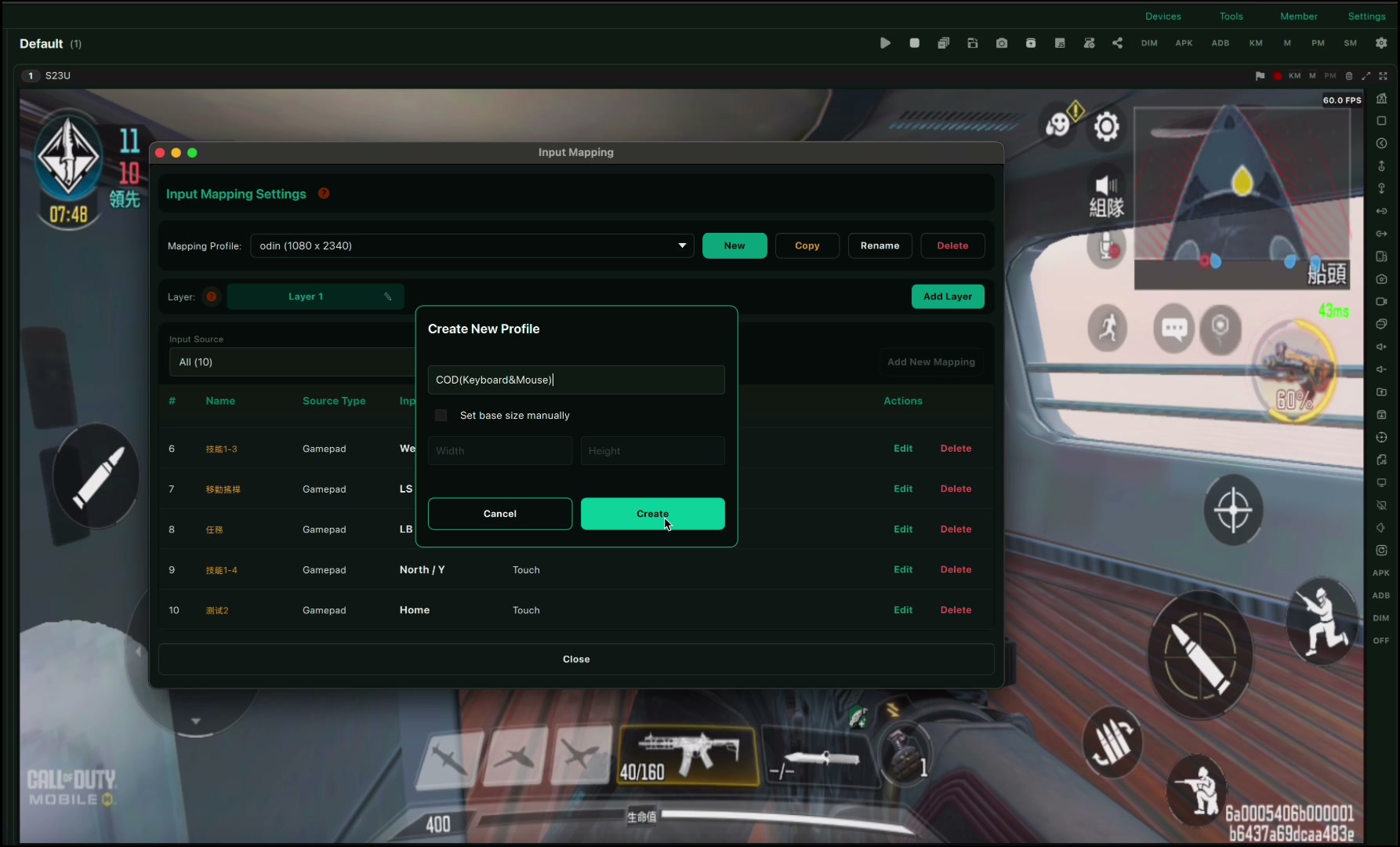
A practical starting layout is WASD for movement, mouse movement for camera, left mouse button for fire, right mouse button for aim/scope, Space for jump, C for crouch, Z or Ctrl for prone, R for reload, F for interact, Tab for backpack, M for map, 1 and 2 for weapons, G for grenade, H for heal, and Q or E for character skill.
Do not treat that as a fixed preset. Free Fire HUDs vary by player, phone screen ratio, hand habit, and character skill usage. The point of LaiCai is that the mapping is fully customizable. Drag controls onto the exact button areas, test them, then save a profile that matches your own setup.
Mouse aim deserves separate testing. Try hip-fire, scoped aiming, close tracking, quick turns, and recoil control in training mode. Adjust mouse movement and in-game sensitivity gradually instead of changing every setting at once.
USB, Latency, Resolution, FPS, and Bitrate
For Free Fire, responsiveness should come before maximum sharpness. If the picture is beautiful but input feels late, reduce bitrate, FPS, or resolution until the control feel is stable.
If the image freezes or breaks up, lower bitrate first. If motion feels uneven, lower FPS. If the phone or computer runs hot, lower resolution or game graphics. If Wi-Fi is inconsistent, switch back to USB and compare. The detailed troubleshooting path is in reduce Android screen mirroring lag.
A common baseline is USB, a stable 720p or 1080p mirrored image, 45-60 FPS when the device can handle it, and a bitrate that keeps text and enemies visible without overloading the phone or PC.
Recording Free Fire Clips and Tutorials
Creators can use this workflow to record Free Fire HUD explanations, sensitivity tests, weapon practice, character skill demonstrations, event walkthroughs, and short tutorial clips. The useful part is that the recording shows the real Android version, not a separate virtual device.
For a clean tutorial, show the connection mode, the mirrored screen, the mapping overlay, a training-room test, sensitivity changes, and the final profile. This makes the video more useful than a simple “download and play” post.
Fair-Play Boundaries
Keyboard mapping should stay human-controlled. Do not use scripts, recoil automation, rapid-fire macros, match abuse, fake engagement, account farming, or any workflow that violates Free Fire terms or tournament rules.
Policies can vary by mode, region, event, and future updates. If you play ranked or participate in organized competition, check the current rules first. LaiCai Screen Mirroring is positioned for visibility, comfort, recording, testing, and personal control layout customization.
Quick Checklist
- Use a real Android phone with Free Fire or Free Fire MAX installed.
- Start with USB before testing Wi-Fi.
- Clean up the Free Fire touch HUD before mapping.
- Map movement, camera, fire, aim, reload, jump, crouch, prone, weapon, skill, grenade, heal, backpack, and map.
- Tune mouse aim in training mode.
- Lower bitrate, FPS, or resolution if latency appears.
- Follow Free Fire rules and avoid scripts, automation, and unfair macros.
Official Free Fire Sources
Garena Free Fire official website; Free Fire FAQ; Free Fire on Google Play; Free Fire support center.