Reuse an old Android phone for home security, pet monitoring, baby check-ins, packages, plants, workshops, shops, and other practical camera jobs. LaiCai Screen Mirroring.
Why reuse an old Android phone as a camera?
Search results for “turn old phone into security camera” point to several everyday needs. People want a low-cost way to check an entrance, see what a pet does while they are away, confirm that a baby is awake, watch a delivery area, or keep a visual record of a plant, workshop project, shop counter, or storage room. An unused Android phone already has a camera, processor, display, storage, Wi-Fi, and a battery, so it can cover many small indoor camera jobs without buying new hardware first.
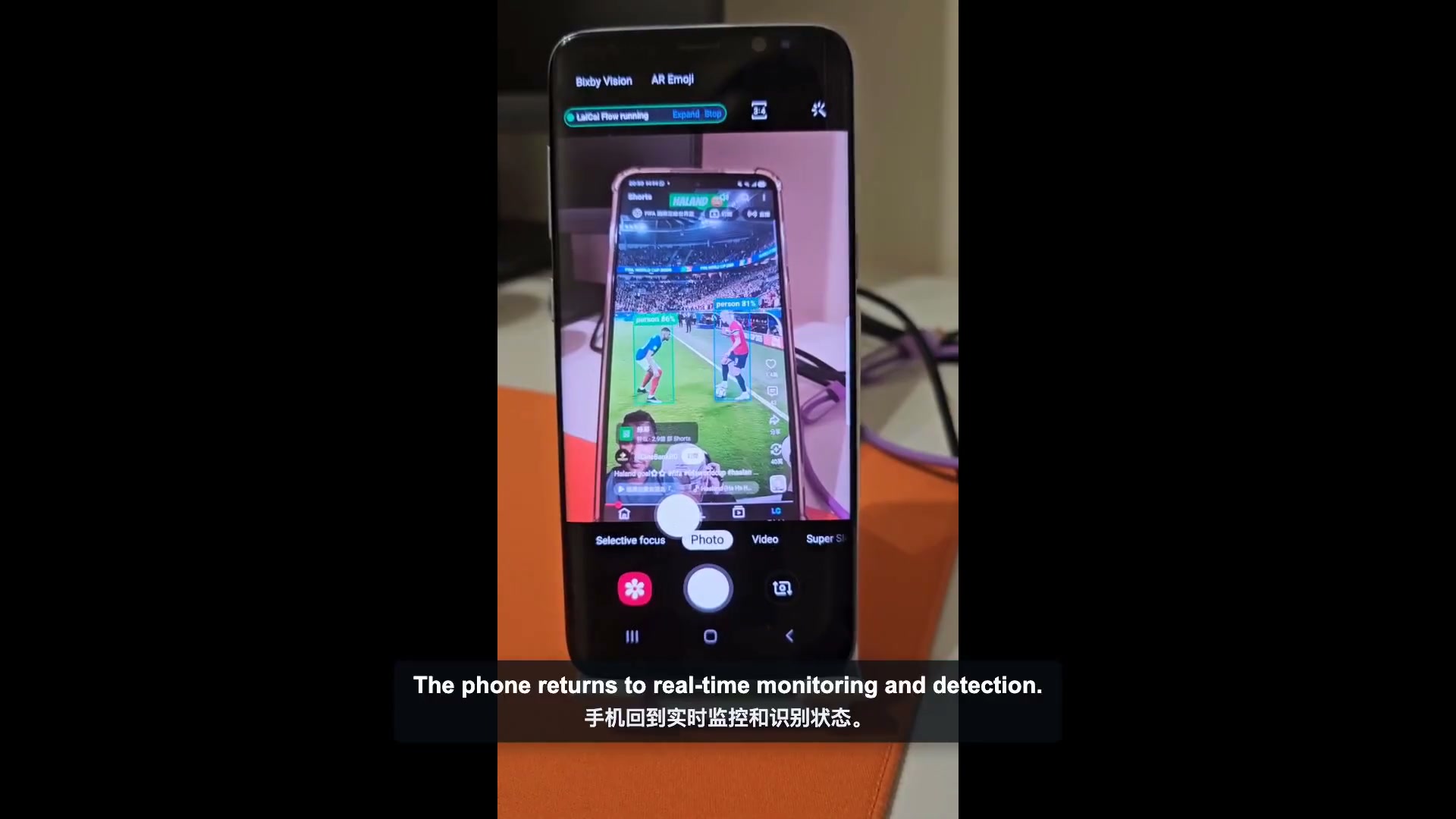
The useful question is not whether an old phone can replace every security camera. It is which scene needs a fixed view, what event matters, and whether you want live viewing, a notification, or simply local screenshots. LaiCai Flow Inside is especially useful for local evidence: after a compatible Flow Profile is prepared and deployed, the phone can recognize a visible scene, make a decision, and save a screenshot without keeping a computer attached.
The eight ideas below focus on real applications. For each one, LaiCai Screen Mirroring can help turn a visible camera preview into a repeatable monitoring Flow: wait, inspect, save a useful image, and continue. The exact Flow depends on the customer’s need. Offline local capture can remain 100% on the phone, while messages or remote access are optional online additions.
1. Old phone home security camera for an entrance
The most common old phone home security camera use is a fixed indoor entrance. Point the phone toward an apartment entryway, interior door, reception area, or another place you control. A simple Flow can check the visible camera preview for a person and save a screenshot when someone enters the frame. A cooldown prevents one visitor from producing dozens of nearly identical files.
This works well when you want an event record rather than a permanent live feed. A renter can keep local screenshots of activity near an interior entryway without paying for cloud storage. A small office can record after-hours arrivals at a staff-only door. If the customer wants a message as well, an online notification branch can be added; if local evidence is enough, the entrance camera Flow can stay fully offline.
Related searches include old phone home security camera, old phone door camera, entrance monitoring, person detection, and local security camera storage. These phrases describe the job the user is trying to finish, so they belong naturally in the scene explanation rather than in a separate keyword list.
2. Use an old phone as a pet camera
“Use old phone as pet camera” is one of the clearest long-tail searches in this topic. Place the phone near the pet’s bed, feeding area, play zone, or the part of the room where a dog or cat usually waits. Instead of recording the entire day, the Flow can look for a cat or dog in the visible frame and save a screenshot at a chosen interval or when the animal appears.
That makes several small questions easier to answer: Did the dog settle after I left? Did the cat visit the food bowl? Is a recovering pet staying in the approved rest area? A scheduled local screenshot every few minutes may be more useful than hours of video when the goal is simply to review behavior later.
For pet monitoring, frame the pet’s usual zone rather than the whole room. Put the phone where a tail, chair, curtain, or bright television does not dominate the image. If the customer needs to speak to a pet or watch a live feed from outside the home, use a product designed for live pet viewing; this Flow Inside scenario focuses on automatic recognition and local evidence.
3. Old phone baby monitor for simple visual check-ins
Another common search is “old phone baby monitor.” The practical use is a simple visual check-in: confirm whether a baby is awake, whether a crib area is occupied, or whether a room has changed between scheduled checks. The Flow can capture periodic screenshots locally so a caregiver can review recent visual states without uploading a continuous stream.
Keep this use narrow. Flow Inside does not add cry detection, medical monitoring, breathing analysis, night vision, or a guaranteed alarm. It should not replace direct supervision or a purpose-built baby monitor where continuous audio, low-light video, or reliable alerts are required. Its value is as an additional visual record for a clearly defined, non-critical check.
The strongest related phrases are old phone baby monitor, baby camera with old phone, local baby monitor, and offline baby camera. The article should answer the caregiver’s question first—“Is the baby awake?”—and mention the product only when explaining how scheduled screenshots can help.
4. Front door, package, and delivery-area monitoring
An old phone front door camera can also watch a package shelf, lobby drop point, or indoor delivery area. Aim it only at the place where a parcel should appear. The Flow can save a screenshot when a person enters the frame, take another after a short wait, and preserve the before-and-after state on the phone.
This is useful for apartment residents, small offices, shared studios, and reception desks that need a lightweight delivery log. The customer may choose person detection, scheduled capture around expected delivery hours, or a simple loop that saves a frame at a longer interval. Relevant keywords include old phone front door camera, package monitoring camera, delivery area camera, and old phone entrance monitor.
A phone behind glass may struggle with reflections and night scenes, so test the actual view before relying on it. If outdoor weather resistance, clear night vision, two-way audio, or tamper protection is essential, a dedicated door camera is the better choice.
5. Garage, storage room, shop, or warehouse camera
A fixed old phone camera is a practical way to observe a garage corner, tool cabinet, stock shelf, shop counter, or small warehouse aisle. These scenes often need a record of activity rather than full-time remote viewing. A person-triggered screenshot can document after-hours entry; scheduled snapshots can show whether a shelf or work area changed during a shift.
Keep the monitored area specific: one stock shelf, one staff-only door, one counter, or one equipment zone. A narrow view makes the screenshots easier to understand and reduces unnecessary footage. Useful long-tail terms include old phone garage camera, old phone shop camera, warehouse monitoring with Android phone, storage room camera, and no-subscription local monitoring.
This scenario is best for supplemental observation in a place the customer controls. If the business needs continuous recording, multiple viewers, insurance-grade evidence, or professional incident response, use a dedicated security system and treat the old phone only as an extra angle or temporary tool.
6. Plant, garden, and time-lapse observation
Not every old phone camera needs to be about security. A scheduled screenshot Flow can document a seedling, indoor plant, aquarium, terrarium, craft project, or another slow-changing subject. Save one local image every few minutes or hours, then review the sequence later to see growth, light changes, feeding activity, or progress.
The same idea works as an old phone plant monitor or DIY time-lapse camera. It is inexpensive, quiet, and easy to move. Because the phone can run the wait-and-capture sequence locally, no cloud account is required for the basic workflow. The customer controls the interval, the folder, and when to stop.
Keywords for this use include old phone plant monitor, old phone time-lapse camera, Android scheduled screenshots, and offline observation camera. This scene reaches users who want to reuse a phone but are not searching for home security alone.
7. Workshop, 3D printer, and equipment progress checks
Makers and small studios often want to check whether a long task is still progressing. Mount the old phone where it can see a 3D printer, test bench, drying rack, assembly area, or another approved work zone. A Flow can save scheduled progress screenshots, capture a frame after a visible state changes, or keep a simple local history for later review.
This does not need to become a complex industrial monitoring system. The useful question may be only: Was the print still attached at 2 p.m.? Did the status screen change? When did the workpiece move? Keywords such as old phone 3D printer camera, workshop monitoring camera, equipment progress camera, and Android visual monitoring match these practical questions.
For setup and validation, use Android screen mirroring to see the real phone from the computer before deployment. The Android OCR and image-recognition automation guide explains when OCR, templates, or object detection fit a visible state.
8. Temporary monitoring without a subscription
Sometimes the camera is needed for a week, a weekend, or one project: watching a temporary storage area during a move, checking a rental apartment while packing, observing a pop-up shop counter, recording a school experiment, or documenting work in a shared studio. Reusing an old phone avoids buying hardware for a short-lived need.
The offline version is also attractive to users searching for an old phone camera without internet or an old phone security camera with local storage. Detection, timing, decisions, and screenshots can remain on the Android phone. No SIM card is required for that local workflow. Internet is needed only when the customer chooses remote viewing, cloud backup, a message, or another network action.
For the product overview, read on-device Android automation with LaiCai Flow Inside. Use the LaiCai Flow Inside tutorial for setup and deployment, and see the Flow Inside feature page for the supported workflow model. The broader AI Android automation overview covers desktop and emulator scenarios.
Choose the scenario first, then build the Flow
Start by naming the job: entrance activity, pet behavior, baby check-in, package arrival, garage access, shop shelf, plant growth, or workshop progress. Then decide what evidence answers the question: a screenshot when a person or pet appears, a before-and-after pair, or a scheduled local image. That decision produces a smaller and more useful Flow than starting with a long list of technical features.
| Use case | Useful trigger | Useful result |
|---|---|---|
| Home entrance or package area | Person appears | Local event screenshot |
| Pet camera | Cat or dog appears, or timed interval | Behavior snapshots |
| Baby visual check-in | Timed interval | Recent local image |
| Garage, shop, or storage room | Person appears or scheduled check | Activity record |
| Plant or project observation | Long interval timer | Progress image sequence |
| Workshop or equipment | Timed or visible-state check | Progress evidence |
LaiCai Flow Inside lets LaiCai Screen Mirroring users prepare that job on a computer, deploy a compatible Profile and assets to the old Android phone, and then run the approved sequence on the device. A basic local monitoring Flow can operate 100% offline. Keep the phone ventilated, use a healthy battery and charger, test the real view, and use the setup only where you have permission to record.