Choose an Android automation app by the job: simple triggers, repeatable visual flows, or flexible AI agents for changing tasks.
The best Android automation app depends on the job
People searching for an Android automation app often meet three very different product ideas under the same label. One app watches for a trigger and runs an action. Another lets you draw a repeatable visual flow with conditions and outputs. A newer tool may accept a natural-language goal and let an AI agent decide what to do next.
None of these approaches is automatically better. A time-based silent-mode rule should not require an autonomous agent. A twelve-step app check with screenshots should not be hidden inside one vague command. A changing one-off research task may be frustrating to encode as dozens of fixed branches. The useful question is not “Which app has the most features?” It is “How predictable is the task, how often will it run, and how will I verify the result?”
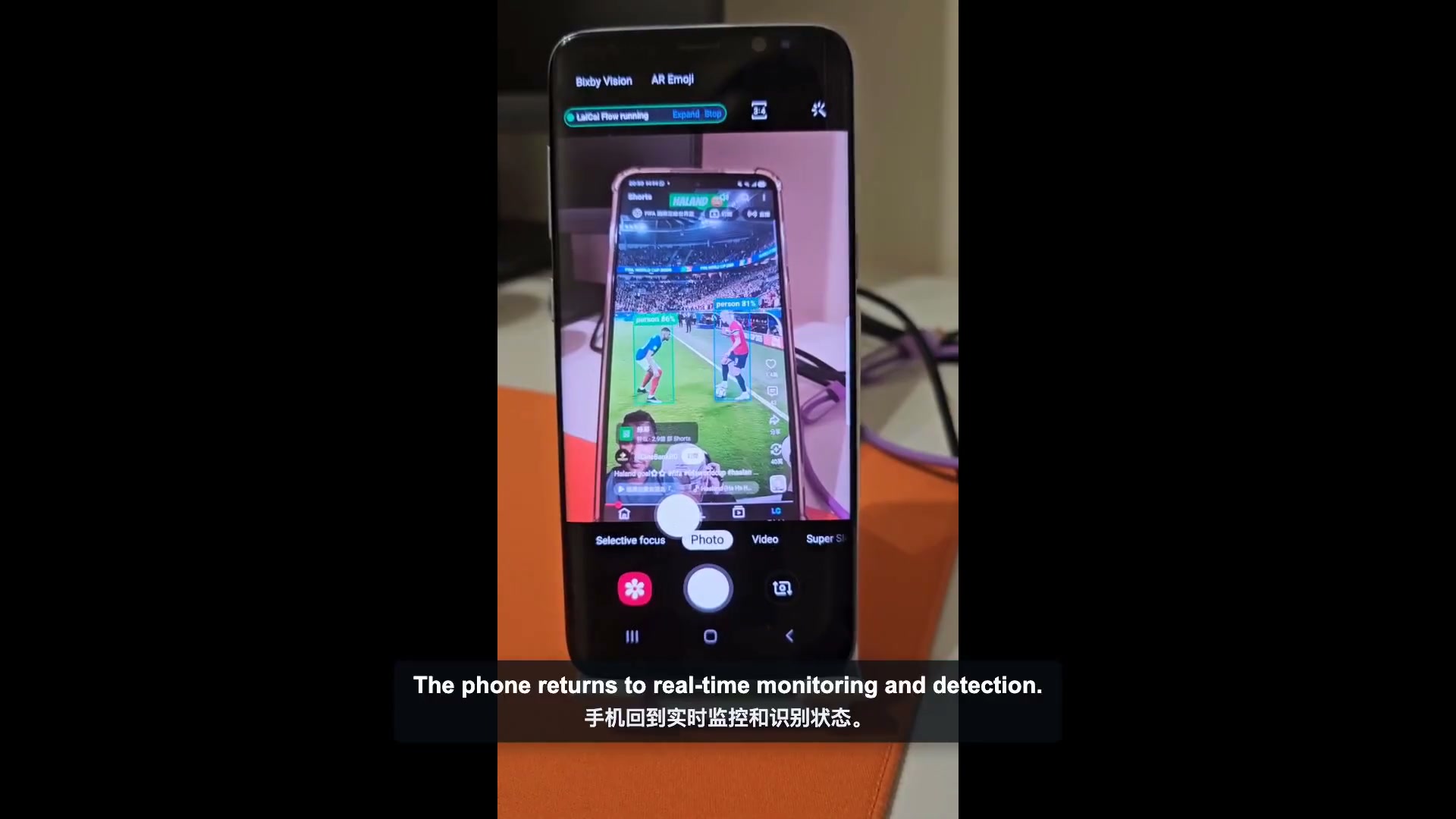
This guide compares trigger automation, deterministic visual flows, and mobile AI agents by real use case. It also explains where on-device Android automation with LaiCai Flow Inside fits: a compatible Flow is prepared and deployed from a computer, then runs through LaiCai Android Agent on the phone without keeping the computer connected.
Trigger automation is best for clear events and short actions
Trigger-based automation starts with a known event: a time arrives, a Wi-Fi network connects, a headset is inserted, a notification appears, or an app opens. The automation then performs one or more predefined actions, sometimes with constraints such as battery level, location, or day of the week.
This model is easy to reason about when the condition and response are stable. MacroDroid describes macros through triggers, actions, and constraints. Tasker organizes related ideas through Profiles and Tasks. Automate can express event and condition behavior as connected blocks. Their interfaces and depth differ, but the recurring user need is the same: make the phone react consistently to something observable.
- Silence the phone during a known calendar or work period.
- Start a media action when a headset or car connection appears.
- Save or forward a notification that matches a defined condition.
- Change a device setting at a scheduled time or location.
Choose this category when the automation can be explained as “when this happens, do that.” It is usually the fastest route for personal device rules. It becomes less comfortable when success depends on inspecting several changing screens, selecting data from previous steps, retrying until a visual state appears, or producing reviewable evidence.
Visual flows are best for repeatable multi-step work
A visual Flow treats automation more like a small program. Each node has one responsibility: receive input, observe the screen, select data, branch, wait, tap, type, call another Flow, save an artifact, or return an outcome. Connections make the expected path visible. The designer decides what success and failure mean before the job runs.
This approach takes more setup than a simple trigger, but it pays off when a task repeats. A QA team can review the exact checks. An operator can see where a wait occurs. A failed observation can stop safely instead of allowing later taps to continue on the wrong screen. Outputs, screenshots, and logs can be attached to the step that produced them.
The official Automate documentation similarly describes a flow as connected blocks that perform actions or decisions. LaiCai uses a node contract shared by the editor, planner, desktop runner, and Android Agent. In LaiCai Flow Inside, only Android-Agent-compatible nodes can run locally on the phone; desktop-only behavior is not silently treated as supported.
- Repeat the same app checklist with explicit waits and stop conditions.
- Use OCR, UI selectors, image matching, or object detection to confirm visible state.
- Loop through structured input and keep each result inspectable.
- Capture screenshots or logs for later human review.
AI agents are best for changing goals and exploration
A mobile AI agent begins with a goal rather than a completely predefined path. It observes the current state, chooses an action, checks the new state, and continues. This can be valuable when screen order changes, the task is performed only once, or the useful path cannot be listed in advance.
That flexibility also creates a verification problem. The user needs to know what the agent changed, whether it reached the intended state, and what should happen when the screen differs from its expectation. AndroidWorld was designed with task initialization, success checks, and cleanup because a believable mobile-agent demo is not the same as a reproducible result.
Use an AI agent for bounded exploration, assistance, and goals that genuinely require interpretation. Keep payments, destructive changes, account actions, private data, and high-impact operations behind review. For a stable job that will run every day, an agent may help design the process, while a deterministic Flow handles repeated execution. The related mobile UI agent testing guide explains why visible state and evidence still matter.
Compare the three Android automation approaches
| Question | Trigger rules | Visual flows | AI agents |
|---|---|---|---|
| How is the task defined? | Event, action, and constraints | Explicit nodes, data, and branches | Natural-language goal plus runtime decisions |
| Best for | Short personal device rules | Repeated multi-step work | Changing or exploratory tasks |
| Predictability | High when the trigger is reliable | High when states and failures are modeled | Variable; depends on model and environment |
| Setup effort | Low for simple rules | Medium, then reusable | Low prompt effort but higher review effort |
| Evidence | Usually event and action history | Step logs, outputs, and screenshots | Needs trajectory and outcome verification |
| Offline potential | Depends on actions | Strong when every node is local | Often needs a model or service connection |
These are categories, not rigid boxes. Trigger apps can contain complex logic. Visual tools can use AI inside selected steps. Agents can call deterministic tools. Choose the dominant execution model for the task, then inspect the exact permissions, supported actions, and failure behavior of the product you are considering.
Choose by scenario, not by feature count
Daily phone settings and reminders
Start with trigger automation. The event is known, the action is short, and the result is easy to inspect. Adding a visual graph or agent creates work without improving the outcome.
A repeated workflow across several app screens
Use a visual Flow when the sequence should be reviewed and repeated. Model the screen checks, data selection, waits, inputs, and stop points. This is a stronger fit than a trigger-only rule when the phone must prove that each screen reached the expected state.
Mobile app QA and localization checks
Prefer a deterministic Flow for the stable smoke-test path and artifacts. Use AI selectively to classify text or images when interpretation is necessary, but keep the steps, inputs, screenshots, and pass criteria explicit. Android screen mirroring to a PC or Mac helps a tester review the real device state while building and debugging the check.
A one-time task on an unfamiliar interface
A bounded AI agent may save setup time because it can inspect and adapt. Supervise the run, restrict its authority, and confirm the final state. If the same task becomes frequent, convert the successful path into a repeatable rule or Flow.
An offline job that must continue on the phone
Choose an on-device runtime and inspect every dependency. A compatible Flow Inside Profile can use local observations, conditions, waits, gestures, local screenshots, and other supported phone-side nodes without keeping the computer connected. If the Profile calls HTTP, a webhook, a remote model, or a message service, that specific workflow needs a network connection.
An automation that could cause damage when wrong
Use the most inspectable approach and add stop conditions, confirmation, logs, and recovery steps. Do not choose an autonomous path merely because it is convenient to prompt. Deletion, payment, account, and private-data actions deserve explicit authorization and outcome checks.
Where LaiCai Flow and Flow Inside fit
The desktop AI Android automation tool in LaiCai Flow is designed for building, debugging, and running visible workflows on authorized Android devices and emulators. For LaiCai Screen Mirroring users, it is useful when the computer is part of the operating environment, several devices need to be observed, or the team wants a larger editor and review surface.
LaiCai Flow Inside takes a compatible Profile and its required assets to LaiCai Android Agent. The first preparation and deployment still use a computer. After deployment, the Agent executes the supported deterministic Flow locally on the phone. The LaiCai Flow Inside tutorial covers that installation and deployment boundary.
Natural-language tools can assist with creating a Flow, but the saved Profile remains inspectable. This separates two jobs: AI can help translate intent into a draft, while the Flow runtime follows the approved nodes, data paths, transitions, timing, and stop behavior. LaiCai Flow Inside should therefore be compared with deterministic visual automation, not advertised as an unrestricted autonomous phone agent.
A 30-minute test before you commit to an automation app
- Choose one real task you already perform and write the successful result in one sentence.
- List the trigger or starting state, the visible steps, and one common failure state.
- Build the smallest useful version instead of importing a large showcase template.
- Run it three times from the same starting state and once from the failure state.
- Check what the tool records: trigger history, node logs, screenshots, outputs, or agent trajectory.
- Change one screen condition and see whether the automation stops, adapts, or performs the wrong action.
- Review permissions, network dependencies, battery behavior, export options, and recovery before expanding.
The winning tool is the one that completes your task with understandable setup and trustworthy failure behavior. A smaller product that makes the result visible may be more useful than a broader one whose execution you cannot review.
Android automation app FAQ
Is a visual Flow the same as an AI agent?
No. A visual Flow normally follows predefined nodes and branches. An AI agent chooses actions at runtime from a goal and the current state. A Flow may call an AI model for one step without turning the entire workflow into an autonomous agent.
Can Android automation work without internet?
Yes, when the trigger, logic, actions, models, and storage all run locally. A network request, remote model, cloud sync, webhook, or messaging service makes that workflow network-dependent.
Do visual automations survive app interface changes?
It depends on how they locate state. Stable UI selectors may survive cosmetic changes; fixed coordinates are fragile; OCR and image checks depend on layout and visual conditions. Build an explicit failure path and retest after important app updates.
Should beginners start with the most powerful app?
Start with the smallest tool that solves a real task and exposes enough evidence. Learn trigger rules for short reactions, visual flows for repeatable multi-step work, and agents when the goal genuinely requires runtime interpretation.
Pick the execution model first
Before comparing prices or counting actions, classify the job. A stable event with a short response belongs in a trigger rule. A repeated sequence with known checkpoints belongs in a visual Flow. A changing goal with an uncertain path may justify a supervised AI agent.
For users who want a repeatable workflow to continue locally on an Android phone, LaiCai Flow Inside provides the deterministic option: prepare and verify the Profile on a computer, deploy the compatible Flow and assets, then let LaiCai Android Agent execute the approved steps on the phone. Use local nodes for offline operation and add network services only when the required result actually needs them.