BlueStacks is one of the best-known Android emulator options for playing mobile games on a computer. It is useful when you want an emulator environment, game discovery, keyboard and mouse controls, multi-instance play, and a PC-first Android gaming setup.
But an emulator is not the only way to play Android games on a computer. If you want to keep the game running on a real phone while using a larger screen and PC controls, LaiCai real Android phone gaming is a different workflow. This article compares that real-device approach with Android screen mirroring vs Android emulator in a neutral way.
When BlueStacks Makes Sense
BlueStacks is a strong fit when you want to install and run Android games directly inside an emulator on your PC, use built-in game controls, test multiple emulator instances, or avoid keeping a phone connected. For many casual games, that is convenient and easy to understand.
BlueStacks vs LaiCai: workflow comparison
| Option | Best for | Things to check |
|---|---|---|
| BlueStacks | Running Android games inside an emulator on PC | Game compatibility, account/device behavior, emulator rules, PC resource usage |
| LaiCai | Playing from a real Android phone with PC/Mac screen control | USB/Wi-Fi quality, phone performance, key mapping layout |
Why Some Players Prefer Real Android Phone Mirroring
Some players want the game to stay on the real phone because account setup, device behavior, sensors, app version, login state, and in-game environment can feel closer to normal mobile play. This can matter for games such as PUBG Mobile, Free Fire, COD Mobile, Mobile Legends, Roblox, and other mobile-first titles.
That is where play Android games on PC without an emulator becomes useful. Instead of replacing the phone with an emulator, LaiCai mirrors the phone and lets you control it from the computer. You can also compare this with real Android phone gaming on PC.
Keyboard, Mouse, and Mapping
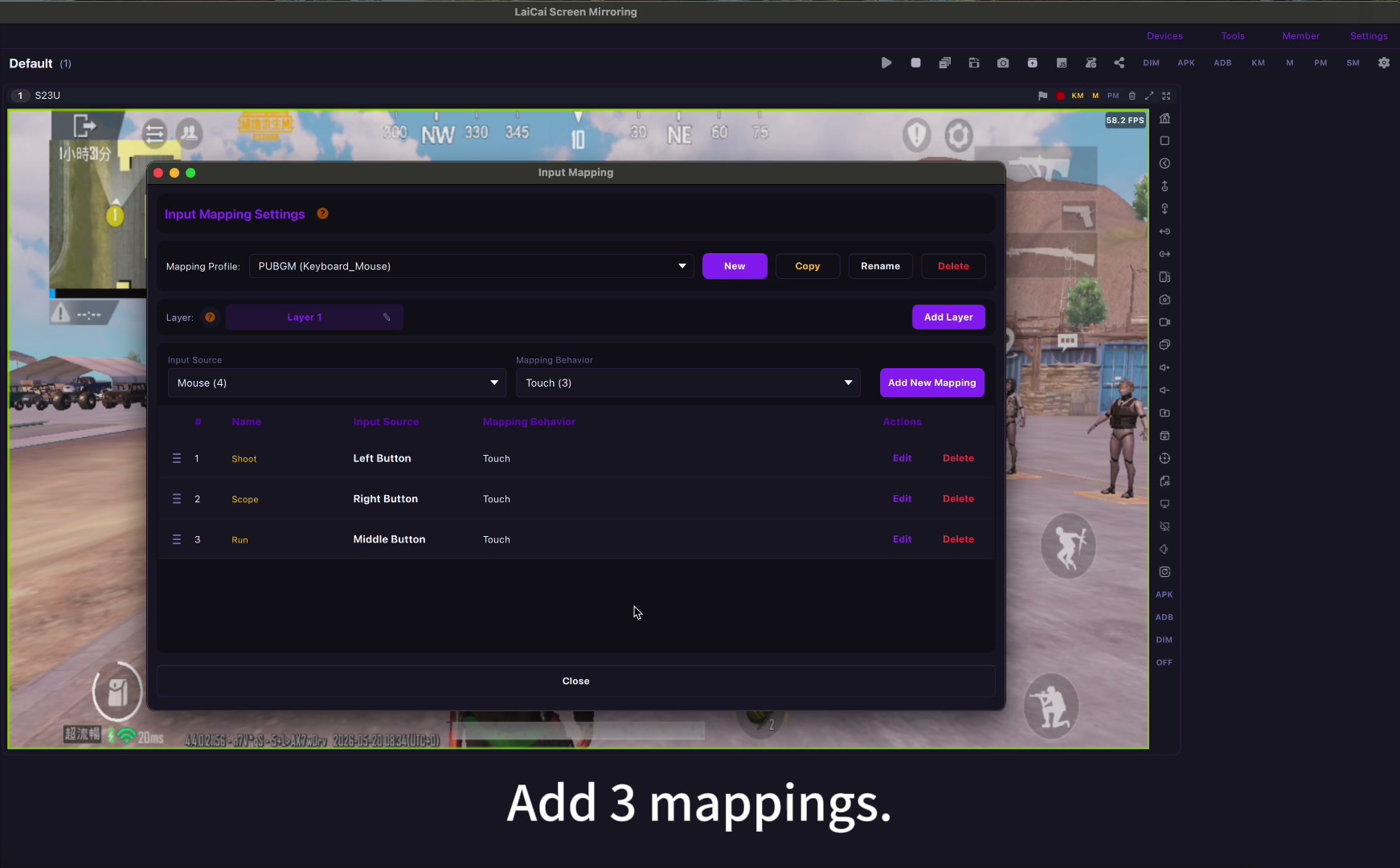
For mobile shooters and action games, control layout matters as much as the display. LaiCai lets you map movement, camera look, aiming, shooting, inventory, jump, crouch, vehicle controls, and more with custom positions. Start with the LaiCai key mapping guide, then tune the layout for each game.
What to Check Before Choosing
A real-phone workflow still depends on the phone, cable, USB hub, Wi-Fi, computer performance, and game settings. BlueStacks depends more on emulator compatibility and PC resources. Neither workflow is universally better; the right choice depends on the game and the way you play.
Quick Decision Guide
- Choose BlueStacks if you want a self-contained emulator environment on PC.
- Choose LaiCai if you want to control the real Android phone from PC or Mac.
- Choose LaiCai if custom key mapping, screenshots, recording, and real-device behavior matter.
- Test both workflows for your main game before deciding.
Conclusion
The best BlueStacks alternative is not always another emulator. For players who want real Android phone gaming on a computer, LaiCai offers a practical screen mirroring and control workflow with keyboard and mouse mapping, recording, screenshots, and real-device compatibility.