Compare TC Games and LaiCai by real gaming workflow: keyboard, mouse and gamepad mapping, macros, Mac support, visual detection, and free-plan limits. LaiCai Screen Mirroring.
What people really want from a TC Games alternative
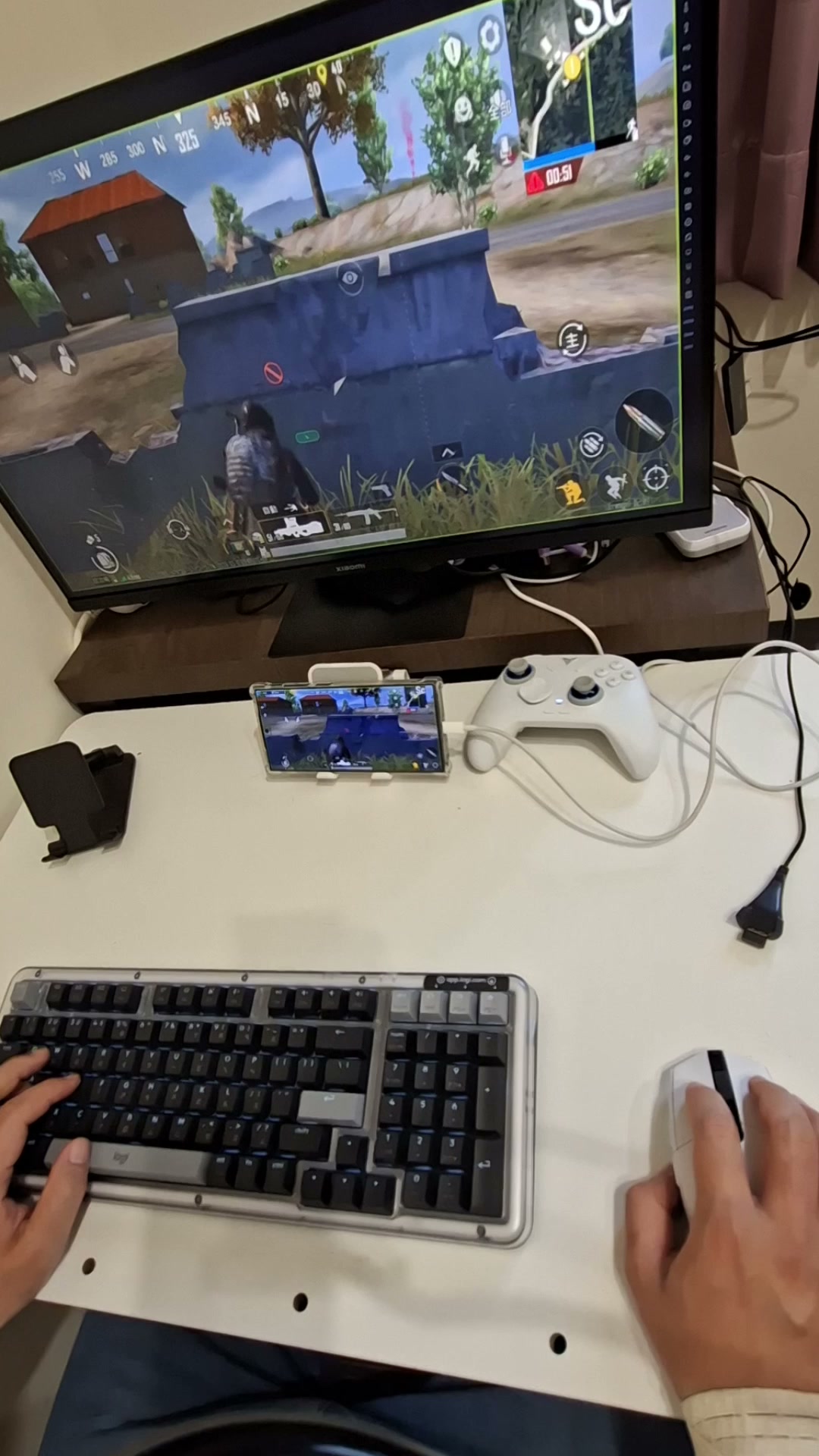
A search for a TC Games alternative usually starts with a practical need, not a desire to criticize TC Games. A player may want to keep a real Android phone instead of moving the game into an emulator, control that phone from a larger computer display, aim with a mouse, assign touch areas to keys, or reuse a control layout across sessions. Other users are looking for macOS support, gamepad mapping, more visible automation, or a free starting point that does not hide basic mapping behind a paid tier.
Those needs are related, but they are not identical. A fast screen mirror does not automatically provide a useful controller layout. A macro can replay input but cannot necessarily tell whether a reward screen, loading overlay, disconnected dialog, or changed game scene is present. An automation tool can inspect a screen, but it still needs a clear, permitted task and reliable input actions. The best alternative is therefore the product that fits the complete workflow: connection, visibility, control, mapping, observation, repeatability, and safe stopping.
LaiCai Screen Mirroring is one option for that broader workflow. It mirrors and controls real Android devices and supported emulator instances from Windows or macOS, provides keyboard, mouse, and gamepad mapping, records macros, and adds LaiCai Flow for screen-aware automation. This article compares fit and boundaries rather than declaring one product universally better.
A fair snapshot of TC Games before comparing alternatives
TC Games describes itself as an Android screen-mirroring application for playing mobile games on a Windows PC with a keyboard and mouse. Its current official pages document USB, Wi-Fi, and HDMI connection choices, sound transmission, screenshots, recording, downloadable game layouts, customizable keys, macro keys, and the ability to connect multiple Android devices. That is a substantial game-focused feature set, and any honest comparison should acknowledge it. You can review the current claims on the official TC Games product page and TC Games help center.
The official desktop instructions currently specify Windows 7 or later. That makes TC Games a natural candidate for Windows players whose priority is keyboard-and-mouse mobile gaming. It also means that someone using a Mac, someone who prefers a documented gamepad-to-touch workflow, or someone who wants automation to examine the current frame before acting may reasonably compare other tools. The comparison should focus on those requirements instead of pretending that TC Games lacks its documented keyboard mapping, macros, recording, or multi-device features.
Where LaiCai changes the real-phone gaming workflow
LaiCai keeps the game on the Android device or supported emulator while presenting it in a desktop workspace. That preserves the real phone's installed app, account state, Android build, graphics behavior, and device-specific performance. For players who specifically want a real-device route, the play Android games on a computer workflow avoids moving the game into a separate emulator environment. This does not guarantee that every game allows external input tools, so the game's rules remain the first check.
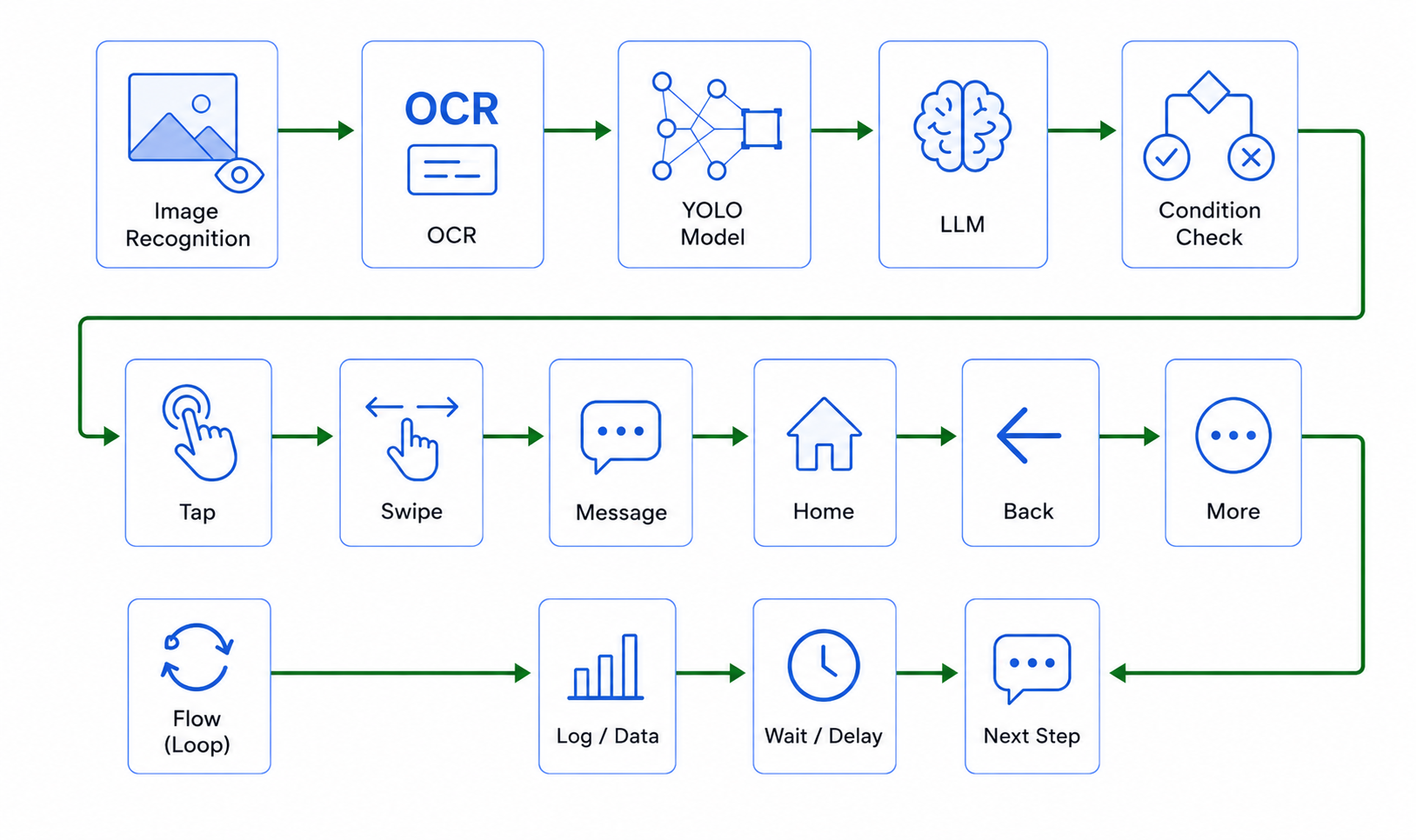
The product combines several layers that can be used separately. Android screen mirroring makes the current state visible and lets the user control the device. Key mapping translates a keyboard, mouse, or controller input into touch behavior. Macros replay a known sequence. LaiCai Flow observes UI or visual state, branches, waits, and runs bounded actions. Keeping these layers separate is useful: you can start with manual mirrored control, add only the mapping you need, and automate a permitted repetitive check later.
Map a gamepad, keyboard, or mouse to touch controls
The documented LaiCai key-mapping editor accepts keyboard, mouse, and gamepad inputs. Basic mappings include touch, swipe, and multi-touch. Advanced mappings include cycles, analog-stick behavior, cursor control, macro triggers, and layers. A movement stick can map an analog controller stick to a virtual joystick area, while another stick can drive camera drag or an on-screen cursor. Layers help when the same physical button needs a different touch action in a menu, vehicle, inventory, or combat state.
For a controller workflow, connect the controller to the computer, bind it to the intended phone, and choose the mapped mode described in the gamepad connection guide. Then create one profile per game and assign it to the phone. Start with movement and one or two essential actions before mapping every button. Confirm the overlay points at the correct touch targets, test short presses and held input, and save separate profiles for different screen ratios when the game's layout moves between devices.
Use macros for repeatable inputs, not blind decisions
A macro is appropriate when the desired action is a repeatable input sequence: open a permitted practice menu, perform the same camera sweep for a recording, run a short device check, or reproduce a QA path. LaiCai can record and replay macros, and a key-mapping button can trigger a saved macro. The macro guide explains recording, playback, timing, and profile selection. Macro timing should remain visible and adjustable because loading time, frame rate, network state, and animation length can change.
A macro is not the same as a decision. If step four assumes a button exists but the phone is still loading, blind playback may tap the wrong place. If a dialog changes position, a remembered coordinate can miss. If the user reaches a different game scene, replaying combat or inventory input can create an unwanted outcome. Use macros when the path is stable and supervised; use a screen observation and an explicit stop condition when the next action depends on what is actually visible.
Add screen-aware automation with templates, OCR, and detection
LaiCai Flow adds observation nodes to the control workflow. Template matching can look for a verified button, icon, dialog, or other stable visual asset and return its score and screen position. OCR can read text from a selected region, which is useful for a visible status label, menu title, or QA assertion. Object detection can run a selected local ONNX model and return matched classes and positions. These observations run once; Flow logic decides whether to continue, retry within a defined limit, branch, capture evidence, or stop.
That distinction enables screen-aware automation. A permitted QA Flow could wait for a known menu, confirm its template score, tap the returned center, capture the next screen, and stop if the expected state never appears. A game studio could use OCR to check whether a localized label fits the intended screen. A user could combine a detected state with AI Android automation and an existing macro, so the macro runs only after the expected scene is confirmed. The LaiCai Flow guide shows how visible nodes and runtime details make the sequence reviewable.
Image recognition is not magic. Templates depend on theme, scale, crop, animation, and visual changes. OCR depends on language, contrast, font, and region. A general object-detection model recognizes only its trained classes; a custom game object requires an appropriate model and testing. Build from current screen evidence, use confidence thresholds, restrict regions only after validation, and always define what should happen when recognition fails.
Choose Windows or macOS and keep the Android device real
Platform support can decide the comparison before any advanced feature does. Current TC Games desktop instructions are Windows-focused. LaiCai provides Windows and macOS builds, so a Mac user can mirror a real Android phone, control it, create mapping profiles, connect a controller, capture screenshots, and organize supported devices without moving to a Windows-only desk. Windows users can use the same LaiCai workflow as well.
Real devices still bring physical constraints. USB usually provides the most predictable connection for action games, while Wi-Fi can reduce cable clutter when the network is stable. Phone temperature, USB cable quality, host decoding performance, Android power management, and the game's own frame rate all affect the experience. No responsible alternative should promise zero latency. Test the exact phone, computer, cable or network, display resolution, and game settings you plan to use.
Set up a practical TC Games alternative workflow
Begin with the smallest setup that proves the workflow. Install LaiCai on Windows or macOS, connect an authorized Android device with USB debugging enabled, and confirm the mirrored screen responds correctly. Open the game manually and test basic mouse or touch control. Next, create a key-mapping profile with movement and one action, assign it to the phone, and verify the overlay against the current game layout. Add the controller only after that simple profile works.
Then choose the right repeatability layer. Record a short macro if the action is a stable, permitted sequence and review the timing. Create a Flow only when the process needs observation, branching, a screenshot, a bounded retry, or a clear failure result. For example: capture the current screen, find a verified menu template, branch on success, play an approved short macro, capture the resulting state, and stop. Keep the first run supervised and retain evidence when a visual step fails.
Use profiles deliberately. Name key mappings after the game and screen layout, macros after the exact sequence, and Flows after the result they verify. Do not call everything “game automation.” A profile named “controller layout,” a macro named “open practice route,” and a Flow named “verify localized menu” make the boundary understandable to another person and easier to troubleshoot later.
Understand what is free and what may require Pro
LaiCai's July 2026 release notes state that keyboard mapping, macro configuration, and image-quality limits were removed from the free plan, while the free device limit became three. That makes the free edition a practical way to test real-phone mirroring, create a keyboard or gamepad layout, and try recorded macros on a small setup. Check the current LaiCai pricing page and changelog before making a purchase decision because product limits can change.
“Free” should not be stretched into “every feature is free.” Some advanced LaiCai Flow nodes require Pro. The exact requirement depends on the nodes used by the Profile, not merely on whether a Flow exists. Start by validating connection, mapping, and macro needs. If the automation later requires a premium vision, input, script, storage, HTTP, or analysis capability, the product can explain the upgrade boundary without blocking the basic free workflow.
Troubleshoot latency, mapping drift, and missed detections
If control feels delayed, test USB before Wi-Fi, use a known data cable, reduce competing network traffic, confirm the phone is not throttling from heat, and lower mirror resolution only as needed. Separate display latency from input mapping: first tap manually in the mirror, then test a mapped key. If manual input is responsive but mapping is not, inspect the profile assignment and input source rather than changing the connection blindly.
If a mapping drifts, reopen the game on the same screen ratio and check whether the HUD moved, a notch or navigation area changed the usable frame, or the game loaded a different layout. If a template match fails, confirm the stored template still represents the current visual, inspect theme and scale, and avoid lowering confidence until any image matches. If OCR misses text, verify the language, contrast, result level, and region. A smaller region can reduce noise but can also miss content when the layout moves.
For automation failures, preserve the failed frame and stopping reason. Do not convert every failure into an endless retry. A bounded retry helps with a known loading transition; repeated mismatch should stop so a person can inspect the screen. This is one reason visible Flow nodes are useful compared with an opaque input loop.
Use automation responsibly with game rules and account safety
Screen mirroring, key mapping, controllers, macros, and visual automation do not override a game's terms, competitive-integrity rules, or anti-cheat policy. A tool may be technically capable of generating an input while a particular game forbids that use. Check the current game and platform rules, especially for ranked or competitive play. Do not use LaiCai or any TC Games alternative to evade detection, bypass anti-cheat, farm rewards against the rules, or operate accounts without authorization.
Safer examples include personal accessibility where permitted, controller layouts for supported play, recording a tutorial, repeating a practice or QA path, testing a game's own build, checking localized UI, and capturing reproducible bug evidence. Keep account credentials private, use test accounts for development and QA, supervise the first run, and stop when the screen is unexpected. Automation should reduce repetitive work without hiding responsibility.
Which workflow should you choose?
Choose TC Games when its documented Windows game-focused workflow, downloadable layouts, keyboard-and-mouse control, macros, recording, and connection options match what you need. Choose LaiCai when you need Windows or macOS, documented controller-to-touch mapping, a free small-device starting point, and the option to combine macros with template matching, OCR, object detection, branching, screenshots, and visible stopping conditions.
If you are also comparing emulators, read the real-phone BlueStacks alternative guide. The central choice is whether the Android app should run inside an emulator or remain on a real device while the computer provides the larger view and input workspace. For the latter, start with LaiCai's free plan, connect one phone, build one controller layout, and test one short supervised workflow before adding complexity. That practical test will tell you more than a feature table alone.