PUBG Mobile is one of the clearest examples of why many mobile players search for a PC-style setup. The game is fast, visual, and control-heavy: movement, mouse look, scope timing, recoil control, backpack checks, throwables, healing, vehicles, and map awareness all compete for the same small phone screen. A larger monitor and a physical keyboard can make practice, recording, and long sessions more comfortable.
The usual answer is to install an Android emulator. That can be useful for some players, but it also moves the game away from the real Android phone. LaiCai Screen Mirroring takes another route: PUBG Mobile still runs on your own Android phone, while the computer becomes the larger display, keyboard, mouse, screenshot, and recording desk. This article explains when that workflow makes sense, how to map controls, and how to keep the setup practical and fair.
This is not a promise that every competitive mode or event allows every input method. PUBG Mobile players should always follow the game terms, event rules, and platform rules. Use this guide for legitimate personal setup, training-room practice, recording, tutorial creation, device testing, and allowed workflows. Do not use cheats, scripts, recoil automation, unfair macros, account abuse, or anything that violates the game rules.
Why This Setup Is Different from an Emulator
A real-phone workflow keeps the game on the device that already has your account, app version, graphics settings, touch layout, network behavior, and device performance profile. That matters if you want to test how the actual phone behaves, record tutorials from the real mobile version, or keep the phone available for messages, voice chat, and mobile-only account flows.
An emulator creates a virtual Android environment on the PC. That may be convenient, but it is not the same as the phone in your hand. Screen mirroring is closer to “use the phone, view and control it from the computer.” For many PUBG Mobile creators, device testers, and players who already maintain a real Android phone, that distinction matters.
If your main search intent is broader than PUBG Mobile, start from the guide to play PUBG Mobile on PC. For a direct PUBG-focused video walkthrough, keep the PUBG Mobile key mapping video tutorial open while you build the profile.
Recommended PUBG Mobile Setup on PC
Start with a stable connection. For active shooting games, USB is the safer default because latency and bandwidth are more predictable than crowded Wi-Fi. Wi-Fi can still work for light control, menu navigation, or casual viewing, but training-room aiming and recording usually benefit from a cable.
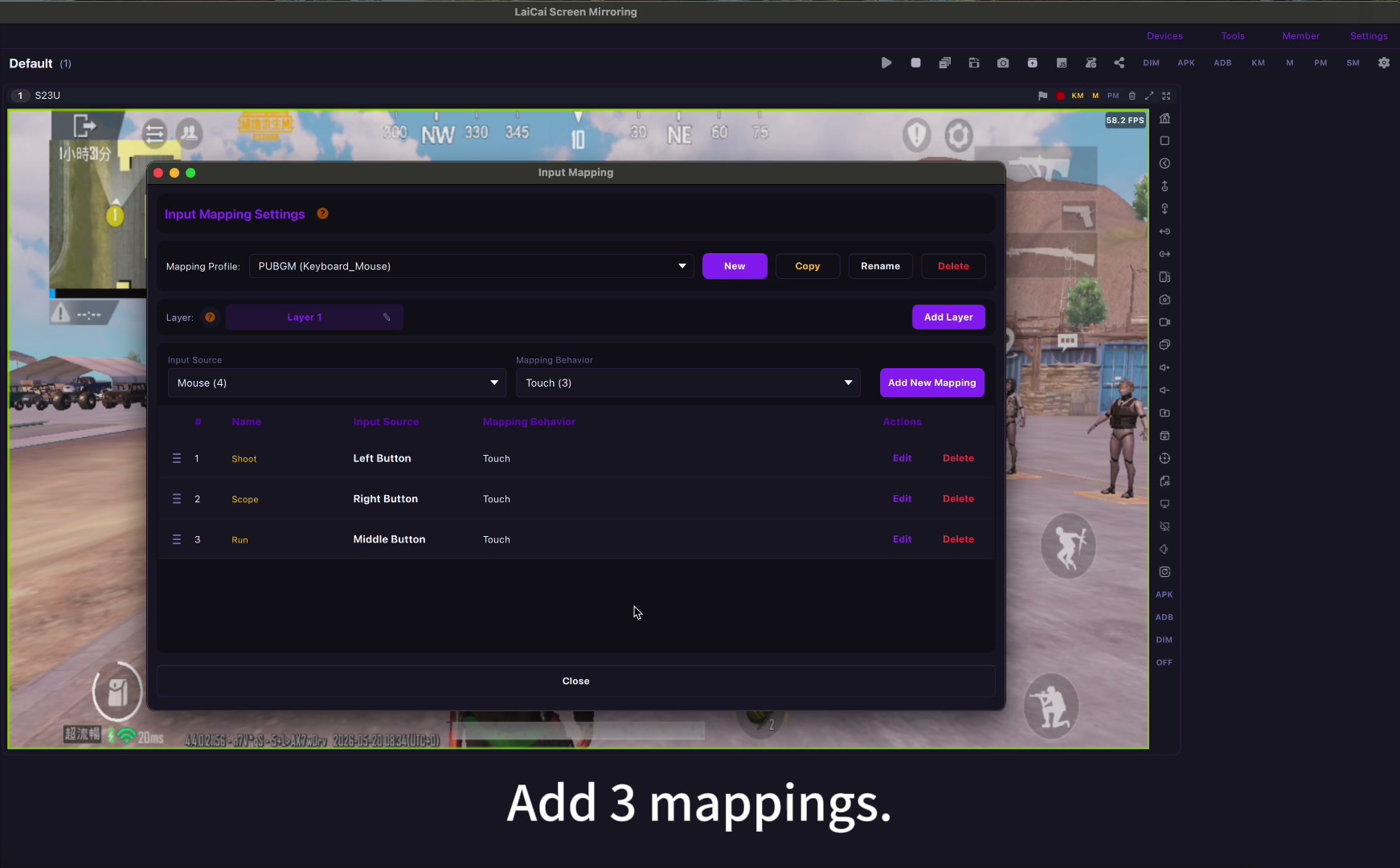
Open PUBG Mobile on the Android phone first, then mirror it to the computer with LaiCai Screen Mirroring. Switch on key mapping mode and load or create a PUBG Mobile profile. Keep the phone on a stand or cooling pad if you plan to play or record for a long time.
Before entering a real match, use training mode. Check walking, running, camera movement, scope open/close, fire, reload, weapon switching, backpack, map, throwables, healing, vehicle controls, and cancel buttons. PUBG Mobile has many contextual controls, so one round of testing is not enough.
A Practical Key Mapping Layout for PUBG Mobile
A simple starter layout is familiar to most PC players: WASD for movement, mouse movement for camera, left click for fire, right click for aim or scope, R for reload, Space for jump, C for crouch, Z or Ctrl for prone, Shift for sprint, Tab for backpack, M for map, number keys for weapon switching, and nearby keys for heal and throwables.
The important part is not copying someone else’s layout. PUBG Mobile players use different claw layouts, HUD sizes, gyroscope habits, scope preferences, and fire-button positions. LaiCai Screen Mirroring lets you drag controls directly over the phone screen and adjust each area, so your final profile can match your own HUD instead of forcing you into a fixed template.
For the full control system, see custom Android game key mapping. Build one profile for normal combat, then refine separate keys for map, backpack, healing, throwables, and vehicles. Do not bind everything at once if it makes the layout hard to remember.
Mouse Look, Aim, Fire, and Sensitivity
Mouse look is where many PUBG Mobile setups fail. If the camera turns too fast, lower the LaiCai mouse sensitivity first. If the aim feels heavy, check whether the game FPS, phone temperature, USB connection, and mirroring bitrate are stable before changing every in-game sensitivity value.
Separate hip-fire camera movement from ADS comfort. You may want a faster normal camera but a calmer scope movement. Test red dot, 2x, 3x, 4x, and sniper scopes separately. A setting that feels good in the lobby can feel wrong when recoil, movement, and target tracking happen at the same time.
Do not build recoil automation. A comfortable mouse profile should help you control the real touch interface; it should not automate shooting patterns or create an unfair macro. Keep the setup human-controlled and within the game rules.
USB, Resolution, FPS, and Bitrate
For a PUBG Mobile article, “low latency” matters more than maximum visual quality. Start with USB, 1080p if the phone and PC are stable, 30 or 60 FPS depending on your device, and a bitrate that does not overload the phone. If the image stutters, reduce bitrate or resolution before blaming the key mapping.
Heat is a real factor. Long PUBG Mobile sessions can warm the phone, and mirroring plus recording can add load. Keep charging, cooling, graphics settings, and background apps under control. A lower but stable setting often feels better than an aggressive setting that drops frames.
For deeper tuning, use USB vs Wi-Fi Android screen mirroring, screen mirroring resolution and FPS settings, and reduce Android screen mirroring lag. These guides explain why cable quality, Wi-Fi interference, phone performance, PC performance, game graphics, FPS, and bitrate all influence the final experience.
Recording PUBG Mobile Tutorials and Clips
PUBG Mobile creators can use this setup to record key mapping tutorials, sensitivity tests, scope comparisons, training-room drills, new-season settings, device performance checks, and short clips. Because the game remains on the real phone, the footage can show the same mobile environment your audience uses.
A useful tutorial should show the whole workflow: phone connection, mirrored screen, mapping overlay, training-room test, sensitivity adjustment, and final profile. Use record Android gameplay on PC if your goal is to make repeatable clips instead of only playing.
Fair-Play Boundaries
LaiCai Screen Mirroring is for viewing and controlling your own real Android phone. It should not be used for cheating, scripts, recoil automation, match manipulation, account abuse, or bypassing game/event rules. If a tournament, community, or mode restricts keyboard and mouse input, follow that rule.
The safest article-level advice is simple: use this workflow for allowed personal play, content creation, training-room practice, device testing, and tutorials. Respect PUBG Mobile’s terms and keep the setup transparent.
Quick Setup Checklist
- Use a real Android phone with PUBG Mobile installed and updated.
- Connect by USB for active aiming and recording when possible.
- Mirror the phone with LaiCai Screen Mirroring before opening key mapping mode.
- Map movement, mouse look, fire, aim, reload, jump, crouch, prone, backpack, map, weapons, healing, throwables, and vehicle actions.
- Test every key in training mode before a real match.
- Tune mouse sensitivity gradually and check FPS/bitrate before changing everything.
- Follow PUBG Mobile rules and avoid scripts, cheats, recoil automation, and unfair macros.
FAQ
Can I play PUBG Mobile on PC without an emulator?
Yes, if your workflow is to keep PUBG Mobile running on a real Android phone and mirror/control that phone from the computer. That is different from installing the game inside a PC emulator.
Is keyboard mapping fixed?
No. LaiCai Screen Mirroring supports drag-and-drop mapping, so you can move keys, resize zones, and build a profile around your own PUBG Mobile HUD.
Should I use USB or Wi-Fi?
For PUBG Mobile, start with USB. Wi-Fi is convenient, but USB is usually more predictable for aiming, shooting, recording, and long sessions.
Does this replace game rules?
No. Always follow PUBG Mobile terms, event rules, and community rules. Do not use cheats, scripts, recoil automation, or unfair macros.
Official Game Sources
PUBG Mobile official website; PUBG Mobile user agreement; PUBG Mobile on Google Play; PUBG Mobile on App Store.