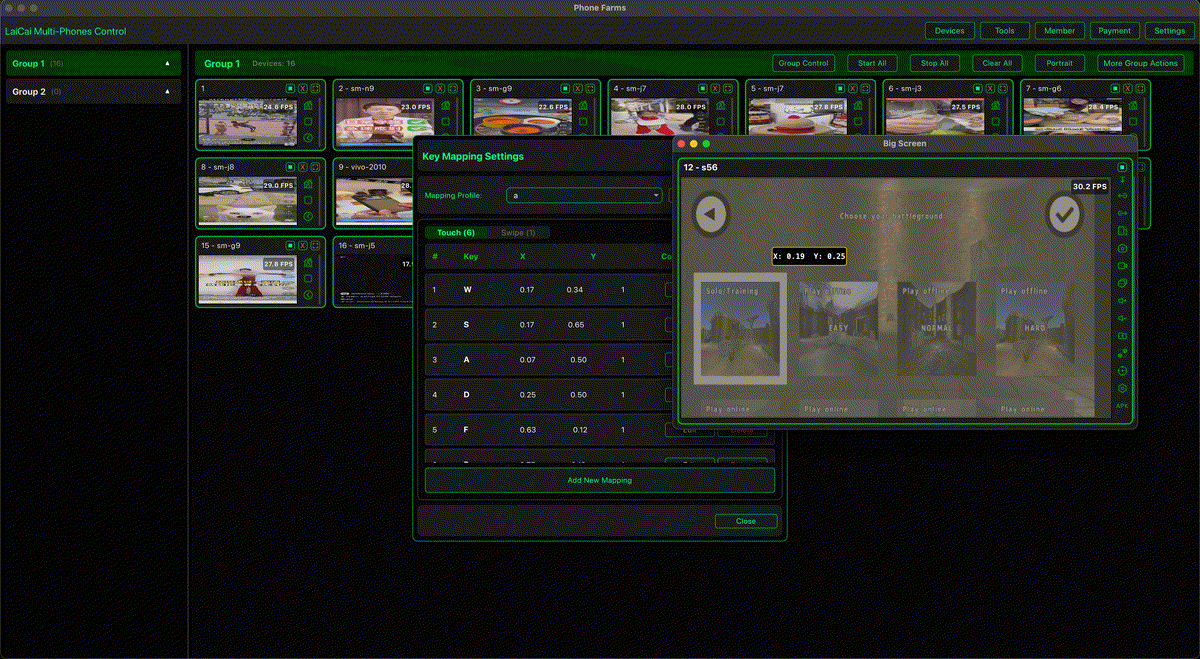
PUBG Mobile is designed for touch screens, but many players prefer the visibility and control of a computer setup. With LaiCai Screen Mirroring, the game still runs on your real Android phone while your PC or Mac becomes the large screen, keyboard, mouse, and recording workspace.
This guide focuses on PUBGM players who want a practical keyboard and mouse setup, not an emulator workflow. You can mirror the phone, place controls directly on the game interface, tune sensitivity, and save a profile for future matches. For the complete setup, follow the embedded video playlist above or open the PUBG Mobile mapping tutorial playlist.
Why Use a Real Phone for PUBGM on PC?
Using a real Android phone keeps the game in the real device environment: your normal app version, login state, graphics options, touch layout, and device behavior. The computer adds a larger view, steadier aiming posture, easier recording, and a cleaner workspace for voice chat or streaming tools.
Basic Setup
- Install LaiCai on your computer and connect your Android phone, preferably by USB for stable gameplay.
- Open PUBG Mobile on the phone and mirror the screen to the computer.
- Turn on keyboard mapping mode and start with a PUBGM profile.
- Drag controls onto the matching buttons: movement, fire, aim, jump, crouch, prone, reload, backpack, map, heal, weapon switch, and vehicle actions.
- Test in training mode before entering ranked matches.
Recommended PUBGM Keyboard Layout
Most players can start with WASD for movement, mouse movement for camera, left click for fire, right click for aim or scope, R for reload, Space for jump, C for crouch, Z or Ctrl for prone, Tab for backpack, M for map, number keys for weapons, and nearby keys for healing and throwables.
The best part is that LaiCai mapping is not fixed. You can move every key, resize control zones, change mouse behavior, and build a layout that matches your own PUBGM habits. Read the official LaiCai key mapping guide for the full control system.
Mouse Sensitivity Tips
Start conservative. If the camera feels too fast, lower mouse sensitivity in LaiCai first, then fine-tune the in-game camera and ADS sensitivity. If aiming feels delayed, check the cable, phone performance mode, game FPS, and mirroring bitrate before changing every key at once.
Performance Checklist
- Use a reliable USB data cable when possible.
- Keep the phone cool during long sessions.
- Close heavy desktop apps before recording or streaming.
- Use stable resolution, FPS, and bitrate settings instead of chasing maximum quality immediately.
- Test controls in the training ground after every major layout change.
Play Fair
LaiCai is for screen mirroring and comfortable control. Follow PUBG Mobile rules and avoid cheats, scripts, recoil automation, unfair macros, account abuse, or anything that violates game terms.
Conclusion
If you want to play PUBGM on PC while keeping the game on a real Android phone, LaiCai gives you the key tools: low-latency mirroring, keyboard and mouse control, fully customizable key mapping, recording, screenshots, and a video-guided setup path for PUBG Mobile players.