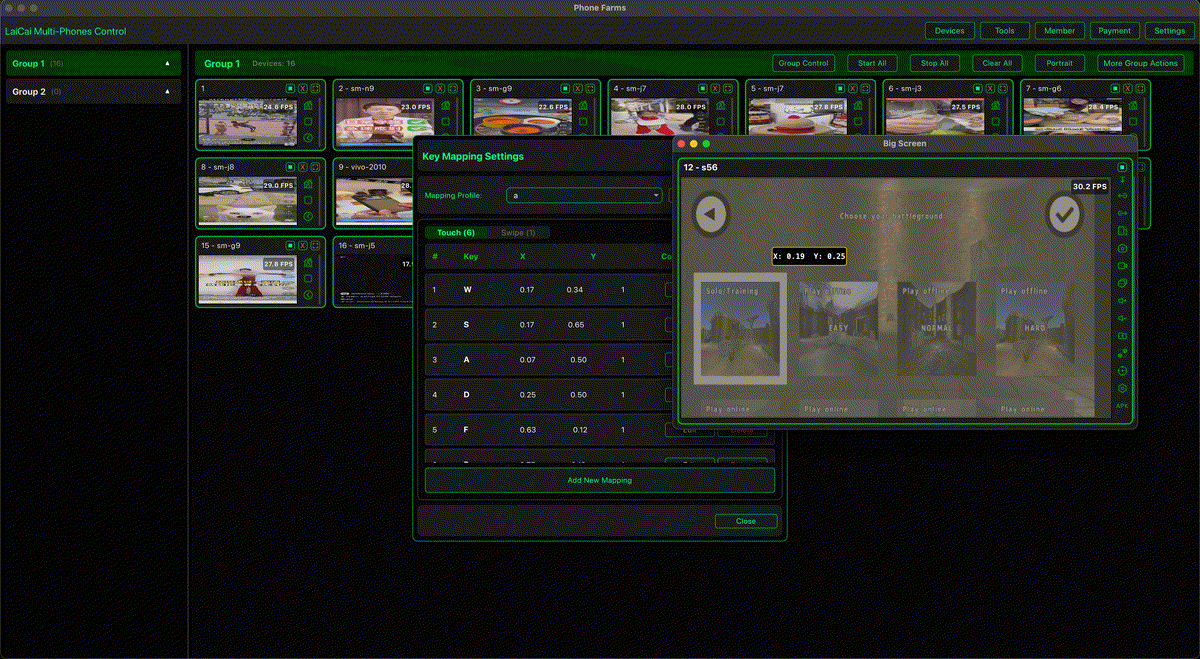
Recording mobile gameplay is easier when the game screen is on a computer. You can play with a larger display, control the phone with keyboard and mouse, capture cleaner footage, and prepare clips for YouTube, TikTok, Shorts, Reels, Discord, or team review.
LaiCai Screen Mirroring lets you keep the game running on a real Android phone while controlling it from a PC or Mac. That gives creators a practical setup for recording PUBG Mobile, Free Fire, Call of Duty Mobile, Arena Breakout, Blood Strike, Mobile Legends: Bang Bang, Honor of Kings, Genshin Impact, Roblox, Minecraft, and other Android games.
Why Record from a PC Instead of Only the Phone?
Phone-only recording is convenient, but it can compete with the game for CPU, GPU, memory, storage, battery, and heat. When you mirror the phone to a computer, you can keep the phone focused on gameplay and use the desktop for control, recording, file management, and editing.
A PC workflow also makes keyboard shortcuts, mouse aiming, OBS-style capture, voice recording, overlays, file naming, and clip review easier.
Basic Recording Setup
- Connect your Android phone to the PC or Mac by USB for the most stable result.
- Open LaiCai and mirror the game screen.
- Create or load a keyboard and mouse mapping profile for the game.
- Set the game graphics and frame rate to a stable level before recording.
- Open your recording tool or use LaiCai's screen recording workflow when available.
- Record a short test clip, check audio and motion, then start the real session.
Keyboard and Mouse Controls
For shooters, use WASD for movement, mouse look for camera control, left click for fire, right click for aiming, and nearby keys for reload, jump, crouch, inventory, map, healing, and weapon switching. For MOBAs, use keys for skills, items, camera movement, and quick commands. For RPGs and sandbox games, focus on movement, camera, interaction, menu, and shortcut consistency.
For detailed setup, read the best keyboard mapping setup for Android games on PC and LaiCai drag-and-drop key mapping for mobile games.
Recommended Quality Settings
Start with 1080p / 60 FPS if your phone, computer, cable, and game can handle it smoothly. If the recording drops frames, use 1080p / 30 FPS or reduce bitrate before lowering resolution. For short-form vertical clips, keep the game UI readable and crop later rather than recording too small.
For longer sessions, prioritize stability over maximum settings. Close heavy apps, use a real data cable, keep the phone cool, and make sure the computer has enough free storage for video files.
Audio and Creator Tips
- Record a short test before every session.
- Check game audio, microphone volume, and voice chat separately.
- Use consistent file names by game, date, match, or campaign.
- Record important settings screens if you are making a tutorial.
- Capture clean clips without notifications, popups, or private messages.
- Follow each game's rules and avoid unfair automation, cheats, recoil scripts, or account abuse.
When to Use a Real Android Phone
A real phone keeps the actual game environment: device performance, touch layout, notifications, login state, graphics behavior, and compatibility. If you do not want to rely on an emulator, read how to play Android games on PC without an emulator.
Conclusion
The best recording setup is not only about video quality. It is about stable gameplay, comfortable controls, clean footage, and a repeatable workflow. LaiCai helps Android gamers and creators record real-phone gameplay from a PC or Mac while using keyboard and mouse controls that feel organized and customizable.