If the Android picture reaches your computer but the sound does not, keep the working video session and test audio as a separate path. This guide helps you identify whether sound stops on the phone, at Android capture, in the desktop output, or only in a recording.
The short answer: find the exact point where audio stops
When the mirrored picture is already moving, do not restart the whole connection or change every quality control. Video, control, live audio forwarding, and recording are related features, but they can succeed or fail independently. Preserve the working picture and trace one short media clip from the phone speaker to the computer output.
Start with a downloaded or locally stored clip that you are allowed to play and capture. Avoid a call, voice chat, paid stream, or protected video for the first test because those apps may apply different audio rules. On Android screen mirroring for PC and Mac, a clean test tells you which layer to fix instead of merely producing a different symptom.
- If the phone is silent too, fix phone playback before testing mirroring.
- If the phone plays sound but the computer is silent, inspect forwarding and desktop output.
- If only one app is silent, test that app's capture policy instead of changing the network.
- If live sound works but the saved file is silent, inspect recording rather than mirroring.
Run this two-minute audio isolation test first
- Keep the existing mirrored picture open and unlock the Android phone.
- Disconnect Bluetooth earbuds, a car system, or another speaker for this first test.
- Play one known-good local media clip and raise the phone media volume to a comfortable level.
- In LaiCai Screen Mirroring, switch Audio Off, wait a moment, and switch Audio On again.
- Choose the computer speaker or headset you can identify, then check the operating-system mixer.
- Record ten seconds of the same clip and open the saved file after live playback is confirmed.
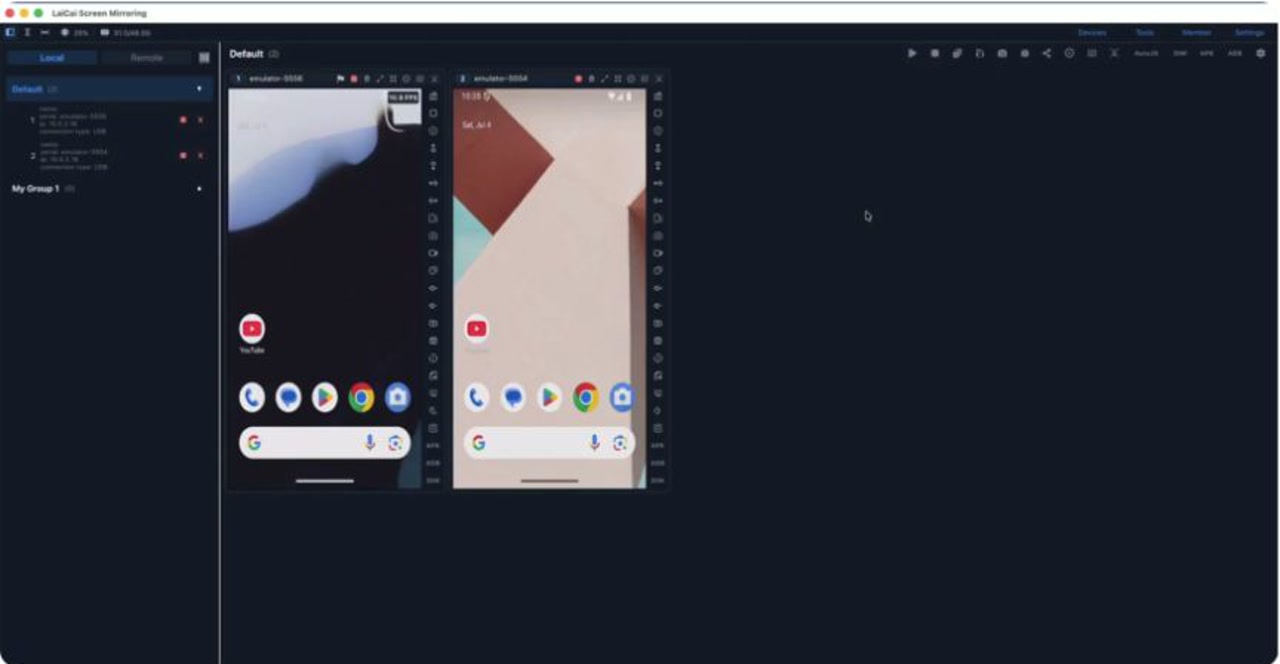
Write down four results: sound on the phone, sound on the computer, sound from a second app, and sound in the saved recording. That small result set is more useful than “audio is broken.” The LaiCai control and toolbar guide identifies the current Audio On / Off control, which toggles phone audio forwarding to the computer.
Use the symptom matrix instead of guessing
| Observed result | Most useful next check | Do not change yet |
|---|---|---|
| Phone and computer are both silent | Phone media volume, source clip, app playback, and Bluetooth route | USB/Wi-Fi, bitrate, resolution |
| Phone has sound; every app is silent on the computer | Audio On / Off, phone unlock state, Android version, desktop output and mixer | Video quality settings |
| Phone has sound; only one app is silent on the computer | App or content capture restrictions | Cable, driver, network |
| Live computer sound works; recording is silent | Recording audio option, format, and a short playback test | Phone authorization or Wi-Fi |
| Sound uses the wrong speaker | Bluetooth and computer output device selection | Reinstallation |
| Audio cuts out while video continues | Restart the audio path, then compare another app and USB/Wi-Fi | Factory reset |
A table cannot identify every device-specific cause, but it keeps the diagnosis falsifiable. For example, if a second app plays correctly, the computer output and basic audio path are already proven. Continue with app-level restrictions instead of undoing a working connection.
Check the Android phone before changing the computer
Android separates media volume from ringtone, alarm, and call volume. Play the test clip while adjusting volume so you know the media stream is changing. Then inspect the quick-settings output picker or Bluetooth settings. A phone can show a moving video while sending sound to earbuds in another room, a car connection, or a speaker that was paired earlier.
- Pause and resume the clip after changing the output route.
- Temporarily disconnect Bluetooth rather than only lowering the headset volume.
- Turn off silent video-player controls that may mute only the current app.
- Try a second ordinary media app with unprotected local content.
- Unlock the phone before starting or restarting audio forwarding.
If neither app produces sound on the phone itself, the mirroring app cannot forward a useful source. Fix the phone-side playback first. If both play on the phone but only one reaches the computer, the difference is evidence for an app or content capture rule.
Restart audio forwarding without breaking working video
Leave the mirrored window open. Use the toolbar to turn Audio Off, confirm that the state changes, wait briefly, and turn Audio On. Replay the same clip rather than switching content. If the phone was locked when the session began, unlock it and restart only the audio path.
The official scrcpy audio documentation explains an important pattern: supported implementations can keep video running when audio capture fails. It also documents audio forwarding for Android 11 and later, with an Android 11 requirement that the device be unlocked when capture starts. Those facts explain why a perfect picture does not prove that audio capture started.
If audio returns after the toggle, repeat the test once and then make a short recording. If it fails again, record the phone model, Android version, source app, connection type, and whether the phone was locked. That is the minimum useful evidence for support.
Fix Windows app volume and output routing
Windows can send one application to a different output device or mute it independently. Open Settings, go to System, Sound, and Volume mixer while the clip is playing. Find the desktop app, confirm that its volume is not zero, and select the intended output. Also confirm that the main system output is the speaker or headset you are actually using.
| Desktop check | Windows | macOS |
|---|---|---|
| System output | Settings > System > Sound > Output | System Settings > Sound > Output |
| Per-app volume | Volume mixer can mute an individual app | Check app volume plus the selected system output |
| Wrong headset or display | Choose the app and system output explicitly | Select the intended device in Output |
| Muted output | Unmute system and app | Clear Mute and raise Output volume |
Microsoft documents both per-app volume and per-app output selection in Volume mixer. If another desktop app makes sound but the mirroring app does not, that comparison is useful; it narrows the problem to app mixing or the incoming audio path rather than the physical speakers.
Fix macOS output device and mute state
On a Mac, open System Settings, choose Sound, and inspect Output while the phone clip is playing. Select the intended Mac speakers, wired headset, USB interface, or display. Raise Output volume and make sure Mute is off. A monitor connected by HDMI or USB-C may become the selected sound device even when you expected the built-in speakers.
Apple's Sound Output guide documents this device, balance, volume, and mute panel. After selecting the correct device, toggle audio forwarding once and replay the same phone clip. Keeping the source unchanged makes it clear whether the output selection solved the problem.
Understand Android version and app capture restrictions
Some failures are restrictions, not broken cables. Android playback capture is controlled by the source audio usage and by policies set by the operating system and the source app. Android Developers documents that playback capture targets media, game, and unknown usages, and that app or player policy must allow capture.
The Android playback capture reference also explains the manifest and runtime policy involved. Banking apps, protected streaming services, calls, voice chat, and other sensitive content may block capture or use an audio category that is not available to playback capture. Do not present a bypass as a fix. Test ordinary local media, respect the app's rules, and use an authorized playback method.
- Android 10 or earlier does not provide the same audio-forwarding path documented for newer versions.
- Android 11 may require the phone to be unlocked when audio capture starts.
- An app can opt out, so another media app may work on the same device.
- A protected stream may behave differently from a local video or game.
Separate live playback from screen recording audio
A recording is a second destination. First prove that the live computer output works. Then record ten seconds with a visible screen change and the same known-good clip. Stop cleanly, open the saved file in a reliable player, and check both picture and sound.
If live audio works but the file is silent, the phone-to-computer path has already passed. Focus on the recording audio option, the selected recording mode, the file format, and whether the player can decode that track. The official scrcpy recording guide documents that video and audio can be recorded and that container choice must match the selected codecs.
Do not record a full lesson, match, or product demo until a short file passes. For a broader connection baseline, use the complete USB, Wi-Fi, audio, and lag setup guide.
Settings that do not fix missing audio
Resolution, FPS, and video bitrate control picture workload. They can help a choppy or blurry mirrored image, but they do not unmute the phone, change a Bluetooth route, override an app capture policy, or select the correct computer speaker. Changing them during an audio-only failure destroys a useful baseline.
- Do not lower resolution or bitrate unless the picture is also unstable.
- Do not switch USB and Wi-Fi repeatedly when the same video session already works.
- Do not revoke USB authorization for a recording-only audio problem.
- Do not reinstall or factory-reset before testing another clip, app, and output device.
If the picture is also delayed or unstable, follow the mirroring lag checklist and the FPS and bitrate guide as a separate branch. Solve one measurable symptom at a time.
What to collect when sound still does not work
A useful support report lets another person reproduce the boundary. Include the phone model, Android version, computer operating-system version, LaiCai version, USB or Wi-Fi, source app, whether another app works, selected computer output, phone lock state, and whether the failure affects live sound, recording, or both.
Do not send passwords, private recordings, account tokens, or protected content. A ten-second test with harmless local media and a screenshot of non-sensitive output settings is usually enough. If video or control is failing too, return to the Android connection guide rather than treating the case as audio only.
Android screen mirroring audio FAQ
Why is there picture but no sound when I mirror Android to a PC?
Video and audio capture can start independently. Check phone playback, Bluetooth routing, Audio On / Off, the phone unlock state, Android version, desktop output, and app capture restrictions in that order.
Why does one app have no sound while another app works?
That result points to the source app, content type, or audio usage. Some apps prevent playback capture. Use ordinary authorized content for comparison and respect the app's policy.
Will changing from Wi-Fi to USB restore audio?
It may help if the audio session is unstable, but it cannot fix mute, wrong output, Android-version limits, or app opt-out. Keep USB as a stable comparison, not a universal audio repair.
Why does live audio work but the recording has no sound?
That isolates the failure to the recording destination. Check the recording audio setting, format, and playback application, then repeat a ten-second test.
Verify sound before the real session
A completed fix is repeatable: a known-good clip plays on the intended computer output, a second permitted app behaves as expected, and a ten-second recording contains the expected audio. Keep the working output device and connection unchanged before the real meeting, lesson, game, or recording session.
Use Android on PC for the wider desktop-control workflow. LaiCai Screen Mirroring provides audio forwarding and recording controls, but Android version, device behavior, and source-app policy still determine whether a particular stream can be captured.
Publisher and update information
Published and reviewed by BeePOS LLC, the company responsible for LaiCai Screen Mirroring. Updated August 13, 2026. See the About page, contact information, and privacy policy for ownership and support details.