The most reliable way to mirror an Android phone to a PC or Mac is to establish a working USB connection first, confirm control and video, and only then switch to Wi-Fi or tune audio and picture quality. This guide gives you one clear setup path and a symptom-based troubleshooting order.
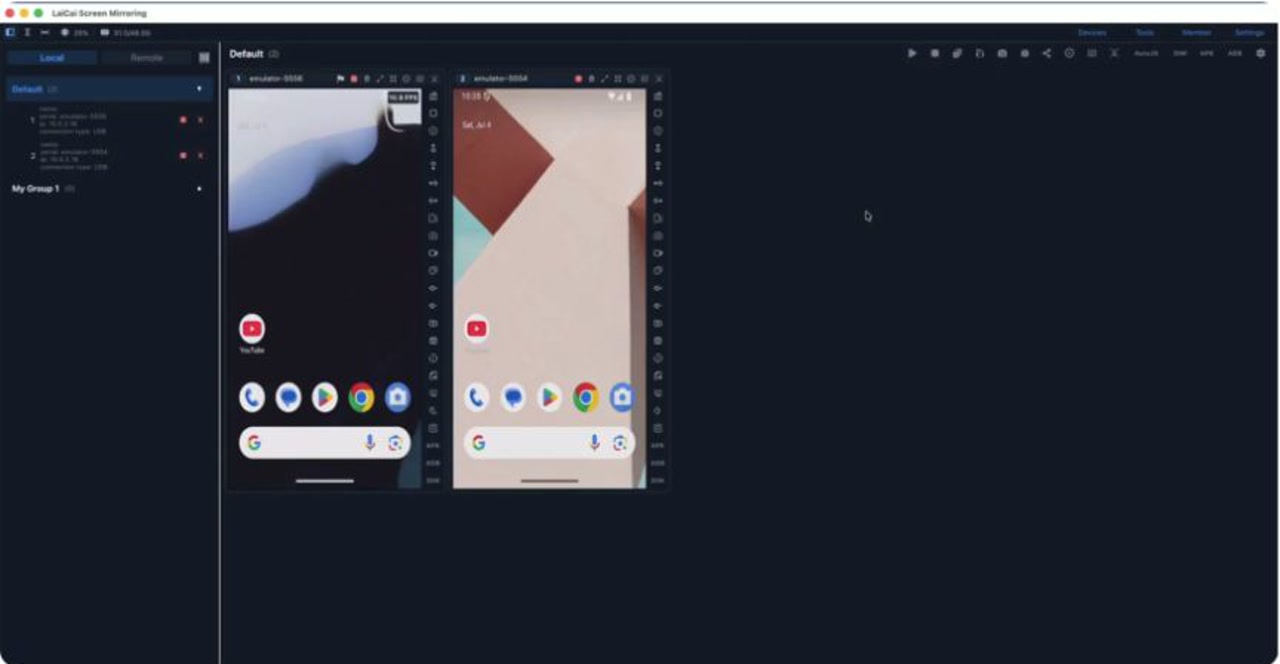
The short answer: build a USB baseline before changing settings
Android screen mirroring works best when you test one layer at a time. First make the computer recognize the unlocked phone over a data-capable USB cable. Accept the debugging prompt, scan the phone, start mirroring, and verify that mouse or keyboard input reaches the device. Once that baseline works, you can switch to Wi-Fi, turn on audio forwarding, record the screen, or adjust picture quality without guessing which layer failed.
A successful setup has five observable results: the phone appears in the device list, the live screen opens, input reaches the expected app, media sound plays through the chosen computer output when the device and app permit capture, and a screenshot or short recording can be saved. Android screen mirroring for PC and Mac is the main product page; this article is the practical setup and diagnosis path.
- Use USB for the first connection and for the easiest fault isolation.
- Move to Wi-Fi only after USB mirroring already works.
- Treat video, control, audio, and recording as separate checks.
- Change one setting at a time, then repeat the same short test.
Should you use USB or Wi-Fi for Android screen mirroring?
Choose USB when you are setting up the phone for the first time, diagnosing a missing device, playing a timing-sensitive game, or recording a repeatable tutorial. Choose Wi-Fi when the wired baseline is already stable and cable-free movement matters more than the simplest possible connection path.
| Need | Start with USB | Switch to Wi-Fi |
|---|---|---|
| First-time setup | Recommended because recognition and authorization are easier to isolate | Wait until the phone already mirrors over USB |
| Desk work or long session | Useful when stability is the priority | Useful when cable placement is inconvenient |
| Low-latency control | Usually the first path to test | Depends more on local network quality and congestion |
| Meeting or walking demo | Keep as a recovery option | Useful after a rehearsal on the same network |
| Device not detected | Check cable, port, authorization, and driver | Do not use Wi-Fi to hide an unresolved USB setup problem |
The choice is about workflow, not a universal winner. The USB versus Wi-Fi mirroring comparison covers the tradeoffs in more detail. For this guide, USB is the diagnostic baseline and Wi-Fi is an optional second stage.
Before you begin: prepare the phone, computer, cable, and network
You need an unlocked Android phone, a Windows or macOS computer, and a USB cable that carries data rather than charge only. If you plan to use Wi-Fi, place both devices on the same trusted local network. Keep the phone screen visible during the first connection so you do not miss the debugging authorization dialog.
- Install the current LaiCai Screen Mirroring desktop app for your computer.
- Use a known data cable and connect directly to the computer before adding a hub.
- On Windows, install the phone maker's USB driver if the device requires one.
- Unlock the phone and be ready to approve the computer's RSA debugging key.
- For Wi-Fi, confirm that client isolation or a guest network is not separating the devices.
Android Developers recommends checking a second cable or a second device when a computer cannot detect hardware over USB. That simple swap distinguishes a cable problem from a phone or computer configuration problem before you change several settings at once.
Step 1: enable Developer options and USB debugging
This step lets the phone authorize Android Debug Bridge (ADB), the connection used for debugging and computer control. The exact Settings path varies by phone maker, but the general sequence is consistent.
- Open Settings and find the phone's build number or software version page.
- Tap the build number repeatedly until the phone confirms that Developer options are enabled.
- Open Developer options and turn on USB debugging.
- Connect the unlocked phone to the computer with the data cable.
- When the phone asks whether to allow USB debugging from this computer, check the key and tap Allow.
Some Xiaomi and Redmi phones also require USB debugging (Security settings) before computer input can control the phone, followed by a restart. Some Huawei and Honor phones expose an additional ADB debugging option for charge-only mode. Use the phone maker note only when it matches your device. The Android connection guide lists the current product steps and vendor references.
Step 2: scan, add, and mirror the phone over USB
After this step, you should see a live phone window on the computer. Keep the first test narrow so the result is obvious.
- Open the desktop app and choose Scan Android Devices.
- Wait for the USB device to appear. If it does not, refresh the list after checking the phone authorization dialog.
- Select the device, add it to the workspace or a device group, and choose Start Mirror.
- Open a harmless screen such as Settings and click or type once from the computer.
- Rotate the phone or open another screen to confirm that the live picture updates.
Do not move to Wi-Fi yet if the live picture opens but input does not work. That is a control authorization or device-specific setting problem, not a network problem. Likewise, if the phone never appears in the scan list, fix recognition before testing picture quality.
Step 3: switch to Wi-Fi only after USB works
The same authorized phone should remain available after you remove the USB cable. The phone and computer must be on the same local network for the supported Wi-Fi workflow.
- Keep the working USB session connected and verify the phone is still responsive.
- In the device scan or connection controls, choose Enable Wi-Fi for that phone.
- Wait for the connection type to change from USB to Wi-Fi.
- Disconnect the cable only after the Wi-Fi state is visible and the screen still updates.
- Repeat the same click, typing, and screen-change checks used for USB.
If Wi-Fi fails while USB continues to work, the phone authorization and basic app setup are probably intact. Focus on the local network, device isolation, signal quality, and whether the computer changed networks. Microsoft's Phone Link documentation also requires the phone and PC to use the same Wi-Fi network. Its device support and implementation differ, but the network check is still useful.
Step 4: test mouse, keyboard, audio, screenshots, and recording separately
A visible phone screen does not prove that every adjacent feature is working. Test each feature with a small action and record which transport you used.
| Feature | One-minute test | Pass condition |
|---|---|---|
| Mouse control | Open Settings and click one reversible item | The intended phone control responds once |
| Keyboard input | Focus a disposable text field and type a short phrase | The phrase appears without affecting another app |
| Audio forwarding | Play a short local media clip and toggle Audio On | Sound uses the selected computer output when capture is supported |
| Screenshot | Capture a screen with a recognizable heading | A readable image is saved in the configured folder |
| Recording | Record ten seconds while changing one screen | The file opens and contains the expected picture and permitted audio |
The computer control and toolbar guide identifies the current buttons for screenshots, recording, volume, audio forwarding, file actions, and screen state. Use those visible controls instead of assuming that computer volume or phone media volume automatically changes the other side.
Why is there video but no phone audio on the computer?
When video works but sound does not, keep the working video session and diagnose audio as its own path. Do not reinstall the entire mirroring setup first.
- Confirm that the phone media volume is not muted and that the app is actually producing sound.
- Choose the intended computer speaker or headset and verify that the desktop app is not muted in the operating system mixer.
- Toggle Audio Off and Audio On once, then replay the same short clip.
- Unlock the phone and reconnect if the audio session started while the device was locked.
- Try a different media app to distinguish a device-wide problem from app-level capture restrictions.
Audio capture depends on Android version, device behavior, and app restrictions. The official scrcpy audio documentation describes version-specific behavior and lets video continue when audio capture fails. A good video connection and a failed audio path can therefore coexist, so report them separately.
Why is Android screen mirroring laggy or blurry?
Start with the transport before changing several quality settings. Reconnect over USB, close heavy background work on the phone and computer, and repeat the same motion test. If USB is smooth but Wi-Fi is not, the local network is the first suspect. If both are slow, inspect device load and then reduce the picture workload gradually.
- Return to USB and use a direct computer port with a known data cable.
- Close unnecessary screen recording, game capture, virtual machine, or heavy browser tasks.
- For Wi-Fi, move both devices to the same strong access point and leave a guest network.
- Reduce resolution, FPS, or bitrate one control at a time, then repeat the same test scene.
- Keep the lowest setting that still makes text and motion useful for your task.
Use the Android mirroring lag checklist when the problem persists. If you already know the connection is stable and only need to balance clarity with motion, the FPS and bitrate guide explains those controls without pretending that one value fits every phone and computer.
Why does the computer not detect the Android phone?
A missing device is usually a recognition or authorization problem. Work from the physical connection toward the software instead of repeatedly pressing Scan.
- Unlock the phone, reconnect the cable, and choose a USB mode that permits data when the phone asks.
- Try another data cable and another direct USB port.
- Look for the Allow USB debugging prompt and approve the current computer key.
- On Windows, install or update the phone maker's OEM USB driver when required.
- Revoke USB debugging authorizations only if the prompt or trusted-computer state is clearly stuck, then reconnect and approve again.
- Test a second Android phone or a second computer if available to isolate which side fails.
Android Developers uses this cable, device setup, driver, and authorization sequence in its hardware-device troubleshooting guide. If the phone appears over USB but not Wi-Fi, stop repeating USB fixes and return to the network checks in Step 3.
What does a successful setup look like?
The setup is ready when you can reproduce a short acceptance test, not merely when a window opens once. Run the test on the connection you plan to use in the real meeting, recording session, support call, or game.
- The correct phone appears with the expected connection type.
- The live image updates during scrolling, rotation, and app changes.
- One mouse action and one keyboard action reach the intended target.
- Audio uses the expected output when the device and app support capture.
- A screenshot and a short recording open successfully.
- You know how to return to the working USB baseline if Wi-Fi fails.
For a broader desktop-control workflow that includes typing and common device actions, continue with using an Android phone on a computer. Keep this acceptance list short enough to repeat whenever you change a cable, network, phone, computer, or major app version.
Android screen mirroring setup FAQ
Can I mirror an Android phone to a PC without USB?
Yes, a supported Wi-Fi workflow can remove the cable after setup. For the fastest diagnosis, establish USB mirroring first so you can separate authorization problems from network problems.
Why can I see the phone but not control it?
Video and input are separate paths. Confirm that the phone accepted the debugging key, click the mirrored screen to focus it, and check any manufacturer-specific security debugging option required for computer input.
Does Wi-Fi always have more lag than USB?
Not in every environment, but Wi-Fi adds network conditions that USB does not. Compare both transports with the same phone, computer, app, and motion test before changing resolution or bitrate.
Can screen mirroring record phone audio?
LaiCai Screen Mirroring includes audio forwarding and device-audio recording controls, but the result can depend on Android version, device behavior, the source app, and capture restrictions. Verify audio with a short test before a full recording.
Start simple, verify each layer, and keep a recovery path
A dependable Android-to-PC setup is a sequence of verified layers. Prepare a real data cable, authorize USB debugging, make USB video and control work, then add Wi-Fi, audio, capture, and quality tuning one at a time. If wireless breaks, return to USB. If sound breaks, keep the working picture and test audio separately.
Publisher and update information
Published and reviewed by BeePOS LLC, the company responsible for LaiCai Screen Mirroring. Updated August 12, 2026. See the About page, contact information, and privacy policy for ownership and support details.