يبقى Roblox Mobile على هاتف Android الحقيقي، ويصبح PC/Mac شاشة كبيرة ومساحة للوحة المفاتيح والفأرة والتسجيل. LaiCai Screen Mirroring.
لماذا تستخدم Android حقيقيًا
تختلف عناصر التحكم بين تجارب Roblox، لذلك يكون تشغيل التطبيق على Android حقيقي مع استخدام الكمبيوتر كشاشة كبيرة خيارًا عمليًا.
يبقي LaiCai Screen Mirroring التطبيق وتسجيل الدخول وواجهة الهاتف على الجهاز، بينما يتولى PC/Mac العرض والتحكم واللقطات والتسجيل.
Use it as part of the broader لعب Roblox Mobile على الكمبيوتر workflow.
الاتصال وتعيين المفاتيح
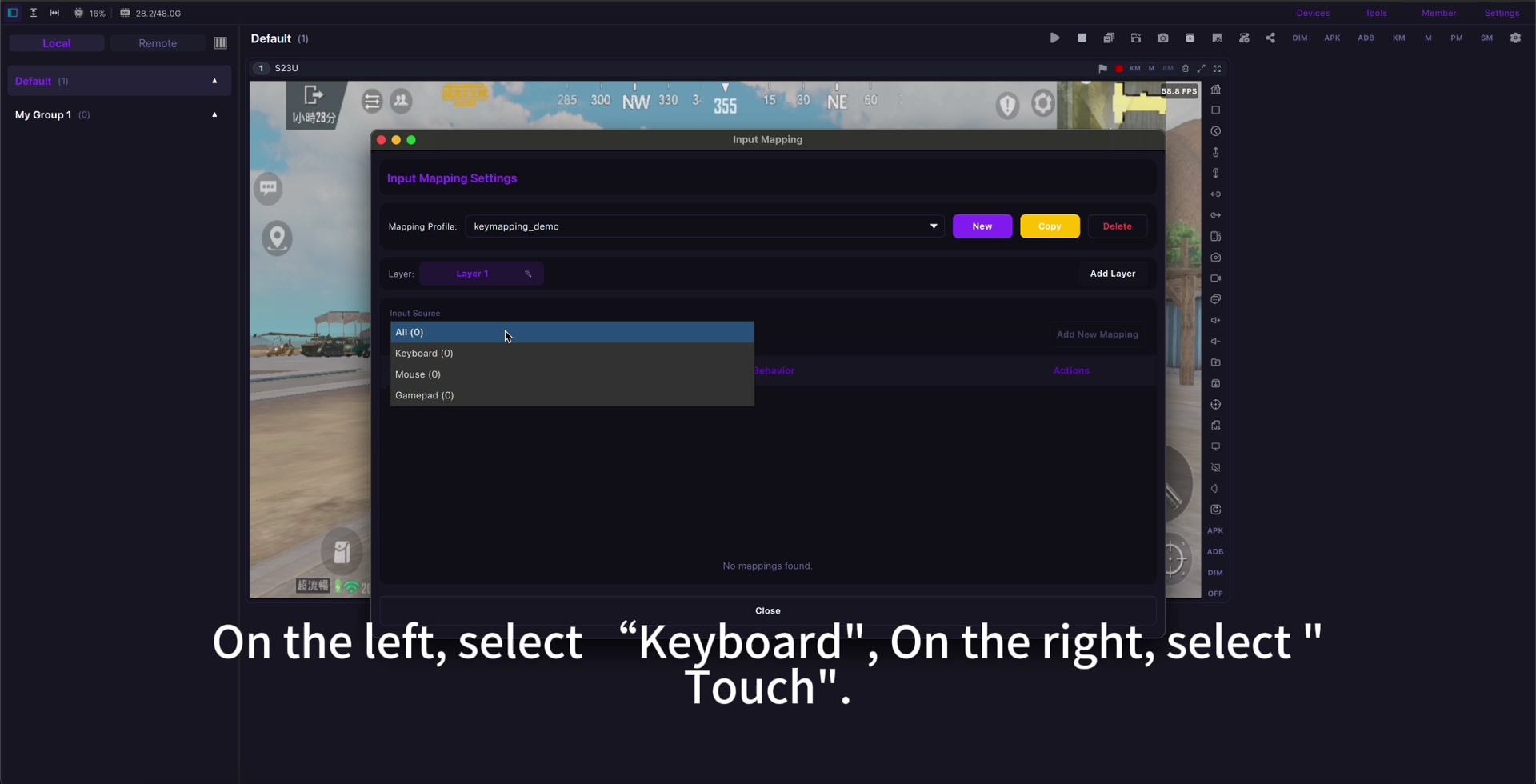
ابدأ عبر USB، حدّث Roblox، افتح التجربة المطلوبة، ثم عيّن الحركة والقفز والكاميرا والتفاعل والدردشة والأزرار الضرورية فقط.
استخدم دليل تعيين المفاتيح وأنشئ ملفات منفصلة للتجارب المختلفة. تعيين مفاتيح Roblox Mobile.
If input feels delayed, check تقليل تأخير عكس شاشة Android before rebuilding the whole profile.
التسجيل والاستخدام الآمن
قبل التسجيل تحقق من الصوت والإشعارات والخصوصية وإعدادات العائلة، وتجنب الروبوتات والأتمتة والماكرو غير العادل ومخالفة القواعد.
Use mirroring for visibility, comfort, screenshots, recording, real-device testing, and family-friendly screen sharing.
Setup checklist
- Use a real Android phone.
- Start with USB.
- Open the exact Roblox experience first.
- Map only needed controls.
- Create separate profiles when controls differ.
- Check audio, privacy, and family settings.
- Follow Roblox rules and community standards.
Sources: Roblox download page, Google Play, App Store, Community Standards, Terms of Use, Roblox mobile input documentation.