Roblox Mobileを実機Androidで動かしたまま、PC/Macの大画面、キーボード、マウス、録画環境を使う手順です。 LaiCai Screen Mirroring.
実機AndroidでRobloxを動かす理由
Robloxは体験ごとに操作が違うため、実機Androidを残したままPCを大画面と入力環境にすると便利です。
LaiCai Screen Mirroringはアプリ、ログイン、モバイルUIをスマホ側に残し、PC/Macで表示、操作、スクリーンショット、録画を行います。
Use it as part of the broader Roblox MobileをPCで遊ぶ workflow.
接続とキー設定
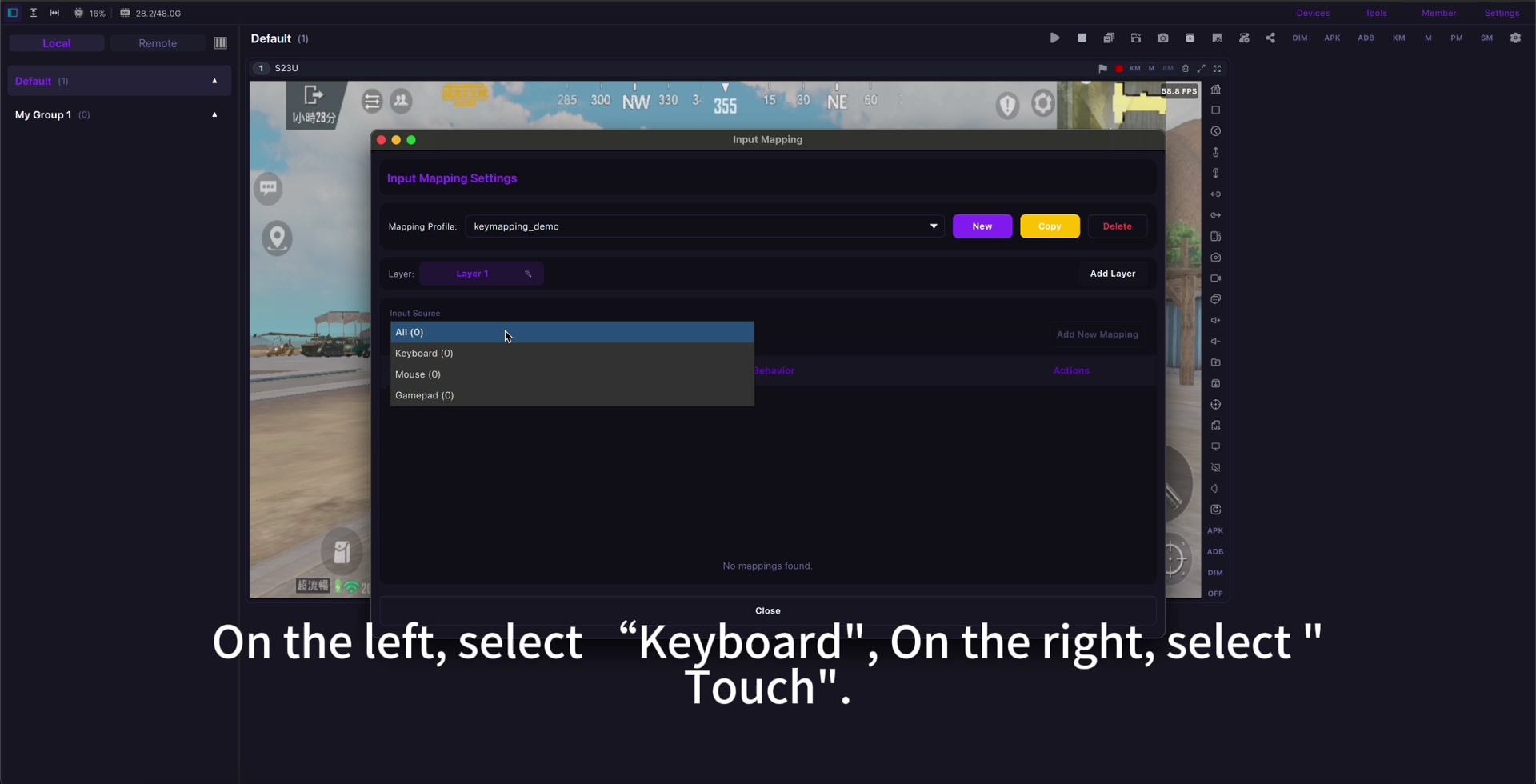
まずUSBで接続し、Robloxを更新して対象の体験を開いてから、移動、ジャンプ、カメラ、インタラクト、チャット、必要なアクションだけを割り当てます。
詳しい考え方はキー設定ガイドを使い、体験ごとに別プロファイルを作ります。 Roblox Mobileのキーマッピング.
If input feels delayed, check Androidミラーリングの遅延を減らす before rebuilding the whole profile.
録画と安全な使い方
公開録画の前に音声、通知、プライバシー、家族設定を確認し、ボット、自動化、不正マクロ、ルール違反は避けてください。
Use mirroring for visibility, comfort, screenshots, recording, real-device testing, and family-friendly screen sharing.
Setup checklist
- Use a real Android phone.
- Start with USB.
- Open the exact Roblox experience first.
- Map only needed controls.
- Create separate profiles when controls differ.
- Check audio, privacy, and family settings.
- Follow Roblox rules and community standards.
Sources: Roblox download page, Google Play, App Store, Community Standards, Terms of Use, Roblox mobile input documentation.