Roblox Mobile resta su Android reale, mentre PC/Mac diventa schermo grande, tastiera, mouse e spazio di registrazione. LaiCai Screen Mirroring.
Perché usare un Android reale
Roblox include esperienze con controlli molto diversi, quindi mantenere l’app su Android reale e usare il PC come grande schermo può essere utile.
LaiCai Screen Mirroring lascia app, login e interfaccia mobile sul telefono, mentre PC/Mac gestisce visualizzazione, controllo, screenshot e registrazione.
Use it as part of the broader giocare a Roblox Mobile su PC workflow.
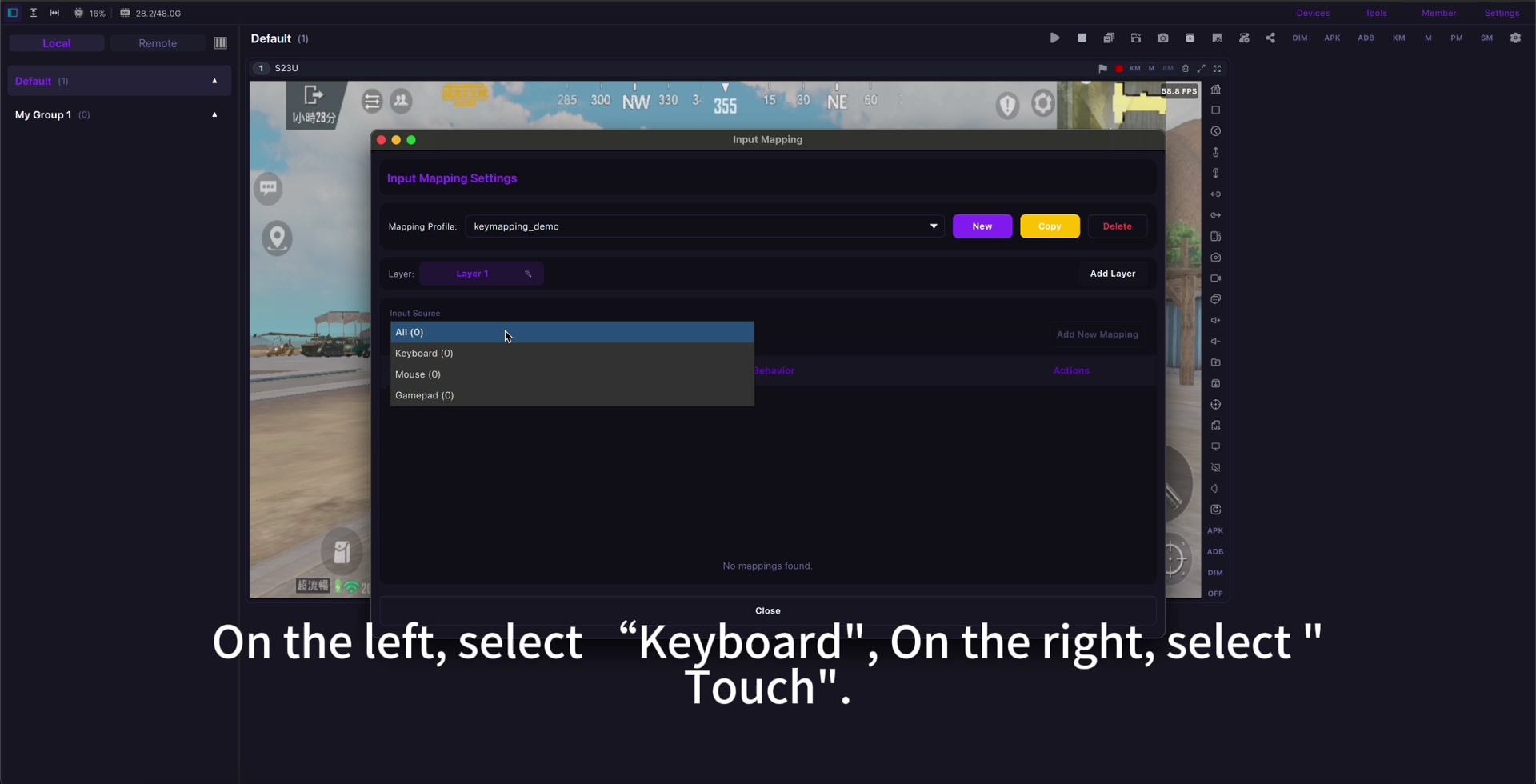
Connessione e mappatura
Inizia con USB, aggiorna Roblox, apri l’esperienza esatta e mappa movimento, salto, camera, interazione, chat e solo le azioni necessarie.
Usa la guida di key mapping e crea profili separati per esperienze molto diverse. mappatura tasti Roblox Mobile.
If input feels delayed, check ridurre la latenza del mirroring Android before rebuilding the whole profile.
Registrazione e sicurezza
Prima di registrare controlla audio, notifiche, privacy e impostazioni famiglia; evita bot, automazione, macro scorrette e violazioni delle regole.
Use mirroring for visibility, comfort, screenshots, recording, real-device testing, and family-friendly screen sharing.
Setup checklist
- Use a real Android phone.
- Start with USB.
- Open the exact Roblox experience first.
- Map only needed controls.
- Create separate profiles when controls differ.
- Check audio, privacy, and family settings.
- Follow Roblox rules and community standards.
Sources: Roblox download page, Google Play, App Store, Community Standards, Terms of Use, Roblox mobile input documentation.