Use LaiCai Screen Mirroring to play Roblox Mobile from a real Android phone on a PC or Mac screen with USB setup, key mapping, recording, and safety tips.
Why use a real Android phone for Roblox Mobile on PC?
Roblox is not one fixed game. The official mobile store pages describe a large platform with many genres, from racing, survival, role-play, sports, horror, anime, and social experiences to developer-made worlds that change quickly. That variety is exactly why a real-phone workflow can make sense: one Roblox experience may use a simple tap layout, while another may need camera movement, jumping, inventory, chat, or repeated UI actions.
LaiCai Screen Mirroring keeps Roblox running on the real Android phone. The PC or Mac becomes the larger screen, keyboard and mouse surface, tutorial recording desk, screenshot workspace, and file-management station. The mobile app, account login, mobile interface, device performance, notifications, and app-store update path stay on the phone.
This is different from trying to replace the mobile app with a separate desktop environment. It is useful for creators recording mobile tutorials, parents helping a child see the screen on a larger monitor, players who prefer the mobile app but want a bigger view, and small teams checking how a Roblox experience behaves on actual Android hardware.
Start with a stable Android mirroring baseline
Begin with USB. Roblox experiences vary a lot in visual load and control style, so a stable baseline is better than tuning every setting at once. Open Roblox on the Android phone first, update the app if needed, sign in, and launch the specific experience you want to play or record before creating a key mapping profile.
Keep the phone on a desk stand if possible. A stable phone position helps with heat, charging, screenshots, and longer sessions. If the phone gets hot, lower the in-experience graphics quality or reduce the mirror resolution. If the computer is overloaded by recording, browser tabs, or other mirrored devices, reduce FPS or bitrate before assuming Roblox itself is the problem.
For the broader workflow, use the play Android games on PC guide as the main landing page. Roblox is a flexible example of the same pattern: the game remains on Android, while the computer improves visibility, control, and content production.
Keyboard and mouse mapping for Roblox Mobile
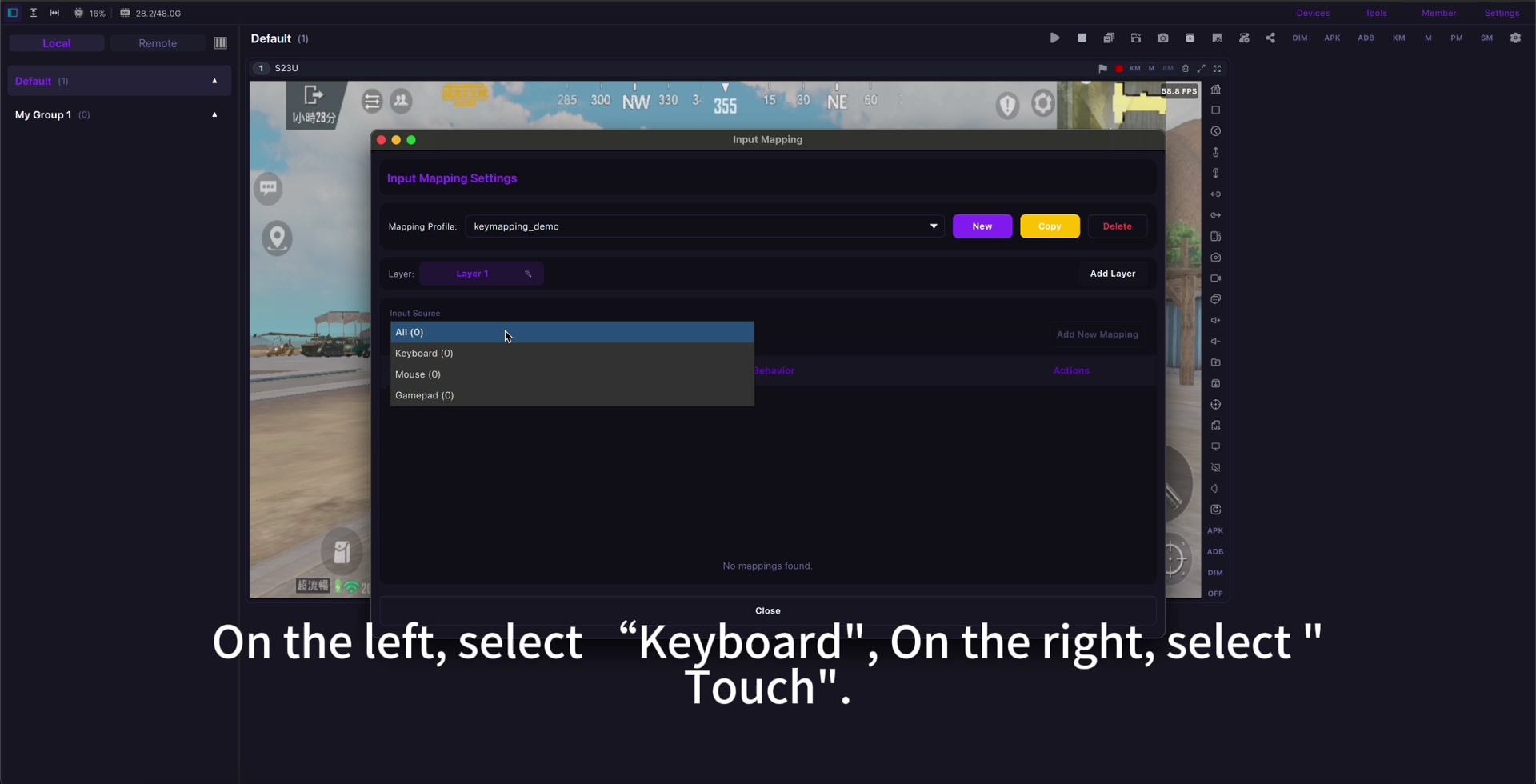
There is no single perfect Roblox layout because every experience can define its own controls. A good beginner setup is WASD or a left-hand cluster for movement, Space for jump, mouse drag or a camera area for view control, E or F for interact, number keys for inventory or hotbar actions, Enter for chat when appropriate, and a dedicated key for menus only if the experience needs it.
Map only the controls you actually use. Obby, tycoon, simulator, shooter, role-play, tower defense, and racing experiences do not need identical profiles. Start with movement, jump, camera, interact, chat, and one or two action buttons. Then create separate profiles for experiences that really need special buttons.
The Android game key mapping guide is useful here because Roblox often mixes joystick-style movement, taps, drags, menus, and camera checks. Test each mapped point inside a safe area before playing publicly or recording a tutorial.
Recording Roblox tutorials and parent-friendly screen sharing
A larger computer screen helps when explaining a Roblox experience to someone else. Creators can record a clean clip, show where to tap, capture a tutorial path, or compare mobile UI behavior. Parents can watch the same screen without leaning over the phone, help with settings, and notice chat or purchase prompts more easily.
Before recording, run a short test. Check game audio, microphone, desktop capture, notifications, and private messages. Keep the phone in Do Not Disturb if appropriate. For a child account or family device, review Roblox account settings, privacy settings, spending permissions, and the current Roblox Community Standards before making gameplay videos or joining public experiences.
This article does not recommend bypassing Roblox safety controls, purchase controls, age settings, chat limits, or platform rules. The value of mirroring is visibility, comfort, education, and repeatable recording, not hidden automation or rule evasion.
Resolution, FPS, bitrate, and lag troubleshooting
Roblox Mobile can be light in one experience and demanding in another. Start with 720p or 1080p and a stable FPS target. Raise bitrate only until text, buttons, and camera motion look clear. If the picture stutters, lower bitrate first; if the computer is under load, lower FPS; if both the phone and computer feel warm, lower resolution.
If keyboard or mouse input feels late, use the Android screen mirroring lag guide before rebuilding the entire key map. Cable quality, Wi-Fi stability, phone performance, computer load, graphics quality, FPS, and bitrate all affect how Roblox feels on a mirrored screen.
USB is the best first test. Wi-Fi can be convenient for light experiences or demos, but random network spikes are easier to notice when an experience needs camera movement, jumping, or timed actions. If Wi-Fi feels inconsistent, switch back to USB and compare the same experience.
Fair use, Roblox rules, and account safety
Use screen mirroring and key mapping as human input only. Do not use bots, auto-farming scripts, unauthorized macros, exploit tools, account abuse, fake engagement, purchase manipulation, chat spam, or any behavior that violates Roblox rules, creator rules, app-store rules, or community safety expectations.
Roblox contains many user-created experiences, and each experience can have its own design and community norms. If an experience, event, group, tournament, or creator policy restricts external tools or certain input methods, follow that rule. LaiCai is positioned for mirroring, comfort, screenshots, recording, real-device testing, and parent-friendly visibility.
When this setup is the right fit
Use this workflow when you want the Roblox Android app to remain the source of truth, but you want a larger screen, easier typing, repeatable key profiles, cleaner recordings, or a better way to help someone else follow the mobile UI.
It is also useful when you switch between many Roblox experiences in one session. Keep one basic movement profile for simple experiences, one camera-heavy profile for obby or adventure content, and one action profile for experiences with more buttons. Name each profile clearly so you do not spend the first minutes of every session rebuilding the same layout.
For creators, save a short pre-recording routine: connect the phone, launch the experience, check that notifications are hidden, confirm the microphone, record ten seconds of movement, then review the clip before recording the full tutorial. This prevents the most common problems: muted game audio, private messages on screen, wrong key profile, stutter from too-high bitrate, and a camera area that does not match the current mobile UI.
Use another workflow if you specifically need Roblox Studio development on desktop, native desktop Roblox controls, or platform-specific features outside the Android app. The real-phone setup is strongest when mobile continuity matters, especially when the article, tutorial, or family support session is about the Android version rather than desktop Roblox.
Roblox Mobile PC setup checklist
- Install or update Roblox on a real Android phone.
- Start with USB before testing Wi-Fi.
- Open the exact Roblox experience before mapping keys.
- Map movement, jump, camera, interact, chat, and only the action buttons you need.
- Use separate profiles for very different Roblox experiences.
- Test audio, notifications, privacy, and recording before publishing a tutorial.
- Follow Roblox Community Standards, account rules, creator rules, and family safety settings.
Official sources: Roblox download page, Google Play, App Store, Community Standards, Terms of Use, Roblox mobile input documentation.