A safe Android workflow does not keep tapping until something happens. It identifies the current screen, limits retries, verifies the next state, and stops with evidence when the result is uncertain.
The short answer: stop when the next action is no longer justified
An Android automation stop condition is a rule that prevents the workflow from continuing when the current screen, result, or timing no longer supports the next action. It can end the run, return a controlled result, collect evidence, or send the case to a person. The point is not to stop at every surprise. The point is to avoid turning uncertainty into another tap.
Reliable workflows answer four questions before every important action: What state should the phone be in? What observation proves that state? How many recovery attempts are acceptable? What evidence should be preserved if the state never appears? Android UI Automator includes conditional waits and stability checks, while WorkManager documents cancellation and stopped-work handling. The common design lesson is simple: waiting, retrying, and stopping need explicit limits.
- Continue only when the expected state is positively identified.
- Retry only when the failure is temporary and the retry has a clear limit.
- Stop or request review when the screen is unknown, an action is sensitive, or the postcondition fails.
Continue, wait, retry, stop, or review?
| Decision | Use it when | Required limit | Evidence to keep |
|---|---|---|---|
| Continue | The current state and next action are both expected | One reviewed transition | Observed state and postcondition |
| Wait | The app is still loading or settling | Timeout or named ready condition | Elapsed time and last screen |
| Retry | A temporary condition may resolve without changing business meaning | Maximum attempts plus interval | Attempt count and result of each observation |
| Stop | The state is unknown, invalid, unsafe, or outside the approved path | Immediate termination | Stop reason, screenshot, structured result |
| Human review | The workflow cannot decide safely or the next action has material consequences | Clear handoff deadline and owner | Full evidence bundle and proposed next step |
These choices are not interchangeable. A wait gives the same state time to settle. A retry repeats a bounded observation or recovery action. A branch selects between known outcomes. A stop ends the reviewed path. Human review is appropriate when the automation lacks enough evidence to choose safely.
Step 1: name the states before choosing the actions
By the end of this step, every important screen has a name and a small set of observable facts. Start with a narrow workflow such as opening a test build, navigating to a settings page, changing one non-sensitive option, and confirming the new state. Do not begin with a long sequence of coordinates.
- Write the starting state, the expected next state, and the acceptable alternate states.
- For each state, choose the narrowest useful signal: UI property, visible text, known image, detected object, or focused screenshot.
- Mark any screen that must never receive an automatic action, such as an unexpected account, permission, purchase, deletion, or production-data screen.
Verification is straightforward: another reviewer should be able to look at the state definition and explain why the next action is allowed. The image-recognition auto-click guide shows why finding a visual target is not enough. The workflow still needs a precondition before the tap and a postcondition afterward.
Step 2: choose one observation that proves each state
By the end of this step, each state has a primary observation and a fallback evidence source. Use UI structure for semantic facts such as a label, selected state, enabled control, or item count. Use OCR when visible text matters but the UI tree does not expose it reliably. Use template matching for a known visual target and object detection for a validated class whose position or size varies.
Avoid stacking several weak signals and calling the combination certainty. A broad screenshot, an unvalidated template, and a partial OCR result do not automatically make a reliable decision. Instead, define one load-bearing observation and record the other signals as supporting evidence. The Android visual testing comparison explains where UI state, OCR, screenshots, templates, and detection each fit.
Verification means testing both positive and negative samples. The condition should pass on the intended screen and fail on a visually similar but incorrect screen. If it cannot distinguish those states, narrow the region, change the signal, or stop the workflow before the action.
Step 3: put a budget around every wait and retry
By the end of this step, no loop can run forever. Every wait needs either a timeout or a named ready condition. Every retry needs a maximum attempt count, a reasonable interval, and a reason why trying again could succeed without making the situation worse.
| Failure pattern | Why another attempt may help | Safe boundary | Stop reason |
|---|---|---|---|
| Screen is still loading | The same state may become ready | Wait until stable or timeout | Ready condition not reached |
| Element is temporarily absent | Content may arrive after a short delay | Observe again for a fixed number of attempts | Expected element never appeared |
| Tap produced no transition | Input may have been missed once | One reviewed repeat after checking the screen | Postcondition still absent |
| Unknown dialog or account appears | Another attempt does not reduce uncertainty | No retry | Unexpected state requires review |
| Action could delete, buy, send, or publish | Blind repetition can duplicate consequences | No automatic retry unless idempotency is proven | Sensitive action outcome is uncertain |
Community questions about Android automation often describe loops that wait forever or tasks that appear stuck. A maximum-attempt rule is useful, but the count should follow the operation. A read-only check may tolerate more attempts than a state-changing action. The correct number is the smallest reviewed budget that covers normal latency.
Step 4: verify the postcondition before declaring success
By the end of this step, a delivered tap is no longer treated as a completed task. After each state-changing action, wait for the interface to settle and observe the expected result. If the postcondition is missing, the workflow must not silently continue into the next action.
- Record the state that authorized the action.
- Perform the single approved action.
- Wait for a named postcondition or a bounded timeout.
- Route success to the next state and failure to evidence capture, a reviewed recovery, or stop.
This protects against overlays, delayed navigation, missed input, stale coordinates, and look-alike screens. It also produces a better failure report: the reviewer sees what was expected, what action occurred, and which next state did not appear.
Step 5: preserve enough evidence for a person to decide
By the end of this step, every stop produces a compact evidence bundle instead of a vague failed label. Capture evidence before recovery changes the screen. Keep only what is necessary for diagnosis, and handle screenshots or logs according to the data policy for the app being tested.
- Workflow and step name, app build, device, Android version, locale, and orientation.
- Expected state, observed state, condition result, attempt count, and elapsed time.
- A focused screenshot or crop, plus OCR text, match score, UI properties, or detection result when relevant.
- The last successful state, attempted action, missing postcondition, and explicit stop reason.
- A suggested reviewer choice: retry after a known fix, update the accepted state, or investigate the product.
A useful handoff allows someone to make the next decision without reproducing the whole run first. The Android automation QA smoke-test guide gives a broader example of keeping real-device checks narrow and reproducible.
How LaiCai Flow models safe boundaries
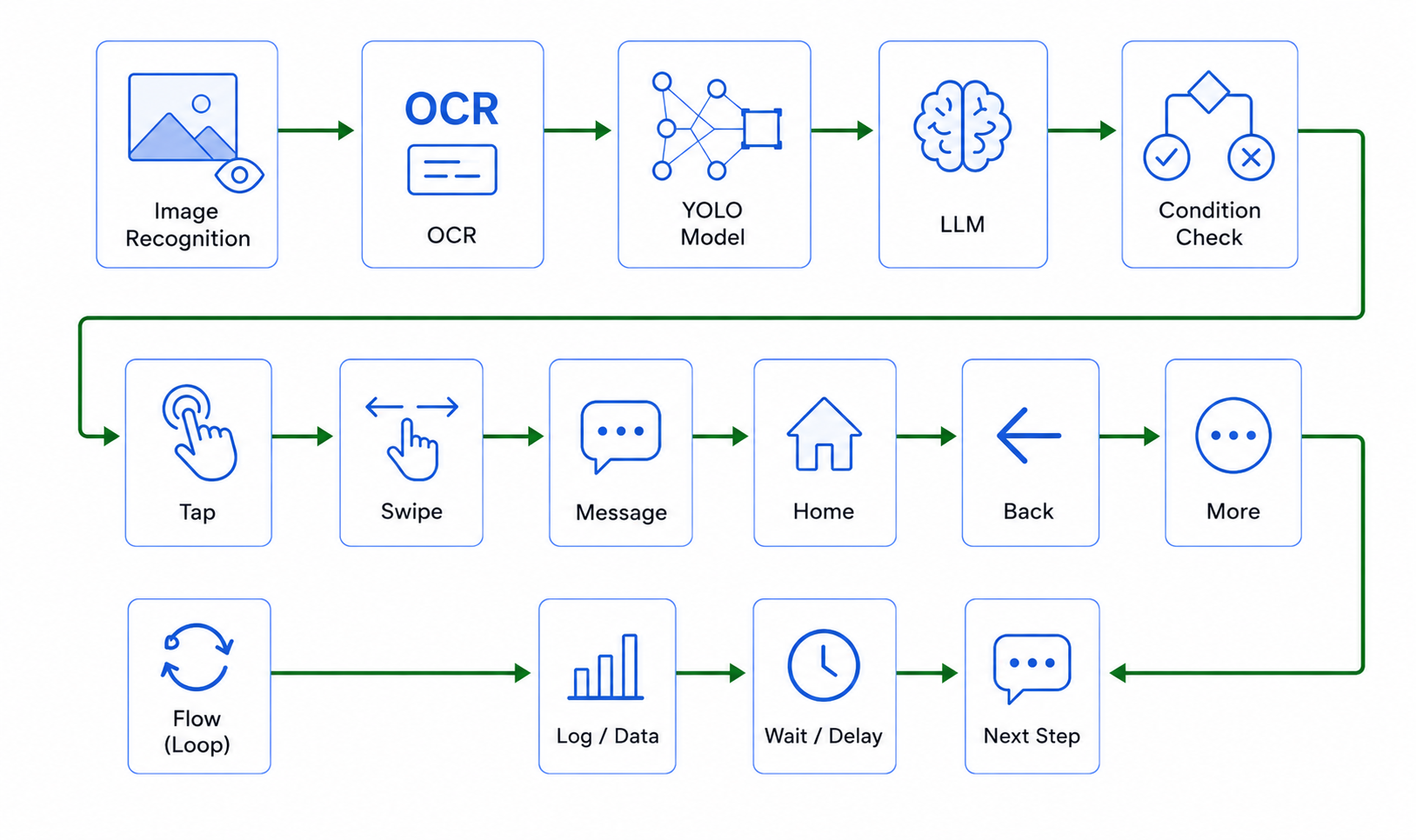
LaiCai Flow is an automation feature inside LaiCai Screen Mirroring. A Flow can observe UI structure or visual state, branch between known outcomes, wait visibly, repeat a bounded number of times, call a child Flow until success or a limit, and end through explicit return or stop behavior. These building blocks make the safety decision visible to a reviewer.
In a typical pattern, a UI, OCR, template, or detection node observes the phone once. A branch routes a known success or failure. A wait represents a real business delay. A bounded loop handles a temporary condition. A failed observation with no recovery edge can end the current Flow instead of feeding the same action forever.
LaiCai Flow Inside can run a compatible Profile through LaiCai Android Agent on the phone after deployment. Compatibility still depends on every node, asset, model, and network dependency used by that Profile. Running on the device does not remove the need for limits, evidence, or review.
A practical review checklist before deployment
- Every action has a named precondition and a verifiable postcondition.
- Every wait has a timeout or ready condition, and every retry has a maximum attempt count.
- Unknown states stop or go to a reviewed recovery path.
- Sensitive actions are never blindly repeated when their outcome is uncertain.
- Failure evidence is captured before the screen changes again.
- Positive, negative, slow, interrupted, and unexpected-screen cases have been tested on authorized devices.
If one of these statements is false, the workflow is not ready for unattended operation. It may still be useful in supervised mode through AI Android automation, where a person can watch the device, refine the state conditions, and review failure evidence.
Android automation stop condition FAQ
Is a fixed delay a stop condition?
No. A fixed delay only pauses the workflow. It does not prove that the app reached the expected state. Pair any delay with a state observation and a timeout.
Should every failure stop the whole workflow?
No. A known, temporary failure can follow a reviewed and bounded recovery path. An unknown state, missing postcondition, or uncertain sensitive action should normally stop or request review.
How many retries are safe?
There is no universal number. Use the smallest limit that covers measured normal latency, and reduce the limit for actions that change state. If repeating the action can duplicate a consequence, verify idempotency or do not retry it automatically.
Does AI remove the need for stop rules?
No. AI may help interpret a screen or propose a workflow, but execution still needs explicit allowed states, budgets, postconditions, and review boundaries. Uncertainty is a reason to collect evidence, not permission to continue.
Make uncertainty visible instead of automating through it
A dependable Android workflow is not the one that runs longest. It is the one that can explain why each action was allowed, what result it expected, and why it stopped when the evidence changed.
Name the states, choose one load-bearing observation, bound every wait and retry, verify every postcondition, and preserve a useful handoff. That design turns stop conditions from defensive code into the operating policy of the workflow.