Use screenshots for whole-screen appearance, OCR for visible text, and image matching for a known visual target. The strongest Android visual tests combine one focused assertion with stable timing and failure evidence.
The short answer: test the thing that must remain true
Use screenshot testing when the whole screen, component, spacing, color, or typography must remain visually consistent. Use OCR when the requirement is about words a person can see, especially localized or dynamically rendered text. Use image matching when a known icon, button, badge, or illustration must appear even when it has no reliable UI identifier.
Start with a UI selector or accessibility state when the requirement is semantic: a control exists, is enabled, is selected, or exposes a stable label. Add object detection only when the target belongs to a visual class and may change size or position too much for one template. These methods are layers, not competing test frameworks.
- Ask what evidence would convince a reviewer that the requirement passed.
- Choose the narrowest reliable signal instead of comparing every pixel by default.
- Stabilize the screen before observing it, then save an artifact when the assertion fails.
Android visual testing methods compared
| Method | Best for | Main weakness | Useful evidence |
|---|---|---|---|
| UI or accessibility state | Controls, labels, enabled state, selection, navigation structure | Custom-rendered or inaccessible elements may be invisible to the UI tree | UI hierarchy, selected properties, screenshot |
| Screenshot or golden image | Layout, spacing, colors, typography, component appearance | Dynamic data, animation, device differences, and rendering changes can create noisy diffs | Current image, approved baseline, visual diff |
| OCR | Visible text, localization, receipts, status messages, values rendered as pixels | Recognition quality depends on crop, scale, contrast, language data, rotation, and segmentation | Source crop, recognized text, confidence or result list |
| Template matching | A known icon, button, badge, thumbnail, or small stable region | Theme, scale, compression, and redesign can invalidate the template | Template, search region, best match, score, screenshot |
| Object detection | A visual object whose class stays meaningful while position or size varies | Requires a compatible model, labeled classes, thresholds, and model validation | Model version, class, box, score, screenshot |
Android’s official screenshot testing guidance describes comparing the current rendering with an approved reference image. Appium’s image plugin exposes feature matching, template matching, and similarity comparison. OpenCV documents the mechanics of sliding a template over an image, while Tesseract documents why OCR preprocessing and page segmentation matter. The tools differ, but the test design question stays the same: what observation proves this requirement?
Choose the right assertion with four questions
1. Is the requirement semantic or visual?
If the test says “the Submit button is enabled,” inspect the UI state first. If it says “the Submit button is not clipped after the font change,” use a screenshot or a focused visual check. A semantic query is usually easier to maintain, but it cannot prove appearance.
2. Does the exact text matter?
Use OCR when the user-facing string is the requirement and the text is not exposed reliably through the UI tree. Restrict recognition to the smallest meaningful region, select the correct language, and compare a normalized result. Keep a screenshot because a correct OCR string alone cannot show truncation, overlap, or poor contrast.
3. Is there one stable visual target?
Use template matching for a known icon or small control. Crop the template tightly, search inside a region of interest, and set the threshold from real positive and negative samples. One universal threshold is rarely defensible across themes, resolutions, and compressed remote streams.
4. Must the whole composition remain consistent?
Use screenshot comparison when the relationship between many elements matters. Control fonts, locale, device configuration, system bars, time, network data, animations, and seeded content. If those inputs cannot be controlled, mask or crop the dynamic regions instead of accepting a permanently noisy test.
Build a visual test that fails usefully
- Bring the app to a named starting state on an authorized device or emulator.
- Wait for a stable condition, not just a fixed delay. UI Automator provides stability waiting, and an app-specific ready signal is even better.
- Capture the smallest source region that contains the required evidence.
- Run one primary assertion: UI state, OCR, template, detection, or screenshot comparison.
- Save the source image and structured result before taking the next action.
- On failure, stop or follow a reviewed recovery path. Do not tap a nearby look-alike simply to keep the test moving.
A visual check becomes safer when it authorizes a transition. Observe the current state, make the assertion, perform the allowed action only after success, and verify the postcondition. This is the same design principle described in the image-recognition auto-click guide: recognition is not proof that the workflow finished.
For real-device work, Android screen mirroring for mobile app testing gives a reviewer a live view while the test is being designed. The Android automation QA smoke-test guide explains how to keep repeated checks narrow and reproducible.
Three practical Android visual testing scenarios
Localization QA on a checkout screen
Use UI state to navigate to the checkout screen, OCR to confirm the localized total and action label, and a focused screenshot to show that the strings are not clipped or overlapping. Run each locale with controlled test data. A full-screen pixel comparison alone will be too sensitive to translated string length, while OCR alone will miss layout damage.
Checking a redesigned toolbar icon
Use a template for the accepted icon in a small toolbar region. Keep separate templates when light and dark themes are both supported. When the match fails, attach the toolbar crop and best candidate score. If the icon is intentionally redesigned, review and replace the template rather than lowering the threshold until any shape passes.
A real-phone smoke test after deployment
Start from a known account and app state, wait for the landing screen, assert its identity, perform one allowed action, and verify the next named state. Capture a screenshot on every failure. Device density, permission dialogs, keyboards, notifications, and system updates are part of the real-phone environment, so the test should report them instead of hiding them.
Common false failures and how to prevent them
| Symptom | Likely cause | Better response |
|---|---|---|
| Screenshot diff changes every run | Clock, animation, ads, seeded data, keyboard, system bar, or network content | Freeze inputs, wait for stability, crop or mask only the dynamic region |
| OCR returns plausible but wrong text | Wrong language, low contrast, tiny crop, rotation, noise, or unsuitable segmentation | Save the crop, improve scale and contrast, choose language and segmentation deliberately |
| Template match works on one phone only | Different density, theme, scaling, aspect ratio, or compression | Use a region of interest and validated templates for supported visual variants |
| The right image is found but the tap fails | Match coordinates were not transformed to the current screen or an overlay blocks input | Separate recognition from action and verify the next state |
| Test continues on the wrong screen | No postcondition or failure edge | Name expected states and stop when the current screen is outside the reviewed path |
| Object detector finds the wrong class | Model or labels do not fit the app domain, threshold is unvalidated | Use a compatible model, record version and score, test negative samples |
Community discussions about Android regression testing often return to the same maintenance costs: device matrices, flaky timing, baseline review, and screens whose content changes. Those are not reasons to abandon visual testing. They are reasons to make the test environment, accepted variance, and failure artifacts explicit.
How LaiCai Flow fits into visual testing
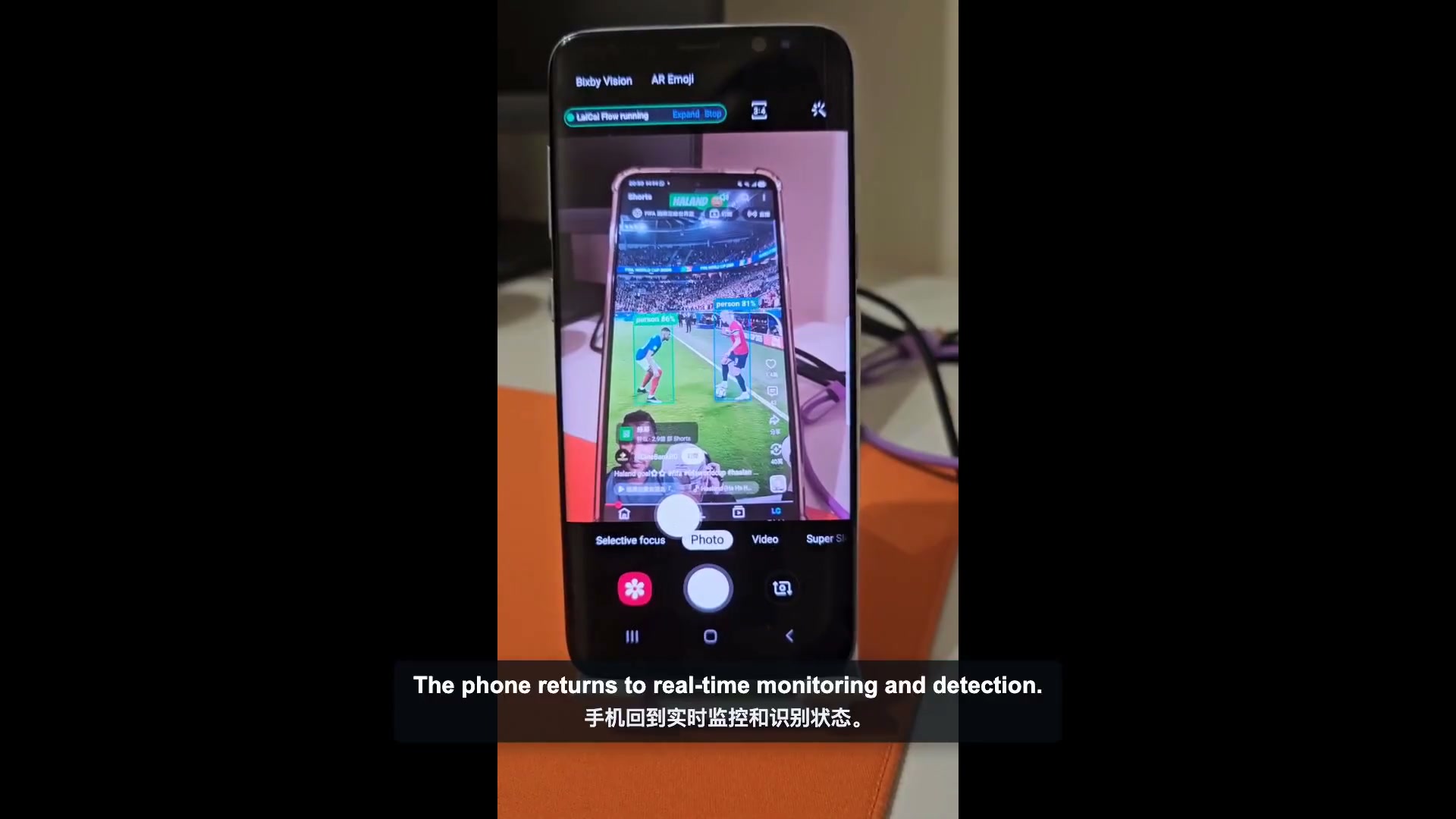
LaiCai Flow is an automation feature inside LaiCai Screen Mirroring. A Flow can combine screenshot capture, UI checks, OCR, template matching, object detection, conditions, actions, and explicit success or failure transitions. This lets a tester model the screen as a state instead of treating recognition as an isolated trick.
With LaiCai Flow Inside, a compatible Profile can run through LaiCai Android Agent on the phone after deployment. Compatibility still depends on every node and asset used by that Profile. Local OCR uses Tesseract; template matching uses a selected image asset and a configurable score; compatible local detection uses a supported model. A network node or remote model still needs its own network dependency.
This does not make every visual test automatically reliable. Teams still need representative baselines, templates, OCR regions, models, thresholds, negative cases, and postconditions. The value is that those decisions and transitions can be reviewed in one workflow. The AI Android automation guide provides a broader view of authoring and real-device execution.
The minimum evidence bundle for a failed visual test
- Test name, app build, device model, Android version, locale, theme, and orientation.
- The source screenshot or cropped region used by the assertion.
- The expected baseline, template, text, class, or UI property.
- The observed diff, OCR result, bounding box, match score, or UI value.
- The previous named state, attempted action, expected next state, and stop reason.
- Asset, model, or baseline version so a reviewer can reproduce the decision.
A pass/fail label without this context forces the next person to reproduce the entire run. A compact evidence bundle turns the failure into a reviewable decision: fix the product, stabilize the test, update an approved visual asset, or reject an unsupported device configuration.
Android visual testing FAQ
Should every Android UI test include a screenshot?
No. Use screenshots when appearance matters or when a failure artifact will help a reviewer. Semantic assertions are usually better for behavior that the UI tree exposes reliably.
Is OCR better than image matching?
OCR answers questions about visible text. Image matching answers questions about a known visual pattern. If the requirement includes both the label and its appearance, use OCR plus a focused screenshot or template check.
Can screenshot tests run on real Android phones?
Yes, but real devices introduce more variation than a controlled host-side renderer or emulator. Record the device configuration, stabilize system UI and data, and set expectations for the device matrix you actually support.
When should I use object detection?
Use it when a meaningful object class moves or scales beyond the tolerance of a stable template, and only when a compatible model has been validated on the app’s real images. Do not add a detector just because it sounds more advanced.
Choose evidence before choosing technology
Reliable Android visual testing begins with one sentence: what must a reviewer be able to prove? Choose UI state for semantics, screenshots for composition, OCR for text, template matching for a known visual target, and object detection for a validated class with variable geometry.
Then make the observation part of a state transition: stabilize, capture, assert, act only after success, verify the postcondition, and preserve failure evidence. That design is easier to understand than a collection of disconnected vision calls—and much easier to maintain when the app or device changes.