An image match can find the right-looking button on the wrong screen. Use a five-step state check to decide when to tap, when to wait, and when to stop.
Why a found button can still be the wrong button
Imagine a QA test that waits for a network-error dialog and taps Retry. It works on the expected screen. Then a promotional popup appears with a similar rounded button. A coordinate macro taps the popup, and a weak image match may choose it too. The gesture succeeds, but the test does the wrong thing.
Image recognition answers only one question: does part of the current screen resemble this template? A reliable Android auto-click flow must answer three more: is this the correct screen, is this detected position allowed to receive the tap, and what must appear afterward to prove the action worked?
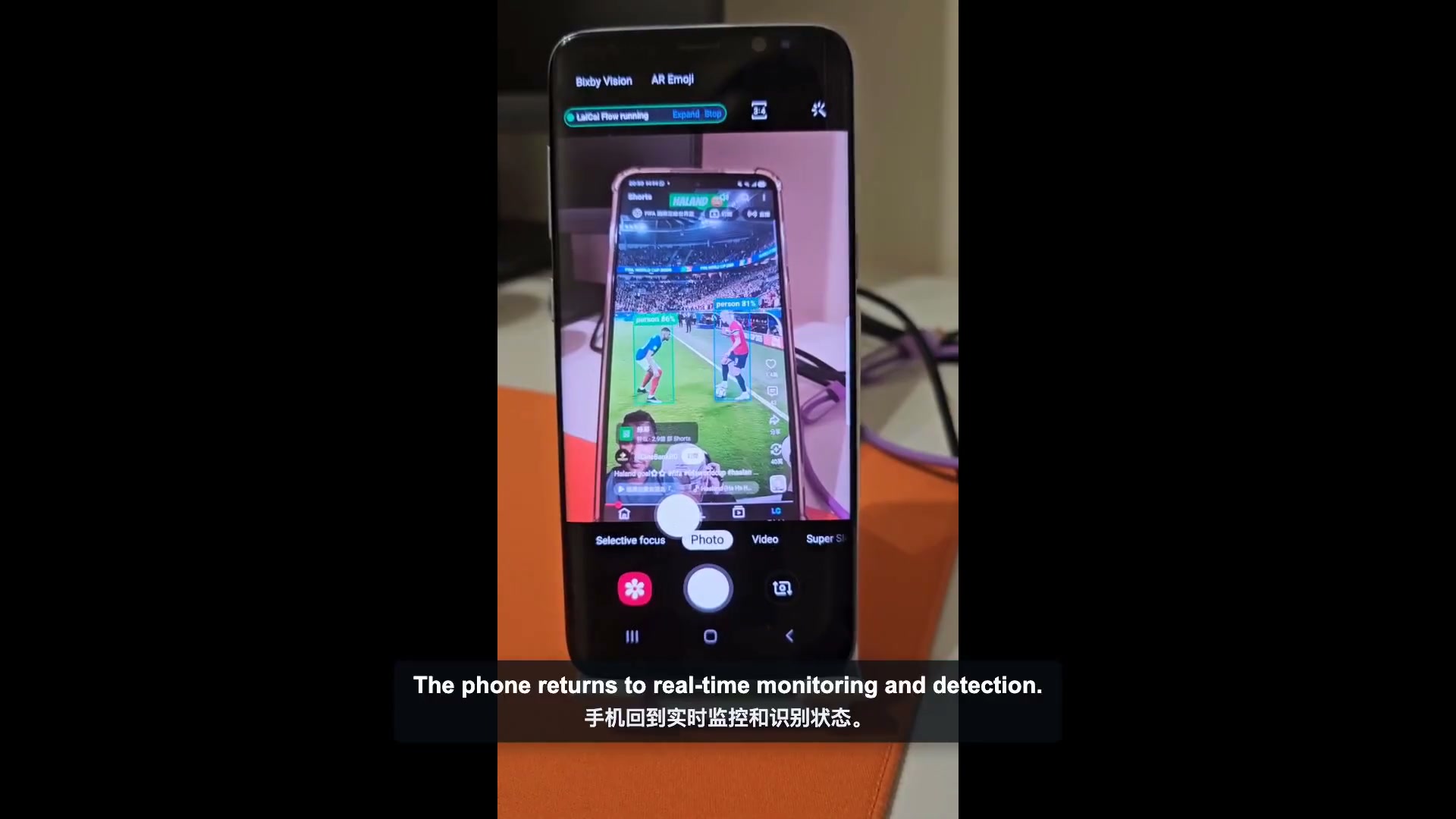
This guide turns each tap into a small, reviewable state change. The same pattern can be used for on-device Android automation with LaiCai Flow Inside: observe the starting screen, tap only a current detection result, wait for the interface, then verify the next state. When an assumption is false, the flow stops instead of searching for anything it can press.
The five-step state-checked tap pattern
- Define the starting state and capture a stable visual target, such as a distinctive button or icon.
- Run one image match against the current frame with a deliberate confidence threshold and search region.
- Only on a successful match, pass the detected rectangle or center to the tap action.
- Wait for the interface transition instead of checking the same frame immediately.
- Observe the expected next state. Continue on success; otherwise stop, retry within a clear limit, or ask for review.
Think of each tap as a state transition, not as an isolated gesture. The first observation is the precondition. The tap is the operation. The second observation is the postcondition. If any part is missing, the automation cannot distinguish success from a gesture that landed on the wrong screen or had no effect.
This pattern is also easier to debug. A failure before the tap points to the template, threshold, search region, or starting screen. A failure after the tap points to timing, permission, a blocked gesture, an unexpected dialog, or a different next state. One long macro that only reports “failed” hides that distinction.
Choose the right screen signal
| Signal | Use it when | Main risk |
|---|---|---|
| Image matching | A button, icon, card, or dialog has a stable visual appearance | Themes, scale, animation, or redesign can lower the score |
| UI selector | The app exposes stable text, content descriptions, or resource identifiers | Custom-drawn or canvas content may not expose useful elements |
| OCR | The visible words matter more than exact pixels | Language, font, contrast, and region selection affect recognition |
| Object detection | The target belongs to a broader class rather than one exact template | A compatible model and valid class are required |
| Fixed coordinates | The layout is controlled and no better state signal exists | Any movement can redirect the tap |
Use the simplest signal that describes the state accurately. A saved image template is a good fit for a distinctive icon that looks the same every run. OCR is usually better when the word is stable but its styling may change. UI selectors can be stronger than pixels when the app exposes accessible structure. Object detection is useful for recognized classes, not as a substitute for a missing button template.
The related Android OCR and image-recognition automation guide compares these observation methods in more depth. This article stays focused on the on-device decision boundary: an observation must succeed before a gesture can use its result.
Build the pattern in LaiCai Flow Inside
1. Prepare a stable template and starting state
Choose a target with clear edges and enough unique detail to distinguish it from nearby controls. Avoid capturing a large region that includes changing counters, timestamps, user names, or animations. The first Profile and referenced image assets are prepared on a computer. During deployment, the compatible template is bundled for LaiCai Android Agent.
2. Match the current frame once
The `vision.match` node observes the current frame once. It takes one or more saved template IDs, a required minimum score, a match mode, and a screen-ratio region of interest. A successful match provides the best score and the detected center and rectangle. No match follows the failure outcome; the node is not a hidden waiting loop.
3. Tap the detected result, not an old coordinate
Connect the successful match to `pointer.tap` and use the detected rectangle as `positionFrom`, normally with a center anchor. This keeps the action tied to the observation that authorized it. Do not copy the coordinates from one run and turn the next run back into a fixed-coordinate macro.
4. Add a visible wait
After a tap, add an explicit `flow.wait` before the next screen-dependent observation. The correct duration depends on the app, device, network, and animation. A visible wait is reviewable and adjustable; an immediate re-check may simply observe the old frame.
5. Verify the next state or stop
Use a second image, OCR result, or UI state to prove that the interface changed as expected. For example, detecting a “Confirm” dialog after tapping “Delete” proves only that the confirmation stage appeared; it does not prove the item was deleted. A later check should confirm the final list state or success message. Leave an unhandled observation failure as a real failure, or implement a bounded retry when repeated checking is part of the requirement.
Tune confidence, search area, timing, and templates
- Start from a measured threshold, then test both true matches and visually similar false candidates. Higher is stricter, but an arbitrary maximum can reject legitimate scale or rendering changes.
- Limit the search region when the target belongs to a known part of the screen. A smaller region can reduce false positives and work, but a guessed region can hide a valid moved target.
- Choose the match mode for the visual property that remains stable. Color can help when color is meaningful; gray or edge modes may tolerate some color changes; detail should be tested against the actual screen.
- Keep alternative templates together when they represent the same control in known states, such as enabled and disabled themes. Do not add unrelated targets to one match.
- Test the exact device scale, orientation, theme, and app version that will run the Flow. Retest after a significant interface update.
- Record where the failure happened. A match score, selected asset, detected rectangle, wait duration, and next-state result are more useful than a generic macro error.
Do not tune only on successful examples. Start from the expected screen, a screen where the target is absent, a screen with a similar icon, a slow transition, and a popup covering the target. The automation is trustworthy when the negative cases stop safely, not merely when the happy path completes once.
Practical uses for state-checked image taps
Mobile QA and smoke tests
Confirm that a known screen appears, tap one control, wait, and capture the next state. This is useful for a repeatable smoke-test path on authorized devices. Android screen mirroring to a PC or Mac helps the tester review the real phone while preparing and debugging the Flow.
Dialog and recovery handling
Detect a specific retry, permission, or connection dialog before choosing the matching action. Do not build one universal “OK” tap: the same word can approve very different actions on different dialogs.
Repeated internal app operations
For a controlled business app, a Flow can check the current page before opening the next item or submitting an approved form. Pair the visual check with explicit input boundaries, a final-state check, and a human handoff for exceptions.
Personal on-device routines
A compatible Flow can continue on the phone after deployment without the desktop staying connected. Keep local-only workflows local; if a Profile calls an HTTP endpoint, remote model, webhook, or message service, that specific workflow needs network access.
Permissions and safety boundaries
On Android, visual automation and gesture automation use sensitive system capabilities. Android documents that accessibility services must declare gesture capability to dispatch gestures, while screen capture requires its own authorization and lifecycle. In LaiCai Flow Inside, image matching uses the active MediaProjection screen session and phone-side foreground execution; tapping uses Accessibility.
Use automation only on devices, accounts, and apps you are authorized to operate. Some apps or device builds may block or ignore accessibility gestures. A successful image match does not guarantee that a later tap will be accepted. Diagnose observation and gesture delivery separately.
Keep payments, account changes, destructive deletion, private data, and irreversible actions behind explicit review or very narrow conditions. Do not use auto clickers to create fake engagement, evade platform controls, or violate an app’s terms. The safest Flow is one whose allowed state, action, stopping condition, and evidence are visible before it runs.
Test checklist before unattended use
- Run from the exact expected starting screen three times.
- Start from the wrong screen and confirm that no tap occurs.
- Cover or remove the target and confirm the match follows failure.
- Present a similar-looking control and check that the threshold and region reject it.
- Slow the app or network and confirm the wait and postcondition behave safely.
- Rotate the device or change display scale only if those modes are supported, then retest templates.
- Disable or interrupt the required screen-capture or accessibility capability and verify the error is visible.
- Review the final screen, logs, screenshots, or outputs that prove the task result.
Start with one bounded transition. Once it is reliable, extract repeated multi-node actions into a small named child Flow and keep the main Flow readable. The LaiCai Flow Inside tutorial explains the preparation and deployment boundary; the AI Android automation page covers desktop-assisted workflow building and debugging.
Android image-recognition auto click FAQ
Is image recognition always safer than fixed coordinates?
It is safer only when the template, threshold, region, timing, and failure path are tested. A weak or overly broad match can still choose the wrong target.
Should the Flow keep matching until the image appears?
A single image-match node should observe once. If waiting is required, use an explicit retry or until structure with a clear interval, timeout, or attempt limit so the behavior remains visible.
Can the detected position be used directly for tapping?
Yes. Use the successful visual node’s detected rectangle or center as the tap source. This preserves the relationship between the observation and the action.
Can this run fully offline on the phone?
It can when every node and asset in the deployed Profile runs locally. Image matching, waits, gestures, and local checks can remain on-device. Any remote model, HTTP request, webhook, cloud sync, or message service adds a network dependency.
Make every tap an auditable state transition
The key improvement is conceptual: do not ask only where to tap. Ask what must be true before the tap, which observed result authorizes the gesture, how long the interface needs to change, and what proves that the next state arrived.
LaiCai Screen Mirroring includes LaiCai Flow Inside for this deterministic phone-side pattern: observe once, follow the success or failure outcome, tap from the detected screen-ratio result, wait visibly, and observe again. Prepare and verify the compatible Profile on a computer, deploy it with its approved assets, and let LaiCai Android Agent run only the states and transitions you have defined.