Turn a small pool of Android phones and emulators into a repeatable device lab with explicit start states, observable checks, bounded waits, failure evidence, and a clear build-versus-buy rule.
The short answer: automate the operating loop, not the shelf
An Android device lab becomes useful when every run starts from a named state, performs one bounded check, verifies a postcondition, and leaves evidence another person can review. The phones, USB hubs, stands, and labels are only the physical layer. Android device lab automation is the operating layer that turns those devices into repeatable release, support, and localization checks.
If you are still choosing phones, cables, power, or storage, begin with the low-cost Android device lab setup guide. This article starts after that hardware exists. It explains how to combine real devices and emulators, define a small test matrix, create a device run card, synchronize on observable state, capture screenshots and logs, and decide when a hosted device cloud is the better choice.
The goal is not to replace unit tests, Compose tests, Espresso, UI Automator, Appium, Gradle Managed Devices, or Firebase Test Lab. Those tools own different boundaries. An AI Android automation tool is most useful here as a visible workflow layer for real-device checks that operators, QA reviewers, and support teams need to understand.
Give real devices and emulators different jobs
A device lab does not need every test on every device. Emulators are fast to create, reset, parameterize, and run in parallel. Real phones expose vendor firmware, physical cameras, Bluetooth, biometric prompts, thermal behavior, background restrictions, notification delivery, USB state, and input surfaces that a virtual device may not reproduce faithfully. Use those differences to divide responsibility instead of arguing for one universal platform.
| Lab layer | Best first use | Do not assume |
|---|---|---|
| Local emulator | Fast smoke checks, API-level coverage, clean-state reproduction | That virtual hardware proves vendor-specific or sensor behavior |
| Local real phone | Release proof, support reproduction, system UI, camera, Bluetooth, OEM behavior | That one model represents the Android market |
| Hosted virtual device | Elastic parallel runs and managed configurations | That every test needs remote infrastructure |
| Hosted real device | Broader model coverage without maintaining hardware | That queue time, privacy, and artifact access fit every workflow |
| Developer or framework test | Deterministic assertions close to app code | That a passing assertion proves a complete visible workflow |
| Observable visual flow | Repeatable black-box paths and reviewer-friendly evidence | That screenshots or OCR replace semantic assertions |
A practical starter pattern is a wide virtual tier and a narrow physical tier. Run fast deterministic checks across virtual configurations, then route a small critical pack through two or three real phones chosen for actual customer risk. Expand only when failure data shows that another model, Android version, locale, or vendor behavior changes the result.
Define a device matrix with one reason per row
Firebase Test Lab describes a test matrix as the combination of selected devices and test configurations. That idea also works for a local lab, but the matrix should be risk-based rather than exhaustive. Every row needs a reason, an owner, and an expected decision. A phone that exists only because it was available will quietly consume charging, reset, and maintenance time without improving release confidence.
- Keep one current Android baseline for the main release path.
- Keep one older supported API level for compatibility and upgrade behavior.
- Add one vendor-specific real phone only when its firmware, permissions, battery policy, or customer share creates a distinct risk.
- Add a small-screen or high-font-scale configuration when layout and accessibility matter.
- Add locale, theme, orientation, network, or account state only to checks whose result can change under that condition.
- Retire matrix rows that no longer find distinct defects or support a current customer segment.
Name the decision each row supports: block a release, collect review evidence, reproduce a support case, or explore a suspected device-specific failure. That decision controls how much reliability, isolation, and reporting the row needs. A release blocker requires stronger reset and assertion rules than a supervised exploratory check.
Create a run card before writing automation
The smallest useful specification for a lab check is a run card. It prevents hidden assumptions from living in one operator's memory and gives automation a stable contract. Write the card in observable terms before choosing nodes, selectors, or framework code.
| Run-card field | Example | Why it matters |
|---|---|---|
| Purpose | Verify sign-in smoke path after staging deploy | Defines the decision this run supports |
| Build identity | Package, version, commit, environment | Prevents evidence from being attached to the wrong build |
| Device identity | Model, Android version, serial alias, screen size | Makes the result reproducible |
| Start state | App stopped, signed out, network online, system dialogs cleared | Removes accidental state from previous runs |
| Input data | Named test account and non-sensitive fixture | Separates reusable data from the workflow |
| Postcondition | Home screen marker visible and account state confirmed | Proves the action produced the intended result |
| Stop conditions | Unknown dialog, destructive screen, timeout, missing target | Prevents blind continuation |
| Evidence | Screenshot, selected UI state, timestamps, step result, relevant log excerpt | Lets another person triage without rerunning immediately |
Do not define success as a sequence of taps. Define the visible or structured state that must exist after the sequence. UI layouts change; business postconditions are more durable. A login check succeeds because the expected account state and home surface are present, not because the automation tapped the coordinates where a button used to be.
Reset state without erasing the evidence
Shared devices fail in ways that look like app defects: stale accounts, cached consent, pending updates, changed permissions, low storage, an unexpected keyboard, an open system dialog, a notification overlay, or a previous run left halfway through checkout. Reset only the state named by the run card, and capture a failure before recovery changes it.
- Identify the device and build before touching state.
- Capture the current screen when the previous run ended unexpectedly.
- Return the app to the declared start state using the least destructive reset that is sufficient.
- Confirm network, time, storage, orientation, locale, font scale, and required permissions.
- Verify the start-state marker before the first business action.
- Quarantine the device if reset repeatedly fails; do not convert an infrastructure fault into a product bug.
A full wipe is not automatically safer. It can destroy the exact state needed to reproduce a defect and adds setup time that encourages teams to skip checks. Keep separate profiles for fresh-install, upgraded-install, signed-in, signed-out, and restored-account paths when those states carry different risks.
Synchronize on state instead of sleeping longer
Android's test-stability guidance warns against arbitrary sleeps because device performance and asynchronous work vary. A fixed delay can be both too short on a busy phone and unnecessarily slow on a fast one. Prefer an explicit wait for a meaningful condition, with a timeout and a failure artifact when that condition never appears.
- After app launch, wait for a stable UI element or screen state rather than a guessed number of seconds.
- After a tap, verify a postcondition before sending the next input.
- Use bounded repetition for states that genuinely need polling; record the final observation on timeout.
- Treat system permission dialogs, update prompts, and OEM overlays as named branches, not random noise.
- Stop when the visible state is outside the approved set, especially before payment, deletion, consent, or account changes.
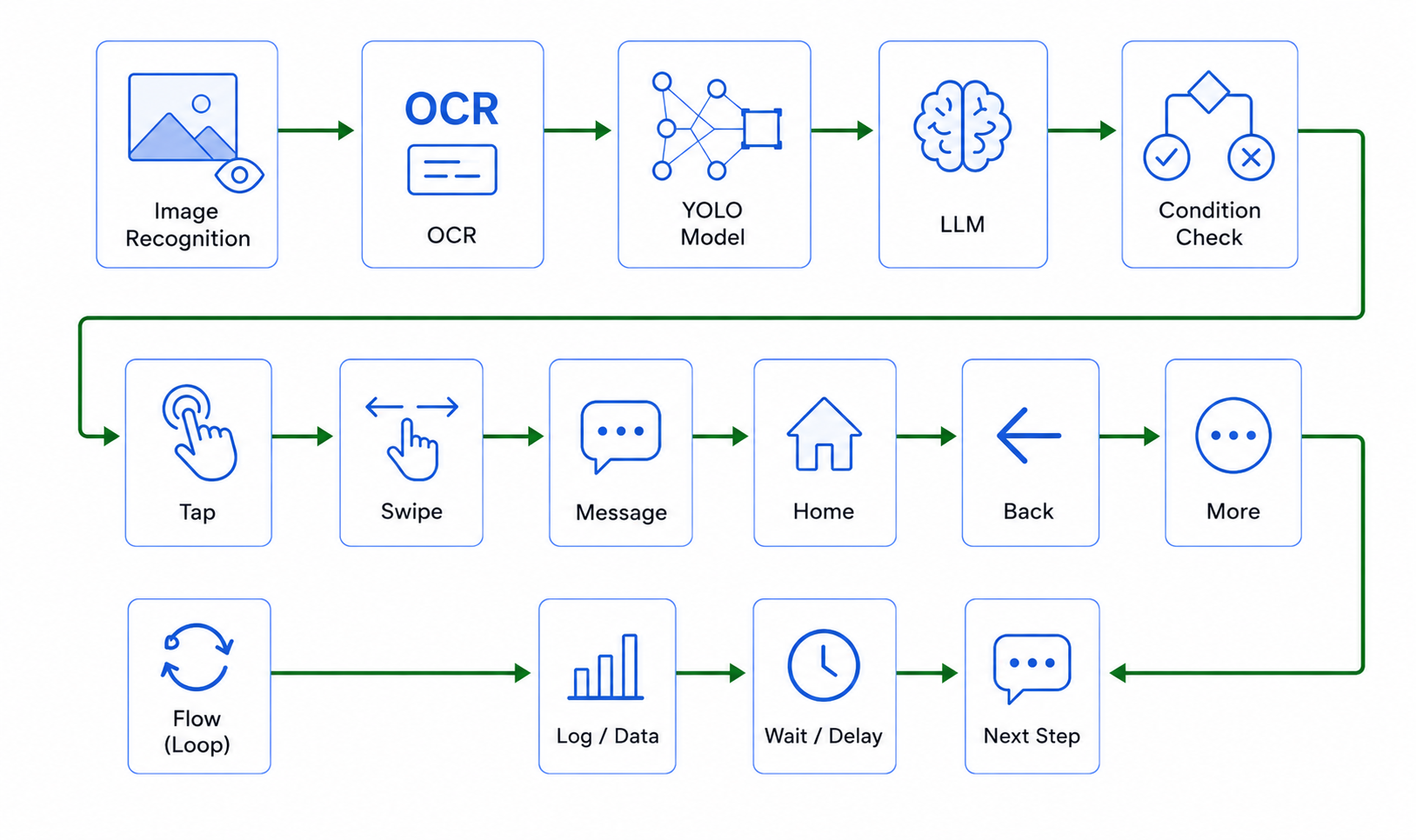
The current LaiCai Flow contract follows this visible model: UI observations, OCR, template matching, and screen capture observe state; input and pointer nodes perform one operation; flow nodes handle waits, branches, bounded loops, child flows, returns, and stops. Keeping observation, decision, and action separate makes the workflow easier to review and safer to maintain.
Build a readable LaiCai Flow for lab checks
LaiCai Flow is an automation feature inside LaiCai Screen Mirroring. For a device-lab run, keep the main Flow at the level a QA reviewer can read: prepare device, open target, run critical check, collect evidence, and finish. Put multi-step technical details into small child flows instead of exposing a long chain of matches, selections, taps, and waits. The LaiCai Flow guide explains how Profiles and Flows are organized.
- Read the connected-device context and select the intended serial alias; do not assume the first device is correct.
- Confirm the package and current UI state before opening or changing the app.
- Use UI state when accessibility information is stable, OCR when visible text is the evidence, and template matching only for a validated image target.
- Place explicit waits between actions and later screen-dependent observations.
- Check a postcondition after every phase that changes screen or app state.
- Capture a screenshot or recording only when it supports a named review decision.
- Return a clear phase result; stop the run when the next action is not justified by the current observation.
During preparation for this guide, the read-only LaiCai context reported 73 available node types and one connected Samsung Android 16 phone. That confirms the present contract and device-awareness path; it is not a performance benchmark. Validate your own app, devices, assets, and runtime support before treating a Profile as release infrastructure.
Collect a failure packet, not a red dot
A failed check should answer what ran, where it ran, what the system observed, and why the run stopped. Firebase Test Lab exposes a useful model by returning test status alongside logs, screenshots, and videos where available. A local device lab needs the same discipline even if its storage is simpler.
- Run ID, timestamp, workflow version, build version, and environment.
- Device model, Android version, stable serial alias, screen size, locale, theme, and orientation.
- Start state, input fixture identifier, and the last completed business phase.
- Expected postcondition and the actual selected UI, OCR, image, or framework result.
- Screenshot before recovery, short recording only when motion matters, and a bounded relevant log excerpt.
- Classification: product defect, test defect, device infrastructure, data, environment, or needs human review.
Use stable file names and a manifest instead of an unstructured screenshot folder. Redact personal or secret data before sharing. Do not upload entire device logs when a short sanitized interval around the failure is sufficient. Evidence should reduce the next person's work without creating a new privacy or retention problem.
Choose checks that earn their device time
Real-device minutes are scarce because devices need charging, cleanup, updates, and human access. Give them to workflows whose visible or physical behavior matters. Good first candidates are post-deploy smoke checks, permission and system-UI paths, camera or Bluetooth setup, notification flows, localization evidence, vendor-specific regressions, and exact support reproductions.
Keep business logic, parsing, formatting, and component behavior in faster tests close to the code. Use the real device to prove the boundary those tests cannot: the installed build, operating system, external app, input surface, network transition, or human-visible composition. The Android automation testing tools comparison helps assign each requirement to an appropriate layer.
A critical pack of five reliable journeys is more valuable than fifty flows that nobody trusts. Start with one representative path, measure reset and triage cost, then add coverage only when a new check protects a specific release, customer, or operational decision.
Measure the lab before you scale it
Teams discussing self-hosted device farms repeatedly return to the same build-versus-buy inputs: queue behavior, peak concurrency, wait time, boot or reset failure, maintenance effort, and defects that appear only on physical devices. Track those signals for several release cycles before buying more hardware or migrating everything to a cloud.
- Queue wait by time of day and workflow priority.
- Device utilization and time unavailable for charging, updates, or repair.
- Start-state or reset failure rate by device.
- Reruns caused by automation flakiness rather than product changes.
- Median time from failure to a useful classification.
- Distinct defects found only on real devices, specific vendors, or specific Android versions.
- Operator minutes per successful run and per maintained workflow.
These are management metrics, not vanity dashboards. If queue wait is low but maintenance dominates, a hosted service may reduce ownership cost. If privacy, local peripherals, rapid interactive debugging, or repeated support reproduction matter more than broad model coverage, a small local lab may remain the right center of gravity.
Use a hybrid build-versus-buy rule
Local and hosted labs are complements. Gradle Managed Devices can define virtual devices in the build and group them for test execution. Firebase Test Lab can extend a matrix across hosted virtual and physical devices and return managed artifacts. A local pool provides immediate access, proprietary peripherals, supervised debugging, and stable devices for recurring operational checks.
| Constraint | Usually favor local | Usually favor hosted |
|---|---|---|
| Coverage | A few known devices | Many models, API levels, orientations, or locales |
| Concurrency | Predictable low volume | Bursty or highly parallel test demand |
| Interaction | Frequent live debugging and support reproduction | Unattended standardized suites |
| Hardware | USB accessories, Bluetooth devices, local network, custom fixtures | No special local peripherals |
| Privacy | Data must remain on controlled local equipment | Approved remote execution and retention controls exist |
| Operations | Team accepts charging, patching, resets, inventory, and repair | Team prefers managed device availability |
A sensible hybrid keeps fast framework tests on managed virtual infrastructure, sends selected compatibility checks to hosted real devices, and preserves a small local bench for high-value physical or supervised flows. The right split can change as concurrency, privacy, and customer-device evidence change.
Android device lab automation checklist
- Assign one purpose and decision to every device-matrix row.
- Separate emulator, local real-device, hosted, framework-test, and visual-flow responsibilities.
- Create a run card with build, device, start state, inputs, postconditions, stops, and evidence.
- Verify the start state before the first business action.
- Wait for observable conditions instead of adding longer blind sleeps.
- Keep observations, decisions, and device actions as separate inspectable steps.
- Capture evidence before reset or recovery changes the failure.
- Classify infrastructure, data, test, environment, and product failures separately.
- Track queue, utilization, reset reliability, flaky reruns, triage time, and physical-only defects.
- Use a hybrid local-and-hosted strategy when the evidence supports it.
Start with one real phone, one emulator configuration, and one business-critical run card. Make that loop reliable and reviewable before adding another device or workflow. When an observable device-lab layer fits your team, explore AI Android automation with LaiCai Flow and keep implementation detail in the locale-aware Flow guide.
Editorial note: BeePOS LLC, the company behind LaiCai Screen Mirroring, researched this guide using the official Android and Firebase documentation linked below, current read-only LaiCai product contracts, and public QA discussions. Product capabilities are identified separately from neutral workflow guidance. Questions or corrections can be sent to support@laicaiapp.com.