Choose an Android automation testing tool by the boundary you need to control: app-owned UI, system and cross-app behavior, cross-platform WebDriver tests, or observable real-phone workflows.
The short answer: choose by test boundary, not popularity
There is no single best Android automation testing tool. Choose Compose testing or Espresso when your team owns the app and needs assertions close to its UI code. Choose UI Automator when a test must cross app boundaries or interact with Android system UI. Choose Appium when a WebDriver-style client, several programming languages, or a shared Android and iOS automation layer matters. Add an observable visual flow when a reviewer must watch a real phone, recognize visible state, collect screenshots, or model an operational workflow outside the app's test code.
These tools solve different layers of the same quality problem. Android's official UI testing guidance defines UI tests as launching an app, simulating interactions, and checking that it reacted correctly. A useful tool choice therefore starts with the evidence the test must produce, the software boundary it must cross, and who will maintain it. This is a research-based comparison of current official documentation, not a benchmark claiming one framework is universally faster or more reliable.
- App-owned View UI: start with Espresso.
- App-owned Jetpack Compose UI: start with Compose testing APIs.
- System UI, permissions, multi-window, or cross-app behavior: start with UI Automator.
- Cross-platform WebDriver automation and language-client flexibility: evaluate Appium.
- Visible black-box workflows, OCR, image state, and reviewer-friendly evidence: add a visual flow layer.
Android automation testing tools compared
| Tool or approach | Best fit | Execution boundary | Primary selectors or evidence | Main trade-off |
|---|---|---|---|---|
| Compose testing | Apps built with Jetpack Compose | App or component under test | Semantics, attributes, actions, assertions | Requires test-aware Compose code and Android test setup |
| Espresso | View-based app behavior tests | App under test | View matchers, actions, assertions | Not designed as the main tool for broad cross-app journeys |
| UI Automator | System UI, cross-app, multi-window, end-to-end Android paths | Device UI and installed apps | Accessibility nodes, predicates, screenshots, app state | Android-specific and usually maintained in the Android test toolchain |
| Appium with UiAutomator2 | WebDriver-style mobile automation across platforms | Client to Appium server and Android driver | WebDriver locators, capabilities, driver commands | More moving parts: server, driver, SDK, JDK, and device configuration |
| Visual flow | Observable real-phone checks and operational workflows | Visible device state from outside the app code | UI tree, OCR, templates, images, screenshots, branches | Does not replace unit, component, or instrumentation assertions |
The table is a boundary map, not a winner board. Mature teams commonly combine several rows. A Compose screen can have fast component behavior tests, a UI Automator path for permission and system transitions, an Appium suite shared with iOS, and a small supervised real-phone flow that captures evidence after deployment. Duplication becomes a problem only when two suites prove the same requirement with the same device cost.
Use Compose tests or Espresso for app-owned behavior
Compose testing and Espresso are the strongest starting points when the team controls the app code and the requirement is semantic behavior inside that app. Compose testing APIs find elements through semantics, verify attributes, perform actions, and synchronize with the UI. Espresso uses view matchers, actions, and assertions for View-based interfaces while discouraging unsafe direct access to activities and views from the wrong thread.
This proximity to the app is useful. Tests can inject deterministic data, isolate a component, assert enabled or selected state, and fail with a specific semantic reason. It also means the suite is coupled to the app's architecture and test build. That coupling is appropriate when the requirement belongs to the app: a validation message appears, navigation selects the right destination, or a button remains disabled until valid input exists.
Choose Compose testing when
- The interface is primarily Jetpack Compose and exposes useful semantics.
- You want component-level tests with controlled state as well as activity-level tests.
- Idle synchronization and Compose-specific time control help make assertions deterministic.
Choose Espresso when
- The app is View-based or has View screens that need behavior tests.
- The test can identify one view with a resource ID or a focused matcher.
- The requirement is an interaction and assertion inside the app rather than a device-wide journey.
Use UI Automator for Android system and cross-app paths
UI Automator wins when the Android device itself is part of the test boundary. The modern UI Automator API can start apps, find elements with predicates, handle permission dialogs, wait for app visibility or a stable accessibility tree, inspect multiple windows, and capture screenshots. Those capabilities fit permission prompts, Settings screens, notifications, picture-in-picture, split-screen, launcher behavior, and journeys that move between installed apps.
The important distinction is not that UI Automator is simply 'more powerful' than Espresso. It observes the UI from a different position. That external position sees system and cross-app surfaces, but it has less direct access to app internals and test doubles. Use it for the thin end-to-end paths that genuinely need the device boundary; keep most app logic in faster, more focused tests.
The current UI Automator documentation also includes built-in conditional element timeouts, explicit stability waits, screenshots, and result reporting. Those features reduce the temptation to rely on fixed sleeps. The documentation notes that accessibility-tree stability does not prove every background task is idle, so the best wait remains a named application condition whenever one is available.
Use Appium when a WebDriver-style mobile layer matters
Appium is a strong candidate when the organization wants mobile automation from JavaScript, Java, Python, Ruby, or .NET, already uses WebDriver concepts, or wants related Android and iOS suites behind one automation server model. On Android, the official UiAutomator2 quickstart installs the driver, selects it with the UiAutomator2 automation name, and connects to an emulator or USB-debugging device through the Android toolchain.
That flexibility has an operational cost. The documented setup includes an Appium server, the platform driver, Android SDK and platform tools, a compatible JDK, device preparation, capabilities, and client dependencies. Our editorial recommendation is to own those versions explicitly and validate the setup with the driver's doctor command rather than maintain an undocumented laptop recipe.
Appium is not automatically the best choice just because a future iOS suite is possible. If the current requirement is a small Android-only codebase with deep access to app state, native Android tests may stay simpler. If a QA platform already standardizes device sessions, language clients, reporting, and cross-platform page objects, Appium's shared model can justify the additional layers.
Add a visual flow for observable black-box workflows
A visual flow is useful when the requirement lives in what a person can observe on a real phone and the workflow must be understandable outside the app repository. Examples include a post-deployment smoke check, a support reproduction, an operational path across third-party apps, a localized visible-text check, or a supervised device task that must stop with screenshots when the state is unknown.
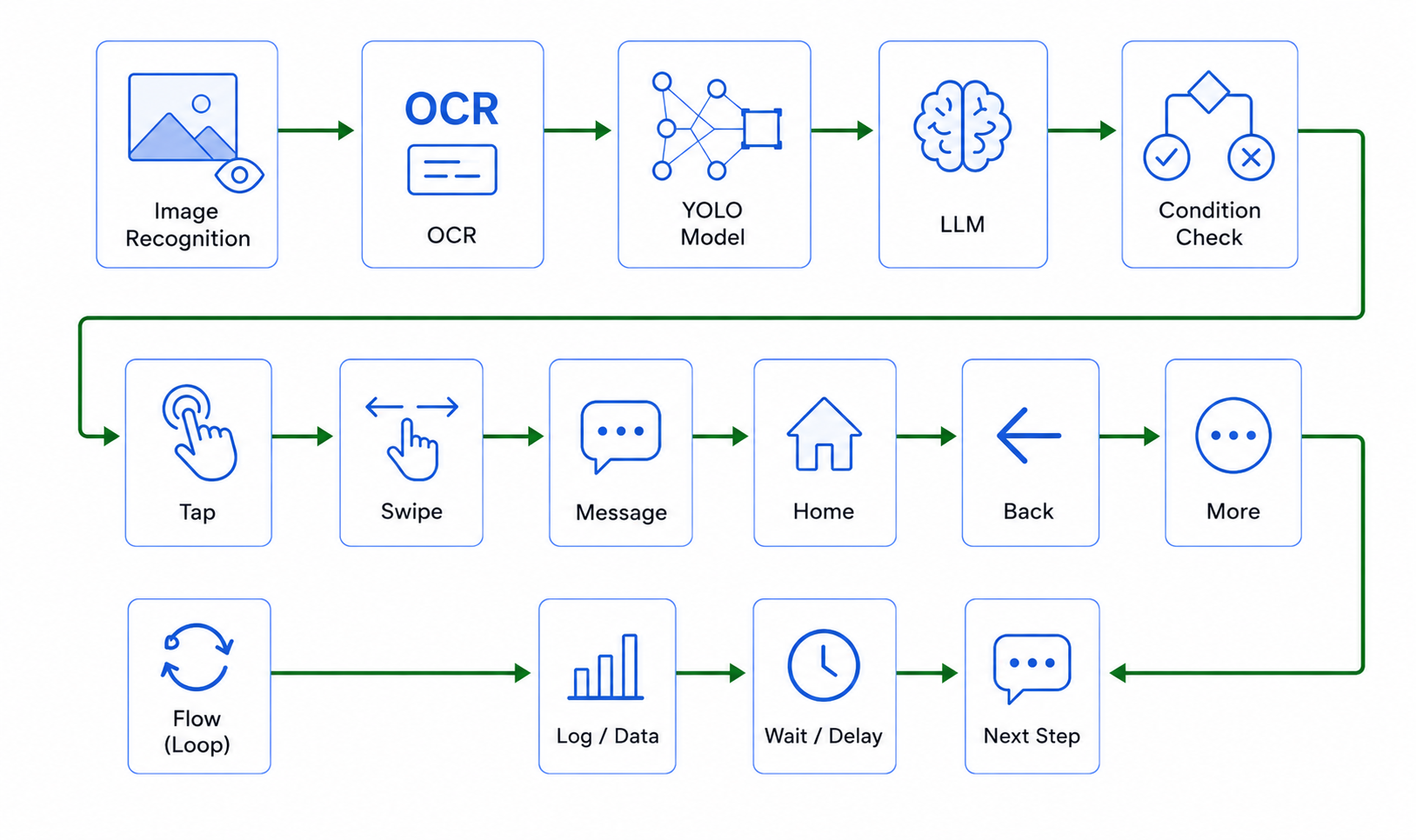
LaiCai Flow can combine UI parsing, element finding, taps, text input, waits, branches, bounded repetition, screenshots, OCR, template matching, object detection, child flows, and explicit return or stop behavior. That makes the decision path visible: observe a named state, allow one action, verify the postcondition, and preserve evidence on failure. LaiCai Flow Inside can run a compatible Profile through LaiCai Android Agent after deployment, but compatibility depends on every node and asset used by that Profile.
This layer should complement—not replace—app-native assertions. OCR is appropriate when visible text is the evidence but the UI tree does not expose it reliably. Template matching is appropriate for a validated visual target. A screenshot is useful for composition or failure review. None of them substitutes for a unit test of business logic or a precise Compose assertion when the source code is available. The Android visual testing guide explains how to choose between those evidence types.
Build a layered Android test strategy
- Write the requirement as an observable outcome, not a sequence of taps.
- Place business logic in local or component tests where device UI is unnecessary.
- Use Compose testing or Espresso for app-owned behavior and semantic assertions.
- Add UI Automator only for system, multi-window, permission, or cross-app boundaries.
- Use Appium when its server, clients, reporting, or cross-platform model provides concrete organizational value.
- Add a visual real-phone flow for evidence that the code-level suites cannot produce clearly.
- Keep each end-to-end path narrow, define a start state, bound every wait and retry, and capture the failure state before recovery changes it.
One requirement should have one primary owner. For example, form validation belongs in app-level tests; the permission handoff belongs in a UI Automator path; a shared Android and iOS checkout contract may belong in Appium; and an after-release real-phone evidence run may belong in a visual flow. The layers can reference the same user journey without copying every assertion into every framework.
The real-phone QA smoke-test guide shows how to keep a deployed check small and reproducible. The automation stop-condition guide covers timeouts, bounded retries, postconditions, and human review when the current screen no longer justifies the next action.
A practical selection checklist
| Question | If yes, start with |
|---|---|
| Do you own a Compose UI and need semantic component or screen assertions? | Compose testing |
| Do you own a View-based UI and need focused in-app behavior tests? | Espresso |
| Must the path cross Settings, permissions, launcher, windows, or another app? | UI Automator |
| Does the team require WebDriver clients or a shared Android and iOS automation architecture? | Appium |
| Must a non-developer review visible state, OCR, images, or screenshots on a real phone? | Visual flow |
| Is the requirement mainly business logic with no device UI dependency? | Neither: use a local unit or integration test |
Before adopting a new framework, prototype one representative path and write down the full maintenance surface: test code, app hooks, server or driver versions, device reset, test data, permissions, screenshots, logs, and CI ownership. The best tool is the one that produces trustworthy evidence at a maintenance cost the team will actually pay.
Android automation testing tools FAQ
Is UI Automator the same as Appium UiAutomator2?
No. UI Automator is an Android testing library and API. Appium's UiAutomator2 driver is an Appium platform driver behind an Appium/WebDriver-facing layer. Their setup, client model, and maintenance boundary are different even though the names are related.
Can Appium replace Espresso or Compose tests?
It can automate many of the same visible journeys, but our recommendation is not to replace every app-level test. Compose testing and Espresso are closer to app state and semantic UI behavior. Appium is most valuable when its external client, driver architecture, or cross-platform consistency is part of the requirement.
Which tool is best for testing third-party apps?
UI Automator, Appium, or a reviewed black-box visual flow are more appropriate than app-internal frameworks when you do not own the target app code. Confirm that the automation is authorized, use stable observable selectors, avoid sensitive or destructive actions, and expect third-party UI changes to require maintenance.
Do visual flows work in continuous integration?
They can participate in an automated pipeline if the device session, assets, inputs, failure artifacts, and result interface are controlled. However, a supervised real-phone workflow and a CI assertion framework serve different operating models. Decide first whether the run must block a build, produce review evidence, or assist a person.
Pick the smallest tool boundary that proves the requirement
Start close to the code and expand outward only when the requirement demands it. Compose testing and Espresso prove app-owned behavior. UI Automator proves Android system and cross-app paths. Appium supplies a WebDriver-style mobile automation layer. A visual flow adds visible real-phone state, OCR, image evidence, and an operational handoff that non-developers can review.
The strongest Android automation strategy is therefore not a single-tool standard. It is a documented division of responsibility: one primary assertion owner per requirement, thin end-to-end coverage at expensive boundaries, explicit stop conditions, and failure evidence that tells the next person what happened. Explore AI Android automation with LaiCai Flow when that observable workflow layer matches your use case.
Editorial note: BeePOS LLC, the company behind LaiCai Screen Mirroring, researched this comparison from the official Android and Appium documentation linked beside the relevant claims below. The product section is labeled separately so readers can distinguish documented framework capabilities from our own workflow recommendation. Questions or corrections can be sent to support@laicaiapp.com.