To mirror an Android phone to a Mac reliably, begin with a USB data connection, approve USB debugging on the unlocked phone, confirm video and control, and only then switch the working session to Wi-Fi. This order separates phone authorization, cable, network, audio, and recording problems instead of mixing them together.
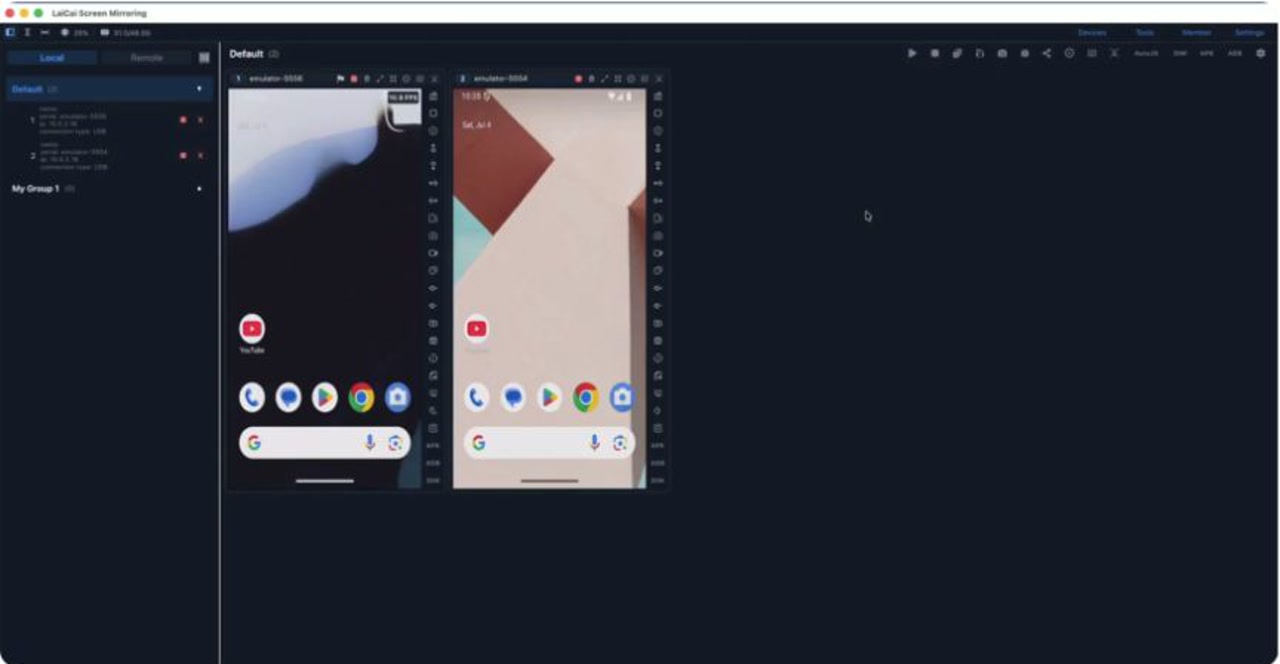
The short answer: prove USB before you depend on Wi-Fi
The most reliable path is USB first, Wi-Fi second. Install Android screen mirroring for PC and Mac software on the Mac, enable Android developer options and USB debugging, connect with a data-capable cable, approve the computer on the phone, and start one mirrored window. After picture and mouse control pass, switch that known-good device to Wi-Fi if mobility matters.
This order matters because the Mac is not an AirPlay receiver for Android by default, and a charging cable is not automatically a data cable. A first wireless attempt can fail for several reasons at once: the phone may not be authorized, the devices may be on different networks, or the network may block device discovery. USB creates a simpler baseline.
- Choose USB for initial authorization, low latency, recording, gaming, or a long support session.
- Choose Wi-Fi after USB works when you need to move the phone or keep the desk cable-free.
- Keep the phone unlocked during the first connection and approve only a Mac you trust.
- Test picture, control, audio, and a short recording separately before the real task.
Check the Mac, phone, cable, and network before setup
A five-minute preparation check prevents most false starts. Confirm that the Mac can run the current LaiCai Screen Mirroring build, that the Android phone is available and unlocked, and that the USB cable carries data. If you plan to use Wi-Fi later, place both devices on the same trusted local network.
| Item | What to confirm | Why it matters |
|---|---|---|
| Mac | Current app build, enough storage for recordings, intended speaker selected | Prevents version, storage, and output confusion |
| Android phone | Developer options available, USB debugging enabled, screen can be unlocked | Required for the initial trusted connection |
| USB cable | Supports data, not charging only; direct port preferred for the first test | A phone can charge while remaining invisible to the Mac |
| USB hub | Powered and data-capable if one is necessary | Weak or display-only hubs can disconnect under load |
| Wi-Fi | Mac and phone use the same trusted local network | Wireless device discovery and traffic need a reachable path |
| Test content | Ordinary app screen or local media you are allowed to display | Protected apps may block capture and confuse diagnosis |
Android Developers states that macOS does not need an additional USB driver for an ADB-connected development device. That does not prove every cable, hub, phone setting, or authorization is correct; it simply means Windows-style OEM driver installation is not the normal Mac step. Use Android's official hardware-device guide as the platform reference.
Enable developer options and USB debugging on Android
- Open Android Settings and find About phone or About device.
- Tap Build number repeatedly until Android confirms developer mode. Some brands place Build number under Software information or Version information.
- Return to Settings, open Developer options, and enable USB debugging.
- Connect the phone to the Mac, unlock it, and wait for the Allow USB debugging dialog.
- Verify the computer fingerprint shown by Android, choose Always allow only for your own Mac, and tap Allow.
The exact settings path varies by phone maker. Xiaomi and Redmi models may also require USB debugging (Security settings) before computer input works; some devices require a restart after that switch. The LaiCai Android connection guide lists common brand paths and keeps the setup in product terms.
Do not treat developer options as a blanket permission for every computer. Android remembers authorized debugging keys. If this is a shared Mac, an untrusted computer, or a temporary support machine, avoid permanent approval and revoke debugging authorizations when the work is finished.
Connect the Android phone to the Mac over USB
- Open LaiCai Screen Mirroring on the Mac.
- Connect the Android phone with the verified data cable, preferably directly to the Mac for the first test.
- Unlock the phone and approve the USB debugging prompt if it appears.
- Select Scan Devices in LaiCai and wait for the USB device to appear.
- Select the phone, add it to the intended device group, and start screen mirroring.
- Click one harmless control and type a short test string in a non-sensitive field to confirm input.
A visible picture is only the first pass. The Mac should also accept mouse clicks and keyboard input where Android and the target app permit them. Use the phone control guide to identify window controls, rotation, screenshots, recording, and audio instead of testing random toolbar buttons.
If the phone appears twice after repeated attempts, stop and identify the USB entry before removing anything. A later Wi-Fi connection can represent the same physical device through a different transport. Stable naming and one-device-at-a-time testing make multi-device work much easier.
Switch the working USB session to Wi-Fi
Do not unplug first. Keep the successful USB session open, confirm the Mac and phone share the same trusted network, then use the device action in LaiCai to enable the Wi-Fi connection. Wait until the connection type changes and the mirrored screen still responds before removing the cable.
- Confirm USB picture and control are still working.
- Connect the Mac and Android phone to the same local Wi-Fi network.
- Right-click the connected device in LaiCai and choose Enable WiFi Connection.
- Wait for the connection indicator to change from USB to Wi-Fi.
- Click and scroll once to prove control still works, then unplug the cable.
- Reconnect USB if the wireless session stops responding.
LaiCai's current workflow uses the working USB connection to establish the wireless path. Android 11 and later also expose an official Wireless debugging feature with pairing codes for development tools, but that is a separate platform workflow. The Android wireless debugging guide explains its requirements; follow the connection method shown by the product rather than mixing two pairing procedures.
Choose USB or Wi-Fi for the job, not for convenience alone
| Workflow | Recommended connection | Reason |
|---|---|---|
| First-time setup | USB | Simpler authorization and fewer network variables |
| Mobile game or precise control | USB | Usually the most stable baseline for latency-sensitive input |
| Screen recording or long demo | USB | Reduces exposure to Wi-Fi congestion and roaming |
| Desk presentation with light interaction | Wi-Fi after USB setup | Allows free phone movement when the network is stable |
| QA across several nearby devices | USB for critical devices; Wi-Fi for selected secondary devices | Balances stability, ports, cables, and workspace layout |
| Public, guest, or isolated Wi-Fi | USB | Client isolation may prevent local device traffic |
USB is not automatically perfect and Wi-Fi is not automatically slow. A damaged cable or overloaded hub can be worse than a clean local network. The goal is a repeatable measurement: keep the same phone screen and action, compare one transport at a time, and retain the connection that meets the real task.
For a broader transport comparison, use the USB versus Wi-Fi mirroring guide. For delay that persists after the connection is stable, use the Android screen mirroring lag checklist instead of repeatedly reauthorizing the phone.
Verify video, control, audio, screenshots, and recording separately
A session is ready only when the specific outputs you need have passed. Move between two ordinary phone screens to check video. Click and type to check control. Play an authorized local media clip to check audio. Capture one screenshot and a ten-second recording, then open both files on the Mac.
- Video: movement reaches the Mac without freezing or a black app surface.
- Control: mouse, keyboard, and optional gamepad actions land on the intended phone.
- Audio: the phone is unlocked, Audio is enabled, and macOS uses the intended output device.
- Screenshot: the saved image shows the expected phone state and contains no sensitive information.
- Recording: picture and permitted audio play correctly in the saved file before a long session.
Some protected streaming, banking, call, or sensitive apps can restrict video or playback-audio capture. A black or silent surface in one app does not prove the Mac connection is broken. Compare an ordinary permitted screen and respect the source app's rules. The no-sound troubleshooting guide separates phone playback, capture policy, Mac output, and recording failures.
Fix a phone that charges but does not appear on the Mac
Charging proves only that power is present. Replace the cable with one known to transfer data, connect directly to the Mac, unlock the phone, and look again for the USB debugging authorization. If a USB mode notification appears, choose a data-capable mode rather than charge only.
- Rescan devices in LaiCai.
- Disconnect the phone, unlock it, and reconnect with a verified data cable.
- Try a different Mac port without the hub.
- Check that USB debugging remains enabled.
- Revoke USB debugging authorizations only if the current approval is clearly stuck, then reconnect and approve the new prompt.
- Test a second Android phone or cable to isolate whether the fault follows the Mac, cable, or phone.
Do not install random Mac drivers from third-party download sites. Android's official guide says macOS needs no additional USB driver for this ADB class of connection. Manufacturer-specific phone settings, however, can still block control even when video appears.
Fix view-only mirroring or missing mouse control
When the picture works but clicks do not, keep the video session open and inspect authorization rather than changing bitrate or resolution. Recheck the USB debugging approval, unlock state, and any manufacturer-specific security debugging switch. Then test control on the Android home screen before blaming one app.
A recent real-user discussion about Android control on a Mac described exactly this split: mirroring worked, but control remained view-only until an additional Xiaomi security debugging setting was enabled. That is not universal evidence for every phone, but it is a useful symptom pattern. Android Developers documents the same extra setting requirement for several Xiaomi-family devices used with device mirroring.
- If home-screen control works, investigate the target app rather than the transport.
- If no screen accepts input, recheck debugging authorization and manufacturer settings.
- If control stops only after screen timeout, unlock the phone and retest before changing the connection.
- Do not lower video quality to repair an input-permission problem.
Fix Wi-Fi disconnects, delay, or device discovery failures
Return to USB first. If USB still works, the phone authorization and basic app setup are proven; the remaining branch is network reachability or quality. Confirm both devices are on the same network, disable VPN or network filters temporarily if policy permits, and avoid guest Wi-Fi that isolates clients from one another.
- Keep the Mac and phone near the same access point for the first wireless test.
- Avoid switching between access points or bands while diagnosing the session.
- Pause large downloads, cloud backups, and local streaming during the comparison.
- Use USB for the task if the network cannot provide stable local traffic.
- Lower resolution, FPS, or bitrate only after confirming the failure is throughput or decoding load.
The resolution, FPS, and bitrate guide explains the picture-quality tradeoffs. Change one setting, repeat the same scroll or animation, and keep a short note of the result. Multiple simultaneous changes make it impossible to know what helped.
Use a Mac as a control desk for real Android workflows
Mac mirroring is useful when the workflow must remain on the real Android phone while the computer provides a larger screen and desktop input. Common examples include app demonstrations, customer-support reproduction, localization review, screenshot collection, tutorial recording, mobile game control where permitted, and side-by-side checks across several authorized devices.
LaiCai Screen Mirroring keeps the Android app, account, device sensors, and phone-specific behavior on the actual phone. The Mac becomes the viewing and control surface. That is different from moving the app into an emulator or merely transferring a video file to the Mac.
If you need several devices, begin with one phone and a repeatable acceptance test before expanding. The multi-Android control page explains the wider workspace, while the Android-on-computer page covers devices and supported emulators. Scale only after the single-device USB and Wi-Fi baselines are understood.
Android-to-Mac mirroring FAQ
Can a Mac mirror an Android phone over USB?
Yes. Use desktop mirroring software that supports Android on macOS, enable USB debugging, connect with a data cable, approve the Mac on the phone, and start the mirrored window. A charging-only cable will not provide the required data path.
Can I control the Android phone with the Mac keyboard and mouse?
Yes, when the phone, authorization, and target app permit input. If video works but control does not, check debugging approval and manufacturer-specific security settings before changing video quality.
Can I switch to Wi-Fi after USB setup?
Yes. Keep the working USB session open, put both devices on the same trusted local network, enable the Wi-Fi connection from the device action, verify picture and control, and then unplug.
Why does the phone charge but not appear?
The cable or hub may provide power without a usable data path, the phone may be locked, USB debugging may be off, or the authorization dialog may not have been approved. Test a direct port and a known data cable first.
Does Android mirroring to Mac work with protected video?
Not necessarily. Apps and content owners can restrict video or audio capture. Test ordinary authorized content and do not treat a protected black or silent surface as permission to bypass the restriction.
Run a one-minute acceptance test before the real session
- Start the mirrored window and move between two ordinary phone screens.
- Click one control and type a short non-sensitive test string.
- Play permitted local media and confirm the intended Mac speaker.
- Save one screenshot and a ten-second recording, then open both files.
- If Wi-Fi is required, switch from the working USB session and repeat the click and scroll test.
A completed setup is not simply a picture on the Mac. It is a repeatable path that produces the video, input, audio, screenshot, or recording your task requires. Keep USB available as the recovery path, and do not expand to several phones until one device passes the same test twice.
Publisher and update information
Published and reviewed by BeePOS LLC, the company responsible for LaiCai Screen Mirroring. Updated August 16, 2026. See the About page, contact information, and privacy policy for ownership and support details.
Official sources and supporting evidence
- Android Developers: Run apps on a hardware device
- Android Developers: Wireless debugging
- Genymobile scrcpy: Connection documentation
- Genymobile scrcpy: macOS installation notes
- AirDroid Cast: USB and wireless casting guide
- Reddit AirSync discussion: view-only Android control on Mac
- Reddit Mac discussion: recurring wireless reconnection after network changes